
Why Does My Phone Battery Drain Overnight? Android and iPhone Fixes
If your phone loses a surprising amount of battery while you sleep, the culprit could be background apps, weak cellular coverage, a recent update, heat, or an aging battery. This practical guide shows how to identify the cause on Android and iPhone rather than guessing or disabling every setting.
Contents
- Why a sleeping phone still uses power
- Run a controlled three-night battery test
- Check battery usage before changing settings
- Cause 1: Background apps, backups, and synchronization
- Cause 2: Weak cellular signal and network searching
- Cause 3: Software updates, heat, and battery aging
- How to fix overnight drain on Android
- How to fix overnight drain on iPhone
- Should you turn off Wi-Fi, Bluetooth, or location overnight?
- When to suspect a failing battery or hardware problem
- A practical troubleshooting checklist
- Sources and further reading
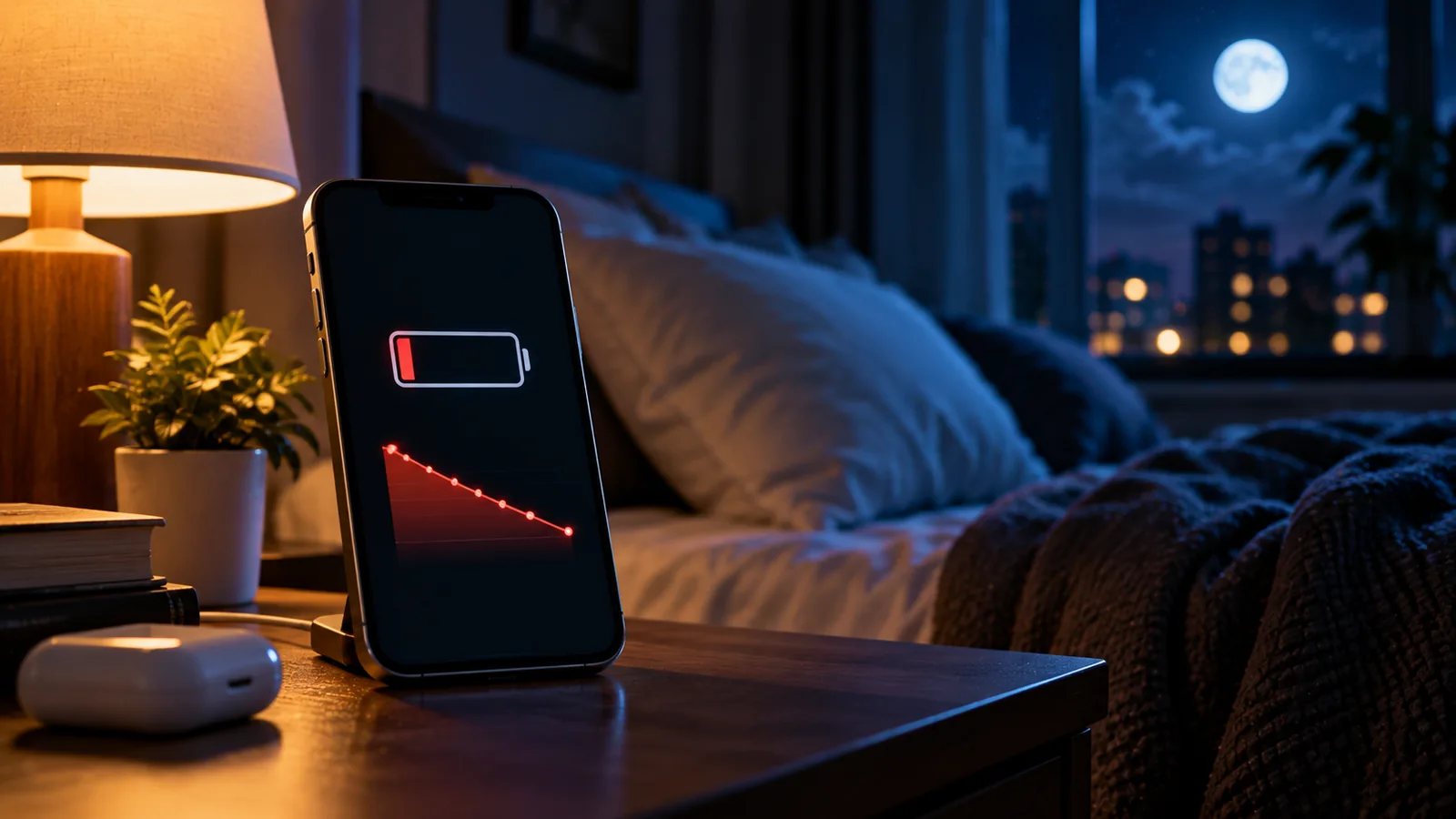
If your phone loses a surprising amount of battery while you sleep, the culprit could be background apps, weak cellular coverage, a recent update, heat, or an aging battery. This practical guide shows how to identify the cause on Android and iPhone rather than guessing or disabling every setting.
Why a sleeping phone still uses power
Turning off the display does not turn off the phone. It can still receive messages, synchronize photos, back up files, refresh apps, search for cellular service, and complete updates. Lithium-ion batteries also age, so some idle drain is normal. The important question is whether the drop is unusual for your device and conditions.
There is no universal overnight percentage that proves a defect. Battery age, signal strength, software version, room temperature, and the number of hours measured all matter. A one-night anomaly is less informative than a repeated pattern.
Run a controlled three-night battery test
Record the battery percentage and time before going to sleep. Leave the phone unplugged and unused in the same place for seven to eight hours, then record the morning percentage. Repeat for three nights, changing just one variable at a time: your normal setup, a suspected app setting, and a connectivity test only if you can safely miss cellular calls.
Subtract the morning reading from the starting reading. A change from 80% to 68% is a loss of 12 percentage points; it is not a direct measurement of lost chemical battery capacity. Keep screen time, temperature, and overnight duration as consistent as possible.
Check battery usage before changing settings
On many Android phones, open Settings > Battery > Battery usage. Some models offer an app-versus-system view; menu names vary among Samsung, Pixel, Xiaomi, and Android versions. Look for unusual background activity that overlaps your sleeping hours.
On iPhone, open Settings > Battery, then View All Battery Usage if available, and inspect the relevant day and activity graph. Apple may show Background Activity, cellular coverage, or other system usage. An app’s percentage of recorded usage is not necessarily the number of battery percentage points it drained.
Cause 1: Background apps, backups, and synchronization
Photo backups, cloud storage, fitness trackers, location services, email fetching, messaging, and large downloads may continue while the screen is off. A new phone or major operating-system update may also be completing temporary setup tasks.
If one app stands out, update it, check its backup schedule and location permission, and restrict background use only when appropriate. Avoid restricting apps you rely on for safety alerts, medical devices, or time-sensitive messages because notifications may be delayed.
Cause 2: Weak cellular signal and network searching
Phones can use additional power when coverage is poor, especially if they repeatedly search for a usable connection. Apple explicitly identifies low cellular coverage as a battery-use factor. Compare nights in locations with different signal strength or check whether the battery report mentions coverage.
Airplane Mode is a diagnostic option, not an automatic recommendation: it blocks cellular calls and texts and may affect other connections. Never use it overnight when you need to remain reachable for emergencies.
Cause 3: Software updates, heat, and battery aging
After a significant update, indexing and other background tasks can temporarily increase consumption. Allow time for setup to finish and review battery insights before assuming permanent damage. Heat also increases power loss and can accelerate battery degradation; do not leave a charging phone buried under pillows.
An older battery may show sudden percentage drops or unexpected shutdowns. Check the battery-health information available on your model or contact the manufacturer. Stop using a device with a swollen battery or abnormal heat and arrange professional inspection.
How to fix overnight drain on Android
Restart the device, install system updates, and update apps through the official app store. In Settings > Battery, inspect app usage and restrict only clear offenders. Pixel phones may offer Battery diagnostics; other Android brands use different menus. Keep Adaptive Battery or battery optimization enabled where supported.
Disable an unused hotspot, reduce unnecessary overnight syncing, and try Battery Saver when appropriate. Note that power-saving modes can delay notifications and background tasks. Avoid random battery-cleaner apps and repeatedly force-closing everything; Android normally manages cached apps automatically.
How to fix overnight drain on iPhone
Open Settings > Battery and inspect the daily graph, background activity, and any insights about an ongoing update or weak coverage. Update iOS and installed apps. Review Settings > General > Background App Refresh and selectively disable nonessential activity when necessary.
Use Low Power Mode temporarily to see whether reduced background work helps. On iPhone 15 and later, Apple documents Settings > Battery > Power Mode; on iPhone 14 and earlier, Settings > Battery. Menu details can vary by iOS version. Low Power Mode changes behavior but does not restore a worn battery’s chemical capacity.
Should you turn off Wi-Fi, Bluetooth, or location overnight?
Not automatically. Turning off everything may interfere with wearables, home automation, alarms, or accessibility features without addressing the actual cause. Let battery-usage evidence guide your changes. A stable Wi-Fi connection may be preferable to weak cellular data in some circumstances.
If an app continuously uses location without a legitimate need, reduce its permission. Turn off an unused hotspot or unnecessary constant location sharing. Keep essential connected devices and emergency communication working.
When to suspect a failing battery or hardware problem
If large drops repeat without unusual software activity, the phone unexpectedly powers off, or the device runs abnormally hot, inspect battery health and consult manufacturer support. Battery wear is one possible explanation, not the only one.
Do not puncture, open, or attempt to repair a swollen battery yourself. A factory reset should be a last resort after backing up your data, and it cannot repair physically degraded cells.
A practical troubleshooting checklist
Night one: note start/end percentages and capture battery-usage evidence. Night two: change one suspected app’s sync or background setting, then compare. Night three: test a connectivity variable only if safe and appropriate. If the drain persists, check battery health and seek device-specific support.
Change one factor at a time. Otherwise, you might improve battery life without ever discovering what caused the problem, making it harder to prevent a recurrence.
Sources and further reading
Official sources: Google Android battery guidance, Pixel battery drain troubleshooting, Apple iPhone battery usage, Apple battery drain troubleshooting, and Low Power Mode.
You may also like
 Technology & How-To
 Chrome Keeps Reloading Tabs? Stop the Right Kind of Refresh
Find why Chrome tabs reload with targeted Memory Saver settings, controlled comparisons, extension checks and diagnostics that protect…
 Technology & How-To
 Google Drive for Desktop Not Syncing? Find the Cause Without Losing Files
Diagnose Google Drive desktop sync failures with a two-direction file test, current interface guidance, and recovery steps that…
 Technology & How-To
 Mac System Data Too Large? Find and Reduce It Safely
Find what is taking up Mac storage, review local backups and app data, understand purgeable space and snapshots,…