
Why Your Home Internet Slows Down Every Evening: Find the Real Bottleneck
A repeatable wired-versus-Wi-Fi testing plan to diagnose evening broadband congestion, household bandwidth saturation, weak mesh connections and slow video calls.
Contents
- First: the five-minute evening slowdown test
- Why internet speed drops during peak evening hours
- 1. More devices are competing for the same connection
- 2. Your neighbourhood or ISP network is busy
- 3. Neighbouring Wi-Fi networks interfere with yours
- 4. A weak mesh connection becomes the bottleneck
- 5. Router hardware, cabling or a scheduled task is limiting speed
- How to fix slow evening internet, in the right order
- Step 1: identify the heaviest users
- Step 2: test Ethernet before changing Wi-Fi settings
- Step 3: improve router and mesh placement
- Step 4: choose Wi-Fi bands deliberately
- Step 5: control bandwidth-heavy tasks
- Step 6: restart only after recording evidence
- Step 7: ask your ISP a specific question
- A simple three-night test plan
- How to read the numbers without misdiagnosing the problem
- Three common situations and what they mean
- Case A: streaming TV and gaming are both slow at 9 p.m.
- Case B: the living room is fast but the upstairs bedroom buffers
- Case C: the speed test is good, but video calls freeze
- When should you upgrade your broadband plan or router?
- Security and reliability checks worth doing
- The bottom line
- Sources and further reading
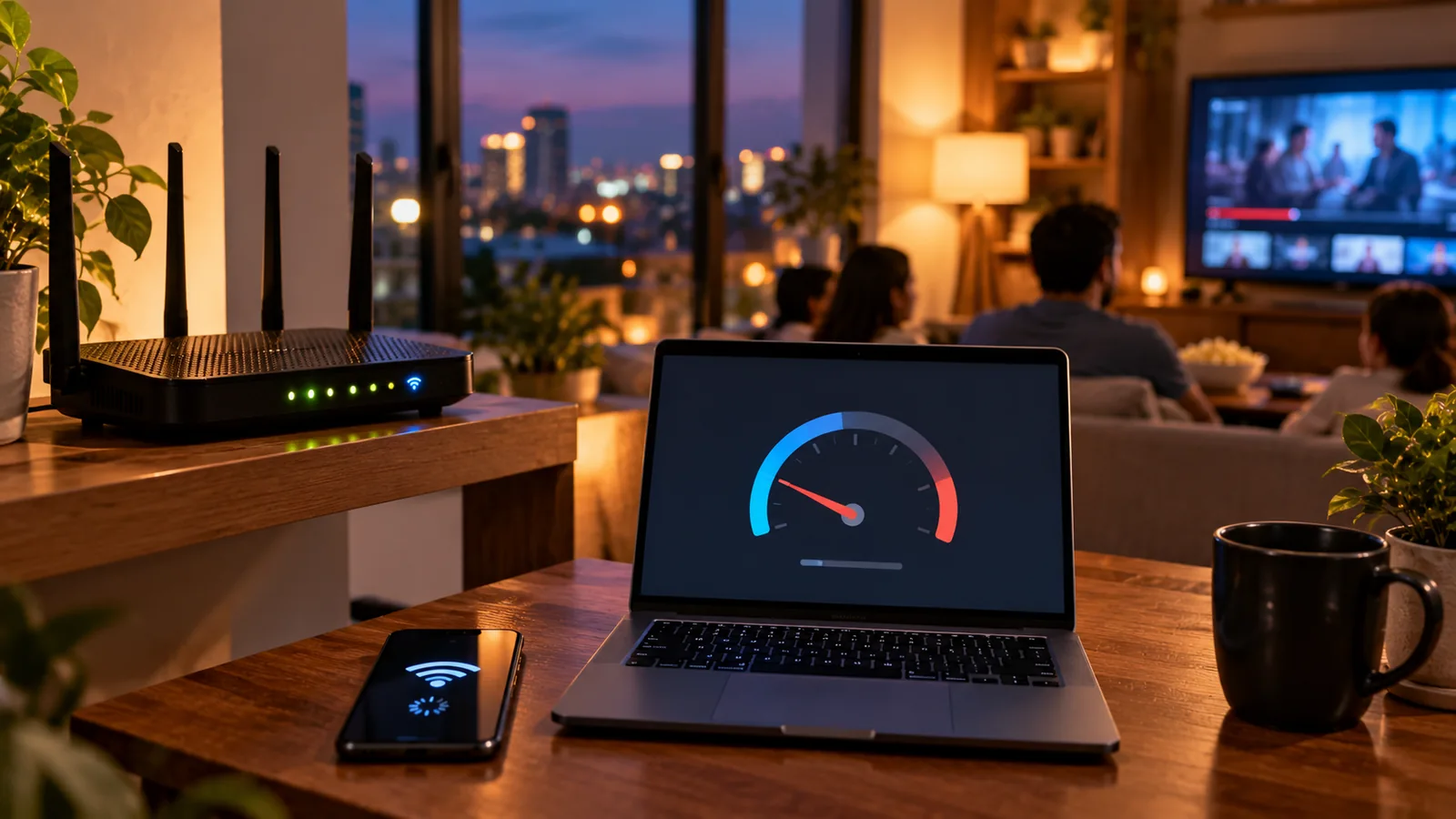
If your internet works well in the morning but crawls between 7 p.m. and 11 p.m., the timing is a useful clue—not a diagnosis. Evening slowdowns can originate inside your home, on a shared neighbourhood connection, or farther away on a content provider’s network. The right fix depends on where the bottleneck appears. This guide uses repeatable tests rather than assuming your internet service provider (ISP) is throttling you.
The fastest way to separate these causes is to compare a wired computer, a nearby Wi-Fi device, and a distant Wi-Fi device at two different times. Keep the same speed-test service and server where possible. Record download, upload and latency, not just the largest download number.
First: the five-minute evening slowdown test
- At a quiet time, test one computer connected by Ethernet directly to your router, if available. Pause cloud backups and downloads. Record download, upload, idle latency and test time.
- Repeat on the same computer at the time of the slowdown. Keep the same test service and server when practical.
- At that same evening time, test a phone one metre from the router, then test it in the room where the problem is worst.
- Open your router or mesh app and inspect connected devices, current usage, WAN speed and any mesh backhaul warnings.
- Repeat on at least two evenings. One bad test can reflect the test server, a software update or a temporary incident.
An Ethernet comparison is particularly valuable: if Ethernet is healthy while Wi-Fi collapses, the broadband line may not be the problem. If Ethernet and Wi-Fi both deteriorate, investigate total household traffic, the router and the ISP. If only one streaming service buffers while other services work, the cause may be application-specific or related to its delivery path.
| Pattern | Likely area | Best next check |
|---|---|---|
| Wired and Wi-Fi both slow only at night | Household saturation, router or upstream congestion | Pause uploads and repeat wired test |
| Wired fast, nearby Wi-Fi slow | Radio interference, band or router settings | Test 5 GHz/6 GHz where supported |
| Nearby Wi-Fi fast, bedroom slow | Distance, walls or weak mesh backhaul | Test near access point and mesh links |
| Only video calls lag; download looks normal | Upload saturation, jitter or packet loss | Stop cloud backups and monitor latency |
| Only one app or website is slow | Service, routing or device issue | Compare another service and device |
Why internet speed drops during peak evening hours
1. More devices are competing for the same connection
The most common explanation is also easy to overlook: streaming televisions, game consoles, cloud photo backups, security cameras and phones can all transfer data at once. A household with a 100 Mbps plan might stream two 4K videos while a console downloads a large game and a laptop uploads files. Each activity can work independently but compete when simultaneous. Google’s slow-internet troubleshooting guidance explicitly lists competing household devices as a cause of network congestion.
Upload matters as much as download. On an asymmetric broadband connection, a large cloud backup may fill the much smaller upload capacity. Video calls, gaming and even ordinary browsing can then feel slow because acknowledgements and requests are delayed. A good download speed test taken after the backup finishes may miss the actual problem.
2. Your neighbourhood or ISP network is busy
Cable, fixed wireless, mobile and other broadband architectures may share capacity across groups of subscribers or network segments. Heavy simultaneous evening use can reveal insufficient capacity or congestion beyond your router. That does not prove intentional throttling. Google notes that ISP and wider network congestion can affect speed during busy periods in its speed-testing guidance. The pattern should be documented before contacting the provider.
A wired slowdown on several evenings with household traffic paused strengthens the case for an upstream issue, but it does not isolate which ISP segment is congested. Routing, a remote test server and modem faults remain possibilities. Ask your provider to review line quality, local utilisation and faults; avoid accusing it of throttling without evidence.
3. Neighbouring Wi-Fi networks interfere with yours
Apartments can have many routers transmitting on overlapping channels. At night, more neighbours are online, so Wi-Fi airtime becomes busier. The 2.4 GHz band reaches farther but often suffers more congestion; 5 GHz and 6 GHz can offer more capacity at shorter distances, subject to your device, router and local regulations. Physical barriers and interference are described in Google’s Wi-Fi performance guidance.
A Wi-Fi analyzer may help identify channel crowding, but signal-strength numbers alone cannot tell you whether the ISP is slow. Before changing channels, compare a device near the router with the same device in the problem room, then use Ethernet as your baseline.
4. A weak mesh connection becomes the bottleneck
A mesh satellite can show strong signal bars to your phone while its own link back to the main router is weak. This is particularly common if a node is placed in the dead zone rather than between the dead zone and the router. Use the manufacturer’s mesh test if available. Google explains that a weak backhaul can reduce performance and reliability.
5. Router hardware, cabling or a scheduled task is limiting speed
Routers can slow down under sustained traffic, heat or heavy processing, especially with some security inspection or traffic-management features enabled. A damaged Ethernet cable or 100 Mbps port can cap throughput; that cap is often visible all day, not just at night, but may become noticeable only when evening demand rises. Check the router’s WAN link speed and cable condition. Do not assume a new router is necessary until you test the existing one.
How to fix slow evening internet, in the right order
Step 1: identify the heaviest users
Open your router app’s device list or traffic statistics. Check smart TVs, game downloads, cloud backup services, photo synchronisation and security cameras. Temporarily pause one activity at a time, then rerun the same evening test. A significant improvement when a backup stops suggests a local capacity problem. If your router has a bandwidth monitor, remember that its totals may be estimates and not all routers provide per-device history.
Step 2: test Ethernet before changing Wi-Fi settings
Connect a laptop with a known-good Ethernet cable. If the laptop has no Ethernet port, use a compatible adapter; avoid assuming a cheap adapter supports gigabit speeds. Turn off the laptop’s Wi-Fi to ensure the test uses Ethernet. Compare results to your plan’s advertised speed, while allowing for protocol overhead and normal test variation. A single test is insufficient evidence of a service fault.
Step 3: improve router and mesh placement
Place the router in an open, elevated and reasonably central position, away from metal cabinets, large appliances and thick obstructions. Do not hide it behind a television. For mesh systems, test backhaul quality and move satellites closer to the main router before adding more nodes. If wired backhaul is available, it may remove a major wireless bottleneck.
Step 4: choose Wi-Fi bands deliberately
Test 5 GHz or 6 GHz for nearby compatible devices that need high throughput. Retain 2.4 GHz for longer-range or legacy smart-home devices if needed. Automatic band steering is often useful; splitting SSIDs is an optional diagnostic, not a universal improvement. Channel selection and width settings depend on local interference, router capability and regulatory rules. Wider channels can be worse in a crowded building.
Step 5: control bandwidth-heavy tasks
Schedule game updates and large cloud backups outside your busiest hours where possible. If your router supports Smart Queue Management (SQM) or well-implemented quality of service (QoS), it may help latency under load by managing queues. Configure it carefully using measured line speeds; incorrect limits can reduce peak throughput. Priority settings are not extra bandwidth and cannot solve a congested ISP segment.
Step 6: restart only after recording evidence
A modem or router restart can resolve some temporary problems, but repeatedly restarting every evening may hide a recurring issue and erase useful logs. First capture test results and error indicators. Then restart using the manufacturer’s instructions, allowing several minutes for reconnection. Do not factory-reset equipment unless you have backed up configuration and know your ISP credentials.
Step 7: ask your ISP a specific question
If wired tests are repeatedly poor at night with household transfers paused, provide the provider with timestamps, the service tier, wired download/upload and latency results, modem event logs if available, and whether neighbours experience similar symptoms. Ask whether there is a known evening capacity issue, line fault, maintenance window or equipment problem. Request a fault reference number and written follow-up where possible.
A simple three-night test plan
| When | Test | What to record |
|---|---|---|
| Day 1, afternoon | Ethernet plus Wi-Fi near router | Down/up Mbps, latency, device, server |
| Day 1, evening | Repeat with household activity unchanged | Time, concurrent streaming/backups |
| Day 2, evening | Pause major downloads/uploads; repeat | Difference in wired and Wi-Fi results |
| Day 3, evening | Test Ethernet, nearby Wi-Fi and distant room | Distance or mesh-related differences |
Keep the same test server where possible. Also note whether video calls break up, websites stall, or only one streaming app buffers. This context matters because speed tests are snapshots and results depend on test endpoints, as Google explains in its testing documentation.
How to read the numbers without misdiagnosing the problem
Download speed is useful for streaming and downloads. Upload speed affects video calls, cloud backups and sending files. Latency is the round-trip delay; jitter is variation in that delay. Packet loss means some packets never arrive and can disrupt calls and games. A fast headline download number can coexist with poor real-time performance when the connection is saturated.
For example, imagine an illustrative 200 Mbps plan with 185 Mbps wired speed at 2 p.m. and 42 Mbps at 9 p.m., while the home’s major uploads are paused. This supports further investigation of an upstream or router issue, but does not identify the precise cause. Conversely, if wired speed remains 185 Mbps and a distant bedroom phone drops to 18 Mbps, Wi-Fi coverage is the better starting point.
Three common situations and what they mean
Case A: streaming TV and gaming are both slow at 9 p.m.
Check whether a console is downloading an update or a backup is running. Pause those tasks, measure wired speed and test a call. If performance recovers immediately, focus on scheduling, household capacity and queue management. If wired performance remains poor, document the pattern for the ISP.
Case B: the living room is fast but the upstairs bedroom buffers
Test the same phone next to the main router and upstairs. Inspect mesh backhaul, building materials and the connected band. Moving a satellite closer to the main router can outperform placing it inside the dead zone. If an Ethernet connection upstairs is possible, use it as a control test.
Case C: the speed test is good, but video calls freeze
Run a call while watching upload traffic and latency under load. A backup saturating upstream bandwidth can harm interactive traffic without causing an obvious drop in a later idle download test. Check Wi-Fi stability and packet loss too. Do not treat a good download number as proof that the entire connection is healthy.
When should you upgrade your broadband plan or router?
Upgrade the plan only if your measured connection consistently reaches its provisioned capacity during busy use and your household genuinely needs more simultaneous bandwidth. Upgrade the router when testing shows it is the limiting component, lacks necessary coverage or features, or is no longer supported with security updates. If wired performance collapses at peak times because of upstream congestion, buying a faster Wi-Fi router is unlikely to fix the underlying issue.
Security and reliability checks worth doing
- Install router firmware updates from the manufacturer or ISP; avoid unofficial downloads.
- Use WPA2-AES or WPA3 where supported and a strong Wi-Fi password.
- Check for unknown connected devices, but remember device names can be misleading.
- Keep the router ventilated and check for overheating or damaged power adapters.
- Avoid changing advanced WAN, DNS or firewall settings randomly; document and reverse one change at a time.
The bottom line
Evening slowdowns are not one problem with one fix. The most informative evidence is a same-device, same-server comparison across time, wired versus Wi-Fi, with household traffic recorded. That separates shared broadband congestion from local saturation and wireless coverage problems. Start with reversible tests, preserve your results, and escalate with evidence rather than guessing.
Sources and further reading
You may also like
 Technology & How-To
 Android Auto Keeps Disconnecting? How to Fix USB and Wireless Dropouts
Android Auto keeps disconnecting? Separate USB, wireless and app failures, check Galaxy USB mode, compare connection methods and…
 Technology & How-To
 Netflix Says Your TV Isn’t Part of the Household? How to Fix It
Fix a Netflix household warning by separating home verification, permanent household updates and temporary travel access, with genuine…
 Technology & How-To
 Google Photos Stopped Backing Up from Your PC? What Changed and How to Fix It
Google Photos stopped backing up your computer folders? Understand the Drive for desktop change, configure browser folder backup…