
WhatsApp Messages Not Sending? Fix Clock and One Tick Issues
WhatsApp messages not sending? Check the clock or one tick, compare Wi-Fi and mobile data, fix Android, iPhone or Web, and protect chats before reinstalling.
Contents
- Identify the symptom before choosing a fix
- A quick test: your network or a wider service issue?
- If the clock remains, start with these steps
- On Android, distinguish cache from app data
- On iPhone, check connectivity before the app
- One tick does not prove you were blocked
- Texts send, but photos or videos fail
- If only a group or WhatsApp Web is affected
- Before reinstalling, verify your recovery options
- When should you contact support?
- Frequently asked questions
- Does a working internet connection prove WhatsApp should work?
- Should I clear app data to fix the clock?
- Do missing blue ticks mean the message failed?
- Official sources
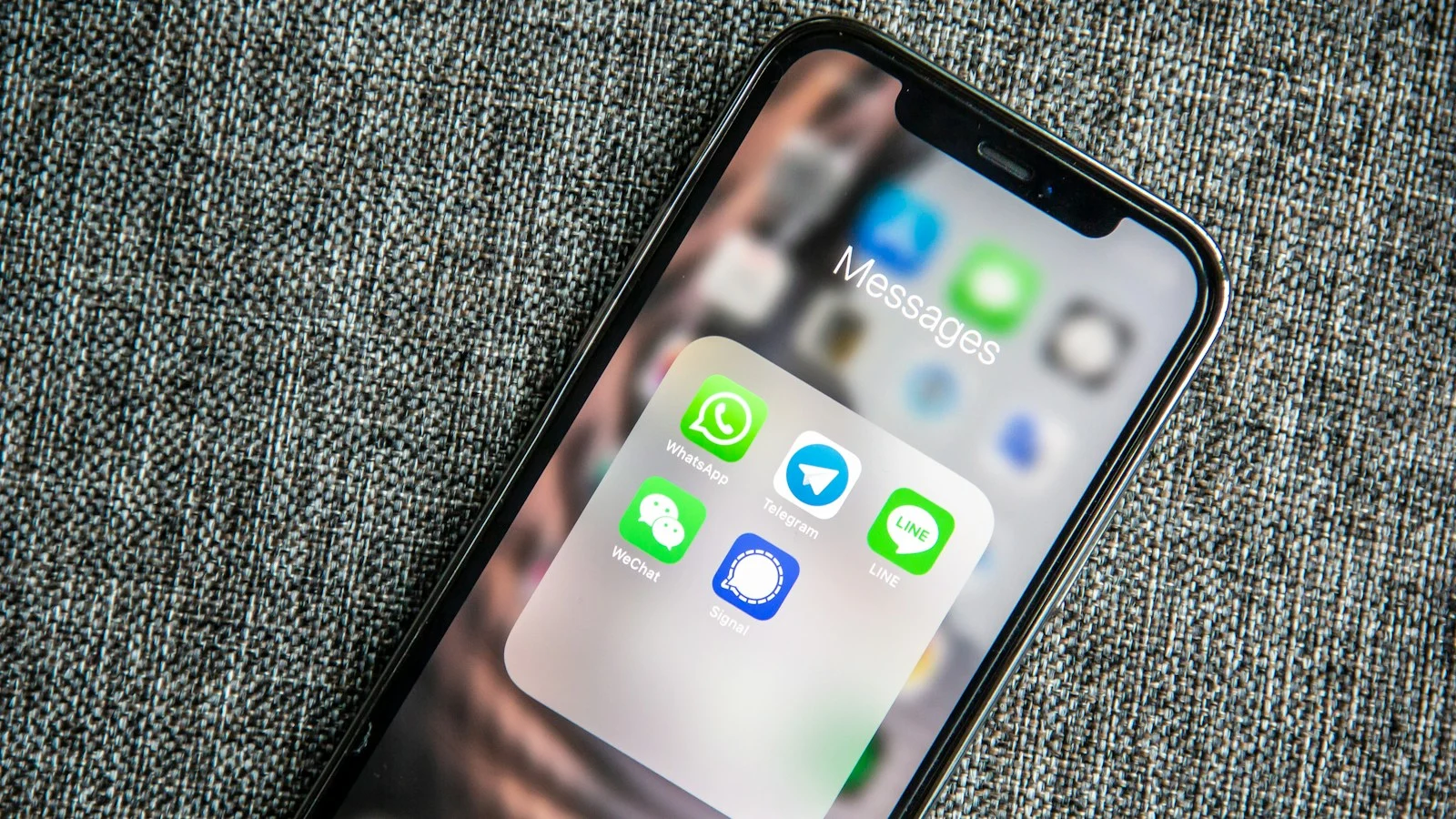
If WhatsApp messages are not sending, start with the symbol beside the message: a clock means it has not been sent, one tick means sent but not yet delivered, and two grey ticks mean delivered. Compare another internet connection and try a short text message before changing app settings or deleting anything.
Information checked: 8 November 2026. This is a troubleshooting guide for Android, iPhone and WhatsApp Web, not a live outage announcement. One failed message does not establish a worldwide service failure.
Identify the symptom before choosing a fix
| What you see | Meaning and first check |
|---|---|
| Clock icon | Not yet sent; test the connection and compare another network. |
| One tick for one person | Sent but not delivered; compare another chat and allow for the recipient being unavailable. |
| Two grey ticks | Delivered; no blue ticks does not mean sending failed. |
| Texts work but a photo fails | Try a small file and check storage and photo permissions. |
| Only the computer has a problem | Start with the computer connection, browser and linked-device session. |
| Messages are present without an alert | Start with notification settings; this differs from a message that never arrives. |
The official read-receipt guide explains that delivery can be to the recipient’s phone or a linked device. The second tick can therefore appear even when their main phone is not connected at that moment.
A quick test: your network or a wider service issue?
- Load a new webpage on the phone rather than relying on a cached page or the Wi-Fi icon alone.
- If you are on Wi-Fi, compare mobile data or another trusted connection if available.
- Try a short text in a normal contact conversation, then compare another chat if necessary. Do not start with a large video.
- Where possible, compare another device on an independent connection and check whether others have the same problem at the same time.
| Comparison result | Practical interpretation |
|---|---|
| Works on mobile data but fails on Wi-Fi | Investigate that Wi-Fi connection or provider before deleting the app. |
| Fails with one person while other chats work | A broad outage is less likely; review the conversation and allow for the recipient’s availability. |
| Fails only on your device across multiple connections | Move on to app and phone checks. |
| Several people on independent networks have the same problem | A wider issue becomes more plausible, but this comparison alone does not confirm a global outage. |
This comparison is a diagnostic aid, not a substitute for a dated official announcement. Check the time of any outage report, and do not treat a business-services status page as a complete consumer-app status report. If the evidence points to a wider problem, avoid repeatedly changing the account while waiting for reliable information.
If the clock remains, start with these steps
- Confirm that mobile data or Wi-Fi is enabled and actually working.
- Briefly turn airplane mode on, then off; once the connection returns, test a text message.
- Close and reopen the app. Restart the phone if the problem continues.
- Update WhatsApp through the official app store, and check system updates if the app is behaving abnormally.
- Check that the date and time are correct and that the device has available storage.
The connection checks are based on WhatsApp’s Help Center. A phone reset or account deletion is not an appropriate first diagnostic step and can introduce additional problems.
On Android, distinguish cache from app data
A typical route is Phone Settings → Apps → WhatsApp → Storage or Storage & cache → Clear cache. Labels vary by manufacturer and Android version. Use the guidance for your device if the menu differs.
Google distinguishes temporary cache from stored app data: Clear cache removes temporary files, while Clear storage or Clear data deletes app data. Do not treat the second button as another name for the first, or delete WhatsApp folders in a file manager to try to force a message through.
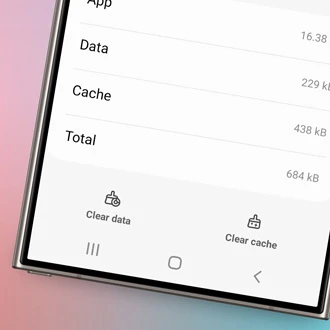
Samsung’s official example distinguishes the two buttons; it is not a WhatsApp screen. For this step, choose Clear cache only. The interface varies by device. Source: Samsung’s official guide
On iPhone, check connectivity before the app
Check that WhatsApp is allowed to use mobile data in the iPhone’s cellular-data settings, then compare Wi-Fi. If the app is unresponsive, close and reopen it, restart the phone and update the app. Apple’s guidance warns that deleting an app can lose stored data, so verify your chat backup first.
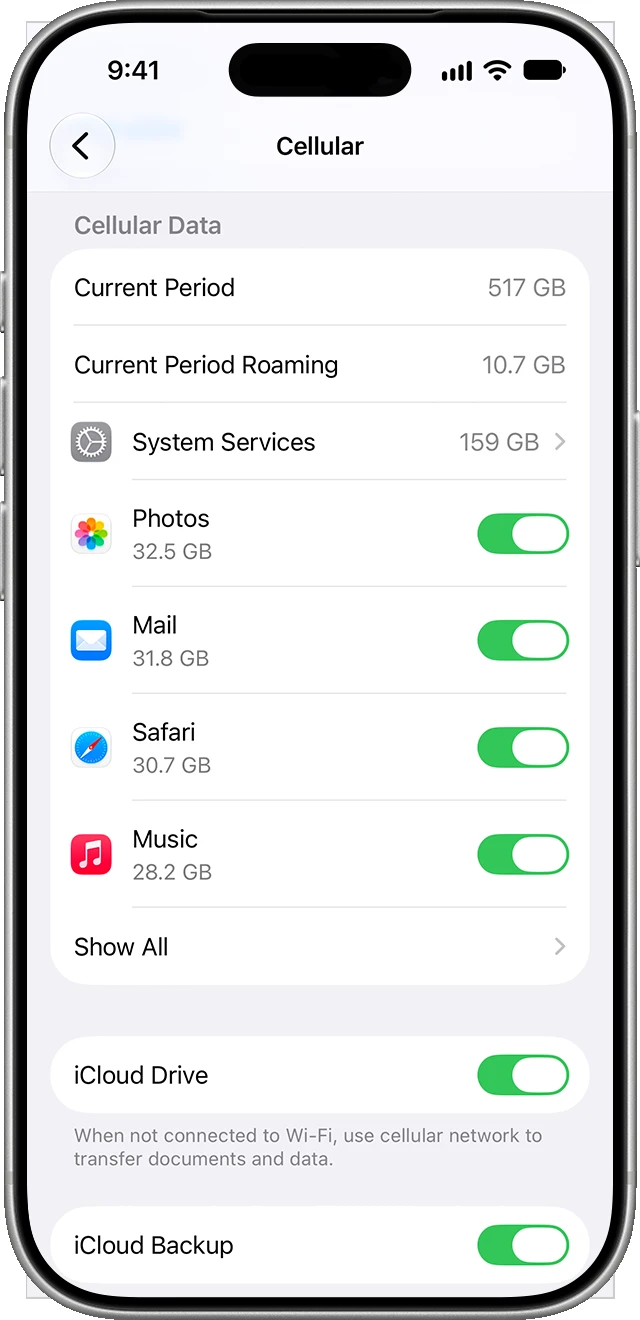
Apple’s official example: scroll to WhatsApp, or open Show All if needed, and check its cellular data permission. WhatsApp is not visible in this general screenshot. Source: Apple’s official guide
One tick does not prove you were blocked
One tick means sent but not yet delivered. The recipient may be offline or otherwise unavailable; blocking is one of several possible explanations. Neither that symbol alone nor an absent last-seen indicator proves blocking. Repeated messages and calls are not a reliable test.
If messages reach other contacts, deleting the app because of one conversation has no clear diagnostic value. Two grey ticks indicate delivery; reading and read-receipt settings are a separate matter.
Texts send, but photos or videos fail
- Try a small photo or another file to distinguish a single-file problem.
- Check device storage and the permission needed for the selected photos without enabling unrelated permissions.
- Compare another connection: loading a small webpage does not guarantee a large video upload will finish.
- If the image sends but looks blurry, troubleshoot image quality rather than treating it as an unsent message.
For further how-to guides, browse Horus Valley in English.
If only a group or WhatsApp Web is affected
In a group, check the sending-permission notice and whether you are still a member. Clearing the cache will not change an admins-only messaging restriction.
On the computer, load a fresh webpage to test the connection, then refresh WhatsApp Web or reopen the app. If the phone works but the computer does not, check the linked-device session and browser. Re-link when needed, but WhatsApp Web does not require the main phone to stay online continuously. See the official Web connection guide.
Before reinstalling, verify your recovery options
- Open WhatsApp Settings → Chats → Chat backup and inspect the last successful backup time and the service or account used.
- For a Google Account or iCloud backup, confirm access to the correct account and the phone number associated with that backup.
- For an encrypted backup, confirm access to the required password, key or other recovery method.
- If your current chats are intact, complete a recent backup on a suitable connection. Do not assume an attempted backup finished successfully.
- If you cannot confirm a recoverable backup, stop before deleting the app and seek help. Reinstallation does not guarantee message recovery.
Follow the backup instructions and chat-restore guidance for the platform and backup service available to your account; options can vary by version. Messages newer than the last successful backup may not return on restoration.
When should you contact support?
If the basic checks do not resolve it, use in-app Help to tell WhatsApp support your phone model, OS and app version, when the issue began, the visible message symbol and the result on Wi-Fi versus mobile data. Redact names, numbers and private content from any screenshot. Do not share verification codes or backup keys.
Frequently asked questions
Does a working internet connection prove WhatsApp should work?
Loading another site proves at least some connectivity, not that the path to WhatsApp is working. Compare another connection before changing account settings.
Should I clear app data to fix the clock?
Start with connectivity, restarting and updates. Clearing app data differs from clearing cache and can lose local data; it is not an appropriate first step.
Do missing blue ticks mean the message failed?
No. Check delivery first; reading and read receipts have settings and conditions separate from sending.
Official sources
You may also like
 How-To Guides
Microsoft Authenticator Backup Not Restoring on a New Phone? Fix Missing Accounts and Codes
Microsoft Authenticator missing accounts after changing phones? Fix Android and iPhone backup recovery, work account re-registration, wrong codes,…
 How-To Guides
iOS 27.2 Stuck on Verifying Update? Safe Fixes Without Erasing Your iPhone
Stuck on Verifying Update after iOS 27.2? Follow Apple-based Wi-Fi, storage, re-download and Mac/Windows steps—and learn when Restore…
 How-To Guides
Windows Secure Boot Certificates Expired in 2026: How to Check and Fix Your PC
Microsoft Secure Boot certificates expired in June and October 2026. Learn how to check 2023 certificate updates, read…