
WhatsApp Backup Stuck at 99% on Android? Fix It Without Losing Chats
WhatsApp backup stuck at 99% on Android? Follow safe, official troubleshooting steps for Google storage, Wi-Fi, videos and backup verification without losing chats.
Contents
- First: protect your existing chats before troubleshooting
- What does 99% actually mean?
- Step 1: confirm whether the backup is really stuck
- Step 2: check the two different storage limits
- Step 3: temporarily exclude videos to reduce the backup size
- Step 4: test the network without introducing new interruptions
- Step 5: restart the phone and update the relevant apps
- Step 6: check the selected Google Account and permissions
- Step 7: check battery optimization and background restrictions
- Step 8: consider cache cleanup, but understand the difference between cache and data
- Step 9: if the problem began after changing phones
- What if the backup gets stuck at 0%, 99%, or 100%?
- Special cases: Samsung, Pixel, Xiaomi and other Android phones
- Samsung Galaxy
- Google Pixel
- Xiaomi, Redmi, POCO, OPPO and vivo
- What to do before an advanced reset or reinstall
- Decision table: choose the next safe action
- How to confirm that the backup finally completed
- When to contact WhatsApp support
- The bottom line
- Official sources and further reading
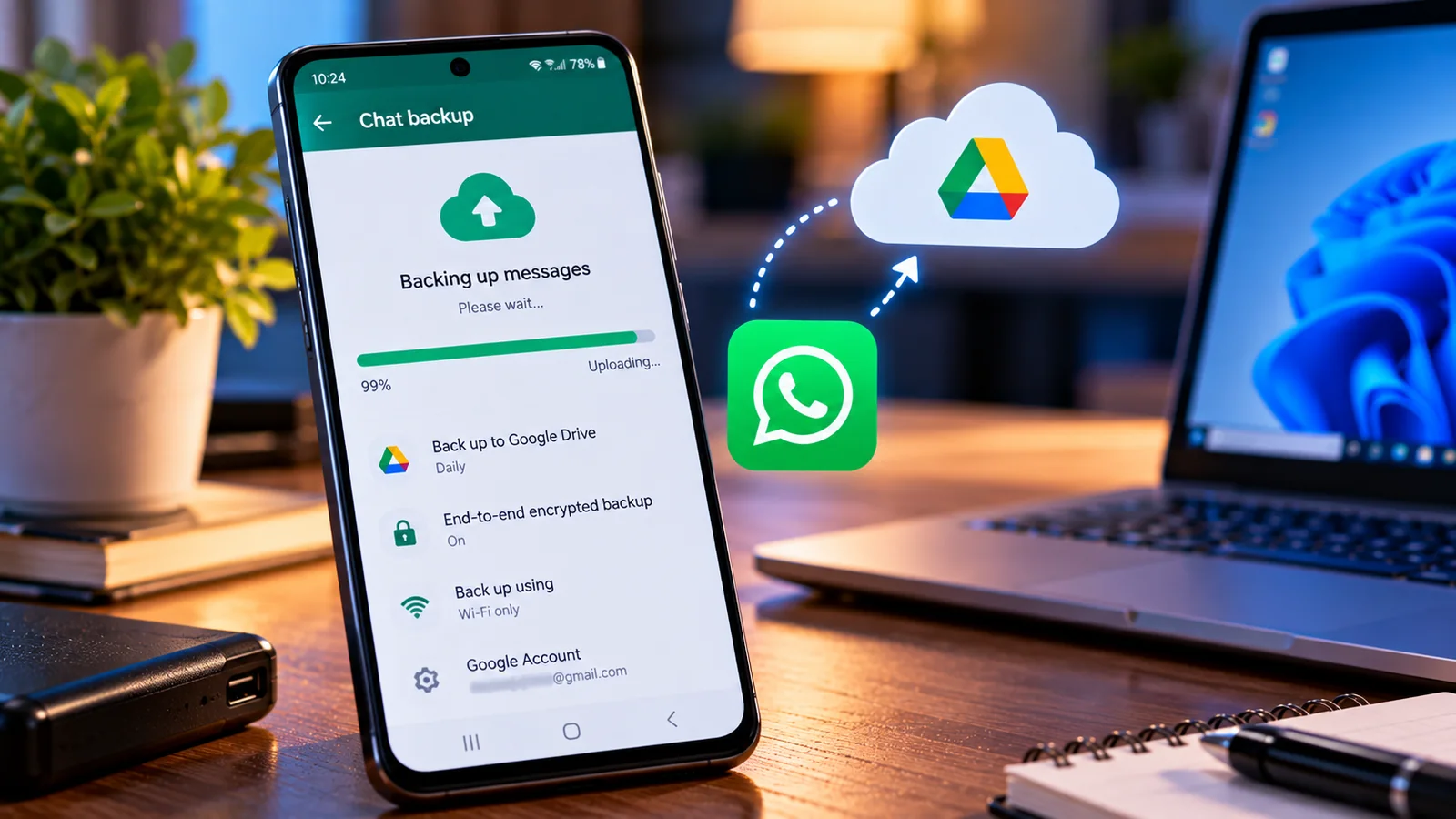
A WhatsApp backup stuck at 99% on Android can be especially worrying when you are about to change phones or reset your device. The percentage may stop moving during local preparation, media processing, encryption, or upload to your Google Account. A frozen-looking progress indicator does not by itself prove that the backup is corrupt, but repeatedly interrupting the process can increase the risk of ending up with an incomplete backup.
Quick answer: Keep the phone powered and connected to stable Wi-Fi, check the date and size of the last successful backup, and allow extra time for large media uploads. If there is no progress after a reasonable wait, check both phone storage and Google Account storage, disable video inclusion temporarily, update WhatsApp and Google Play services, and retry. Do not uninstall WhatsApp, clear its app data, delete its cloud backup, or reset the phone until you have independently verified a recoverable copy of your chats.
First: protect your existing chats before troubleshooting
The safest repair is the one that preserves the only readable copy of your conversations. WhatsApp explains that it cannot recover chats from its servers for you, and that a new Google Account backup overwrites the previous backup associated with the same phone number. Treat the current phone as the primary source of truth until you have confirmed a usable backup.
- Do not uninstall WhatsApp or clear Storage/Data for WhatsApp in Android Settings merely to fix a progress bar.
- Do not delete the WhatsApp backup in Google One to free space unless you understand that deletion is permanent.
- If switching phones, keep the old phone intact and signed in until the new phone shows the expected chats and media.
- Write down the Google Account and WhatsApp phone number used for the backup; both matter when restoring.
- If encrypted backups are enabled, preserve the password or recovery key and review the current recovery method before changing devices.
What does 99% actually mean?
WhatsApp may spend time preparing its local database, calculating the backup, encrypting it, and uploading or finalizing files. The visible percentage does not necessarily correspond to a single network transfer. For example, the messages may be prepared while large videos are still uploading, or the app may be completing background work after the display reaches 100%. WhatsApp specifically notes that background media work can continue after 100%, and advises waiting a few hours in that case.
| 99% for a short time | Large backup or finalization | Charge phone and wait on stable Wi-Fi |
|---|---|---|
| 99% for hours, no recent backup time | Upload or storage interruption | Check account quota and local free space |
| Preparing backup stays stuck | Local processing or media size | Restart once; exclude videos temporarily |
| Only one Google Account fails | Account access, permissions or quota | Verify selected account and account sync |
| Backup finishes but new phone cannot restore | Wrong number/account, encryption or damaged backup | Do not wipe old phone; verify backup details |
Step 1: confirm whether the backup is really stuck
Open WhatsApp → Settings → Chats → Chat backup (menu labels can vary by version). Check the most recent successful backup date, the Google Account, the size displayed if available, and whether the status or upload amount changes. A large first-time backup can take much longer than an incremental backup. Avoid restarting the process every few minutes, because that can prevent completion.
Leave the phone connected to a charger, keep it on a reliable Wi-Fi network, and give a large backup meaningful time to finish. If the percentage has been stationary for several hours, record the status and proceed systematically. If the notification is stuck at 100%, WhatsApp recommends waiting a few hours because background operations may still be finishing.
Step 2: check the two different storage limits
A WhatsApp backup needs room on the phone for local preparation and in the Google Account for cloud storage. Free space on your phone does not compensate for a full Google Account, and a paid Google plan does not solve a nearly full phone. WhatsApp backups on Android count toward the shared Google storage limit that is also used by Drive, Gmail and Photos.
- Check device storage in Android Settings → Storage. Free space safely by removing downloads or files you have independently backed up.
- Check Google storage at Google One storage; confirm you are viewing the same account selected in WhatsApp.
- Emptying Google Drive Trash or Gmail Trash can help when those items still count toward your quota; allow time for the storage display to update.
- Avoid deleting the existing WhatsApp backup to make space. Google warns that a deleted backup cannot be recovered.
Step 3: temporarily exclude videos to reduce the backup size
Videos can dominate the size of a WhatsApp backup, especially in long-running group chats. In WhatsApp → Settings → Chats → Chat backup, turn off Include videos and try again. This changes what is included in future backups; it does not remove videos from your phone. If the backup completes without videos, the likely issue is related to size, available storage, connection stability, or processing a large media collection.
If you later decide to include videos again, make sure both storage limits and network conditions can handle the larger backup. For important video files, keep an independent copy rather than relying on a single cloud backup.
Step 4: test the network without introducing new interruptions
A connection can be fast for browsing yet unstable for a long upload. If possible, use reliable home Wi-Fi, move closer to the router, and pause heavy downloads on other devices. WhatsApp suggests toggling Wi-Fi or trying another network or mobile data, but cautions that switching repeatedly between networks during an active backup may cause timeouts.
- Try one stable network for the entire attempt.
- Temporarily disable VPN or network filtering if it is blocking Google services, then retry; restore it afterward if needed.
- Check whether Data Saver or an aggressive battery-saving mode restricts WhatsApp background traffic. Menu names differ among Android manufacturers.
- If you test mobile data, consider carrier limits and possible data charges before uploading a large backup.
Step 5: restart the phone and update the relevant apps
If the process remains stalled, restart Android once, reopen WhatsApp, and retry with the phone charging. Update WhatsApp through the Play Store and check for an available Google Play services update. These are among the measures in WhatsApp’s official troubleshooting instructions. Update Android itself if a stable update is available and you have protected your data.
Avoid downloading “WhatsApp backup repair” APKs from untrusted websites. They may require access to sensitive chats, credentials, or encryption materials and often cannot repair a corrupted encrypted backup.
Step 6: check the selected Google Account and permissions
Open WhatsApp’s Chat backup screen and confirm the selected Google Account. A phone can have several Google Accounts, and the account that stores the backup may differ from the one you use most often. WhatsApp also advises checking its Photos and videos permission when Google Account backup errors appear.
- Confirm that the Google Account shown in WhatsApp has enough free cloud storage.
- In Android Settings → Apps → WhatsApp → Permissions, review relevant permissions, especially Photos and videos, where present.
- If WhatsApp reports an account access error, try Android Settings → Accounts → your Google Account → Account sync → Sync now, where supported.
- Removing and re-adding a Google Account is an advanced official troubleshooting step for specific account errors; make sure you know the credentials and have access to two-step verification before trying it.
Step 7: check battery optimization and background restrictions
Some Android skins limit background activity aggressively. A backup may pause when the screen locks or the device enters deep power-saving mode. Check Settings → Apps → WhatsApp → Battery and allow normal background activity while the backup runs. On Samsung, also review Sleeping apps and power saving; on Xiaomi, OPPO and similar devices, battery controls may have different names.
These settings are diagnostic aids, not guarantees. Restore your preferred power-saving settings after the backup succeeds, and avoid disabling security protections unnecessarily.
Step 8: consider cache cleanup, but understand the difference between cache and data
If the Play Store or Google Play services behaves abnormally, clearing an app’s cache may be a low-impact diagnostic step. However, clearing WhatsApp storage/data is not equivalent: it can remove local app state and create a serious risk of chat loss when there is no verified backup. Do not treat instructions to clear all app data as a routine solution to a stuck WhatsApp backup.
Likewise, avoid deleting WhatsApp’s local database folders or renaming backup files unless you have a carefully verified, separate copy and know exactly how your app version stores them. Android file locations and access permissions vary by version.
Step 9: if the problem began after changing phones
A Google Account backup is associated with a WhatsApp phone number and Google Account. If you have changed either, a missing backup may be an identity mismatch rather than a failed upload. The new phone should use the same relevant account and phone number when attempting to restore. If you changed numbers, use WhatsApp’s supported Change Number workflow on the old phone before relying on a new backup.
Never wipe the old phone merely because the new phone displays an empty chat list. Keep the source device untouched while you verify whether the backup is visible and whether WhatsApp offers the correct restore during initial setup.
What if the backup gets stuck at 0%, 99%, or 100%?
| Preparing / 0% | Local preparation or queued upload | Phone storage, app version, permissions |
|---|---|---|
| Uploading but frozen mid-way | Network interruption or oversized media | Stable Wi-Fi, Google quota, exclude videos |
| 99% | Final media upload or finishing work | Wait, check backup timestamp, avoid repeated restarts |
| 100% but notification remains | Background tasks may still run | Wait a few hours per WhatsApp guidance |
| Restore stuck at 99% | Downloading or rebuilding restored data | Correct account/number, connection, available storage |
Special cases: Samsung, Pixel, Xiaomi and other Android phones
Samsung Galaxy
On Galaxy phones, check whether Power saving or Sleeping apps has restricted WhatsApp. Review Settings → Apps → WhatsApp → Battery, and test with the phone charging. Exact One UI labels depend on the device and version.
Google Pixel
On Pixel, inspect app battery usage and Data Saver settings. Keep the phone connected to Wi-Fi and power, and use the official Play Store for WhatsApp and Google Play services updates.
Xiaomi, Redmi, POCO, OPPO and vivo
These manufacturers may have additional background activity or auto-start controls. Allow WhatsApp to run normally during the backup and avoid task-killer utilities that force-stop it. Settings vary by model, so use the built-in Settings search for Battery, Background activity or Data Saver.
What to do before an advanced reset or reinstall
WhatsApp’s support page lists reinstalling the app as a later troubleshooting option. However, reinstalling WhatsApp when the backup is stuck can permanently strand the only complete chat history on the current phone. Do not do it as an early repair step. First establish that a recent backup exists, that the Google Account and phone number match, and that you can satisfy any encrypted-backup recovery requirements.
If the phone still opens your conversations normally, prioritize preserving that working copy. When a restore fails because the cloud backup is corrupted, WhatsApp says it cannot restore the damaged backup on your behalf. This is why prevention and verification matter more than aggressive cleanup.
Decision table: choose the next safe action
| Google Account storage full | Free unrelated cloud storage or expand quota | Deleting the only WhatsApp backup |
|---|---|---|
| Phone storage almost full | Safely free local space | Clearing WhatsApp data |
| Huge backup with videos | Disable Include videos and retry | Repeatedly killing the app |
| Wrong Google Account selected | Choose correct account, verify access | Blind account removal |
| Backup shows 100% | Wait for background work | Immediate reinstall |
| Old phone still has chats | Keep it intact until verified transfer | Factory reset or trade-in |
How to confirm that the backup finally completed
Return to WhatsApp → Settings → Chats → Chat backup. Look for an updated successful backup time and confirm the selected Google Account. Review the backup size if the interface provides it. A progress bar disappearing is encouraging, but the updated timestamp and correct account are better evidence that a recent backup was created.
If you plan to migrate, do not assume the cloud copy is complete merely because a notification vanished. Verify the restore path and encrypted-backup recovery details before erasing the source phone. If the backup is unexpectedly small after excluding videos, remember that those videos are intentionally not included.
When to contact WhatsApp support
If the backup repeatedly fails despite sufficient phone and Google storage, a stable network, correct account, current app versions and a smaller media selection, use WhatsApp’s in-app support route. Include the phone model, Android version, WhatsApp version, the exact error message, the stage where it stops, and whether the last successful backup time updates. Do not send chat exports, private encryption keys, verification codes, or account passwords to strangers claiming to be support.
The bottom line
A WhatsApp backup frozen at 99% is not automatically lost. The most productive fixes are usually to wait long enough for finalization, ensure both storage locations have room, use a stable connection, reduce video-heavy backup size, and check the Google Account and app updates. Keep the working chats on your original phone until a reliable backup or transfer is confirmed; protecting the data is more important than forcing the percentage to move.
Official sources and further reading
- WhatsApp Help Center — Can’t back up or restore your chat history
- WhatsApp Help Center — About Google Account backups
- WhatsApp Help Center — How to back up your chat history
- Google Account Help — Manage your storage in Drive, Gmail and Photos
- Android Help — Back up or restore data on your Android device
You may also like
 Technology & How-To
 NHS App Prescription Not Showing? Check GP Approval, Pharmacy Status and Tracking
Find out why a prescription or medicine is missing from the NHS App in England. Separate repeat requests,…
 Technology & How-To
 Google Wallet Not Working After Switching Phones? Fix Card Setup and Tap to Pay
Google Wallet transferred but tap to pay fails? Separate card verification, bank approval, NFC, screen lock and device…
 Technology & How-To
 iCloud Family Sharing Not Working? Why You Still See 5GB and How to Fix It
Still seeing 5GB after joining an iCloud family plan? Check the account, invitation, sharing settings, personal plan and…