
How to Stop OneDrive From Syncing Everything Without Losing Files (Windows 11 & 10)
Stop OneDrive syncing Desktop, Documents, Pictures, or unwanted folders without accidentally deleting files. Safe steps for Windows 11 and 10, Files On-Demand, and unlinking.
Contents
- Quick answer: Which OneDrive setting should you change?
- Understand the three different things OneDrive calls syncing
- 1. Known Folder Backup: Desktop, Documents, and Pictures
- 2. Syncing files already stored inside OneDrive
- 3. Files On-Demand and local availability
- Before you start: A five-minute file safety check
- Method 1: Stop OneDrive backing up Desktop, Documents, or Pictures
- What if your Desktop or Documents looks empty after stopping backup?
- Method 2: Choose which OneDrive folders sync to this PC
- Method 3: Pause OneDrive syncing without changing your folders
- Method 4: Stop OneDrive from downloading everything to your SSD
- Method 5: Unlink OneDrive from your Windows PC
- Method 6: Uninstall OneDrive without deleting your cloud data
- Stop OneDrive from automatically starting with Windows
- How to keep Desktop files local instead of in OneDrive
- How to prevent OneDrive from syncing Photos and screenshots
- Why files keep reappearing after you delete them
- OneDrive says “Your files are being synced” even after a change
- OneDrive storage is full: What to do before deleting files
- How to tell whether a file is stored locally, in OneDrive, or both
- Troubleshooting: Manage backup is missing or grayed out
- Troubleshooting: “Some files couldn’t be moved”
- Troubleshooting: Files disappeared after unlinking OneDrive
- OneDrive and Windows 11: Is it safe to disable sync?
- A practical setup for people who want selective OneDrive backup
- Mistakes to avoid when turning off OneDrive
- Official Microsoft sources and further reading
- Bottom line
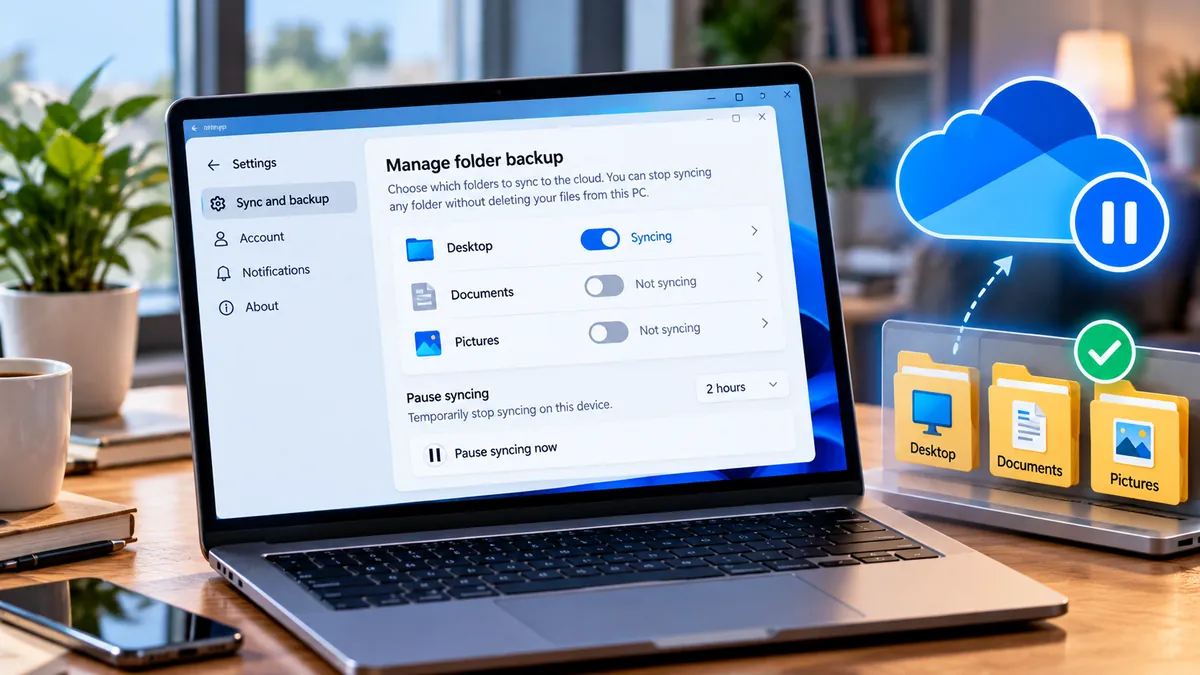
OneDrive can be useful until it begins backing up your Desktop, Documents, or Pictures unexpectedly, filling your cloud storage, consuming bandwidth, or making files appear in different locations. The solution is not always to uninstall OneDrive. You can stop individual folder backups, exclude cloud folders from a particular PC, pause syncing, or unlink the device. This guide explains which option to choose, what happens to existing files, and how to avoid accidental deletion.
Important: Before changing a setting, open OneDrive on the web and File Explorer to confirm where your important files exist. If you need a local-only copy, download it first and verify that it opens. The exact wording of OneDrive menus can change with app updates, account type, and organization policies.
Quick answer: Which OneDrive setting should you change?
- Desktop, Documents, or Pictures automatically backing up: OneDrive cloud icon → Settings → Sync and backup → Manage backup.
- Only certain folders from OneDrive should appear on this PC: Settings → Account → Choose folders.
- Need a short break: OneDrive cloud icon → Pause syncing, then choose a duration.
- Want this computer disconnected entirely: Settings → Account → Unlink this PC.
- Want cloud files without using much local disk space: Use Files On-Demand and Free up space rather than deleting files.
Understand the three different things OneDrive calls syncing
1. Known Folder Backup: Desktop, Documents, and Pictures
OneDrive can redirect common Windows folders into its cloud-backed location. This is why files that once appeared under a normal local Desktop or Documents path may now be stored inside a OneDrive path. Turning this feature off is different from deleting your OneDrive account.
2. Syncing files already stored inside OneDrive
Files and folders inside the OneDrive directory can synchronize with the cloud. Choose folders controls which cloud folders are represented on a particular computer; it does not automatically turn off the separate Desktop/Documents/Pictures backup feature.
3. Files On-Demand and local availability
A cloud-only file can appear in File Explorer without its full contents being downloaded. An offline file uses local storage. A green check or cloud status icon indicates availability, but its appearance can vary. Do not assume a file is fully downloaded merely because its name is visible.
Before you start: A five-minute file safety check
- Open File Explorer and locate a few important files in Desktop, Documents, and Pictures. Right-click one and inspect its location or use Properties to determine whether it is in a OneDrive path.
- Sign in to OneDrive on the web using the same account. Confirm whether those files appear online and whether the latest versions are present.
- For irreplaceable documents or photos, make an independent backup on an external drive or another trusted destination. Syncing is not a substitute for an independent backup.
- If a file shows a cloud-only status, right-click and choose Always keep on this device, then wait for downloading to finish before you rely on an offline copy.
- Check whether the OneDrive account is personal or managed by work or school. Organization policies may prevent some changes.
Method 1: Stop OneDrive backing up Desktop, Documents, or Pictures
This is the most relevant method when Windows seems to upload everything from your Desktop or when Documents suddenly has a OneDrive path.
- Select the OneDrive cloud icon in the Windows notification area. Use the hidden-icons arrow if necessary.
- Open the gear icon or Help & Settings, then choose Settings.
- Select Sync and backup, then Manage backup.
- Find Desktop, Documents, or Pictures and turn off the backup toggle for the folder you want to stop backing up.
- Read the next prompt carefully. Depending on the version, OneDrive may offer to keep the files in OneDrive or keep them on this PC. Select the option that matches where you want the files stored.
- If OneDrive says some files could not be moved, make cloud-only files available locally first, wait for the download, and try again.
- After completion, open the original Windows folder and confirm your files are present before deleting or moving anything.
Critical difference: Microsoft documents a choice between keeping files only in OneDrive and keeping them only on your PC in the current Windows folder-backup flow. These are not equivalent. Choosing the cloud-only option can remove local copies; choosing PC-only can remove the corresponding cloud copies. Verify your desired outcome and maintain an independent backup first.
Official instructions: Microsoft — Back up your folders with OneDrive.
What if your Desktop or Documents looks empty after stopping backup?
The files may still be inside the OneDrive Desktop or Documents folder, rather than the newly restored local Windows folder. Do not immediately delete the OneDrive directory. Open File Explorer and inspect both locations, then check the OneDrive website. If a shortcut labeled “Where are my files” appears, it may point to the OneDrive folder that still contains the data.
- Check the folder shown by the “Where are my files” shortcut, if available.
- Confirm the files exist and are fully downloaded if you need them offline.
- Copy files to the desired local folder, preferably after making a separate backup. Copying first is safer than moving when the location is uncertain.
- Open several copied files to confirm they work.
- Only then decide whether the cloud versions should remain or be removed. Deleting an item from a syncing OneDrive folder can delete its cloud copy too.
Method 2: Choose which OneDrive folders sync to this PC
Choose folders is useful if you want to keep OneDrive connected but do not want every cloud folder to be visible or synchronized on one Windows computer.
- Select the OneDrive cloud icon and open Settings.
- Go to Account.
- Choose Choose folders.
- Uncheck cloud folders that you do not need on this computer.
- Select OK and allow OneDrive to update File Explorer.
- Open OneDrive on the web to confirm the unchecked folders remain available in the cloud.
According to Microsoft, folders excluded through Choose folders are removed from that PC but remain available online. You generally cannot use this screen to exclude certain protected or backed-up locations, including Desktop, Documents, Pictures, or Personal Vault. For those locations, use Manage backup instead.
Source: Microsoft — Choose which OneDrive folders to sync.
Method 3: Pause OneDrive syncing without changing your folders
If OneDrive is uploading a large batch of files or slowing your internet connection, pausing is a reversible short-term measure. It does not permanently change backup settings.
- Select the OneDrive cloud icon in the notification area.
- Choose Pause syncing.
- Select the available duration, such as two, eight, or 24 hours.
- Resume when ready, or allow the app to resume automatically.
Quitting OneDrive also stops the desktop sync process until the app is started again, but does not remove files or disable the backup configuration permanently. This option is useful for troubleshooting, not as a permanent fix.
Method 4: Stop OneDrive from downloading everything to your SSD
If the problem is low disk space rather than unwanted cloud uploads, Files On-Demand is often the better solution. It lets you keep files listed in File Explorer without downloading every file in full.
- Confirm OneDrive is running and Files On-Demand is available in your current OneDrive version.
- In File Explorer, open your OneDrive folder.
- Right-click a large file or folder that you do not need offline.
- Choose Free up space, if offered.
- Wait for the status to change, and test that the file is still visible online.
Do not select Delete when your goal is only to reclaim local disk space. Delete can synchronize the removal to OneDrive and other devices. Free up space removes the local downloaded contents while retaining the cloud item.
Files On-Demand requires internet access to open cloud-only files. Keep essential travel, school, or work files offline if you need them without a connection. Microsoft overview: Sync your computer’s files and folders with OneDrive.
Method 5: Unlink OneDrive from your Windows PC
Unlinking is appropriate if you want to stop all synchronization on this device while leaving the account and its online files intact.
- Check OneDrive on the web and make sure any files you want offline have been downloaded.
- Open the OneDrive cloud icon → Settings → Account.
- Select Unlink this PC and confirm.
- Inspect the local OneDrive folder and the online account separately after unlinking.
- If you later reconnect, review the backup prompts carefully rather than accepting every default.
Microsoft explains that unlinking does not erase your cloud account. However, cloud-only files may no longer be accessible locally, while files already downloaded may remain on the PC. Verify file status before unlinking. Source: How to remove an account in OneDrive.
Method 6: Uninstall OneDrive without deleting your cloud data
Uninstalling the OneDrive application is different from deleting files stored in OneDrive. If you no longer need the desktop client, first confirm the files you want are accessible online or have a separate local backup. Then open Windows Settings → Apps → Installed apps (or Apps & features), find Microsoft OneDrive, and choose Uninstall if available.
Uninstalling does not by itself erase your OneDrive cloud storage, but it also does not automatically move all backed-up Desktop, Documents, or Pictures content into their original local folders. Fix folder locations and verify copies before uninstalling. Some Windows installations handle the built-in app differently.
Official instructions: Turn off, disable, or uninstall OneDrive.
Stop OneDrive from automatically starting with Windows
If you want the app installed but not running every time Windows starts, inspect OneDrive Settings → General for a startup preference, or Windows Settings → Apps → Startup and turn off Microsoft OneDrive when the entry is available. This is a convenience setting, not a replacement for Manage backup. Syncing may restart when you launch the app again.
How to keep Desktop files local instead of in OneDrive
If you prefer a local-only Desktop, first stop Desktop folder backup using Manage backup and select the correct keep-on-PC option when offered. Then verify the location of the Desktop folder and that the files are present. For older app versions where files remain in OneDrive, download or copy them back into the local Desktop folder. Do not delete the cloud-backed Desktop folder until you have verified the local copies.
Be especially careful if multiple PCs share one OneDrive account. A deletion or folder move on one syncing computer can affect the other computer. Changing a backup setting on one device does not necessarily change the same setting on another.
How to prevent OneDrive from syncing Photos and screenshots
Pictures folder backup on Windows is controlled separately from the OneDrive mobile camera-upload feature. Turn off Pictures in Manage backup if you do not want Windows Pictures backed up. If you also use OneDrive on iPhone or Android, check the app’s camera-upload setting separately. Stopping one does not necessarily stop the other.
Why files keep reappearing after you delete them
Common explanations include a second connected device, a still-enabled known-folder backup, or an application saving into the OneDrive folder. Inspect the file path and OneDrive activity before assuming the service is malfunctioning. Do not repeatedly delete important files to test the behavior; create a disposable test document instead.
OneDrive says “Your files are being synced” even after a change
Give the client time to finish pending operations and inspect its activity panel. If the app still appears to sync an unwanted folder, verify that you changed the correct setting: Manage backup for protected Windows folders, Choose folders for other OneDrive cloud folders, or Unlink this PC for the entire device. If a work or school policy forces backup, contact your administrator rather than attempting risky workarounds.
OneDrive storage is full: What to do before deleting files
Stopping future backup does not necessarily remove files that have already been uploaded, so your cloud storage may remain full. Check storage usage on OneDrive on the web. Download or independently back up anything important before deleting cloud items. Remember that removing files from a currently syncing folder can remove them from other connected devices. Also inspect the OneDrive recycle bin and retention behavior before relying on recoverability.
How to tell whether a file is stored locally, in OneDrive, or both
- File path: A path under a OneDrive folder indicates it is managed by OneDrive when syncing is active.
- Cloud status icon: Usually means the item is online-only and requires a download to open offline.
- Green check: Usually means it is available locally, though the exact icon varies with status.
- Always keep on this device: Requests that the file remain downloaded for offline use.
- Check the web: Sign in to OneDrive on the web to verify the cloud copy exists.
- Independent backup: A separate copy outside OneDrive protects against sync mistakes and accidental deletion.
Troubleshooting: Manage backup is missing or grayed out
Check that OneDrive is signed in, updated, and connected to the intended account. The menu may differ for personal and work/school accounts. A corporate administrator can restrict folder-backup options. Also check whether the folder is currently protected by another backup product or has been redirected to a nonstandard location. If an organization manages the PC, ask IT before changing folder redirection.
Troubleshooting: “Some files couldn’t be moved”
This warning often occurs when the folder contains online-only files that are not fully downloaded. In File Explorer, locate the affected files, select Always keep on this device, wait until downloads complete, and try again. Make sure the PC has enough free disk space to store the downloaded copies. Do not assume the files have been moved just because the backup toggle was changed.
Troubleshooting: Files disappeared after unlinking OneDrive
First, do not create new files with the same names in the missing location. Sign in to OneDrive on the web and search for the original items. If they are present online, download them to a clearly labeled local folder. If they were deleted, inspect the OneDrive recycle bin and, where relevant, the Windows Recycle Bin. For work accounts, an administrator may have additional recovery options subject to retention policies.
OneDrive and Windows 11: Is it safe to disable sync?
Yes, you can choose not to sync a personal Windows PC with OneDrive. But the safety of a particular change depends on where your files currently reside. Disabling synchronization does not create a backup, and it does not automatically return cloud-backed files to a local-only folder. A safe workflow is to identify file locations, download and verify important data, change the intended setting, and then check both locations.
A practical setup for people who want selective OneDrive backup
- Keep an independent backup of irreplaceable files.
- Turn off backup for Desktop, Documents, or Pictures if you do not want those folders in the cloud.
- Keep one dedicated OneDrive folder for files you deliberately want across devices.
- Use Choose folders to limit which cloud folders are represented on each PC.
- Use Files On-Demand to conserve local storage without deleting cloud copies.
- Review the OneDrive activity panel occasionally to confirm it is uploading only what you expect.
Mistakes to avoid when turning off OneDrive
- Deleting a folder in File Explorer while OneDrive is still syncing, believing it removes only the local copy.
- Unlinking before downloading cloud-only documents needed offline.
- Assuming Choose folders will disable Desktop or Documents backup.
- Uninstalling the app before checking whether Windows folders were redirected into OneDrive.
- Using Free up space on files needed when traveling without internet.
- Assuming a cloud sync service is a complete backup strategy.
- Removing files from the OneDrive website without checking other synced devices.
Official Microsoft sources and further reading
- Back up your folders with OneDrive — Microsoft Support
- Choose which OneDrive folders to sync — Microsoft Support
- How to cancel or stop sync in OneDrive — Microsoft Support
- How to remove an account in OneDrive — Microsoft Support
- Turn off, disable, or uninstall OneDrive — Microsoft Support
- Sync your computer’s files and folders with OneDrive — Microsoft Support
Bottom line
To stop OneDrive from syncing everything, identify the kind of syncing first. Use Manage backup for Desktop, Documents, and Pictures; Choose folders for cloud folders you do not want on one PC; Pause syncing for a temporary break; or Unlink this PC to disconnect the entire device. Download and verify critical files before making changes, and never confuse deleting a synced file with making it online-only.
You may also like
 Technology & How-To
 Android Auto Keeps Disconnecting? How to Fix USB and Wireless Dropouts
Android Auto keeps disconnecting? Separate USB, wireless and app failures, check Galaxy USB mode, compare connection methods and…
 Technology & How-To
 Netflix Says Your TV Isn’t Part of the Household? How to Fix It
Fix a Netflix household warning by separating home verification, permanent household updates and temporary travel access, with genuine…
 Technology & How-To
 Google Photos Stopped Backing Up from Your PC? What Changed and How to Fix It
Google Photos stopped backing up your computer folders? Understand the Drive for desktop change, configure browser folder backup…