
Spotify Downloads Not Playing Offline? Fix It Before Reinstalling
Spotify downloads will not play offline? Test actual downloads, check Premium, Offline Mode, storage and Offline Backup before deleting your library.
Contents
- Run this short offline test before changing settings
- 1. Check completion on this device
- 2. Confirm the right account and offline eligibility
- 3. Use Offline Mode as a check, not as a download button
- 4. Separate manual downloads from Offline Backup
- 5. Check storage and avoid the wrong cleanup button
- 6. Restart and update, then repeat the same comparison
- iPhone: do not assume background downloading is unsupported
- 7. Check where Spotify is sending the audio
- 8. Redownload a small affected playlist before the whole library
- Reinstall only when you can rebuild the downloads
- A practical checklist before a flight or commute
- Official sources and image credits
If Spotify downloads will not play offline, first confirm that the download finished on the device you are holding, then test a short playlist with Wi-Fi and mobile data off. If it still fails, check the account, recent online access, storage and playback destination before removing downloads or reinstalling Spotify.
A playlist saved to Your Library is not automatically downloaded. Playing a song successfully while online also does not prove the whole playlist is ready for a flight or commute. The comparison below helps separate an incomplete download from a broader app, account or audio problem.
Run this short offline test before changing settings
- While online, choose a small playlist and confirm its download has completed on this device. Record the status you see.
- Select this phone or computer as the playback device. For a first phone test, use its own speaker so a Bluetooth connection does not complicate the result.
- Turn off Wi-Fi and mobile data briefly, or use airplane mode and check that Wi-Fi has not stayed on.
- Open the playlist from Your Library and try two different tracks, including one you were not already playing.
- Close and reopen Spotify while still offline, then try again. Restore your normal connections after the test.
Do this at home with connectivity available to restore. Record what actually happened rather than calling a track “downloaded” because you pressed a button. This is a suggested test for your device, not a report of laboratory measurements.
| Your result | Most useful next check |
|---|---|
| One small playlist works; the large one fails | Inspect download completion and the affected items. |
| Both fail offline but stream online | Check account eligibility, download status and local storage. |
| Playback fails online too | Use general app/playback troubleshooting. |
| The progress bar moves but nothing is audible | Check output device, volume and the speaker/headphones. |
| It works until Spotify is closed and reopened | Record that exact pattern for support; do not assume the download is repaired. |
1. Check completion on this device
Open the album, playlist or podcast while connected and inspect its download status. Spotify distinguishes a completed-download symbol from Download or offline-sync controls that mean content is not downloaded. A download on your laptop does not establish that your phone has its own offline copy.
For a single song, add it to a playlist and download that playlist. Use the short test playlist first; it is easier to verify than a large library. See Spotify’s official offline-listening instructions.
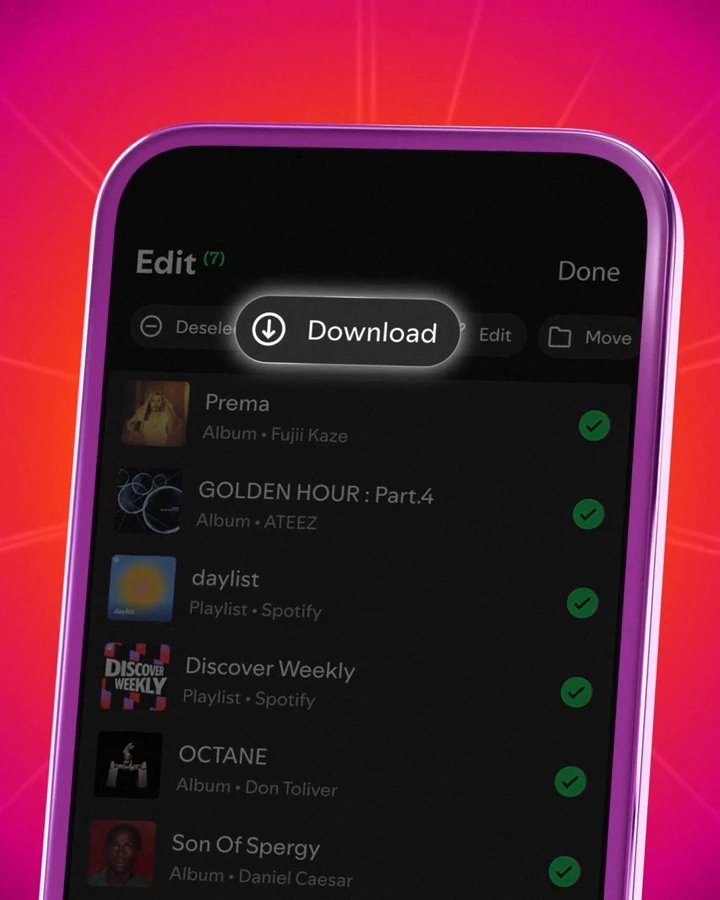
The official demonstration above shows a Download action. Its green checkmarks select items for a bulk action; they are not proof that those items have finished downloading. Check the completion status in your own app before disconnecting.
2. Confirm the right account and offline eligibility
Spotify’s download rules allow music downloads with Premium; Free users can download podcasts. The app must go online at least once every 30 days to retain downloads. Spotify also lists a limit of 10,000 tracks per device on up to five devices; exceeding the device limit can remove downloads from the least recently used device.
If Premium features are missing, inspect the account and plan you are actually using. Spotify’s Premium troubleshooting guide notes that a different login method can lead to another account. A bank payment marked Pending is not, by itself, proof that Premium was activated on this account.
If you need to log out and back in to refresh the account, do that while online, with your login method available. Do not make signing out your first experiment when you are already travelling without a connection. If a partner manages the subscription, check that provider for payment-related issues.
3. Use Offline Mode as a check, not as a download button
On mobile or tablet, Spotify currently documents Profile picture > Settings and privacy > Data-saving and offline > Offline mode. On Windows, use the app’s three-dot menu > File > Offline Mode; on Mac, use the Spotify menu > Offline Mode. Labels may vary by app version.
Offline Mode restricts playback to available downloaded content. Turning it on cannot finish a missing download. If you need to fetch content or refresh your account, turn it off and reconnect first, then repeat the offline test.
4. Separate manual downloads from Offline Backup
Offline Backup is a different feature. Spotify says it can use music in the device cache for offline listening on supported Premium mobile setups. It requires Offline listening to be enabled, and its availability can be affected by recent listening, free storage, clearing the cache or reinstalling the app.
If the music that disappeared came from Offline Backup, that is not the same record as a playlist you deliberately downloaded. Before a trip, manually prepare and test the albums or playlists you specifically need rather than relying only on whatever appears in the backup mix. See Spotify’s Offline Backup guide.
5. Check storage and avoid the wrong cleanup button
Spotify recommends at least 1GB of free device storage. It uses space for both cache and offline downloads. Check the device’s free space as well as the amount shown inside Spotify. For broader storage problems, use our phone storage cleanup guide.
Spotify’s storage guide places its mobile Clear cache control under Settings and privacy > Data-saving and offline > Storage. On desktop it is under Settings > Storage. Read the label: Clear cache, Remove downloads and the phone’s Clear storage/data controls are different actions. Do not choose a broader data-removal option as though it were the same small cleanup.
If you rely on Offline Backup, review the previous section before clearing cache: the feature depends on cached music. If you use Android SD-card storage, confirm the card is available and the intended location is selected in Spotify. The storage option may not appear if the card is inaccessible. Do not format the card just to test playback.
6. Restart and update, then repeat the same comparison
Restart Spotify and check for an app update before rebuilding your downloads. If online playback fails too, compare another device or the web player while connected. That comparison tests broader account/playback behavior; it does not verify the first device’s offline files. Spotify’s playback troubleshooting also covers gray tracks, device-specific problems and known issues.
If only a few tracks fail online as well as offline, check their availability instead of deleting the entire library. If every downloaded track fails on one phone but the same account streams normally elsewhere, record the phone model, OS and app version for a more targeted investigation.
iPhone: do not assume background downloading is unsupported
Spotify announced background downloads on iOS in its May 2026 app update. That makes old advice that every download always requires the app to remain open too broad. Update Spotify and inspect real progress on your device. For diagnosis, you can still compare a small download with the app open against your normal background workflow; wait for completion either way.
7. Check where Spotify is sending the audio
Use the device picker to select the phone or computer you are testing. Spotify Connect lets one device control playback on another, so seeing an album on your phone does not necessarily mean the phone is playing it locally. For this comparison, avoid depending on a remote smart speaker.
If the timeline advances but you hear nothing, test the device speaker at a comfortable volume. Then reconnect your headphones and compare. An audio-output problem needs a different fix from a playlist that remains unavailable offline.
8. Redownload a small affected playlist before the whole library
When online, if one collection remains faulty after the earlier checks, consider removing and redownloading just that collection using Spotify’s download controls. This deliberately replaces its offline copy, so do it only when you have enough connection and time to complete the replacement.
Repeat the same offline test afterward. If it works, you have evidence that rebuilding that collection helped. If it fails, deleting every other working playlist would not provide a more specific diagnosis. Keep a note of whether the problem affects one collection, all downloads or one particular app state.
Reinstall only when you can rebuild the downloads
Spotify’s reinstall guide explicitly says downloaded music and podcasts must be downloaded again afterward. Reinstallation can help an app problem, but it is a poor first move when you are away from Wi-Fi and need the existing library.
Before reinstalling, confirm access to the account, a reliable connection, sufficient storage and enough time to rebuild what you need. Follow the platform-specific official steps. Afterward, download one small playlist and verify it offline before starting a large library download.
A practical checklist before a flight or commute
- Go online and confirm the intended account and plan.
- Check the completed download status on the actual device you will carry.
- Disconnect Wi-Fi and mobile data, then start two different downloaded tracks.
- Reopen the app offline and test again.
- Test your intended headphones separately after local playback works.
- Restore connectivity and avoid app reinstalls or download removal immediately before departure.
If the fault persists, give support the app version, device/OS, available storage, SD-card use, exact error and the online/offline comparison result. “Playlist A plays online but not offline after reopening; playlist B works in both” is more informative than “Spotify is broken.” Do not share passwords or sign-in codes.
Official sources and image credits
- Spotify — Listen offline
- Spotify — Premium not working
- Spotify — Storage information
- Spotify — Offline Backup
- Spotify — Playback troubleshooting
- Spotify — Spotify Connect
- Spotify — Reinstalling the app
- Spotify Newsroom — May 2026 app improvements
Documentation and download rules checked on 3 November 2026. The in-text image is a frame from Spotify’s own May 2026 feature demonstration; it illustrates an action, not a completed download or a test of a customer account. Cover photo: Tomasz Gawłowski / Unsplash. The suggested tests are instructions for readers, not measured results from named devices.
You may also like
 Technology & How-To
Is Tesla Discontinuing the Cybertruck? What We Know
Tesla plans a Cybertruck production wind-down in Texas around mid-2027. See what is confirmed, what remains unknown, and…
 Technology & How-To
Are AI Toys Safe for Kids? Privacy Risks and Parent Checks
Are AI toys safe for kids? Explore the evidence, privacy risks, age advice and practical parent checks for…
 Technology & How-To
iPhone Trust This Computer Not Showing? Windows and Mac Fixes
Restore the iPhone computer-trust prompt with checks for unlocking, Apple Devices or Finder, USB data cables and targeted…