
Samsung Maintenance Mode: Protect Your Privacy Before a Repair
Enable and exit Samsung Maintenance mode with official images. Learn what it protects, why backups matter and what to check if the option is missing.
Contents
Contents
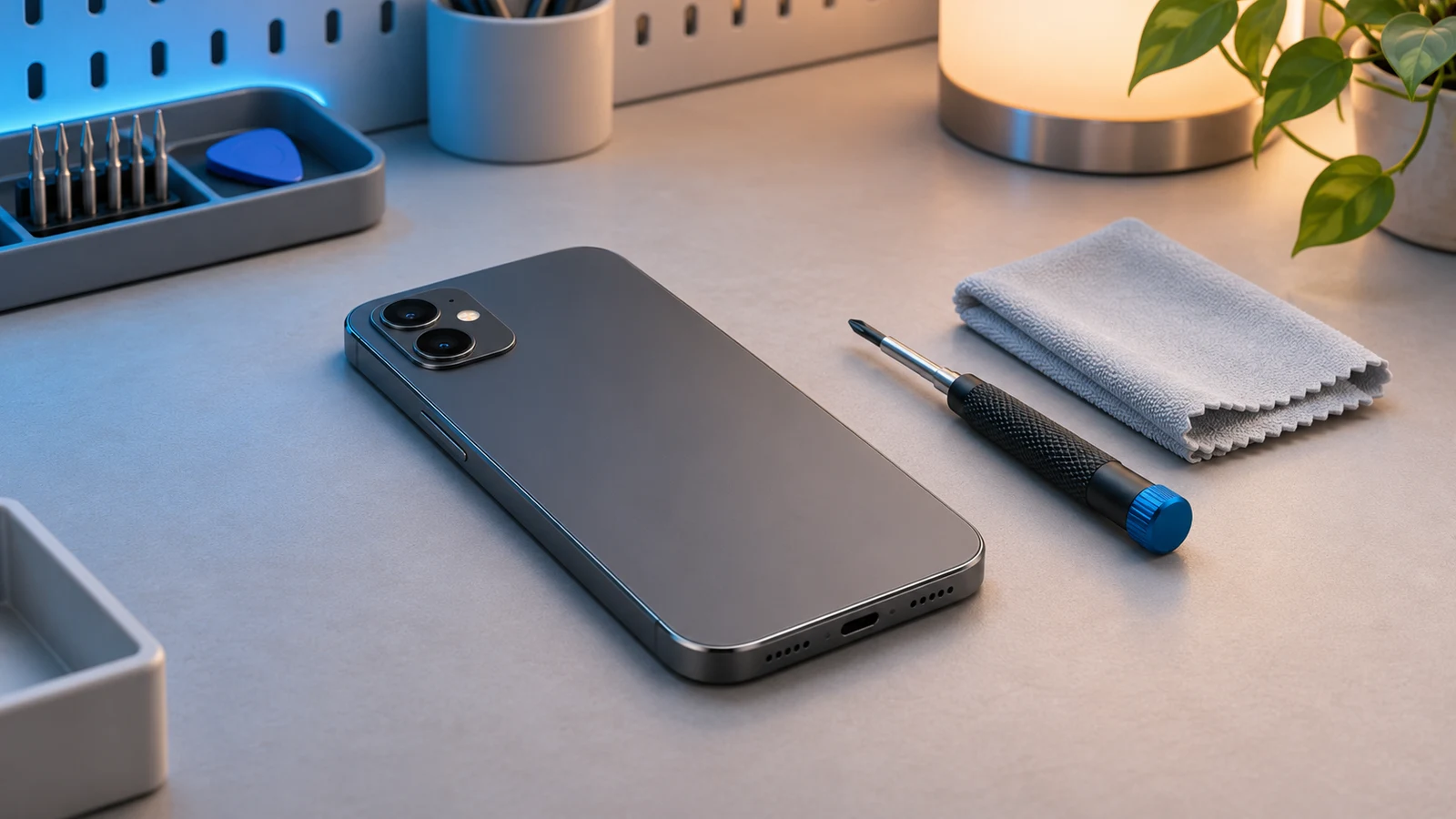
Before handing a Samsung phone in for repair, back it up, then open Settings → Device care → Maintenance mode → Turn on and follow the restart prompts. The menu may be called “Battery and device care.” Maintenance mode hides personal data from the repair environment. It does not create a backup or prevent data loss if the repair requires a reset.
This guide covers supported Galaxy phones and tablets, including devices used in Egypt and Saudi Arabia. Availability and menu names vary by model and software. A recent Android version alone does not establish support.
Back up before changing the settings
Choose a backup you can access later: Smart Switch to a computer or suitable external storage, or a cloud option available on your device. Check the included data and exclusions; do not assume every app or file will transfer. See Samsung’s Maintenance mode and backup instructions.
- Wait for completion, then record the backup location and date somewhere other than this phone.
- For directly copied photos and files, open a sample from the other location. For Smart Switch, check completion and the selected data categories.
- Make sure you can access your accounts from another device and have recovery options for two-factor authentication. Do not keep your only recovery codes on the phone you are handing over.
Samsung’s temporary cloud backup is deleted after 30 days. Treat it as temporary and plan to restore before it expires, especially if the repair takes longer than expected. Read the conditions shown on your device before starting.
Turn on Maintenance mode
- Open Settings, then Device care or Battery and device care.
- Select Maintenance mode.
- Tap Turn on. If asked to set up a screen lock, complete that step and keep the unlock details with you.
- Review the system-log choice if it appears, then follow the restart instructions.
- After the phone restarts, check that Maintenance mode is active before handing it over. Do not sign into your personal accounts inside the repair environment.
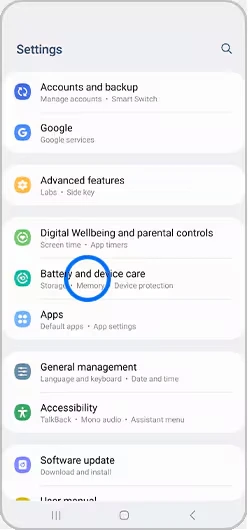
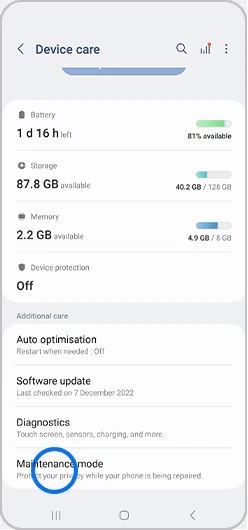
These images come from Samsung’s official guide, rather than a Horus Valley device test. They show an older English interface. Use the menu labels as a guide; appearance, order and language may differ on your phone.
An alternative on devices that offer it is Samsung Members → Support → Maintenance mode. Follow the activation prompts. Having Samsung Members installed does not establish support for your model.
Maintenance mode, backup and factory reset compared
| Action | Purpose | What to check |
|---|---|---|
| Maintenance mode | A separate repair environment that hides personal data | The mode is active after restarting |
| Backup | A copy you can restore if data is lost | Completion, included data and restoration method |
| Factory reset | Erases user data from the device | Your backup and the consequences before agreeing |
For example, a screen replacement may finish without a reset, while another repair may require a reset or replacement storage. Do not infer that files will survive from the fault alone. Ask the repair centre about the expected procedure before agreeing.
Missing option or an unresponsive phone?
- Search Settings for Maintenance mode and check for available software updates.
- Samsung states that the feature requires One UI 5 or later. That requirement does not confirm support for every model. Check with Samsung using your exact model number and software version.
- If activation fails despite the option appearing, check the error message, screen lock and free storage. Do not factory-reset solely to try to make the option appear.
- If the screen is black or touch is broken, do not assume remote activation is possible. Discuss data-preserving options with the service centre. Samsung’s guide points to alternative backup methods depending on the device’s condition.
At handover and after the repair
Record the fault, device condition and supplied accessories on the receipt. Ask whether diagnostics can run within Maintenance mode and whether the repair might erase data. Keep your personal unlock details with you and clarify why any account access is requested before providing it.
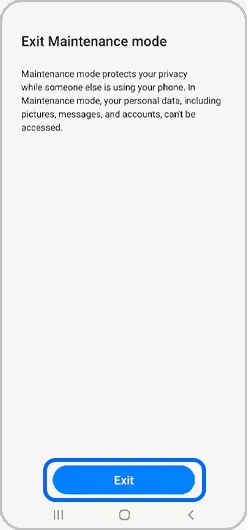
To leave after repair, open the Maintenance mode notification, select Exit, restart and authenticate with your screen lock when prompted. Check your files, photos and phone functions before deleting the backup.
If you notice unfamiliar account activity, use our Google account access checklist to review devices and sessions. Enabling Maintenance mode is not a complete account-security check.
Official sources
You may also like
 Technology & How-To
How to Turn Lecture Recordings Into Study Notes With NotebookLM
Turn lecture audio into study notes with free Gemini Notebook (NotebookLM). Follow the upload steps, check transcript citations,…
 Technology & How-To
How to Use Google Lens to Find Products and Compare Prices
Find an item from a photo with Google Lens, check exact product matches and compare real checkout costs…
 Technology & How-To
Podcast Microphone Guide: USB vs XLR and Setup Tips
Choose a podcast microphone by room noise, connection type and recording style. Compare USB and XLR, see verified…