
Outlook.com Not Receiving Emails but Mailbox Isn’t Full? Check Microsoft Storage
Outlook.com can block email when Microsoft cloud storage is full even if your mailbox has room. Check both quotas, clear space safely and test delivery.
Contents
- Start here: identify the account and the failing service
- Why there are two storage meters
- A worked example: spare mailbox space, blocked email
- Step 1: check email storage and Microsoft storage
- Step 2: make a preservation plan before clearing space
- Step 3: if Microsoft cloud storage is full
- Review OneDrive files and its Recycle Bin
- Review attachment-heavy messages
- Step 4: if the email mailbox itself is full
- Should you buy more storage instead of deleting?
- Step 5: test delivery after the account is under quota
- If both storage meters have room but email still fails
- If you paid for storage but the warning remains
- A short recovery record to keep
- Sources, screenshots and scope

Outlook.com can stop receiving email even when your mailbox has free space. Your personal Microsoft account has separate email and cloud-storage limits. Exceeding the cloud limit can block Outlook.com mail as well as OneDrive activity. Check both storage meters before deleting more messages or reinstalling Outlook. Microsoft explains the separate limits.
Reviewed November 1, 2026. This guide is for personal Outlook.com, Hotmail, Live and MSN mailboxes. It does not apply the consumer storage rules to an employer’s Exchange Online mailbox or to Gmail simply because you read that account in the Outlook app.
Start here: identify the account and the failing service
Open your personal mailbox in a browser at Outlook.com. Confirm the address shown in the account menu. If you have several Microsoft accounts, keep that address in mind when checking storage or a subscription. A storage purchase on one account does not diagnose a problem on another.
The first useful observation is whether new mail is absent from the web mailbox too. If it arrives on the website but not in your phone or desktop app, you have a different branch to investigate: app sign-in, synchronisation or filtering. Do not assume a storage block when the server is already accepting new messages.
| What you find | What to check next |
|---|---|
| Mailbox has room; Microsoft storage is full | Reduce cloud usage or review a suitable storage entitlement. |
| Email storage is full | Review large messages and mailbox folders. |
| Both meters are below their limits | Check delivery failures, folders, rules and account restrictions. |
| New mail appears on the web but not in an app | Investigate that app’s account and synchronisation. |
| Only one sender is affected | Ask for their delivery result and confirm the destination address. |
Why there are two storage meters
Microsoft lists a free personal Outlook.com mailbox allowance of 15 GB and a separate free Microsoft cloud allowance of 5 GB. Cloud usage includes OneDrive files and Outlook.com attachments. Your paid entitlement can differ, so read the limit displayed for your own account rather than copying an example from a screenshot.
An attachment may contribute to both measurements. The figures are not two interchangeable buckets you can add together. Spare mailbox capacity does not automatically expand the cloud allowance. Microsoft’s storage FAQ explains what counts in each quota.
A worked example: spare mailbox space, blocked email
Imagine a free account whose email meter shows 4 GB used out of 15 GB, while its cloud meter shows 5.3 GB used out of 5 GB. The first number looks comfortable, but the second is over quota. That is a hypothetical example of the distinction, not a measurement of a reader’s account.
Now imagine the opposite: cloud usage is below its limit, but the email meter is full. Removing an unrelated OneDrive video would not be the first targeted response. You would inspect mailbox usage instead. Reading both meters makes the next action more precise and reduces unnecessary deletion.
Step 1: check email storage and Microsoft storage
- Sign in to the affected personal mailbox at Outlook.com in a browser.
- Open the Settings gear and look for Account > Storage. Menu wording may differ slightly.
- Read both Microsoft storage and Email storage; expand a collapsed section if necessary.
- Record the used amount and limit for each, plus the exact warning.
- If you open the Microsoft account storage page separately, confirm that it belongs to the same account.
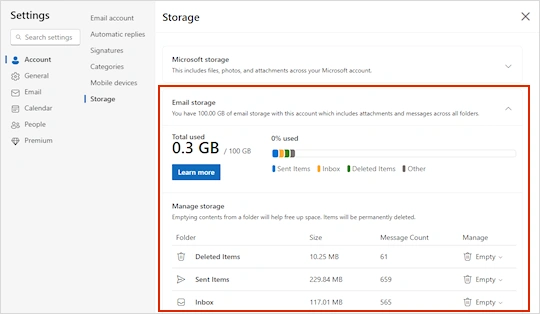
This is Microsoft’s published support screenshot. It shows where the two sections appear, with Email storage expanded. The example’s 100 GB mailbox allowance belongs to the illustrated account; it is not the free allowance and does not show your entitlement. Original screenshot and storage instructions.
For your own notes, a small table is more useful than a screenshot containing private folder names. Write down the two figures and the time you checked them. If you later contact support, redact your address, message subjects and other personal information before sharing an image.
Step 2: make a preservation plan before clearing space
Identify what you need to keep before permanently emptying folders. Important attachments may include contracts, receipts, photographs or files with no other copy. Download a needed file to a separate destination and open it to verify the copy before deleting its source.
If cloud storage is the problem, saving an attachment back into the same over-quota OneDrive is not a reliable way to reduce total cloud usage. Plan where the retained copy will live. A second local copy or another chosen destination can be useful, but only if you can actually open it and know how it is backed up.
- Identify the category using the most space.
- Choose a small set of items you no longer need.
- Keep any essential files separately and verify them.
- Delete only the reviewed items.
- Recheck both meters before removing anything else.
This sequence is an editorial workflow to minimise unnecessary removal. It does not promise a specific number of gigabytes or a fixed recovery time. Different accounts contain different file sizes and may have different storage entitlements.
Step 3: if Microsoft cloud storage is full
Review the storage breakdown for the affected account. Microsoft identifies OneDrive files, items in the OneDrive Recycle Bin and Outlook.com attachments among the content that counts toward cloud usage. Review the relevant category instead of assuming that the Inbox is the only place to clean. See the official storage categories.
Review OneDrive files and its Recycle Bin
Start with a few large files that you recognise. Be especially careful with folders synchronised to computers: deletion is different from merely making a file online-only. Downloading a backup and then deleting a cloud item should be a deliberate choice, not an accidental consequence of trying to fix email.
Inspect the Recycle Bin as part of the storage review. Do not empty it indiscriminately while you are still deciding what to keep. Read the confirmation shown by the service before permanent removal. Afterwards, return to the storage meter and note what changed; do not infer the amount recovered just from the number of files removed.
Review attachment-heavy messages
Look at Sent Items as well as received mail. A file you sent can be just as relevant to the review as one you received. Before removing a message, decide whether you need its content, its attachment or both.
In Outlook.com’s web experience, Microsoft’s attachment-removal guidance describes deleting the message containing the attachment and then removing that message from Deleted Items. Do not assume the classic desktop Outlook attachment controls are present in the browser. Check Microsoft’s version-specific instructions.
A practical preservation example: download an invoice attachment, open the downloaded copy, and retain any message details you need before removing the original. Merely downloading the attachment does not, by itself, remove the cloud copy or reduce the mailbox meter.
Step 4: if the email mailbox itself is full
Use the folder breakdown in the Storage page to identify where the mailbox space is used. Deleted Items can still contribute to mailbox usage. Review what is there before permanently clearing it; moving messages out of the Inbox is not necessarily the same as removing them from the account.
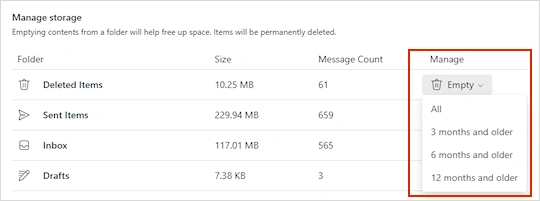
Microsoft’s second support image shows folder-management choices, including age-based emptying. These are deletion controls, not an automatic recommendation to erase all older mail. Choose a scope only after reviewing what you need to preserve. Source: Outlook.com storage limits.
If you keep important correspondence for accounting, family records or an ongoing dispute, age alone is a poor criterion for deletion. A large, unneeded attachment can be a better candidate than years of small messages you still rely on. Your goal is to address the measured limit while preserving necessary records.
Should you buy more storage instead of deleting?
Increasing an appropriate entitlement can be an alternative when you need to retain the content. Compare the plan’s cloud and mailbox allowances separately and confirm which account receives the purchase. Do not buy a plan solely because an unrelated screenshot displays a higher number.
If the problem followed a failed renewal or a subscription ending, use our Microsoft 365 expiry guide for the subscription lifecycle. This article focuses on identifying the storage-related mail block, regardless of whether the account has ever had a paid subscription.
Step 5: test delivery after the account is under quota
Do not use an old missing message as the only test. Microsoft says email rejected while the account was over quota is returned to its sender, and the sender needs to resend it after capacity is restored. Freeing space does not automatically redeliver those rejected messages. Official sending and receiving guidance.
- Refresh the storage pages and confirm both measurements are below their relevant limits.
- From another email account, send a new short plain-text message with a unique subject.
- Check the Outlook.com web mailbox, including Junk and other relevant folders.
- Reply to the test message and confirm the reply reaches the other account.
- Ask the original sender to resend any message that bounced during the storage block.
| Test result | What it tells you | Next action |
|---|---|---|
| New message arrives and your reply works | The tested route is working now. | Request resending of bounced messages. |
| New mail arrives on the web but not on the phone | Web delivery worked for that test. | Investigate the phone app separately. |
| Both meters are below quota; test still fails | Storage alone does not explain the remaining failure. | Record the delivery report and check account or service issues. |
| One sender fails but another succeeds | The failure is not universal in your tests. | Compare sender reports and recipient address. |
If both storage meters have room but email still fails
Move to the delivery branch rather than deleting more data. Search the mailbox for the sender or a distinctive subject. Check Junk, other Inbox tabs and any rules that move incoming messages. Confirm the sender used the correct address and ask whether they received a non-delivery report.
If the account shows a security or sign-in restriction, use Microsoft’s account guidance rather than treating it as a storage warning. A work or school mailbox requires its administrator’s checks; the personal 5 GB and 15 GB allowances are not a diagnosis for Exchange Online.
If mail is present in the browser, record which app is missing it and whether sending works there. Avoid deleting a local Outlook profile or data file before establishing where your only copies of messages are stored. Local cleanup cannot by itself establish that a server-side quota has changed.
If you paid for storage but the warning remains
First confirm the purchase and the account receiving the entitlement. Then compare the displayed limit with the plan you expected. Keep the receipt and time of purchase, but do not share card details or passwords when requesting help.
Microsoft’s recent-issues page records storage-display mismatch problems, including a case in which additional storage was purchased but the account still appeared full. The entries are marked fixed; their existence does not prove that your current problem is the same bug or that there is a live outage today. Check the current issue status before following a workaround.
Do not repeatedly purchase extra plans or permanently erase important mail because a meter looks inconsistent. If a mismatch persists, gather the two storage readings, account identity, purchase confirmation and the exact error for Microsoft Support. No universal restoration countdown is promised here.
A short recovery record to keep
| Observation | Your note |
|---|---|
| Affected personal address | Record privately; redact before sharing. |
| Email storage used / limit | Before and after your action. |
| Microsoft storage used / limit | Before and after your action. |
| Action taken | Reviewed files removed, folder cleared or entitlement changed. |
| New test message and reply | Time sent, where it appeared, and any delivery failure. |
| Original bounced messages | Which senders need to resend. |
A successful test is more informative than simply dismissing a warning banner. Keep the account below the relevant limits, and revisit the largest categories periodically. If the same problem returns, compare the new readings with this record before repeating cleanup.
Sources, screenshots and scope
- Microsoft Support: Storage limits in Outlook.com
- Microsoft Support: Cannot send or receive email in Outlook.com
- Microsoft Support: Microsoft storage FAQs
- Microsoft Support: Remove or delete attachments in Outlook
- Microsoft Support: Recent Outlook.com issues and workarounds
Both inline screenshots are published Microsoft Support reference images, downloaded from the storage-limits article. They illustrate the controls and example account figures, not a hands-on test by Horus Valley. The worked example, decision tables and test worksheet are editorial aids. Information was reviewed on November 1, 2026; plan entitlements and interface labels can change.
You may also like
 Technology & How-To
Is Tesla Discontinuing the Cybertruck? What We Know
Tesla plans a Cybertruck production wind-down in Texas around mid-2027. See what is confirmed, what remains unknown, and…
 Technology & How-To
Are AI Toys Safe for Kids? Privacy Risks and Parent Checks
Are AI toys safe for kids? Explore the evidence, privacy risks, age advice and practical parent checks for…
 Technology & How-To
iPhone Trust This Computer Not Showing? Windows and Mac Fixes
Restore the iPhone computer-trust prompt with checks for unlocking, Apple Devices or Finder, USB data cables and targeted…