
OneDrive Stuck on Sync Pending or Processing Changes? Safe Fixes
Diagnose OneDrive Sync pending and Processing changes with a two-way file test, protect unsynced copies, and use verified restart, re-link and reset steps.
Contents
- Processing changes: a busy queue or a blocked file?
- Use one harmless file to test each direction
- Preserve the latest version before changing the connection
- Hidden and temporary files need a careful check
- Three examples of what the test changes
- What “Sync pending” actually means
- Before troubleshooting: protect your files
- Step 1: Check the OneDrive cloud icon and sync activity
- Step 2: Resume sync and verify the connection
- Step 3: Check storage capacity and account warnings
- Step 4: Close apps holding files open
- Step 5: Find the exact file causing the backlog
- Step 6: Check file names, paths, and unsupported items
- Step 7: Restart OneDrive without changing its folder
- Step 8: Update Windows and the OneDrive sync app
- Step 9: Distinguish Files On-Demand from an upload failure
- Step 10: Check Desktop, Documents, and Pictures backup
- Step 11: Diagnose work or school SharePoint libraries
- Step 12: Reset OneDrive only after the safe checks
- Windows reset command
- Step 13: Unlink and relink only if needed
- Step 14: Handle conflicting versions safely
- When the problem is not OneDrive
- Quick decision guide
- How to confirm the fix worked
- Prevent the problem from returning
- Official Microsoft references

Quick answer: If OneDrive stays on “Processing changes” or a file remains “Sync pending”, open the cloud icon, identify the affected account and compare one local file with its web copy. Preserve unsynced work outside OneDrive before unlinking or resetting. A large active queue needs time; one repeatedly blocked file needs a targeted check.
Updated October 26, 2026. This guide focuses on stuck files and processing queues. For missing folders, sign-in failures or general Windows client setup, use our complete OneDrive troubleshooting guide.
Seeing Sync pending next to OneDrive files in Windows 11 or Windows 10 can mean very different things: a temporary queue, a file that cannot upload, a folder that is still being indexed, or a connection or permission problem. This guide helps you distinguish those cases and fix them without deleting the only copy of your work. Start with the status icon and a safe backup, then move from low-risk checks to targeted resets.
Processing changes: a busy queue or a blocked file?
The activity panel and the status beside an individual file answer different questions. The panel describes what the client is doing; File Explorer shows the state of a particular item. Start by recording both, not by assuming that a spinning symbol means the entire account has stopped working.
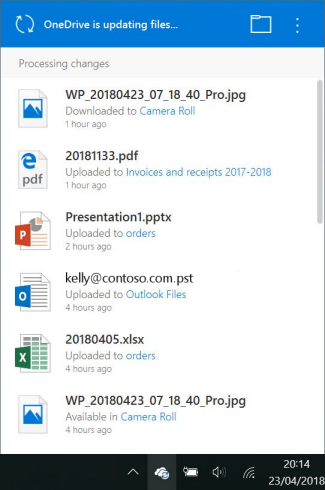
Microsoft’s Processing changes guidance lists open files, large additions, recent sign-in or computer updates, and authentication among the possible explanations. There is no universal number of minutes after which the message proves a fault. Look for evidence that work is progressing: changing activity entries and a recent file reaching its destination.
| What you observe | Next check | Avoid assuming |
|---|---|---|
| Many files were just added and activity keeps changing | Keep the PC connected and monitor a chosen file | Every long queue needs a reset |
| One filename repeatedly appears while other files finish | Save and close its app; read that item’s error | The entire OneDrive installation is damaged |
| One empty-looking folder stays pending | Inspect hidden items and whether the folder is empty | Deleting the folder is a harmless status refresh |
| A small new file uploads but the counter stays unchanged | Record the successful upload and investigate the remaining items | No syncing is happening at all |
| Browser access also fails | Check identity, quota, access and any managed-service incident | A local reset can restore missing server permissions |
Use one harmless file to test each direction
This controlled test separates a broad connection problem from one troublesome document. It does not measure every folder or prove that a business library is healthy. Use a personal test file containing no confidential information, and run it only in a location where you have permission to create files.
- Create a small text file with a distinctive name, such as
sync-check-oct26.txt, in the affected synced folder. Include a unique sentence. - Save and close it. Check the same account and folder in the browser, then open the web copy and look for that sentence.
- For a download check, create a separate harmless file in that folder on the website using an available supported option, or upload a second small file there. Check whether it appears and opens locally.
- Record the result separately for upload and download. If either fails, keep the test files until you finish troubleshooting so the evidence is not lost.
| Upload test | Download test | Working hypothesis |
|---|---|---|
| Works | Works | Investigate the original item, its app and the remaining queue |
| Fails | Works | Inspect local write/upload conditions, quota and item errors |
| Works | Fails | Check selected folder, local availability and download-side conditions |
| Fails | Fails | Start with account, pause state, connectivity and client health |
Preserve the latest version before changing the connection
For the document that matters, write down its local folder, account, size and modification time, then open it and verify the actual content. Compare the cloud copy. A matching filename alone does not establish that the latest paragraph, spreadsheet change or photograph uploaded.
If the latest content exists only on the PC, copy that downloaded file to an independent location outside OneDrive and open the copy. Check the destination path: Desktop or Documents may themselves be redirected into OneDrive. A second file inside the same sync root is not an independent backup. An online-only placeholder must be downloaded before you can rely on it offline.
Hidden and temporary files need a careful check
In File Explorer on Windows 11, use View → Show → Hidden items to inspect the affected folder. Older Windows versions show the option differently. Microsoft’s Sync pending guidance explains that a hidden item can keep a folder pending, and that an empty folder can also display that state.
Do not bulk-delete .TMP files or files beginning with a temporary-looking prefix. They may belong to an open application or contain recovery information. Save the document, close its application normally, and preserve unresolved work before considering any item-level cleanup. If a file cannot be renamed because it is in use, solve the application lock rather than forcing removal.
For an Outlook data file, do not drag an active PST or OST out of the sync root while Outlook is running. Follow the relevant Outlook/OneDrive procedure or ask IT to relocate it properly. A large frequently changing data file is a different situation from one ordinary text document.
Three examples of what the test changes
- A new laptop is downloading an existing library: the panel changes and the chosen test file reaches the website. Continue monitoring instead of repeatedly restarting the scan.
- A single workbook stays pending: the test file works in both directions. Preserve the workbook, close Excel and investigate its exact upload warning or conflicting copy.
- A company library fails in the browser: your personal test folder works. Ask the site owner or IT about access and use the SharePoint-specific troubleshooting guide.
These examples illustrate reasoning, not tests performed on real customer devices. Keep the evidence for your own case: message, affected account, one-way or two-way test result, and which version you preserved.
What “Sync pending” actually means
A circular-arrow icon beside a file or folder typically indicates that OneDrive has not finished processing it. It is not, by itself, proof that a file is corrupted or lost. A folder may display a pending icon because one item inside is still processing. OneDrive status in File Explorer and the OneDrive cloud icon in the notification area give different views of the same workflow; inspect both.
| One file pending for minutes | Large upload, file lock, or naming issue | Check file size and close its app |
|---|---|---|
| Many files pending after setup | Initial sync or migration | Leave PC online and monitor progress |
| Cloud icon says Paused | Sync intentionally suspended | Resume syncing |
| Red X or error message | A specific upload failure | Open OneDrive error details |
| Pending on a folder only | A child file is still processing | Inspect files within folder |
Before troubleshooting: protect your files
- Do not delete the local file or OneDrive folder just to clear a status icon.
- If the document is irreplaceable, save an independent copy outside the OneDrive-synced folders first.
- Avoid resetting, unlinking, or reinstalling until you know whether the latest version exists locally, online, or on another device.
- Open the OneDrive website in a browser and compare the file name, size, and last modified time with the local copy.
- For a shared or work account, confirm you have permission to edit and upload in the destination library.
Step 1: Check the OneDrive cloud icon and sync activity
Select the OneDrive cloud icon near the clock. If hidden, expand the notification-area icons. The activity panel can identify files still uploading, sign-in problems, a full account, or errors requiring attention. On Windows, personal and work OneDrive accounts can have different cloud icons and separate queues; check the correct account.
- Look for “Processing changes,” “Sync pending,” “Paused,” or an explicit error.
- If a file name is shown, note it before changing anything.
- Confirm the OneDrive app is signed in to the account that owns the destination.
- Check whether the cloud icon shows a progress count that decreases over time.
- If progress is moving, give the upload time rather than interrupting it.
Step 2: Resume sync and verify the connection
From the OneDrive cloud icon, open the menu and choose Resume syncing if sync was paused. Make sure the computer is connected to the internet and that Windows is not in airplane mode. Test a normal website in a browser. If you are on a restricted office, school, hotel, or public Wi-Fi network, sign in to its captive portal or ask the network administrator whether Microsoft 365 connections are blocked.
VPNs, proxies, security filters, and unstable networks can interrupt uploads. If your organization permits it, briefly test another trusted connection, such as a phone hotspot. Do not disable company security tools or bypass organizational policies.
Step 3: Check storage capacity and account warnings
OneDrive may stop uploading when the account is over its storage allowance. Review available space in OneDrive settings or on the OneDrive website, including the correct personal or organizational account. A Microsoft 365 work or school account may also be subject to administrative quotas and retention policies.
If storage is full, free space deliberately or increase the applicable allowance. Before removing anything, verify whether it is shared, backed up elsewhere, or needed for recovery. Emptying the OneDrive recycle bin can make deletion permanent sooner; do not treat that as the first repair step.
Step 4: Close apps holding files open
A file in use can remain queued, particularly if another application is actively writing to it. Save and close Word, Excel, PowerPoint, video editors, backup tools, and any other program working on the affected item. For Office files, check whether the application itself shows an upload conflict or a request to sign in. If a document contains unsaved edits, save a separate local copy before closing.
Temporary lock files and incomplete exports can also cause confusion. Avoid deleting unfamiliar temporary files from synchronized folders until you have established which application created them.
Step 5: Find the exact file causing the backlog
When hundreds of items show pending status, isolate the cause. Open the OneDrive activity panel, inspect recently changed folders, and sort File Explorer by Date modified. Search for a file that is unusually large, still open, or associated with an explicit warning. A single problematic item can keep a folder icon in a pending state even if neighboring files are fully synced.
| One large video pending | Upload size and connection stability | Keep device awake and connected |
|---|---|---|
| Office document pending | App upload status and account | Save, close, reopen OneDrive |
| New folder pending | Child items and naming rules | Identify the offending child file |
| Shared library pending | Permissions and SharePoint sync | Contact owner or admin if access changed |
| Only one PC affected | OneDrive client health | Update client and restart |
Step 6: Check file names, paths, and unsupported items
Some files cannot sync because of naming restrictions, reserved names, overly long paths, unsupported file types in certain environments, or organizational policies. OneDrive and SharePoint have documented file-name and path limitations; these can change over time. Read the exact error in the activity panel before renaming anything.
- Look for prohibited characters in a file or folder name and remove them only when the warning identifies that name.
- Shorten deeply nested folder paths if OneDrive explicitly reports a path-length problem.
- Do not rename shared project folders casually: links, automations, and collaborators may depend on their paths.
- If an organization blocks certain file types, ask its administrator rather than trying to disguise extensions.
- If a file is a shortcut to a shared folder, check the original location and your access permissions.
Step 7: Restart OneDrive without changing its folder
A normal app restart is lower risk than unlinking or resetting. Select the OneDrive cloud icon, open the settings or help menu, and choose Quit OneDrive if available. Start it again from the Windows Start menu by searching for OneDrive. Wait several minutes and see whether the queue progresses.
Restarting Windows can also release a stuck file handle. Save your work before doing so. A restart does not guarantee recovery from account errors, storage limits, or files that violate naming rules; those causes must be addressed directly.
Step 8: Update Windows and the OneDrive sync app
Microsoft updates the OneDrive sync client independently of many Windows updates. If the client appears stuck, confirm it is running a supported version and allow normal updates. Check Settings → Windows Update for Windows fixes, then restart if required. On a managed work PC, updates may be controlled by IT.
Avoid downloading unofficial “OneDrive repair” utilities or registry-cleaner apps. Use Microsoft documentation and official software channels.
Step 9: Distinguish Files On-Demand from an upload failure
Files On-Demand shows cloud-only, locally available, and always-available status icons. A cloud icon does not mean the file is broken; it often means its content is stored online and will download when opened. Conversely, Sync pending indicates work is still in progress. If you right-click a file and choose Always keep on this device, OneDrive may begin downloading it, adding more activity to the queue.
If a file is missing on this PC, first check whether it exists on the OneDrive website and whether the correct account and folder are selected. Do not assume that changing Files On-Demand settings will repair an upload error.
Step 10: Check Desktop, Documents, and Pictures backup
OneDrive can back up common Windows folders, including Desktop, Documents, and Pictures, depending on account settings. If all files in these folders suddenly show pending, inspect OneDrive settings under Sync and backup and confirm whether folder backup was recently enabled, changed, or interrupted. A large first-time backup can take hours or longer depending on file count and connection speed.
Do not turn off folder backup as an experiment without reading the prompts. Changing it can affect where Windows stores and displays files, and may confuse the distinction between local and cloud copies. Make an independent backup first.
Step 11: Diagnose work or school SharePoint libraries
For a work or school account, a SharePoint or Teams document library may be synchronized through OneDrive. Access changes, library policies, checked-out documents, sensitivity labels, and permission restrictions can prevent updates. Test whether you can open and edit the same file in the browser. If not, the problem may be server-side or permission-related rather than a damaged Windows installation.
- Confirm that your Microsoft 365 account is signed in and has not been disabled.
- Check whether the affected library is still shared with you.
- Review the error text in the OneDrive activity panel.
- Do not delete a shared library or disconnect the organization account without checking the consequences.
- Ask IT for help if the device is managed or the error references a policy.
Step 12: Reset OneDrive only after the safe checks
Microsoft documents a OneDrive reset for persistent sync problems. A reset restarts the sync engine and may trigger a full reconciliation of local and cloud items. Microsoft states that resetting OneDrive does not delete your files, but it can disconnect sync connections and require setup again. If you have unsynced edits, independently back them up before proceeding.
Windows reset command
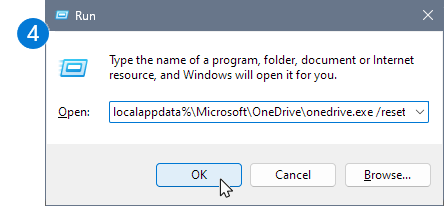
The official screenshot illustrates entering the reset command; read and copy the full text below rather than transcribing its narrow input field. Microsoft’s reset guide first offers a Store-cache check with wsreset.exe, then the separate desktop-sync reset. These are different operations.
Press Windows + R and enter the following command, which Microsoft documents for the standard OneDrive installation:
%localappdata%\Microsoft\OneDrive\onedrive.exe /reset
If Windows reports it cannot find OneDrive, Microsoft provides alternative installation paths in its reset guide. Do not assume the executable is in the same location on every PC. After resetting, start OneDrive from the Start menu if it does not reopen automatically. Check account sign-in, selected folders, and the resulting sync queue.
Step 13: Unlink and relink only if needed
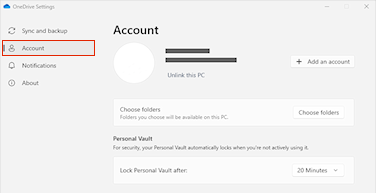
Microsoft’s unlink and re-link instructions show the Account tab. Check which account and existing folder you are reconnecting. Re-linking can take time and does not mean every cloud file is downloaded for offline use.
If a reset does not resolve the issue, Microsoft also documents unlinking and relinking an account. This can rebuild the sync relationship, but it is a higher-impact action: local folder selections and sync setup may need to be reviewed. Back up any files with unsynced changes before unlinking. Confirm the correct account and cloud folder before reconnecting, especially if you use both personal and work OneDrive.
Do not manually delete the existing OneDrive folder during this process. If OneDrive asks how to handle an existing folder, follow the on-screen instructions carefully and check for duplicate folders rather than merging unknown copies blindly.
Step 14: Handle conflicting versions safely
If the same document was edited offline on two devices, the cloud and local copies can diverge. Compare timestamps, file sizes, and content; do not assume the newest timestamp always contains the best version. Save separate copies of both versions before resolving a conflict. Microsoft 365 version history may help recover earlier versions of files stored in OneDrive or SharePoint, subject to account and retention settings.
When the problem is not OneDrive
Repeated pending uploads can also stem from failing storage, filesystem errors, security software interference, or an unstable PC. If unrelated programs freeze, files cannot be read locally, or the drive reports errors, prioritize a verified backup and device health checks. Do not run destructive disk repair commands or format storage as a first troubleshooting step.
Quick decision guide
| OneDrive says Paused | Resume syncing | Reinstalling Windows |
|---|---|---|
| Storage is full | Check quota and clean up safely | Deleting irreplaceable originals |
| One file is stuck | Close app and inspect file warning | Resetting everything immediately |
| Work library access fails online | Check permissions with IT | Bypassing organization controls |
| All files stuck despite healthy connection | Restart, update, then consider reset | Deleting OneDrive folder |
| Conflicting copies exist | Preserve both and compare versions | Overwriting one copy blindly |
How to confirm the fix worked
- OneDrive activity no longer shows an unresolved error or indefinitely pending queue.
- The relevant file appears on the OneDrive website under the correct account.
- The online version has the expected content and modification details.
- A small new test file syncs in both directions, where permitted.
- The status icons settle after OneDrive finishes processing; folders may take longer than individual files.
For an important document, open the online copy and verify the actual content. A green checkmark alone is not a substitute for checking that the intended version uploaded.
Prevent the problem from returning
- Keep OneDrive and Windows updated using official channels.
- Maintain enough free cloud storage and avoid unnecessarily deep folder paths.
- Allow large migrations to finish while the computer stays online.
- Close files cleanly before shutting down or switching devices.
- Maintain an independent backup for important files; synchronization is not a complete backup strategy.
- Review the OneDrive activity panel promptly when errors appear instead of repeatedly forcing sync.
Official Microsoft references
Microsoft Support — Fix OneDrive sync problems.
Microsoft Support — Reset OneDrive.
Microsoft Support — Restrictions and limitations in OneDrive and SharePoint.
Microsoft Support — What do the OneDrive icons mean?.
Microsoft Support — Files On-Demand for Windows.
The most reliable way to clear OneDrive Sync pending is to identify what the app is waiting for, protect any unsynced local work, and fix the specific cause. Use a reset only when simpler checks have failed and you have confirmed that important files are safely preserved.
You may also like
 Technology & How-To
 NHS App Prescription Not Showing? Check GP Approval, Pharmacy Status and Tracking
Find out why a prescription or medicine is missing from the NHS App in England. Separate repeat requests,…
 Technology & How-To
 Google Wallet Not Working After Switching Phones? Fix Card Setup and Tap to Pay
Google Wallet transferred but tap to pay fails? Separate card verification, bank approval, NFC, screen lock and device…
 Technology & How-To
 iCloud Family Sharing Not Working? Why You Still See 5GB and How to Fix It
Still seeing 5GB after joining an iCloud family plan? Check the account, invitation, sharing settings, personal plan and…