
Why Your Laptop Battery Drains While Shut Down: Windows and Mac Fixes
Diagnose overnight laptop battery loss with safe full-shutdown tests, Windows powercfg reports, USB charging checks and MacBook troubleshooting.
Contents
- First: identify what “shut down” actually means
- A 20-minute baseline test before changing settings
- Windows fix 1: compare a full shutdown with your usual shutdown
- Windows fix 2: check whether the machine is actually sleeping
- Windows fix 3: inspect battery health before buying a replacement
- Hardware fix: stop USB ports from powering devices while off
- MacBook: use a separate troubleshooting path
- Decision table: what the overnight results mean
- How much battery loss is normal when a laptop is off?
- A reproducible three-night diagnosis
- Mistakes that waste time or create new problems
- When to contact the manufacturer or a repair professional
- Official references and further reading
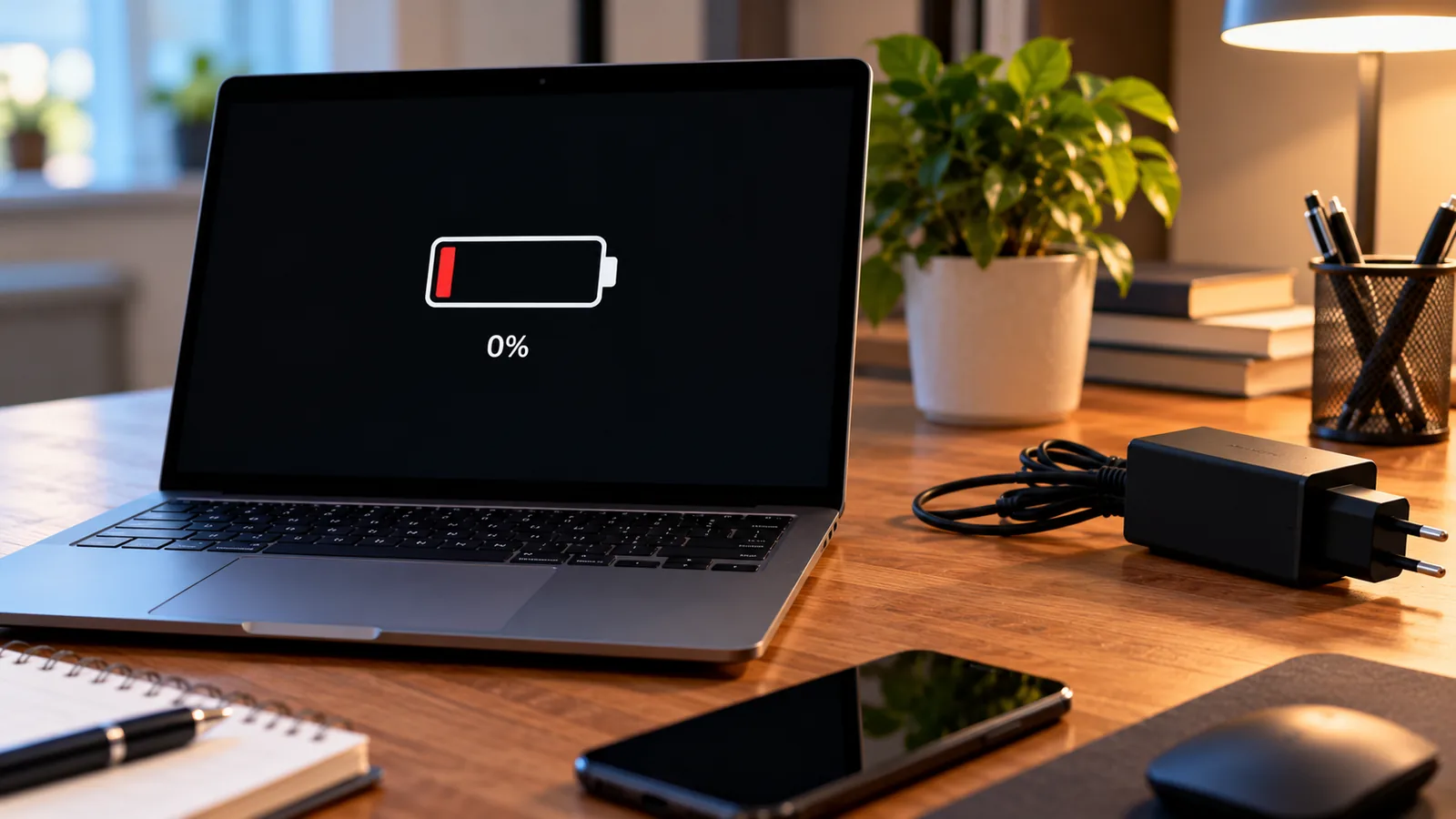
You shut down your laptop at 80%, unplug it, and find it at 45% the next morning. That does not automatically mean the battery is defective. The computer might have entered sleep rather than shutdown, a USB port may still be supplying power, firmware may be consuming standby power, or an aging battery may be reporting its remaining charge inaccurately. This guide helps you separate those causes without buying parts or changing risky settings first.
The key distinction is between battery drain while sleeping and battery loss after a confirmed shutdown. Windows Fast Startup can also make an ordinary shutdown behave differently from a full restart or full shutdown. Follow the tests in order and change only one variable at a time.
First: identify what “shut down” actually means
| Sleep / Modern Standby | The system retains a low-power operating state and may wake for supported tasks | Windows sleep settings and SleepStudy |
|---|---|---|
| Hibernate | Memory contents are saved to disk; very low power use | Hibernate support and wake behavior |
| Hybrid shutdown / Fast Startup | Windows logs off users and saves the kernel session for faster startup | Compare normal shutdown with a full shutdown |
| Full shutdown | The OS is shut down; some hardware or firmware may still receive standby power | USB charging and firmware settings |
Microsoft explains the differences between shutdown, sleep, and hibernate in its Windows power-state guide. A dark screen or closed lid does not prove the computer is off. On many laptops, closing the lid simply puts it to sleep.
A 20-minute baseline test before changing settings
- Charge to a stable level, preferably above 60%. Wait a few minutes after unplugging and record the displayed percentage and time.
- Disconnect USB drives, external monitors, dongles, phones and other accessories.
- In Windows, save work and choose Start → Power → Shut down. Wait until fans, lights and screen have settled.
- Leave the laptop unplugged on a cool, safe surface for at least six to eight hours; an overnight test is easier to interpret.
- Turn it on and record the first battery percentage shown, time elapsed and any unusual boot behavior.
- Repeat the test on another night using the full-shutdown method below. Avoid drawing conclusions from one percentage reading.
Example: 78% before shutdown and 68% after eight hours equals a displayed loss of 10 percentage points, or about 1.25 percentage points per hour. This is a comparison of displayed charge, not a precise electrical measurement: battery gauges can recalibrate, and temperature changes can shift the reading. A repeated large drop deserves investigation; a small one-off change may not.
Windows fix 1: compare a full shutdown with your usual shutdown
On supported Windows systems, Fast Startup can change the shutdown sequence. To test without permanently changing a setting, open Terminal or Command Prompt as administrator, save all work, then run:
shutdown /s /f /t 0
The command requests a full shutdown and forces applications to close. Save all unsaved work first: the /f option can cause data loss in open apps. If you prefer a less abrupt test, hold Shift while selecting Shut down from the Windows power menu; behavior can vary with system configuration.
Run the overnight test again. If the large drain occurs only after a normal shutdown, investigate Fast Startup and vendor power-management settings rather than immediately replacing the battery. The permanent Fast Startup option may appear under Control Panel → Power Options → Choose what the power buttons do → Change settings that are currently unavailable; the option is not present on every PC.
Windows fix 2: check whether the machine is actually sleeping
Open Command Prompt and run powercfg /a to see available sleep states. On a system that supports Modern Standby, use an administrator terminal to run powercfg /sleepstudy and open the generated HTML report. Microsoft documents these commands in its Powercfg reference and SleepStudy guide.
SleepStudy helps investigate drain during screen-off and sleep sessions, not true power-off consumption. If it shows several hours of Modern Standby with high drain during the period you believed the laptop was off, first correct the lid and power-button settings. If it shows no matching session, do not treat that as proof the battery is healthy; continue with the shutdown and hardware checks.
- In Settings → System → Power & battery, review screen, sleep and hibernation behavior. Names differ between Windows releases.
- In Control Panel → Power Options, review what closing the lid and pressing the power button do.
- If you carry the laptop in a bag, choose hibernate or shutdown rather than sleep when appropriate, and verify the device has stopped producing heat.
- Install relevant Windows and manufacturer power-management updates through official channels.
Windows fix 3: inspect battery health before buying a replacement
Run powercfg /batteryreport in Command Prompt. Open the HTML file at the location printed by the command. Compare Design Capacity with Full Charge Capacity. For example, 34,000 mWh divided by 50,000 mWh is approximately 68% of original design capacity. This is an estimate of battery wear, not proof that a shutdown drain is caused by the battery.
A worn battery may fall in percentage rapidly after startup or under load, while an active USB charging feature can discharge an otherwise healthy battery. The two problems can coexist. Review recent capacity history and compare the laptop manufacturer’s diagnostics before deciding on a replacement. A battery that swells, becomes unusually hot or emits an odor needs immediate professional attention; stop charging and using the device.
Hardware fix: stop USB ports from powering devices while off
Some laptops provide USB charging while asleep or powered down. Dell calls this USB PowerShare; other manufacturers use names such as Always On USB or USB charging in off mode. Dell explicitly notes that supported configurations can draw from the laptop battery while powered down, depending on BIOS settings. See Dell’s official explanation.
- Unplug every accessory, including wireless receiver dongles and USB-C hubs, and repeat the overnight test.
- If the drain disappears, reconnect accessories individually on separate nights.
- Check the official manual for your exact model before entering BIOS/UEFI. Look for USB PowerShare, Always On USB or USB charging when off.
- Disable off-state USB power only if you do not rely on it to charge a phone or other device. Record the original setting before changing it.
Do not blindly copy BIOS screenshots from another model: menu names and the battery threshold at which charging stops vary by manufacturer and firmware revision. Avoid firmware flashing merely as an experiment; apply updates only when the vendor recommends them for your model, with adequate power and a backup.
MacBook: use a separate troubleshooting path
MacBooks do not use Windows Fast Startup or powercfg. Start with a controlled test: disconnect external devices, shut down from the Apple menu, wait for shutdown to finish, and leave the computer unplugged overnight. Compare the result with a second test with no accessories attached.
Apple warns that a device connected by USB while a MacBook is off or asleep may draw from the MacBook battery. See Apple’s battery guidance. Check Battery Health in System Settings where supported. If the battery is marked for service, or the laptop loses substantial charge repeatedly after a verified shutdown with nothing attached, contact Apple or an authorized service provider.
For Apple silicon Macs, do not follow old Intel-only SMC reset instructions. For Intel Macs, use the exact model-specific Apple support instructions if troubleshooting requires an SMC reset; procedures differ and are not a universal first step.
Decision table: what the overnight results mean
| Drain only after closing the lid | Sleep or Modern Standby rather than shutdown | Review lid settings; generate SleepStudy on Windows |
|---|---|---|
| Drain after ordinary shutdown, but not full shutdown | Shutdown-state or Fast Startup difference | Review Fast Startup and manufacturer settings |
| Drain disappears when accessories are unplugged | Off-state USB power or an attached accessory | Test one accessory at a time; inspect BIOS setting |
| Percentage drops suddenly immediately after boot | Battery gauge calibration or degraded battery | Inspect battery health and capacity history |
| Large repeated drain after verified full shutdown, no accessories | Firmware, electrical fault or battery problem | Run vendor diagnostics and seek service |
How much battery loss is normal when a laptop is off?
There is no single reliable percentage that applies to every laptop, temperature, battery age and shutdown state. A genuinely powered-down machine usually consumes far less energy than one in sleep, but hardware standby functions and self-discharge can still produce losses. A repeated drop of tens of percentage points overnight is a strong reason to investigate; a one-point change is not, by itself, evidence of a fault.
Battery percentages are estimates, not calibrated laboratory readings. If a laptop goes from 70% to 60% after shutdown but its reported full-charge capacity is already severely reduced, the absolute energy involved is smaller than on a new battery. Use the same temperature, wait time and measurement routine across tests.
A reproducible three-night diagnosis
| 1 | Normal shutdown, all accessories connected as usual | Establish real-world baseline |
|---|---|---|
| 2 | Full shutdown, all accessories removed | Separate shutdown state and peripheral effects |
| 3 | Full shutdown, reconnect only one suspected device OR restore one setting | Identify which variable changes the result |
This three-night method is a troubleshooting framework, not a claim of laboratory testing. If the first and second nights differ, the result narrows the possibilities but does not isolate a single cause because both shutdown mode and accessory state changed. For a stronger conclusion, add a fourth night that changes only one of those factors.
Mistakes that waste time or create new problems
- Disabling random drivers: can break Wi-Fi, input devices or power management without addressing an off-state fault.
- Running battery calibration cycles repeatedly: deep discharges add wear and do not fix hardware leakage.
- Assuming a charging LED proves the laptop is awake: some ports and controllers receive standby power independently.
- Applying unsupported registry tweaks: may create instability and complicate troubleshooting.
- Replacing the battery first: can be unnecessary when the cause is an off-state USB charging feature or sleep configuration.
When to contact the manufacturer or a repair professional
Seek help if the device loses a large percentage repeatedly after a verified full shutdown with no accessories, if the manufacturer diagnostic reports a battery or board fault, or if the computer powers on unexpectedly or becomes hot while stored. Record the model, BIOS version, Windows or macOS version, battery report if available, and the results of your controlled tests. These details are more useful than saying only that the battery “dies overnight.”
If the laptop is still under warranty, use official service channels before opening the chassis. For a swollen or damaged lithium-ion battery, stop using and charging the device; do not puncture, compress or attempt a DIY removal unless qualified and following the manufacturer’s safety procedure.
Official references and further reading
You may also like
 Technology & How-To
 NHS App Prescription Not Showing? Check GP Approval, Pharmacy Status and Tracking
Find out why a prescription or medicine is missing from the NHS App in England. Separate repeat requests,…
 Technology & How-To
 Google Wallet Not Working After Switching Phones? Fix Card Setup and Tap to Pay
Google Wallet transferred but tap to pay fails? Separate card verification, bank approval, NFC, screen lock and device…
 Technology & How-To
 iCloud Family Sharing Not Working? Why You Still See 5GB and How to Fix It
Still seeing 5GB after joining an iCloud family plan? Check the account, invitation, sharing settings, personal plan and…