
How to Fix IRS ID.me Identity Verification Failed: Step-by-Step Troubleshooting
IRS ID.me verification failed? Follow official steps to fix rejected IDs, selfie errors, MFA problems, video calls, IRS error codes and sign-in loops.
Contents
- What an IRS ID.me verification failure actually means
- Start here: identify your exact failure
- Step 1: Begin from the official IRS service
- Step 2: Prepare documents before uploading
- Step 3: Fix a failed video selfie or face match
- Step 4: Use the video-call verification route correctly
- Step 5: Fix login and multifactor authentication problems
- Step 6: Understand IRS error codes EC 6000, EC 6001, and EC 6101
- Step 7: Fix the “verified but cannot access IRS” loop
- Step 8: What to do if you live outside the United States or have an ITIN
- Step 9: If you received an IRS identity-verification letter, follow a different workflow
- Step 10: Get IRS information without finishing ID.me verification
- Security checklist: avoid identity-verification scams
- Quick decision guide: which fix should you try first?
- Official sources and further help
What an IRS ID.me verification failure actually means
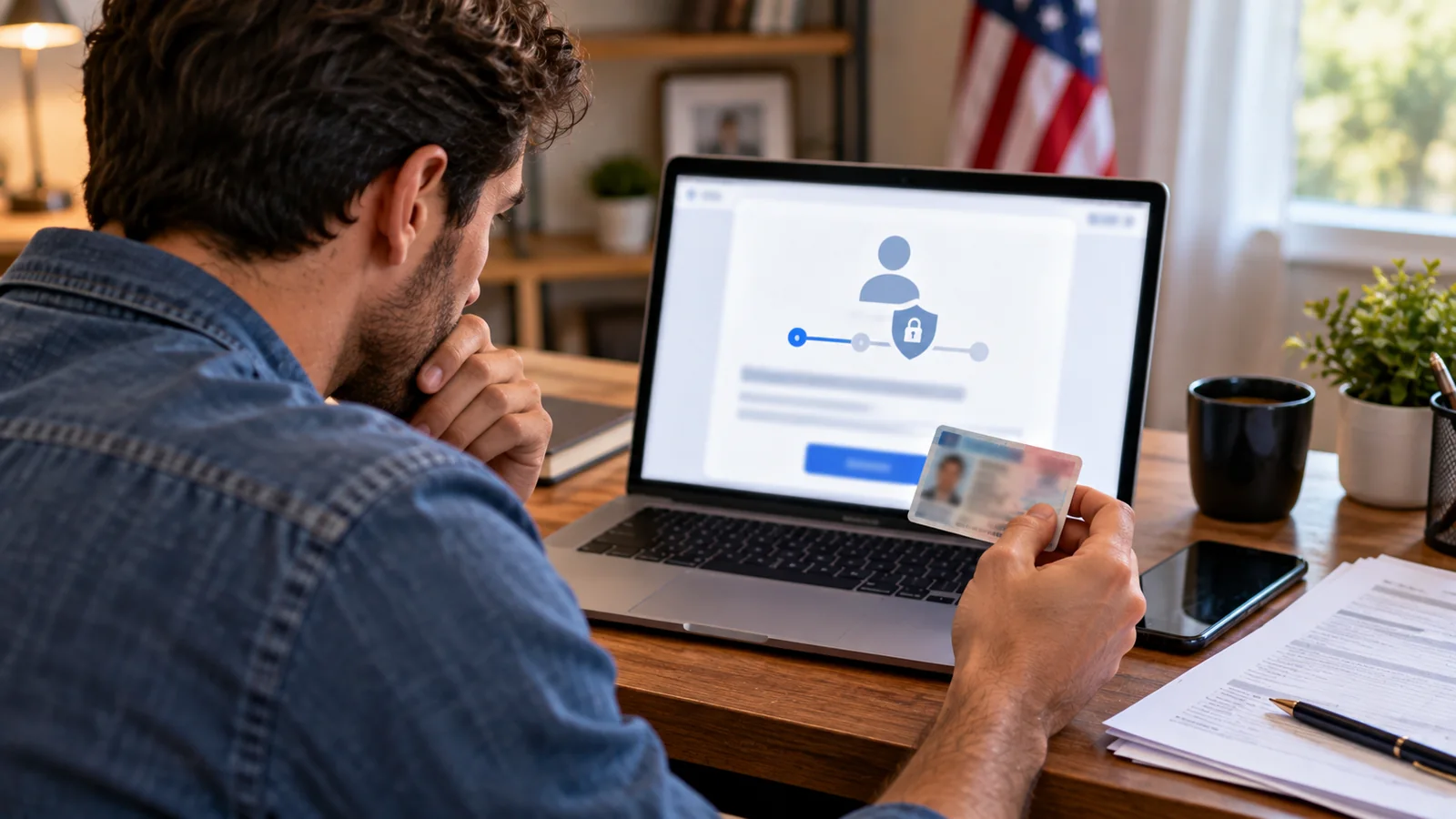
If ID.me will not verify your identity when you try to access an IRS Online Account, Get Transcript, or another IRS service, the failure may happen at several different stages: document capture, selfie matching, personal-data validation, multifactor authentication, or the final permission to share verified information with the IRS. Fix the stage that failed rather than repeating the entire process blindly.
This guide covers the standard sign-in and identity-verification workflow. An IRS letter asking you to verify a tax return is a different process. If you received an IRS identity-verification notice, follow the specific instructions and service identified on that notice rather than assuming an ordinary ID.me login resolves it.
Start here: identify your exact failure
| ID photo rejected or cannot be read | Document capture | Retake a clear, complete image of an accepted, valid ID |
|---|---|---|
| Selfie cannot be verified | Face comparison | Improve light/camera; use the offered video-call route if needed |
| Name or personal details do not match | Record or account mismatch | Review entered data; follow the specific error guidance |
| Lost phone or no authentication code | Account sign-in / MFA | Use official ID.me MFA recovery, not a new account |
| Verified but IRS service still loops | Consent or IRS eligibility | Return to IRS, sign in again, and approve information sharing |
| EC 6000 / 6001 / 6101 | IRS-specific access condition | Use the IRS explanation and alternatives for that code |
Step 1: Begin from the official IRS service
- Open the IRS account creation and sign-in guide and choose the IRS service you actually need.
- Select the service’s Sign in or create account option and proceed to ID.me from that IRS page.
- If you already use ID.me with another government organization, sign in with that existing account. Do not create duplicate accounts to bypass a failure.
- Complete your multifactor authentication when requested. If you are new, set up the account and then complete identity verification.
The IRS states that creating an ID.me account involves account setup followed by identity verification. Generally, you need a personal email, a secure password, an MFA method, an SSN or ITIN, and an accepted government-issued photo ID. Some verification paths require a camera-equipped phone or webcam. Requirements can differ for users outside the United States and ITIN holders; use the IRS links for those cases.
Step 2: Prepare documents before uploading
- Use a current, accepted government-issued photo ID such as a driver’s license, state ID, passport, or passport card, as permitted by the flow shown to you.
- Check that the name and other information you enter correspond to your genuine records; do not edit an ID image to force a match.
- Clean the camera lens, place the document on a flat contrasting surface, and use even light without flash glare.
- Capture the entire document with all four edges visible and text in focus; follow instructions for front and back when requested.
- Do not upload a screenshot, photocopy, or manipulated image unless the official flow expressly allows that format.
A rejected image does not automatically mean your ID is invalid. Motion blur, reflections, cropped edges, poor contrast, or a camera permission problem can prevent automated reading. Try a different well-lit location and use the official upload method on a current browser. If the document itself is expired or not accepted, a sharper photo will not solve that underlying problem.
Step 3: Fix a failed video selfie or face match
- Use a supported camera with permission enabled in your browser or ID.me verification session.
- Move to bright, even lighting; avoid backlighting, strong shadows, sunglasses, and anything obscuring your face.
- Hold the phone steady and follow on-screen instructions rather than moving before prompted.
- If the system repeatedly fails, use the video call agent / Trusted Referee path when offered instead of repeatedly submitting the same poor-quality selfie.
ID.me and the IRS describe an assisted video-verification option. It can be especially relevant when automated checks cannot complete. The agent may ask for alternative documentation and compare you with the documents during a live call. Availability and the documents requested depend on the flow. Do not assume a specific wait time or that every case will qualify for the same path.
Step 4: Use the video-call verification route correctly
- Select the official video-call option presented in ID.me, or follow the escalation shown after failed self-service attempts.
- Read the displayed document requirements carefully and upload the requested items using only the secure official session.
- Allow camera and microphone permissions, use a stable connection, and join the call as directed.
- Have your original documents available for the agent to inspect.
- After the agent completes verification, return to the IRS application, sign in, and select Allow if prompted to share your verified information with the IRS.
A successful video call is not always the final step. ID.me explains that the user may still need to return to the relying organization and consent to sharing identity information. If the IRS site appears to send you back to sign-in after a successful call, check this consent step before assuming verification failed again.
Step 5: Fix login and multifactor authentication problems
If you cannot reach document verification because you are locked out of ID.me, treat it as an account recovery problem, not an ID-photo problem. First confirm you are using the email associated with your existing ID.me Wallet. Use the official password-reset or MFA-recovery instructions linked from ID.me’s IRS sign-in guide.
- If you changed phones, look for ID.me’s supported MFA recovery rather than trying to defeat two-factor security.
- If an authenticator code fails, check the device’s automatic date and time setting and make sure you are using the correct account entry.
- If SMS is delayed, verify cellular reception and try only the recovery methods actually offered in your account.
- If you suspect someone else has accessed the account, prioritize account security and official support.
Step 6: Understand IRS error codes EC 6000, EC 6001, and EC 6101
| EC 6000 | A security condition prevents access to this IRS online service | Select the alternatives offered on the error page; do not promise a browser reset will override it |
|---|---|---|
| EC 6001 | The account name does not match Social Security Administration records | Review the IRS instructions for updating the name associated with ID.me |
| EC 6101 | Verification occurred without an SSN or ITIN | The IRS requires an SSN or ITIN for the affected services; follow the official eligibility guidance |
These are not interchangeable error codes. In particular, EC 6000 is not a simple camera or cookie error, and EC 6101 cannot be fixed by repeating a selfie without addressing the IRS requirement. Consult the live IRS help page for current instructions.
Step 7: Fix the “verified but cannot access IRS” loop
- Return to the original IRS service rather than a saved third-party login page.
- Sign in to the existing ID.me account and complete MFA.
- Look for the screen requesting permission to share information with the IRS and approve it if you want to proceed.
- If the browser loops, retry in a current browser with cookies enabled, temporarily disable extensions that interfere with sign-in, or use a private session for troubleshooting.
- If an IRS-specific error appears, stop general browser troubleshooting and follow that error’s official instructions.
Browser changes can help with a broken session, but they cannot correct a mismatch in government records or an eligibility restriction. Avoid disabling security protections permanently; restore normal browser settings after the test.
Step 8: What to do if you live outside the United States or have an ITIN
The IRS provides separate help routes for people who live outside the United States with an SSN and for people who have an ITIN. These situations may involve different documentation or verification instructions. Start with the relevant link under IRS: Creating an account rather than relying on instructions written only for U.S. driver’s licenses.
Do not submit someone else’s SSN, invent a U.S. address, or use another person’s account. If your identity cannot be verified through the offered route, contact official support and consider the IRS service’s non-login alternatives.
Step 9: If you received an IRS identity-verification letter, follow a different workflow
Some taxpayers receive an IRS notice or letter requiring verification of both identity and a tax return. This is distinct from signing in with ID.me. The IRS maintains a Verify your return service for eligible notice recipients and specifies which notice types may use it. Have the notice and relevant tax-return information available, and follow its instructions exactly.
If you did not file the return described in the letter, do not confirm it as yours. Use the IRS instructions to report the issue. If online verification is unavailable, use the alternative method on your notice. Never assume that successfully creating an ID.me Wallet automatically completes tax-return verification.
Step 10: Get IRS information without finishing ID.me verification
If you urgently need a transcript or account information, the IRS account-creation help page describes links to obtain some information without signing in. Available alternatives depend on the IRS service. For example, transcript delivery by mail may be an option, while some account functions require authenticated access. Use the specific IRS service page to confirm what can be done without a login.
For tax balances, payment history, or transcript needs, visit IRS Online Account or the appropriate IRS transcript page. Do not enter SSNs, document images, or tax details into unofficial “verification fixer” websites.
Security checklist: avoid identity-verification scams
- Begin from IRS.gov or the official ID.me Help Center, and inspect the domain before entering sensitive information.
- Never share your ID.me password, MFA codes, SSN, or full ID images with strangers claiming they can speed up verification.
- Do not pay a social-media account or messaging-app contact to “unlock” IRS verification.
- Use official support channels to submit a ticket or request assistance.
- After any suspected compromise, change credentials using the real service and follow IRS identity-theft guidance.
The IRS warns that it does not call, email, or text asking people to sign in to obtain transcripts or update a profile. Treat urgent messages containing unexpected sign-in links as suspicious.
Quick decision guide: which fix should you try first?
| The document scan fails | Retake a complete, glare-free image of an accepted ID |
|---|---|
| The selfie fails repeatedly | Improve lighting, then select assisted verification if offered |
| You no longer have your old phone | Use ID.me MFA recovery |
| You completed a video call but IRS still loops | Return to IRS and confirm consent to share information |
| You see EC 6001 | Follow the IRS name-mismatch instructions |
| You see EC 6101 | Review the IRS SSN/ITIN requirement |
| You received a tax-return verification notice | Use the notice-specific IRS verification workflow |
| You need a transcript immediately | Check the IRS service’s official non-login alternatives |
Official sources and further help
- IRS — Creating an account for IRS.gov: current eligibility, documents, error codes, and alternative access.
- IRS — Accessibility and compatibility: self-service and assisted verification options.
- ID.me — Sign in to the IRS: wallet upgrades, MFA, and consent.
- ID.me — Short video-call verification: agent process and troubleshooting.
- IRS — Verify your return: separate notice-specific tax-return verification.
Bottom line: The most reliable way to fix an IRS ID.me verification failure is to identify whether it is a document, selfie, sign-in, account-data, IRS error-code, or consent problem. Use the official route for that exact stage, and switch to supported assisted verification or IRS alternatives when automated verification cannot be completed.
You may also like
 Technology & How-To
 NHS App Prescription Not Showing? Check GP Approval, Pharmacy Status and Tracking
Find out why a prescription or medicine is missing from the NHS App in England. Separate repeat requests,…
 Technology & How-To
 Google Wallet Not Working After Switching Phones? Fix Card Setup and Tap to Pay
Google Wallet transferred but tap to pay fails? Separate card verification, bank approval, NFC, screen lock and device…
 Technology & How-To
 iCloud Family Sharing Not Working? Why You Still See 5GB and How to Fix It
Still seeing 5GB after joining an iCloud family plan? Check the account, invitation, sharing settings, personal plan and…