
Why Your iPhone Says SOS Only: How to Fix No Service Without Losing Your eSIM
Find out why your iPhone shows SOS Only and fix No Service safely, without deleting your eSIM or resetting the entire phone.
Contents
- What SOS Only actually means
- Diagnose the cause before changing settings
- Step 1: Rule out a network outage and a dead zone
- Step 2: Refresh the connection safely
- Step 3: Check that your cellular line is turned on
- Step 4: Install carrier settings and iOS updates
- Step 5: Check the physical SIM or eSIM without deleting it
- Step 6: Handle travel and roaming problems
- Step 7: When a network-settings reset makes sense
- Symptom-to-cause decision table
- Three realistic troubleshooting examples
- Example A: Both family phones lost service
- Example B: The eSIM disappeared after a phone upgrade
- Example C: SOS Only appears inside one building
- What to ask your carrier before booking a repair
- Safety: emergency calling is not the same as normal coverage
- Official sources and further reading
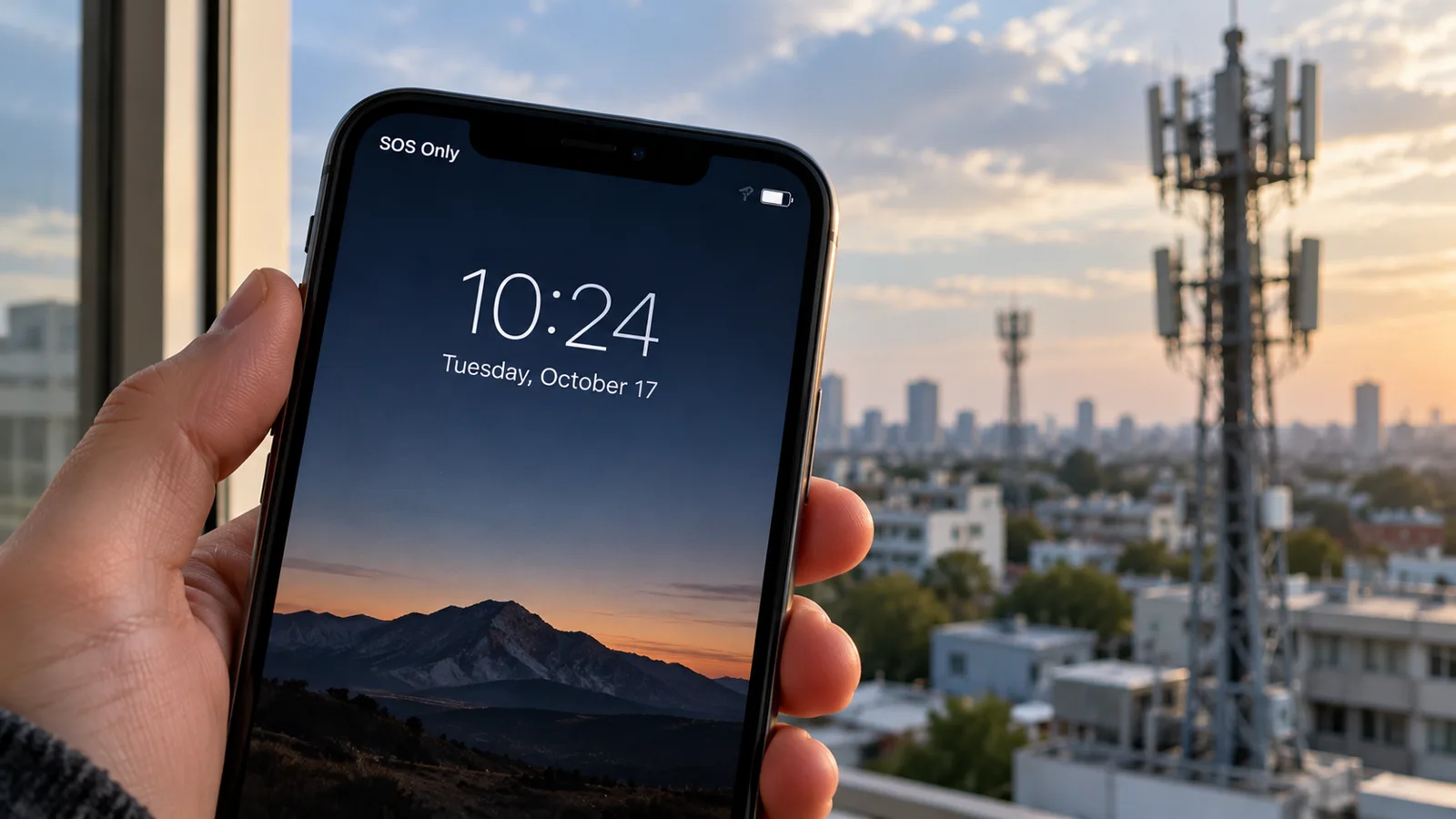
Your iPhone suddenly says SOS Only instead of showing normal signal bars. You may still be able to reach emergency services, but ordinary calls, texts and cellular data can stop working. The most effective fix is not a factory reset: first determine whether the problem is coverage, your carrier account, your SIM or eSIM, or the phone itself.
Quick fix: Check your carrier’s outage notices and move to an area with known coverage; turn Airplane Mode on for at least 15 seconds and back off; restart the iPhone; confirm your cellular line is enabled; connect to Wi-Fi and check for carrier-settings and iOS updates. Keep your eSIM installed throughout these checks. Apple’s official SOS and No Service guide explains these steps.
What SOS Only actually means
In the United States, Canada and Australia, Apple says SOS or SOS Only means the iPhone cannot connect to your own cellular network but may be able to place emergency calls over another network. This is not proof that every emergency call will connect: coverage, local rules, network availability and device capabilities still matter. In the UK and elsewhere, you may instead see No Service or Searching. Emergency SOS via satellite is a separate feature limited by supported device, region and conditions.
Diagnose the cause before changing settings
- Several phones on the same carrier fail in the same area: suspect a local outage or coverage problem.
- Only your phone fails, but another phone on the same carrier works beside it: investigate your line, SIM/eSIM and device.
- Service disappears after travel: review roaming and carrier arrangements, rather than assuming the phone is damaged.
- Service disappeared immediately after an eSIM transfer: verify carrier provisioning before touching the eSIM profile.
- Service works outdoors but not inside: building materials or weak indoor signal may be responsible.
Step 1: Rule out a network outage and a dead zone
Go outside or move to another location where you normally get a signal. Ask someone using the same carrier whether their phone works at that exact location. Check your carrier’s official service-status page or contact support over Wi-Fi. A single working phone on a different carrier cannot rule out an outage on yours.
Step 2: Refresh the connection safely
Open Settings → Airplane Mode, enable it for at least 15 seconds, then disable it. Wait for the phone to register. If the issue persists, restart the iPhone. These reversible actions are preferable to erasing data or resetting all settings. Apple specifically recommends the 15-second Airplane Mode cycle.
Step 3: Check that your cellular line is turned on
Open Settings → Cellular (or Mobile Data). With Dual SIM, select the affected line and verify Turn On This Line is enabled. Confirm that the intended line is selected for cellular data and calls. If the line is missing entirely, ask your carrier to check activation and provisioning; do not assume an old QR code can activate it again.
Step 4: Install carrier settings and iOS updates
Join a trusted Wi-Fi network. Open Settings → General → About and wait briefly; if a carrier-settings update appears, follow its instructions. Then check Settings → General → Software Update. Carrier settings can change how your phone connects to a network. Updating software is a reasonable diagnostic step, but it will not repair an outage or unpaid account.
Step 5: Check the physical SIM or eSIM without deleting it
If your iPhone uses a removable SIM and it is safe to handle the tray, power the phone down, inspect the SIM for visible damage and reseat it. A damaged or incorrectly sized SIM should be replaced by the carrier. On eSIM-only models, there is no physical card to reseat. Do not delete an eSIM as a troubleshooting experiment: it may require carrier reactivation, and a transfer QR code may be single-use. For transfer-specific problems, see our eSIM not working after switching phones guide.
Step 6: Handle travel and roaming problems
If the issue began after crossing a border, confirm your plan includes service in the destination country and that the intended line is active. Apple advises enabling Data Roaming when traveling internationally if required by the plan. Be aware that enabling roaming can incur charges; check your carrier’s rates before using mobile data. Manual network selection may be appropriate only when your carrier instructs you to use it.
Step 7: When a network-settings reset makes sense
If the carrier confirms there is no outage, your account is active, the line is provisioned and basic checks fail, a network-settings reset may be a later troubleshooting option. It removes saved networking preferences such as Wi-Fi networks and passwords, and can change VPN or cellular settings. Record those details first. Do not choose Erase All Content and Settings or delete eSIMs. Menu labels vary by iOS version; read the confirmation screen carefully.
Symptom-to-cause decision table
| Other phones on same carrier also fail | Official carrier outage or coverage status | Factory resetting |
|---|---|---|
| Only your iPhone fails in a strong-signal area | Line enabled, account status, SIM/eSIM provisioning | Deleting the eSIM |
| Issue began after travel | Roaming eligibility and charges | Random APN edits |
| Issue began after switching phones | Carrier eSIM transfer status | Wiping the old phone |
| Service fails after impact or water exposure | Carrier confirmation then authorized hardware inspection | Repeated resets |
Three realistic troubleshooting examples
Example A: Both family phones lost service
Two phones on the same network display SOS Only at home, while a neighbor on a different carrier has service. This pattern raises the likelihood of a carrier outage. The useful action is checking that carrier’s outage notices and testing elsewhere—not resetting both phones.
Example B: The eSIM disappeared after a phone upgrade
Your previous phone no longer receives calls, and the new iPhone shows SOS Only after an eSIM transfer. The likely question is whether the carrier completed activation for the new device. Use Wi-Fi to contact the carrier and keep the previous phone and profiles intact until calls, texts and data have been tested.
Example C: SOS Only appears inside one building
Your iPhone connects normally on the street but loses coverage deep inside a concrete building. That pattern is consistent with weak indoor reception. Test in several nearby locations, consider carrier-supported Wi-Fi Calling if eligible, and avoid assuming a device defect from one location.
What to ask your carrier before booking a repair
- Is there an outage or maintenance affecting my address?
- Is my account active, and is the line blocked or suspended?
- Is my SIM or eSIM correctly provisioned for this device and IMEI?
- Does this device support the carrier’s local network bands and activation requirements?
- Can you perform a network registration or line refresh from your side?
If the carrier confirms the network and account are healthy, and your iPhone repeatedly fails in multiple known-good locations, use Apple Support diagnostics or an authorized repair provider. Apple notes that the Apple Support app can offer additional diagnostics on iOS 18 and later.
Safety: emergency calling is not the same as normal coverage
If you are in immediate danger, use the local emergency number and follow your device’s emergency options. Do not make a test emergency call merely to check connectivity. The availability of another carrier’s emergency network or satellite features depends on your location and hardware. See Apple’s Emergency SOS documentation.
Official sources and further reading
- Apple: SOS, No Service or Searching on iPhone
- Apple UK: No Service and mobile network troubleshooting
- Apple: Emergency SOS on iPhone
- Horus Valley: eSIM not working after switching phones
Bottom line: Treat SOS Only as a connectivity symptom, not a diagnosis. Start with coverage and carrier status, proceed through reversible phone checks, and preserve your eSIM and personal data while you narrow down the cause.
You may also like
 Technology & How-To
 NHS App Prescription Not Showing? Check GP Approval, Pharmacy Status and Tracking
Find out why a prescription or medicine is missing from the NHS App in England. Separate repeat requests,…
 Technology & How-To
 Google Wallet Not Working After Switching Phones? Fix Card Setup and Tap to Pay
Google Wallet transferred but tap to pay fails? Separate card verification, bank approval, NFC, screen lock and device…
 Technology & How-To
 iCloud Family Sharing Not Working? Why You Still See 5GB and How to Fix It
Still seeing 5GB after joining an iCloud family plan? Check the account, invitation, sharing settings, personal plan and…