
iPhone Says Liquid Detected but It’s Dry? Safe Next Steps
A practical guide to Apple’s drying instructions, cable comparisons and service decisions when an iPhone reports liquid even though it appears dry.
Contents
- First, follow the liquid-alert instructions
- Why Apple mentions both 30 minutes and five hours
- Separate what you observed from what you assume
- Compare one variable at a time, after drying
- Example: a warning that follows the travel cable
- Wireless charging can help, but it is not a port test
- Read the message carefully: temperature is a different branch
- Restart only as a basic software check
- Do not turn an exterior wipe into port cleaning
- A liquid-contact indicator is not a charging-clearance test
- Keep a short log before contacting support
- When to stop troubleshooting at home
- Official sources
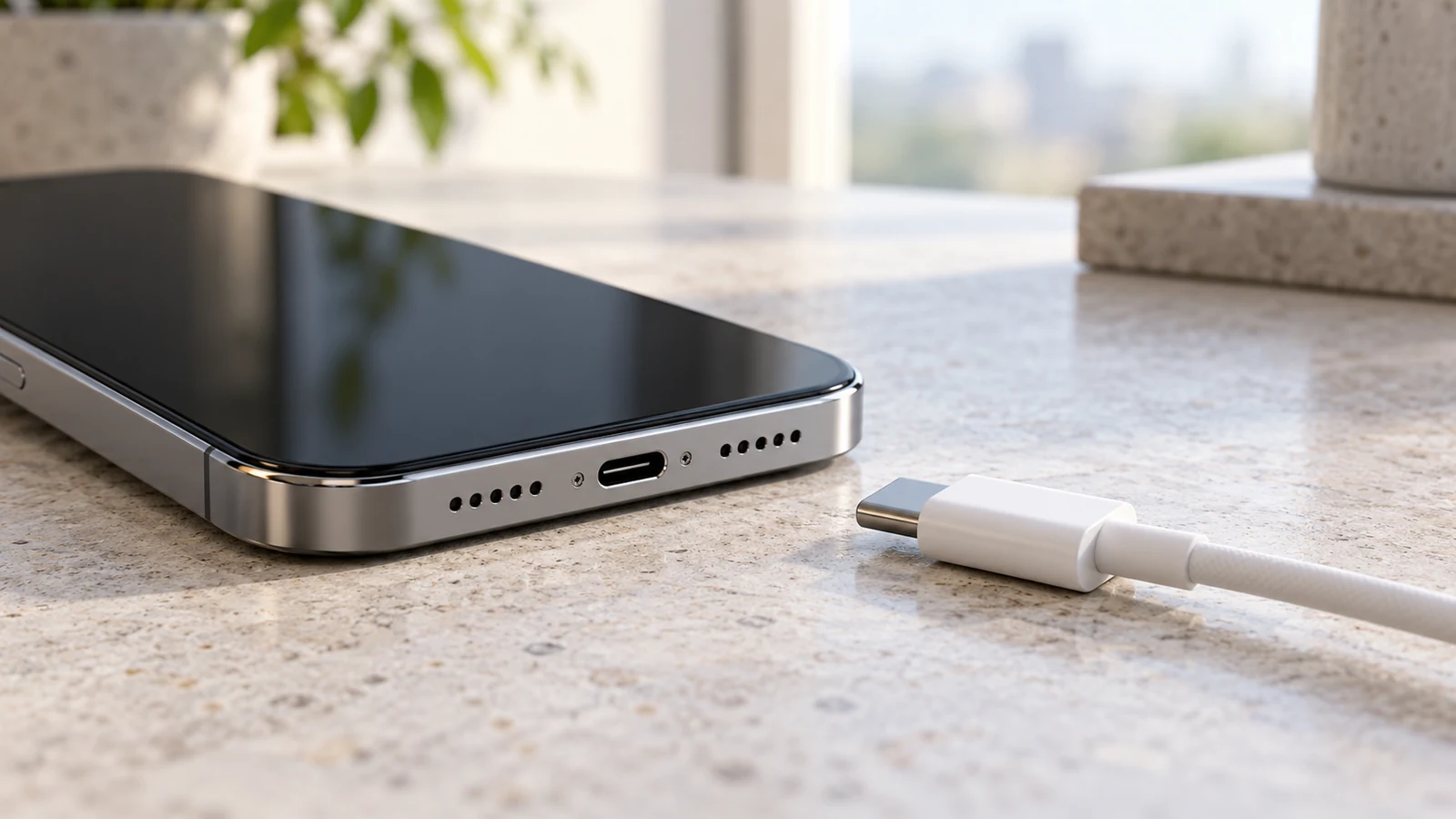
If your iPhone says liquid is detected even though it looks dry, disconnect the cable and treat the warning seriously. A dry exterior does not establish what is happening inside the connection. Start with the drying guidance below, then compare accessories only when everything is dry.
The useful question is not simply “How do I dismiss this?” It is whether the alert follows one accessory, persists across a dry charging setup, or has already cleared and left a different charging problem. Those patterns lead to different next steps.
First, follow the liquid-alert instructions
Apple’s liquid-detection guide covers supported iPhones starting with iPhone XS, XS Max and XR. The warning can concern the connector, cable or accessory.
Apple’s instructions are to:
- Disconnect the cable at both ends.
- Gently tap the phone against your hand, connector downward, and leave it somewhere dry with airflow.
- In the alert-specific procedure, wait at least 30 minutes before a retry. Continued alerts can mean drying takes up to 24 hours.
- Avoid heat, compressed air, objects inserted into the port, and rice.
Apple says an alert associated with one particular cable or accessory can indicate accessory damage; persistent alerts with Apple accessories can require service. Its emergency override is for emergencies and can expose a wet connection to damage.
Use the time guidance in context: actual liquid exposure has an additional minimum waiting instruction, explained next.
Why Apple mentions both 30 minutes and five hours
Apple’s separate water-resistance and liquid-exposure guidance says to allow at least five hours before wired charging or attaching an accessory after exposure to liquid, and to wait until the device is completely dry.
These are different contexts, not two guarantees of readiness:
| Situation | How to interpret the guidance |
|---|---|
| An unexpected alert without a known spill | The alert-specific page describes an initial retry after at least 30 minutes |
| You know the phone was exposed to liquid | Follow the liquid-exposure instruction: at least five hours and complete dryness |
| An alert remains after the initial wait | The initial interval was not a promise that the connection would be ready |
| A timer has expired but the phone or cable is visibly wet | Elapsed time is not evidence of complete dryness |
The distinction matters after rain, a spill or another known exposure. Do not select the shortest number from different support pages to justify charging sooner.
Apple also explains that water resistance can decrease with wear. A resistance rating is not permission to disregard the condition of a charging connection.
Separate what you observed from what you assume
Write down the exact warning before changing the setup. A photograph taken with another device can help if the alert disappears too quickly to record.
Use three separate notes:
- Observation: “The warning appeared when I connected the cable from my car.”
- Context: “The phone had been indoors; I do not know whether that cable was exposed to moisture.”
- Unconfirmed explanation: “The cable may be involved.”
This prevents a common troubleshooting mistake: treating an explanation as a finding. “It never got wet” may mean you did not see a spill; it is not a measurement of the connector.
Likewise, “it started after an update” identifies timing, not a confirmed software defect. Keep that detail for support, but continue with the physical checks.
Compare one variable at a time, after drying
The following is a practical comparison method, not a component diagnosis or a claim that Horus Valley tested your phone.
Use a dry, compatible cable in good condition. Keep the power source and location unchanged for the first comparison, and change only the cable. If the warning returns, disconnect rather than repeatedly reinserting the plug.
Apple’s general charging guide recommends examining cables and adapters for damage and avoiding damaged accessories. Do not use a visibly frayed cable as a test control.
| Observation from a dry setup | Useful interpretation | What it does not establish |
|---|---|---|
| The alert appears with cable A but not cable B | Cable A deserves closer attention | That every part of cable A is definitely faulty |
| Both cables trigger the warning | Changing one cable did not resolve it | Which phone component, if any, needs replacement |
| One complete setup works elsewhere | The configurations differ in a useful way | Whether the cable, adapter or environment caused the difference |
| The alert disappears, but charging still fails | Record that as a separate symptom | That the original alert was necessarily false |
Avoid testing a suspect accessory on someone else’s phone merely to reproduce the warning. A useful investigation should narrow the problem without introducing another device unnecessarily.
If you change the cable, adapter, outlet and software all at once, a successful result is harder to interpret. A short written comparison is more useful than a large pile of attempted fixes.
Example: a warning that follows the travel cable
Hypothetical example: your phone shows the alert with the cable kept in your travel bag. After the relevant drying period, a dry cable from home works in the same charging setup.
That gives you a specific question for the accessory manufacturer: why does this cable trigger the warning? It does not justify replacing the phone immediately, and it does not justify reconnecting the travel cable repeatedly to obtain more evidence.
Keep that accessory out of normal use while its condition is unresolved.
Wireless charging can help, but it is not a port test
For a compatible iPhone, a wireless charger can provide a separate charging option once the phone’s exterior is dry. Follow Apple’s liquid-exposure guidance first.
Apple’s wireless-charging instructions describe using a Qi-certified charger with an appropriate power adapter. Set it on a level surface and position the phone display-up as the charger’s manufacturer recommends. A thick or metal case can interfere; remove cards and other unsuitable objects from between the phone and charger.
Successful wireless charging answers a limited question: the phone can receive power through that setup. It does not demonstrate that the wired port is dry, undamaged or ready for use.
If wireless charging does not start, check alignment, the charger’s power supply and case compatibility before assuming the phone has a second fault. Avoid buying replacement hardware based on one poorly aligned attempt.
Read the message carefully: temperature is a different branch
A charging pause is not always a liquid warning. Apple’s temperature guidance explains that charging, including wireless charging, may slow or stop when the device becomes too warm.
If the phone displays a temperature warning, move it out of direct sunlight or a hot environment and let it return to a suitable temperature. Do not use a hair dryer to “solve” a charging issue; temperature management and moisture handling are different problems.
For a separate heat-related symptom, our iPhone overheating guide explains how to distinguish routine warmth from a thermal warning.
Record the words on screen instead of placing every charging interruption in the same category.
Restart only as a basic software check
Once the phone and accessories are dry, a normal restart is a reasonable basic check for a responsive device. Apple’s restart instructions explain the model-specific controls.
On iPhone X and later, hold the side button and either volume button until the power-off slider appears. Slide to turn off, wait about 30 seconds, then hold the side button to turn it on. On iPhone SE models, follow the separate side-button instructions.
A restart does not remove liquid or repair contacts. If the alert stops afterward, record the result without declaring that a software bug has been proven. More time passed during the process, and other conditions may also have changed.
There is no reason to begin this investigation with a factory reset. Before any later data-erasing procedure, establish what the procedure is intended to diagnose and confirm your backup.
Do not turn an exterior wipe into port cleaning
Apple’s cleaning instructions distinguish cleaning exterior surfaces from introducing moisture into openings. They recommend unplugging cables, turning the phone off and using an appropriate soft, lint-free cloth while keeping moisture out of openings.
Permission to use certain disinfectant wipes on exterior surfaces is not permission to pour alcohol, cleaning fluid or water into the charging port.
If you can see packed material or damaged contacts, document what is visible without scraping or probing. Give the repair provider that observation. “I can see something in the opening” is useful information even if you cannot identify it.
Opening the phone or improvising a connector-cleaning tool is unnecessary for the comparison method in this guide.
A liquid-contact indicator is not a charging-clearance test
Apple documents Liquid Contact Indicators, or LCIs, which can change color after contact with water-containing liquid. Visibility and location vary by model and region; do not assume every iPhone has the same accessible indicator.
An indicator’s role is different from the warning you see when attaching an accessory. Inspecting an LCI does not replace the charging guidance, and the absence of an obvious red indicator is not a professional assessment of the connector.
Do not open a SIM tray while the device is wet just to inspect an indicator. For a service visit, reporting the exposure history is more useful than trying to use an indicator as permission to reconnect.
Keep a short log before contacting support
A structured record helps explain an intermittent problem without claiming to know its cause.
| Detail to record | Example wording |
|---|---|
| Model and connector | “iPhone with USB-C; model recorded from Settings” |
| Exact warning | Copy the message as displayed |
| Exposure history | “No known spill” or the actual event and time |
| Drying interval | When everything was disconnected and when the next check happened |
| Accessory comparison | Cable A triggered the alert; dry cable B did not |
| Current condition | Alert still present, or alert gone but charging unavailable |
| Other symptoms | Visible damage, unusual warmth or unrelated warnings |
Do not include your passcode, Apple Account password or private notifications in a public forum post. Share serial numbers or other device identifiers only through an appropriate support channel when requested.
A support message you can adapt:
My iPhone repeatedly shows a liquid-detection alert. The exact message is ____. Known exposure was ____. I disconnected it at ____ and followed the drying guidance. With a dry setup, I observed ____ using cable A and ____ using cable B. The current symptom is ____. What inspection or next step do you recommend?
If you could not safely perform a comparison, say so. An incomplete but accurate record is better than inventing a result.
When to stop troubleshooting at home
Seek an assessment when the warning remains unresolved after the appropriate drying period, when several suitable dry setups reproduce it, or when physical damage makes further testing inappropriate.
You do not need to exhaust every internet suggestion before asking for help. Explain what changed, what you observed and what you have not tested. Let the provider identify whether an accessory or the phone needs attention.
Coverage is a separate question from diagnosis. Apple says liquid-damage service is not covered by its One-Year Limited Warranty, while noting that consumer-law rights may apply. Do not assume a warning alone determines the cause, coverage or repair price; ask for an assessment for your device and country.
The goal is a reliable charging connection and a clear explanation of the next step. Removing a pop-up, by itself, does not establish either.
Official sources
- Apple: Liquid-detection alerts and accessory checks
- Apple: Water resistance, liquid exposure and charging intervals
- Apple: An iPhone that will not charge
- Apple: Wireless charging
- Apple: Device temperature
- Apple: Restart instructions
- Apple: Exterior cleaning
- Apple: Liquid Contact Indicators and warranty scope
The linked liquid-alert guide contains genuine Apple warning-screen examples. The featured image accompanying this article is an illustrative scene, not a screenshot or evidence of a tested fault.
You may also like
 Technology & How-To
Is Tesla Discontinuing the Cybertruck? What We Know
Tesla plans a Cybertruck production wind-down in Texas around mid-2027. See what is confirmed, what remains unknown, and…
 Technology & How-To
Are AI Toys Safe for Kids? Privacy Risks and Parent Checks
Are AI toys safe for kids? Explore the evidence, privacy risks, age advice and practical parent checks for…
 Technology & How-To
iPhone Trust This Computer Not Showing? Windows and Mac Fixes
Restore the iPhone computer-trust prompt with checks for unlocking, Apple Devices or Finder, USB data cables and targeted…