
iOS 27 Siri Not Working? How to Fix Apple Intelligence Features
Siri not responding after iOS 27? Fix voice activation, missing Siri AI, Apple Intelligence language limits, microphone issues, connection errors and silent responses.
Contents
- First, identify exactly what is broken
- 1. Confirm your iPhone supports Apple Intelligence and Siri AI
- 2. Check language, country and phased availability
- 3. Turn Siri on and verify its activation methods
- 4. Verify Wi-Fi, cellular data and service access
- 5. Update iOS 27 and restart correctly
- 6. Siri hears you but does not speak
- 7. Siri does not recognize your voice
- 8. Apple Intelligence is missing, greyed out or stuck preparing
- 9. Siri can set timers but cannot use personal context or onscreen content
- 10. Check Screen Time, accessibility and device management
- 11. Fix Siri problems after changing languages or restoring a backup
- 12. When to reset settings—and what not to reset
- Quick symptom-to-solution guide
- A 15-minute diagnostic workflow
- What changed with Siri AI in iOS 27?
- When to contact Apple Support
- Official sources and further reading
- Bottom line
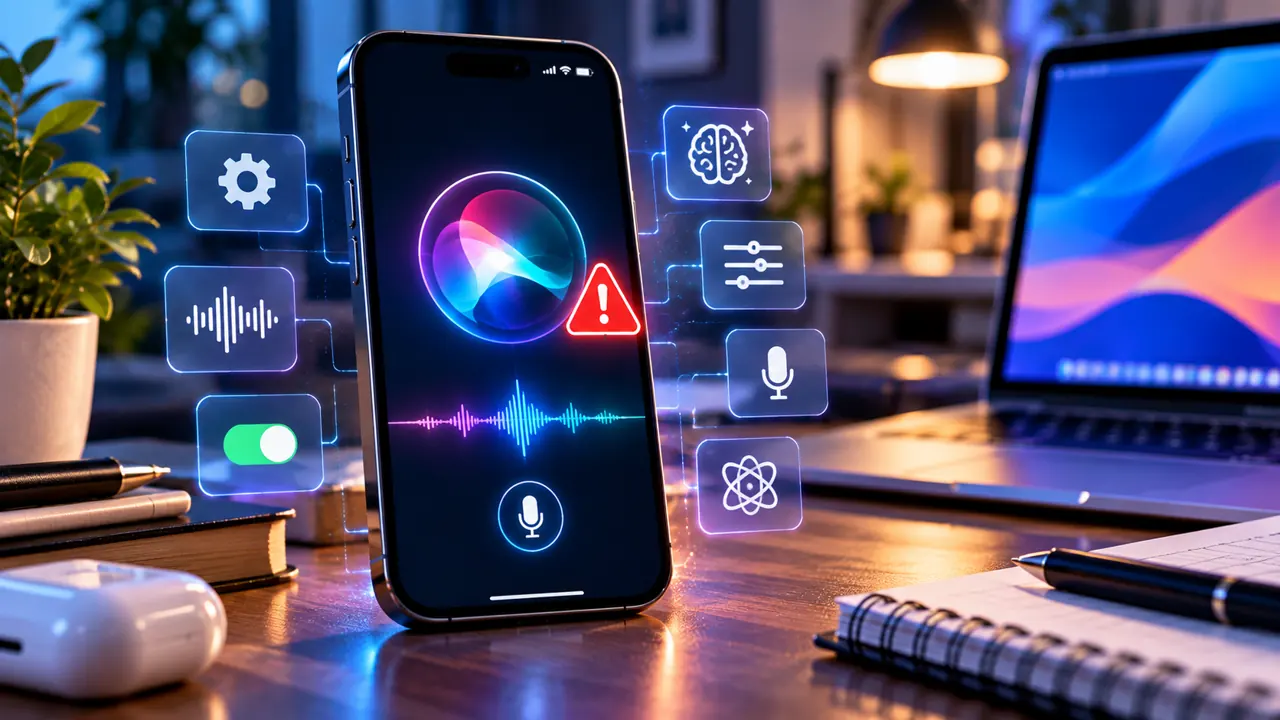
iOS 27 brings Siri AI and new Apple Intelligence capabilities, but not every Siri failure has the same cause. A missing feature may reflect device compatibility, a language restriction, a beta rollout, network access, or a disabled setting. A microphone that never responds is a different problem from an AI response that cannot complete. This practical guide separates those situations and starts with safe checks before moving to more disruptive fixes.
First, identify exactly what is broken
Test three actions separately: activate Siri with the side button, say “Siri” or “Hey Siri,” and ask a simple question that requires an internet connection. If the side button works but the wake phrase does not, focus on voice activation and microphone access. If ordinary Siri works but contextual or generative answers do not, check Apple Intelligence eligibility and availability. If no activation method works, start with settings, restrictions and restart.
1. Confirm your iPhone supports Apple Intelligence and Siri AI
Installing iOS 27 does not mean every compatible iPhone supports every AI feature. Apple states that Apple Intelligence on iPhone requires an iPhone 15 Pro or 15 Pro Max, or an iPhone 16 model or later. Siri AI is in beta and also requires a supported device and language. Older compatible iPhones may continue to use conventional Siri without the new on-device intelligence features. Do not waste time repeatedly resetting a supported older iPhone to unlock hardware-dependent functionality.
To identify your device, open Settings > General > About and read Model Name. Compare it with the compatibility information on Apple’s official Apple Intelligence page and the iOS 27 user guide. If the feature is absent on an unsupported model, that is an eligibility limitation rather than a software bug.
2. Check language, country and phased availability
At the September 2026 launch, Apple said Siri AI would roll out as an English-language beta, with additional languages planned for October. Apple also warns that features vary by region and language. A supported phone set to a different Siri or device language may therefore show traditional Siri or fewer AI actions. Check Settings > General > Language & Region and Settings > Siri (or Apple Intelligence & Siri on some versions). Only choose a language you can use comfortably; changing the entire device language merely to chase a feature is not necessary for basic Siri troubleshooting.
Some features are unavailable in certain regions because of local rules. Apple has specifically described initial restrictions for Siri AI on iPhone in the European Union and availability limitations in China. A VPN is not a reliable or recommended way to bypass feature eligibility. Avoid treating social media screenshots as proof that a feature is released to your device and region.
3. Turn Siri on and verify its activation methods
Open Settings > Siri. Depending on your installed build, controls may appear under Requests, Talk & Type to Siri, or Apple Intelligence & Siri. Enable the available “Siri” or “Hey Siri” listening option and the side-button activation setting. If the option was already enabled, switch it off and on again, then restart the iPhone. Apple’s support article recommends these checks when Siri stops responding.
Test the side button first. If Siri opens from the button but does not react to the wake phrase, retrain voice recognition: turn the listening option off, turn it back on, and complete the spoken setup prompts in a quiet room. Keep the phone nearby and speak naturally. A thick case, loud fan or Bluetooth headset can interfere with microphone pickup.
4. Verify Wi-Fi, cellular data and service access
Siri may need internet access to answer requests, and some Apple Intelligence functions rely on online services. Open a website in Safari, then try a different reliable Wi-Fi network or cellular data connection. If the phone shows a captive-portal sign-in page, complete it first. Disable a VPN temporarily only if you trust the network and can safely test without it; corporate or school profiles may filter assistant traffic.
A connection error that appears only on one network points toward DNS, firewall, proxy, VPN or filtering settings. A failure on multiple networks suggests checking Siri configuration, device restrictions and Apple service status. Do not erase network settings as the first troubleshooting step; it removes saved Wi-Fi connections and other preferences.
5. Update iOS 27 and restart correctly
Go to Settings > General > Software Update and install an available compatible update after backing up important data. Point releases may contain bug fixes, but do not claim that a particular build resolves Siri unless Apple documents it. Restart the device after updating and allow any required background setup to finish. When a download or on-device model preparation is in progress, connect to power and reliable Wi-Fi and check again later.
A normal restart is preferable to an immediate factory reset. If the interface is frozen, consult Apple’s model-specific force-restart instructions; a force restart is not the same as erasing content. Keep enough free storage for updates and downloads, and verify the device is not overheating.
6. Siri hears you but does not speak
If Siri displays text but stays silent, open Siri Responses in Settings and look for spoken-response preferences such as Prefer Spoken Responses. Increase media volume while Siri is responding. Check whether audio is being sent to AirPods, a car stereo or another Bluetooth device. Temporarily disconnect accessories and try the iPhone speaker. Silent mode and Focus settings can affect expectations about spoken output, but do not assume a quiet reply means Siri is completely disabled.
Try a different request, such as setting a timer. If audio fails in other apps or during phone calls too, investigate the speaker or microphone rather than Siri alone.
7. Siri does not recognize your voice
Voice recognition problems often arise from microphone obstruction, background noise, a recently changed voice profile or accessory routing. Record a short Voice Memos clip and play it back to test microphone capture. Remove any case or screen accessory that covers microphone openings, and gently clear obvious debris without pushing objects into the ports. Try without connected Bluetooth devices.
Then retrain “Siri” or “Hey Siri” through the listening settings. If Voice Memos recordings are consistently faint or distorted, consider hardware inspection. Repeating Siri setup will not repair a physically damaged microphone.
8. Apple Intelligence is missing, greyed out or stuck preparing
First confirm compatible hardware and supported languages. Open the Apple Intelligence settings available on your phone and check whether the feature is enabled or preparing. Verify Wi-Fi, power and free storage; wait for setup to complete before repeatedly toggling settings. If your device is managed by an employer or school, mobile-device-management policies may restrict AI capabilities. Ask the administrator before removing a profile.
Some new Siri AI functions are beta-only or subject to daily usage limits. An unavailable action is not automatically a defect. Apple’s iOS 27 documentation notes that supported languages, regions, features and usage limits vary. If a function worked yesterday but not today, test a simple request, check Apple’s published service information and retry later rather than deleting all device data.
9. Siri can set timers but cannot use personal context or onscreen content
This is a particularly important distinction in iOS 27. Basic Siri commands and advanced Siri AI actions have different requirements. A working timer does not prove that personal-context search, onscreen awareness or cross-app actions are enabled. Confirm the request is supported in your language and region, that the relevant app contains accessible information, and that privacy or Screen Time controls do not prohibit access.
Try a controlled test using a non-sensitive note or reminder you created yourself. Avoid giving Siri confidential data just to test it. If a feature is in beta, results may vary. Apple’s documentation describes capabilities but does not promise that every third-party app action is available immediately.
10. Check Screen Time, accessibility and device management
On a family-managed iPhone, Screen Time content restrictions can limit Siri and related AI functionality. Inspect Settings > Screen Time > Content & Privacy Restrictions with the account owner’s permission. Accessibility settings can also change activation methods; Type to Siri may be useful when voice input is difficult. Managed work or school devices can apply additional restrictions that ordinary users cannot override.
Do not remove parental controls, security software or management profiles without authorization. If the device is owned by an organization, document the symptom and ask its administrator which assistant features are permitted.
11. Fix Siri problems after changing languages or restoring a backup
If Siri stopped working after a migration, verify that the new device’s Siri language, device language, network and Apple Intelligence preferences match supported configurations. A restored backup may carry older settings, but AI features can require fresh setup or downloads. Re-enable Siri, retrain voice activation and test before changing more settings. Make one adjustment at a time so you can identify what actually fixed the issue.
12. When to reset settings—and what not to reset
Only after the preceding checks should you consider a settings reset, and only if the problem is persistent and clearly local to the device. Back up first. Apple offers Reset All Settings under Settings > General > Transfer or Reset iPhone > Reset; this is different from Erase All Content and Settings. It can change network, privacy and system preferences, so review the consequences before proceeding.
Do not install unofficial “Siri repair” profiles, modified firmware or apps promising to unlock unsupported Apple Intelligence features. Never enter an Apple Account password on a third-party troubleshooting website. A factory reset is a last resort, not a routine step for an assistant that is temporarily unavailable.
Quick symptom-to-solution guide
“Hey Siri” does nothing: enable listening, retrain voice setup, test microphones and disconnect Bluetooth accessories. Side button does nothing: verify Siri is enabled, restart and inspect restrictions. Siri opens but reports connection trouble: test Wi-Fi and cellular networks, VPN and service availability. Siri is silent: inspect Siri Responses, audio routing and volume. AI features are absent: confirm iPhone model, language, region and beta availability. Advanced actions fail: review supported features, app permissions, Screen Time and possible usage limits.
A 15-minute diagnostic workflow
Minute 1–2: record the exact error message and iPhone model. Minute 3–4: try side-button and wake-phrase activation separately. Minute 5–6: verify the network with Safari and another connection. Minute 7–8: check Siri listening and spoken-response settings. Minute 9–10: verify supported language, Apple Intelligence eligibility and restrictions. Minute 11–12: restart and check Software Update. Minute 13–15: retest one simple request and one AI-specific request, then document what changed.
This method is more reliable than applying every popular “fix” at once. It also gives Apple Support a useful record if the issue remains unresolved.
What changed with Siri AI in iOS 27?
Apple introduced Siri AI as a beta with more conversational responses, personal-context understanding, onscreen awareness and broader app actions. These capabilities are not identical to the traditional Siri experience, and their availability is conditional. Apple announced the September 14, 2026 rollout in English with additional language support planned. For the most accurate current eligibility, consult the official Apple Intelligence availability information rather than assuming all devices running iOS 27 receive the same functions.
When to contact Apple Support
Contact Apple Support when Siri fails across multiple networks after a restart and update, microphone recordings are distorted, settings disappear unexpectedly, or a compatible device remains unable to complete AI setup for an extended period. Include the exact model, iOS build, Siri language, country or region, error text and whether the issue affects basic Siri, voice activation or AI-only actions. Avoid sending private messages, passwords or full diagnostic logs publicly.
Official sources and further reading
Apple Newsroom — iOS 27 rollout and Siri AI availability: Apple platform updates (September 2026).
Apple Support — basic Siri troubleshooting and voice setup: If Siri is not working on iPhone or iPad.
Apple iPhone User Guide — Siri AI settings and supported languages: Use the Siri app on iPhone.
Apple iPhone User Guide — Apple Intelligence eligibility and writing features: Apple Intelligence on iPhone.
Apple — product eligibility and regional details: Apple Intelligence.
Bottom line
Most iOS 27 Siri complaints fall into one of three categories: Siri is not configured to hear or speak, the phone cannot reach the required service, or the requested Siri AI feature is not eligible or available on that device. Start by separating those causes. A few targeted checks are safer and usually more informative than resetting the entire iPhone.
You may also like
 Technology & How-To
 NHS App Prescription Not Showing? Check GP Approval, Pharmacy Status and Tracking
Find out why a prescription or medicine is missing from the NHS App in England. Separate repeat requests,…
 Technology & How-To
 Google Wallet Not Working After Switching Phones? Fix Card Setup and Tap to Pay
Google Wallet transferred but tap to pay fails? Separate card verification, bank approval, NFC, screen lock and device…
 Technology & How-To
 iCloud Family Sharing Not Working? Why You Still See 5GB and How to Fix It
Still seeing 5GB after joining an iCloud family plan? Check the account, invitation, sharing settings, personal plan and…