
How to Recover Files From an SD Card Showing RAW Without Formatting It
A data-preserving guide to RAW SD card recovery, explaining when to cancel formatting, test the reader, clone damaged media and recover files safely.
Contents
- Emergency checklist: the safe first response
- What does RAW mean on an SD card?
- Step 1: confirm the reader and adapter are not the problem
- Step 2: inspect the correct disk in Windows Disk Management
- Step 3: decide whether a home recovery attempt is reasonable
- Step 4: prefer a sector-by-sector image when media is unstable
- Step 5: recover accessible files with PhotoRec or QPhotoRec
- Step 6: why recovered photos may have generic filenames
- Step 7: the special problem with camera video files
- Step 8: TestDisk versus PhotoRec—choose based on the problem
- Step 9: why running CHKDSK immediately is usually the wrong first move
- Step 10: understand the “Windows could not complete the format” warning
- Windows, macOS, Android and camera behavior may differ
- The difference between a RAW drive and RAW photo files
- A careful post-recovery workflow
- A real-world decision tree for four common symptoms
- Security and privacy: avoid predatory recovery services
- Conclusion
- Official technical references
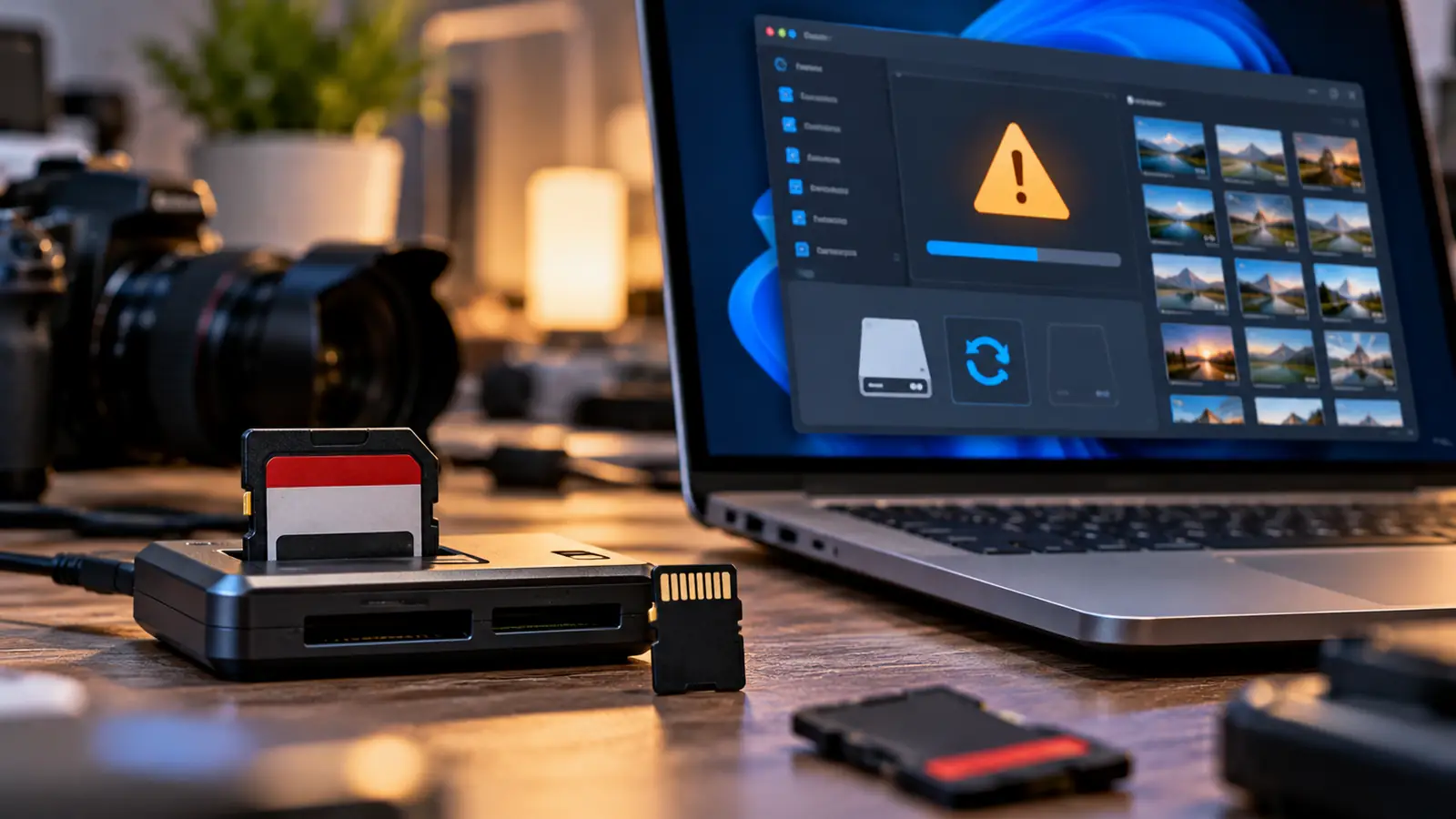
You insert a camera SD card into a Windows laptop and get “You need to format the disk before you can use it.” File Explorer might show the drive as RAW, Disk Management may display an unknown or unrecognized file system, or the camera may suddenly demand that the card be formatted. If the files matter, cancel the format prompt. A card displaying RAW is not automatically blank, and forcing repairs before recovery can make the situation worse.
This guide explains how to distinguish a card-reader problem from file-system damage, how to recover photos and documents to a different drive, and when to stop and use a professional service. It covers SD, SDHC, SDXC and microSD cards used in cameras, drones, recorders and phones. The instructions prioritize data preservation; they do not promise recovery from failed or encrypted flash memory.
Emergency checklist: the safe first response
- Click Cancel if Windows asks to format the card. Do not select Quick Format or Full Format.
- Stop taking photos or recording videos on the card. Do not save a single new file to it.
- If the card is in a camera or drone, turn the device off safely and remove the card according to the device instructions.
- Try a different known-good reader or port, but avoid repeated reconnecting if the card is hot, physically damaged or disconnecting constantly.
- Do not run
chkdsk /f, formatters, partition-repair tools or “fix RAW” utilities on irreplaceable content before you have a copy or an image of the media. - Prepare a healthy computer drive with enough free space to hold recovered data; never recover files onto the problem SD card.
The first goal is to extract whatever the card can still read. File-system repair and reuse come later, if at all. This order matters because repairs may update metadata, alter directory structures or trigger additional writes.
What does RAW mean on an SD card?
RAW in Windows Disk Management is generally a classification meaning Windows cannot identify or mount the volume as a supported, readable file system in its current state. It is not a special “RAW photo” format in this context. Some cameras also create .CR2, .NEF, .ARW and other raw image files; those are completely different from a drive showing a RAW file system.
An SD card may appear RAW because of corrupted file-system metadata, an interrupted write, a failing reader, damaged flash cells, a damaged partition, incompatible formatting, or a file system Windows does not support. The identical message can result from several causes. RAW does not tell you that the data is recoverable or unrecoverable on its own.
Step 1: confirm the reader and adapter are not the problem
Remove the card using safe-eject procedures and inspect the external plastic shell and contacts for visible damage. Test a different reliable card reader and USB port if one is available. For microSD in an SD adapter, the adapter itself is a potential failure point. Do not scrape or use liquid chemicals on the contacts. Avoid bending the card or forcing it into a slot.
If the card reads normally in another reader, immediately copy its contents to a separate drive and compare a few recovered images or documents. This is a good outcome: the problem may have been the reader rather than the card. If several reliable readers fail, stop trying random adapters and continue cautiously.
Step 2: inspect the correct disk in Windows Disk Management
Press Win+X and choose Disk Management, or search for “Create and format hard disk partitions.” Find the SD card by its approximate capacity and connection behavior. A 64 GB card can display a slightly smaller usable number; do not confuse it with a computer drive of similar capacity.
Record whether the media appears with a partition, as unallocated space, RAW, No Media, 0 bytes, or not at all. Do not initialize the disk, create a volume, assign a new file system, or choose Format. Drive-letter issues and RAW file systems are different: assigning a letter can help a healthy readable volume, but it cannot reconstruct corrupted data on a RAW one.
Step 3: decide whether a home recovery attempt is reasonable
A card detected at approximately its expected capacity, with stable connections and no unusual heat, is a candidate for careful software recovery. A card that reports No Media, repeatedly disappears, has an obviously wrong capacity, becomes hot or has physical damage may be suffering a hardware/controller problem. Do not keep stress-testing such a card when files are irreplaceable.
Some phones configure microSD cards as encrypted or adopted internal storage. In that case, moving the card to a laptop may produce an unreadable appearance even without damage, because the original phone holds the keys. Return to the original device if available and use the device’s supported export or backup procedure. Ordinary card-carving utilities cannot guarantee access to properly encrypted content.
Step 4: prefer a sector-by-sector image when media is unstable
If the card can be read but is beginning to fail, experienced users often create a full disk image on a healthy storage device and run recovery against the image, not the original card. This reduces repeated reads and preserves a snapshot for a second attempt. The destination must have room for the entire card capacity, plus the recovered files.
Tools and procedures such as GNU ddrescue are documented by the TestDisk/PhotoRec project. Imaging can be complex, particularly when selecting source and destination devices. Choosing the wrong destination can overwrite another disk, so this step is not suitable for someone unsure of disk identification. If the card is unstable and valuable, a professional may be safer than a first experiment. See the project’s damaged-disk imaging guidance.
Step 5: recover accessible files with PhotoRec or QPhotoRec
PhotoRec is an established file-carving tool from the TestDisk project. It can search underlying data patterns even when a file system is corrupted, because it does not require an intact folder directory in every case. Its graphical variant is called QPhotoRec. Download it only through the official CGSecurity project and check platform-specific instructions.
A typical recovery workflow is:
- Connect the card through a reliable reader, or open the verified disk image if you created one.
- Launch QPhotoRec or PhotoRec with appropriate permissions for the operating system.
- Select the source SD card by capacity and device identity. Pause and recheck; selecting the computer’s main drive wastes time and can confuse output.
- Select the partition or whole space appropriate to the damaged-file-system situation, following the project’s documentation.
- If needed, narrow File Opt to the types you actually need, such as JPG, PNG, MP4, PDF, RAW photo formats or documents supported by the tool.
- Choose an entirely different healthy drive for recovered output. Ensure it has enough free space.
- Start recovery, allow it to complete, then inspect copies of several files before declaring success.
PhotoRec explicitly warns not to save recovered files to the source file system, because that can overwrite still-recoverable content. It also explains that carved files may lose original filenames and directory structure. See the official PhotoRec recovery guide.
Step 6: why recovered photos may have generic filenames
A damaged file system can lose directory entries even when the underlying image data remains readable. PhotoRec searches signatures and file contents, so it often produces generic names rather than the original DSC_0001.JPG or camera folder structure. You may need to sort files by image date, metadata, file size and visual thumbnails afterward.
If the recovered directory contains duplicates or truncated pictures, preserve the raw output and organize a copy. Do not delete seemingly odd files until you have checked them. Some image formats and fragmented video recordings are hard to reconstruct without original metadata, and recovering a recognizable file header does not guarantee the entire media file is intact.
Step 7: the special problem with camera video files
High-resolution camera and drone videos can be heavily fragmented or structured in a way that file-carving tools do not reconstruct automatically. The TestDisk documentation discusses cases where recovered MP4/MOV files are unreadable even though fragments can be detected. Before deciding all clips are lost, consult the project’s video recovery guidance and consider specialist help for important footage.
Keep a copy of the original image/card before attempting advanced video repair. Do not upload private video fragments to a random online converter, and do not purchase a “guaranteed” recovery product based solely on marketing claims. Hardware failures, encryption and overwrites impose real limits.
Step 8: TestDisk versus PhotoRec—choose based on the problem
TestDisk can inspect and, in some scenarios, reconstruct partition information or help copy files from supported file systems. PhotoRec works more directly from file signatures and is useful when directory metadata is damaged. TestDisk changes to partition tables or filesystem structures are potentially destructive if you select the wrong operation.
A careful user may use TestDisk to inspect whether files and partitions can be recognized, but should not write changes to the original card until the data is recovered or cloned and the consequences are understood. Follow official TestDisk partition recovery guidance. For valuable data, read-only inspection and extraction are preferable to heroic repair attempts.
Step 9: why running CHKDSK immediately is usually the wrong first move
Windows CHKDSK is a file-system integrity and repair utility, not a substitute for extracting data before working on a damaged flash device. A RAW volume may be rejected because Windows does not recognize the file system; other file-system states may allow repair, which can modify metadata. Running chkdsk /f on the source before making a recoverable copy is an unnecessary risk when the files are irreplaceable.
After data is recovered, qualified users may evaluate a repair strategy on a clone, not the only source card. If the card reports hardware-level errors, do not use filesystem-repair commands as a long-term reliability fix. Memory cards can fail even after seeming to work again.
Step 10: understand the “Windows could not complete the format” warning
A format failure does not prove that recovery is impossible. It may reflect write protection, reader trouble, a controller fault, an incompatible card, or media that cannot reliably be written. Conversely, a successful format does not mean the card is healthy. Formatting recreates file-system structures; it does not automatically repair failing flash cells or recover past files.
If you have already formatted the card accidentally, stop using it immediately. Some data may be recoverable from a quick-format situation, while full overwrite or subsequent recordings can sharply reduce the chance. Do not format it again to “fix” the first mistake.
Windows, macOS, Android and camera behavior may differ
On Windows, a card may show RAW or prompt for formatting. On macOS, Disk Utility may show an unmountable volume; avoid choosing Erase. On Android, a phone may report a damaged or unsupported card. Cameras may display “Card Error,” “Format Card,” or “Cannot Access.” None of these labels identifies one universal remedy.
If the card works in the original camera or phone, copy data from that device using its USB transfer or supported export method before reformatting. Do not turn a readable camera card into a risky software-recovery case by trying repairs on a different computer.
The difference between a RAW drive and RAW photo files
A RAW drive is an unreadable or unrecognized volume. A RAW photo is a legitimate image file designed to retain sensor information, such as Nikon NEF or Canon CR3. A memory card can hold RAW photographs on a normal exFAT volume. The recovery goal may include those files, but converting RAW photos to JPEG will not fix a damaged SD card’s file system.
When selecting recovery file types, check the camera’s actual file extension. PhotoRec supports many formats, but individual camera models and video structures vary. If the tool cannot recognize a proprietary or encrypted format, professional tools or vendor workflows may be necessary.
A careful post-recovery workflow
Once you have recovered the images, copy the recovered files to a second location and open representative files—including one large video and one recent photo—to confirm they are readable. Preserve the original recovery folder for a while. Check expected image counts and important events rather than trusting total file size alone.
Only after that should you consider whether to reuse the card. For casual noncritical usage, the SD Association’s Memory Card Formatter is the official specialized formatter; the Association itself cautions users to copy important data elsewhere first. A card that repeatedly becomes RAW, disconnects, reports errors or had to be rescued should normally be replaced rather than trusted with valuable photographs.
A real-world decision tree for four common symptoms
Case A: Card reads in a camera but shows RAW on Windows. Copy photos using the camera’s USB connection or test a known-good reader. Recovery software may be unnecessary.
Case B: Card is RAW in every reader but reports normal size. Stop writes, make an image if feasible, and run read-only recovery against the card or image, saving output to another drive.
Case C: Card shows zero bytes or No Media. Try only a controlled reader comparison, then consider specialist hardware recovery. Typical carving tools cannot read sectors the device never exposes.
Case D: The phone says the card is encrypted or internal storage. Return to the device that configured it and use its authorized export path. A PC reporting the card unreadable may be normal for an adopted/encrypted card.
Security and privacy: avoid predatory recovery services
Photo and video recovery sites often promise a 100% success rate or ask you to upload the entire card image. Neither guarantee is credible. A disk image can contain private photos, IDs and deleted documents. Prefer reputable, locally run tools and understand exactly what any software sends over the internet. Avoid sharing unknown downloads, especially executable installers from ad-driven mirrors.
For corporate, legal or forensic material, maintain an immutable original copy, document the device model and symptoms, and use authorized specialists. If the card belongs to someone else, obtain permission before attempting recovery.
Conclusion
When an SD card shows RAW, the recovery comes before the repair. Cancel formatting, stop writing, rule out a bad reader, check whether the card is actually encrypted, and recover to a separate healthy destination. PhotoRec can rescue files from some damaged file systems, but it cannot defeat encryption or missing hardware access. If the card is unstable or the data is irreplaceable, imaging or professional intervention is safer than repeated repair attempts.
Official technical references
You may also like
 Technology & How-To
 NHS App Prescription Not Showing? Check GP Approval, Pharmacy Status and Tracking
Find out why a prescription or medicine is missing from the NHS App in England. Separate repeat requests,…
 Technology & How-To
 Google Wallet Not Working After Switching Phones? Fix Card Setup and Tap to Pay
Google Wallet transferred but tap to pay fails? Separate card verification, bank approval, NFC, screen lock and device…
 Technology & How-To
 iCloud Family Sharing Not Working? Why You Still See 5GB and How to Fix It
Still seeing 5GB after joining an iCloud family plan? Check the account, invitation, sharing settings, personal plan and…