
How to Recover Missing OneDrive Files After a Windows Update or Sync Problem
Find missing OneDrive documents after Windows updates or sync errors using account checks, web search, recycle bins, version history and safer recovery choices.
Contents
- First five minutes: protect the copies that may still exist
- Identify exactly which disappearance you are seeing
- Step 1: search OneDrive on the web, not only File Explorer
- Step 2: check that Windows and the browser use the same Microsoft account
- Step 3: restore files from the OneDrive web Recycle Bin
- Step 4: look in Windows Recycle Bin and other local folders
- Step 5: investigate Desktop, Documents and Pictures backup changes
- Step 6: inspect OneDrive sync status and specific error messages
- Step 7: understand cloud icons before assuming files were erased
- Step 8: recover an older version of a document that was overwritten
- Step 9: use Restore your OneDrive for widespread damage—only if eligible
- Step 10: account for a Windows update, reset, or replacement profile
- Step 11: try a non-destructive OneDrive restart before reset
- Step 12: work and school OneDrive requires additional checks
- When to stop troubleshooting and preserve evidence
- Practical examples: follow the branch that matches your case
- How to prevent the next disappearance
- Conclusion
- Official sources and further reading
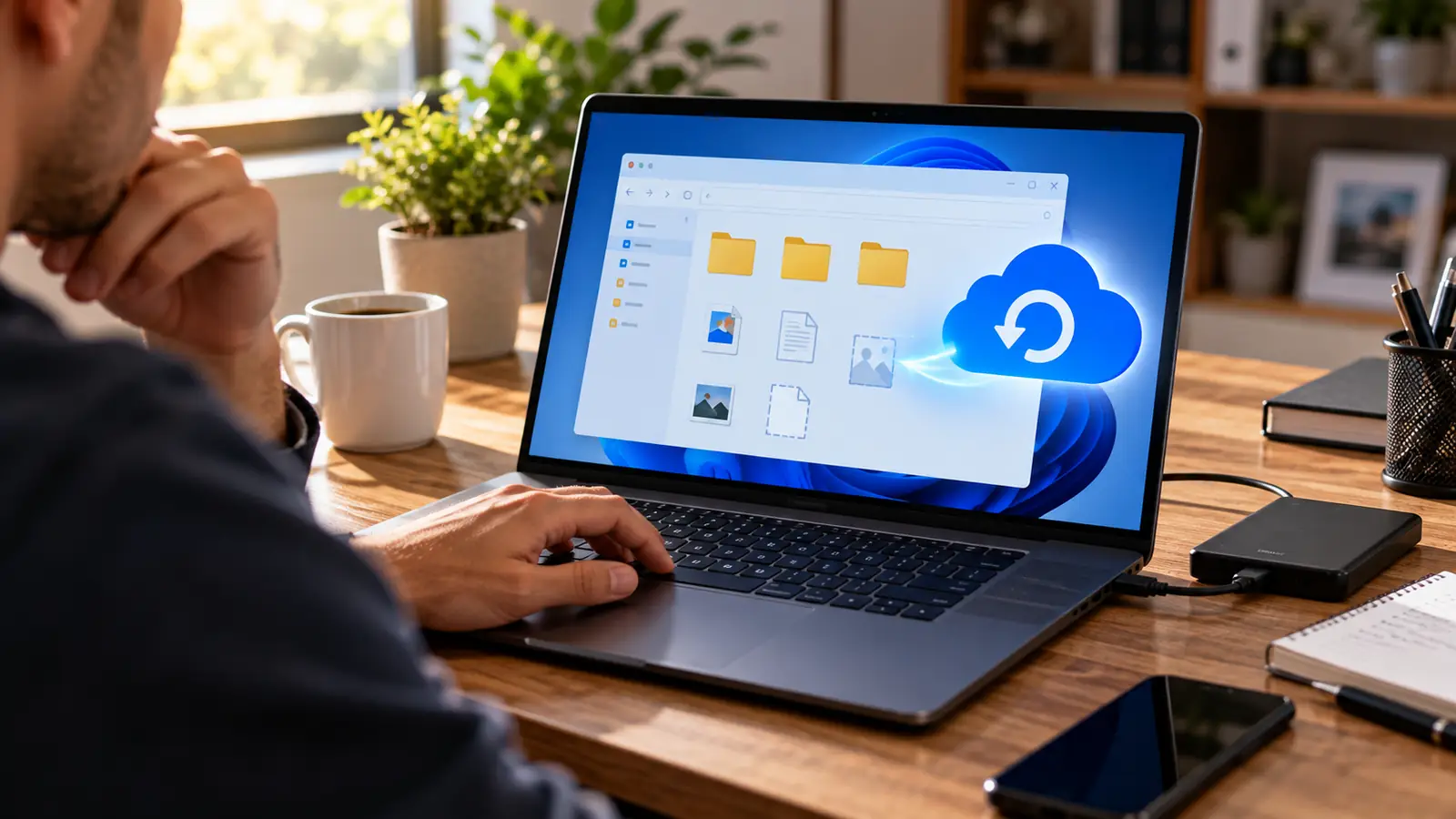
A Windows update finishes, the computer restarts, and suddenly the Desktop, Documents folder, or an entire project directory seems empty. In other cases OneDrive displays a cloud icon but files appear to have vanished, or a sync warning shows up just before the folder disappears. The immediate temptation is to reinstall OneDrive, turn off syncing, or move everything back into Documents. Do not do that yet. A missing file can be in the cloud, in another account, in a different local folder, in the Recycle Bin, or only temporarily hidden by File Explorer. The correct recovery path depends on which of these happened.
This guide gives a safe, ordered method for Windows 11 and supported OneDrive configurations, including personal Microsoft accounts and work or school accounts. It also explains how to prevent a hurried fix from overwriting or deleting the only remaining copy. Microsoft calls the official recovery procedures “Find lost or missing files in OneDrive,” “Restore files deleted from your OneDrive,” and “Restore your OneDrive”; links are provided below. Menu names may change with app updates.
First five minutes: protect the copies that may still exist
- Stop bulk moving, renaming, or deleting files in any folder controlled by OneDrive. A synchronized deletion can propagate to other devices.
- Open OneDrive on the web in a browser, sign in, and note the email address shown for the account.
- On your PC, look for the OneDrive cloud icon in the Windows notification area. Record whether it says “Up to date,” “Syncing,” “Paused,” “Sign in,” or displays an error.
- If you find an intact local copy of a missing document, copy it to a clearly named non-OneDrive folder or a separate external drive before trying repairs. Use Copy, not Move.
- Do not empty either the Windows Recycle Bin or the OneDrive web Recycle Bin. Do not run a cleanup tool on the affected folder.
The browser check is essential. It separates cloud data from what Windows File Explorer happens to display. A file present on the web is normally a sync or location problem, not a permanently lost document.
Identify exactly which disappearance you are seeing
- The file is visible on OneDrive.com but not on the laptop: investigate account sign-in, the synced folder selection, Files On-Demand and sync status.
- The file is visible locally but not online: its upload may have failed, OneDrive may be paused, or the file may be outside the synced folder.
- It is missing from both locations: check web and Windows recycle bins, other accounts, version history and backup locations.
- Your Desktop or Documents changed after an update: inspect Windows Known Folder Backup and the actual paths for Desktop/Documents.
- Files were overwritten or scrambled: consider OneDrive version history or, if eligible, whole-OneDrive restore.
- A work account is involved: your organization’s SharePoint retention and administrator recovery options may differ from a personal account.
Keep one example filename and its approximate last-known date handy. It is easier to find one known document first than to move hundreds of folders in an attempt to rebuild everything at once.
Step 1: search OneDrive on the web, not only File Explorer
Sign in at OneDrive.com and search for the precise filename. If that fails, search a distinctive word or partial filename, then check likely folders and recent items. OneDrive search also supports some contextual searches, but results depend on file type and account.
Check My files, Recent, and any organization-specific shared locations. Unlock Personal Vault when applicable; Microsoft says Personal Vault items do not normally appear in standard search results while locked. If the file opens in the browser, download or make a safe copy before modifying sync settings. The successful web result also tells you which account holds the surviving copy.
Step 2: check that Windows and the browser use the same Microsoft account
Personal OneDrive and OneDrive for work or school are separate storage locations. You may have signed into a different address after a Windows reinstall, joined a work organization, or changed the default Office account. A different OneDrive can look empty even though your old files are intact.
Select the OneDrive cloud icon near the clock, open Settings, and inspect the listed accounts. In a browser, verify the profile in the upper-right corner of OneDrive.com. If you have multiple identities, sign into each separately and search again. Do not disconnect the original account before writing down which folders it owns.
Step 3: restore files from the OneDrive web Recycle Bin
In the correct OneDrive account, open Recycle bin in the left navigation. Use the filename, deletion date and folder path to locate the item. Select the items you recognize and choose Restore. This returns supported items to their original locations, where they may then sync back to Windows.
Microsoft documents a typical retention period of 30 days for personal OneDrive and 93 days for work/school OneDrive, unless the organization’s administrator changes retention. Those are not guarantees: permanent deletion, policy settings, or an emptied bin can change recoverability. Shared content owned by somebody else may need the owner or an administrator to restore it. Microsoft’s recycle-bin recovery instructions explain these distinctions.
Step 4: look in Windows Recycle Bin and other local folders
Open Windows Recycle Bin and search for the missing filename. Items removed locally may still be there, but files that existed only online may never have been placed in the Windows bin. Next use File Explorer’s This PC search for a distinctive filename or extension. Search the system drive and any former data drive, not just the visible Documents folder.
Look especially at C:\Users\<your-user>\OneDrive\, C:\Users\<your-user>\OneDrive - <organization>\, C:\Users\<your-user>\Documents\, and the current Desktop location. These are illustrative paths, not universal defaults. Before moving anything, right-click Desktop or Documents in File Explorer, open Properties when available, and inspect the Location path. Different profiles, redirected folders and company policies may use other paths.
Step 5: investigate Desktop, Documents and Pictures backup changes
OneDrive can back up familiar Windows folders such as Desktop, Documents and Pictures. If that configuration changes, users sometimes see apparently empty folders because File Explorer now points to a different location, not because the files were erased. Open OneDrive Settings and find Sync and backup → Manage backup (wording may vary); note which known folders are enabled.
Search both the standard Windows user folders and the OneDrive-backed versions. If the files exist in one location, copy the files you need into a separate unsynced recovery folder first. Avoid toggling folder backup repeatedly as a troubleshooting experiment. Disabling backup can change where newly saved content goes, and moving directories without understanding their sync state can cause duplicates or deletions.
Step 6: inspect OneDrive sync status and specific error messages
Select the cloud icon and read the activity list. A red X, sign-in prompt, storage warning, or blocked-file message gives a more useful clue than “OneDrive doesn’t work.” Common causes include an account that needs authentication, lack of storage, a filename incompatible with the destination, a locked document, permissions problems, or a corporate policy that restricts syncing.
Start with the least disruptive fix: reconnect to the internet, ensure the right account is signed in, resume a paused sync, and try opening the file online. If the web copy is correct, prioritize repairing the sync client rather than experimenting with the document. For work accounts, check whether the folder is in OneDrive or a SharePoint/Teams library: sharing and restoration rules can differ.
Step 7: understand cloud icons before assuming files were erased
Files On-Demand can represent a cloud-only file with a small icon even when the actual content is not stored locally. Clicking it may download it. A local green check mark usually indicates local availability; an always-available state is managed separately. Icons and their appearance vary by Windows and OneDrive version.
If the file is cloud-only, it may not open offline. That does not mean it was deleted. Connect to a reliable network, confirm there is sufficient disk space, and open it from the correct account. For critical documents, use the app’s Always keep on this device option once the file is known to exist and your laptop has enough space, but remember this is a sync convenience, not a true independent backup.
Step 8: recover an older version of a document that was overwritten
If the filename is present but its contents were replaced by an empty or incorrect version, open OneDrive on the web, right-click the file, and look for Version history. Review timestamps and restore or download an older version where supported. This is particularly useful after an accidental overwrite, a conflicting sync, or unwanted editing.
Do not immediately overwrite the newest version. Download both versions if needed, compare them, and retain the copy that contains the content you want. Version availability varies by file, account type and policies. Recycle-bin recovery addresses deleted files; version history addresses earlier states of files that still exist.
Step 9: use Restore your OneDrive for widespread damage—only if eligible
Microsoft 365 subscribers can use the web feature Restore your OneDrive to roll back actions across their OneDrive during the last 30 days. It is intended for extensive deletion, overwriting, corruption or malicious changes, not as the first response to one misplaced file. Work and school availability depends on the organization.
Open OneDrive web settings and look for the restore option, choose a point before the incident, and inspect the previewed changes. Microsoft warns that files created after the chosen restore point can be placed into the Recycle Bin during a restore. Download particularly important new work first. Read Microsoft’s Restore your OneDrive documentation before committing.
Step 10: account for a Windows update, reset, or replacement profile
Windows updates and account changes can alter what folders are pinned in Quick access or which profile signs in. Inspect the user name under C:\Users\, the account shown in Windows Settings, and the actual save location of the app you used. If a temporary or different Windows profile was loaded, your old data may still be in the original user directory.
If the update involved a system reset, disk replacement, or a clean installation, cloud files may have survived even if unsynced local-only files did not. Windows.old may exist after certain upgrade paths, but it is not assured and can be removed by cleanup. Search safely before relying on it. Avoid reinstalling Windows again as a data recovery technique.
Step 11: try a non-destructive OneDrive restart before reset
When files exist online but the desktop client is stale, exit OneDrive from the tray menu and start it again from the Start menu. Restart Windows if appropriate. Then check whether the cloud icon begins processing changed files. Do not interpret “Processing changes” as evidence of data loss without examining the online account.
If Microsoft recommends resetting the client for a specific sync fault, follow its current official instructions exactly. Resetting the sync application is different from deleting cloud files; nevertheless, preserve local-only documents before any reset, unlink or reinstall. Avoid untested scripts advertised as magical fixes.
Step 12: work and school OneDrive requires additional checks
An employer or school may enforce retention, retention labels, device management, SharePoint access policies or admin-controlled recycle-bin restoration. A folder might also have been shared with you rather than owned by you. If its owner removes access, it can disappear from your shared view without you having deleted anything.
Ask your administrator to check the correct account, SharePoint site, library, retention history and relevant recycle bins. Provide a filename, last-seen date, browser link if any and the device involved. Never send passwords or verification codes to a support agent. Microsoft notes that administrators may have additional recovery options in some work/school scenarios.
When to stop troubleshooting and preserve evidence
If a large batch of files disappeared simultaneously, filenames were changed to strange extensions, or a ransom message appeared, disconnect the affected PC from the network, use a trusted device to secure your account, and contact organizational security support if relevant. Do not repeatedly sync the same compromised folder. If there is suspected unauthorized account activity, inspect recent sign-ins and review shared links as well.
If files were only stored locally on a failed disk, OneDrive may not help: you are dealing with a separate device-data recovery problem. Preserve the failing drive and avoid writing new files onto it. Professional recovery may be appropriate when data is irreplaceable.
Practical examples: follow the branch that matches your case
Case A: A PDF vanished from Documents after an update. Open OneDrive.com first. If it is visible there, note the correct account and inspect the local Documents path and Files On-Demand status. Download a copy before changing backup settings.
Case B: A colleague’s shared folder disappeared. Search Shared rather than My files and ask the owner whether access changed. Your personal Recycle Bin cannot recover a shared folder owned by another person.
Case C: An Excel workbook now contains yesterday’s numbers. Find the workbook in the cloud and check Version history. Recover the last good state; do not restore your entire OneDrive unless the damage is extensive.
Case D: Hundreds of files were deleted by mistake yesterday. Check OneDrive Recycle Bin and, if your account is eligible, consider Restore your OneDrive within the documented recovery window. Copy recently created files that could be affected by rollback.
How to prevent the next disappearance
Keep at least one independent backup of irreplaceable work, such as an offline external drive or separate, versioned backup service. Sync is designed to make changes travel between locations, including unwanted deletions. Periodically test that a backup file can actually be opened. Know which OneDrive account backs up your Desktop and Documents, and keep your account recovery details current.
After an important editing session, verify the expected document appears in OneDrive on the web. For work accounts, learn where shared Teams files are stored and what your organization’s retention policy covers. These small checks are more reliable than assuming a green cloud icon means every important file is backed up forever.
Conclusion
Missing OneDrive files are not one single problem. The safest sequence is web search → verify account → inspect recycle bins → check local paths and known-folder backup → review sync status → check version history or wider restoration options. Do not permanently delete, format or reinstall anything until you know which copy is still available. When a file exists on OneDrive.com, the problem is usually easier to solve than when both cloud and local copies are gone.
Official sources and further reading
You may also like
 Technology & How-To
 Can’t Copy Text from a PDF? Fix Scans, Restrictions and Garbled Text
Find out why PDF text will not copy, then choose the right fix for scans, copying restrictions, garbled…
 Technology & How-To
 USB Works on PC but Not on TV? How to Find the Cause
Diagnose a USB drive that works on a computer but not a TV. Separate detection, missing files and…
 Technology & How-To
 WhatsApp “Waiting for This Message”: Fixes for iPhone, Android and Web
Fix WhatsApp’s waiting-message notice by comparing your phone and linked devices, checking updates and protecting existing chat data.