
How to Fix WhatsApp Backup Stuck at 99% on Android or iPhone Without Losing Chats
Step-by-step WhatsApp backup troubleshooting for Android and iPhone, with safer fixes for a frozen 99% progress bar and ways to avoid losing chats.
Contents
- Before doing anything: protect your existing chats
- Step 1: is the app stuck preparing or uploading?
- Step 2: check space in two places, not just one
- Step 3: try a controlled network change
- Step 4: reduce the backup size by excluding videos
- Step 5: verify your selected cloud account
- Android fix 1: review app updates and Android services
- Android fix 2: check battery restrictions and background operation
- Android fix 3: check Google storage usage when applicable
- iPhone fix 1: check iCloud Drive and WhatsApp access when using iCloud
- iPhone fix 2: check Low Power Mode, network and local storage
- The backup moved to 100%, but the last backup time did not change
- Stuck at 0%, 50%, 99% or “Preparing”: what the number really tells you
- If the backup says “Waiting for Wi-Fi” or “No Google account selected”
- If you use end-to-end encrypted backup
- How to make a smaller, safer backup before switching phones
- What not to do—actions that can permanently lose chats
- Three practical troubleshooting examples
- When to contact official support
- Related guide: recovering messages when backups fail
- Conclusion
- Official sources
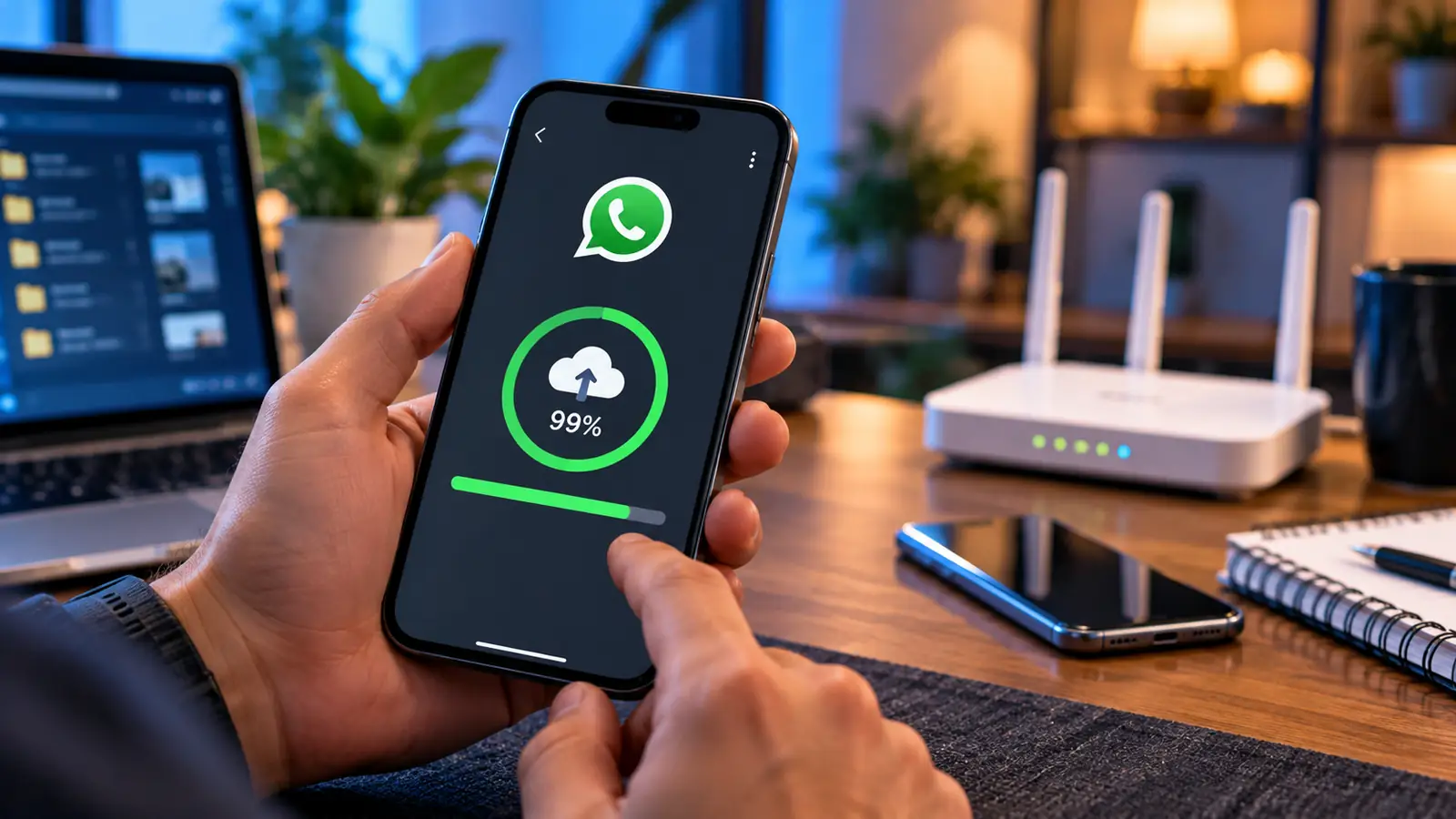
WhatsApp backup can appear frozen at 99%, remain on “Preparing” for hours, repeatedly switch between percentages, or finish preparing data but never upload it. The worst possible first move is to uninstall WhatsApp in frustration. If no usable backup exists, uninstalling, clearing app storage, or resetting the phone may erase the very chat history you are trying to protect. This guide starts with protecting what still exists, then gives a practical Android and iPhone troubleshooting sequence grounded in WhatsApp’s help documentation.
A progress bar near 99% is not proof that a backup is corrupted. The app may be processing a large video, waiting for cloud storage, completing an encrypted upload, retrying a network transfer, or displaying progress in a way that does not closely match the remaining work. Only the final backup timestamp and a successful backup record provide useful confirmation. What you do next depends on whether the chats are still readable on your current phone.
Before doing anything: protect your existing chats
- Keep WhatsApp installed and your current phone available. Do not factory-reset it.
- Open WhatsApp, confirm important conversations and media are still readable, and take note of the latest backup timestamp shown under Settings → Chats → Chat backup. Paths may vary slightly.
- Check whether a backup from an earlier date exists. An older successful backup is better than none, but restoring it would not include messages received afterward.
- Avoid choosing Clear storage/Clear data for WhatsApp. That is not the same as clearing a harmless cache.
- If you absolutely must preserve a critical conversation immediately, use WhatsApp’s chat export options where available to keep a readable archive. An exported chat is not a full restorable WhatsApp backup.
- Make sure the phone has power or is charging, and use a stable network while trying safe fixes.
If you see a warning about an encryption password or 64-digit key, do not assume the normal Google or Apple account password can replace it. End-to-end encrypted backups may require their own recovery credentials. Record only the credentials you own, and never upload them to a website offering “backup repair.”
Step 1: is the app stuck preparing or uploading?
Look at the wording on screen. “Preparing backup” points toward local processing and available device storage. “Uploading” suggests cloud connectivity, account permissions or quota. A frozen indicator alone cannot conclusively identify the cause, so inspect storage and account state before making changes.
On Android, the cloud destination may be Google account storage or another backup mode available in your WhatsApp version and region. On iPhone, WhatsApp’s current help material describes cloud-backup options whose availability can vary by version; older installations commonly use iCloud. Check what your own Chat backup screen names, rather than following a tutorial with an outdated menu label.
Step 2: check space in two places, not just one
A cloud backup generally needs room to prepare data on the phone as well as space at the destination. On Android, open Settings → Storage to inspect device space, then review the storage quota of the selected Google account when using Google-based backup. On iPhone, inspect Settings → General → iPhone Storage and the applicable iCloud or WhatsApp cloud storage status.
If the phone has only a few hundred megabytes free, remove unrelated large downloads or unused applications, after verifying they are safe to remove. Do not delete WhatsApp media blindly: messages can refer to those files. Do not clear WhatsApp data. WhatsApp’s official iPhone troubleshooting article also emphasizes sufficient device and cloud storage; follow its current requirements as displayed in the official help page rather than an unverified fixed ratio from a blog.
Step 3: try a controlled network change
A connection can load messages normally but fail during a long upload because of unstable upstream bandwidth, packet loss, router filtering, cellular data restrictions, or repeated Wi-Fi roaming. Use a known reliable Wi-Fi connection and temporarily turn off a VPN or restrictive DNS/filtering application only if you trust the network and understand the privacy tradeoff. Do not disable your phone’s lock screen or security protections.
If the backup is running, leave it for a reasonable interval while charging. If it has clearly not moved for an extended period, restart the phone and try again. Switch to a different trusted Wi-Fi network for a comparison. If you have a metered connection, check whether backup is allowed over cellular data and understand the data cost before enabling it.
Step 4: reduce the backup size by excluding videos
Videos often dominate backup size and can make a long upload fragile. In WhatsApp → Settings → Chats → Chat backup, locate the option to include videos and switch it off for a test backup if it is available. This normally reduces the backup payload without deleting your existing videos from the phone.
After a successful text-and-photo backup, decide whether a second backup including videos is essential. If some videos are irreplaceable, copy them separately to secure storage first. Avoid deleting media simply to make the percentage advance: once a synced deletion or local cleanup occurs, you may lose a unique copy.
Step 5: verify your selected cloud account
An Android phone can contain several Google accounts; backups may use one account while you are checking the quota of another. Open WhatsApp’s Chat backup settings and inspect the selected account. Check the exact email and confirm you can access it normally. On iPhone, verify the Apple Account and iCloud Drive access when your backup uses iCloud, as described in WhatsApp’s iPhone backup troubleshooting.
Never remove an account from your phone just because a random forum recommends it. Account removal can sign other apps out, affect synchronization, and complicate backup access. Start with checking the account and signing in correctly, and follow official support instructions only if a specific authentication issue remains.
Android fix 1: review app updates and Android services
Open Google Play and check for an official WhatsApp update. Then review available system and Google Play services updates. A current app version avoids known compatibility issues, but updates cannot recover data that was never backed up. After updates, restart the phone and try a manual backup while charging.
If a stable Wi-Fi network, adequate phone storage and correct account are confirmed, open Android Settings → Apps → WhatsApp → Storage. Some phones offer Clear cache, which is distinct from Clear storage/Clear data. Clearing cache may help transient problems but is not a guaranteed backup repair; do not touch storage/data if you are protecting chats. Samsung, Pixel and other Android devices use different menu names.
Android fix 2: check battery restrictions and background operation
Aggressive battery saving can interfere with sustained background activity. Open Android Settings → Apps → WhatsApp → Battery or App battery usage and inspect the restrictions. Temporarily allow WhatsApp appropriate background operation while the backup runs, plug the phone into power and keep a reliable network connection.
Be proportionate: do not permanently disable battery optimization for every application or install “boosters.” If you can keep WhatsApp open during a manual backup, test that first. Check the phone’s Data Saver settings too; a restriction on background data can interrupt uploads, particularly after switching between Wi-Fi and cellular.
Android fix 3: check Google storage usage when applicable
For Google-based backups, the backup may count against the Google Account’s storage quota, which can also be consumed by Gmail, Google Drive and Google Photos. Sign into the same account at Google storage management to see where space is used. Delete only content you have positively identified and no longer need, and remember that Google storage changes may not update immediately.
If the account is full, free enough space or consider an official storage plan. Do not purchase third-party WhatsApp recovery software simply to bypass a quota problem. If your current WhatsApp version instead offers a different cloud backup destination, use that provider’s quota and support instructions rather than assuming every Android installation has the same workflow.
iPhone fix 1: check iCloud Drive and WhatsApp access when using iCloud
When the selected destination is iCloud, open iPhone Settings → your name → iCloud, then confirm iCloud Drive or its current equivalent is enabled and WhatsApp is permitted to use the required cloud services. In some versions you may need to open Apps Using iCloud or See All to locate the toggle. Sign in to the Apple Account that contains your existing backup.
WhatsApp’s help center documents checking iCloud Drive and potentially toggling it off and back on as a targeted troubleshooting option. Use caution if other apps have unsynced data; confirm important content is safe before changing any global sync setting. Do not sign out of your Apple Account casually, since doing so affects many apps.
iPhone fix 2: check Low Power Mode, network and local storage
Low Power Mode, restrictive network settings or insufficient iPhone storage may affect a large backup. Temporarily turn off Low Power Mode while connected to power, ensure a stable Wi-Fi network and confirm iPhone Storage shows enough available space. Test again from WhatsApp’s Chat backup screen.
Also check cloud space in the actual account used by the app. A successful iCloud device backup is not necessarily the same object as a WhatsApp chat backup; inspect WhatsApp’s Last Backup information instead. If you use a newer WhatsApp backup destination, follow the displayed prompts rather than relying on an old iCloud-specific checklist.
The backup moved to 100%, but the last backup time did not change
Treat this as incomplete until you see confirmation. Close the progress overlay only after waiting for processing to finish, return to WhatsApp → Settings → Chats → Chat backup, and inspect the backup date and time. If possible, look for the backup in the provider’s supported backup-management interface. The absence of a visible backup file in ordinary Google Drive “My Drive” does not prove that the backup never existed.
Do not reinstall WhatsApp as a test of whether a backup is good. A restore attempt can introduce far more risk than reading the timestamp. Once the process succeeds, note the timestamp and verify it reflects your recent conversation history.
Stuck at 0%, 50%, 99% or “Preparing”: what the number really tells you
At 0%: focus on permission, account sign-in, quota and a network route that can reach the cloud provider. At 50%: look for unstable connections, power saving and large media files. At 99%: consider the possibility that the service is finalizing data or waiting for confirmation, and review the last backup time rather than repeatedly restarting it.
These are troubleshooting priorities, not a precise decoding of WhatsApp’s progress percentages. Two phones can display the same number for different underlying reasons. No guide can determine the cause from a percentage alone without logs or an actual error message.
If the backup says “Waiting for Wi-Fi” or “No Google account selected”
For Wi-Fi messages, ensure the phone is on a trusted Wi-Fi connection with usable internet access; a captive portal in a hotel or cafe may allow connection to the access point but block cloud services until you sign in. For account messages, confirm the active backup destination and a recognized account. Avoid repeatedly changing accounts after several failed uploads unless you understand where the previous successful backup resides.
On managed work phones or networks, a security policy may block certain app or cloud services. Ask the administrator for supported backup options rather than attempting to bypass organizational restrictions.
If you use end-to-end encrypted backup
WhatsApp offers end-to-end encrypted backup options. Depending on the setup, restore can require a specific password, encryption key or supported recovery method. A phone’s screen-lock PIN is not automatically interchangeable with the backup encryption credentials. Store your backup credentials securely and do not publish or email them.
If you no longer remember the required secret, follow the recovery options shown in your WhatsApp version and the official help center. Never assume a support agent can decrypt a backup whose key you have lost. Do not turn off encryption or delete an older backup merely to experiment while recovery is still possible.
How to make a smaller, safer backup before switching phones
First confirm all essential chats are present on the old phone. Exclude videos for a first backup if size is causing problems, free unrelated local storage, connect to reliable Wi-Fi and power, then run the backup. After it finishes, verify the displayed date, account, phone number and encryption arrangement.
If WhatsApp supports a direct device-to-device chat transfer for your particular phone combination, read the official transfer instructions before proceeding. Cloud backup and direct transfer are different workflows. Keep the original phone intact until you have verified that the destination device contains the important conversations.
What not to do—actions that can permanently lose chats
- Do not uninstall WhatsApp without a verified restorable backup or other supported transfer path.
- Do not tap Clear storage or Clear data while preserving messages.
- Do not delete the cloud backup because it appears old unless you know you have a newer usable one.
- Do not buy a tool that guarantees decryption or recovery of a nonexistent backup.
- Do not repeatedly switch cloud accounts without noting which account contains your last successful copy.
- Do not upload your encryption key, QR code, or verification SMS to strangers.
Three practical troubleshooting examples
Example 1: Android stuck at 99% after adding vacation videos. Leave the chats intact, check Google storage and available phone storage, then retry a backup without videos over a reliable network. If it succeeds, save important videos separately before attempting a larger upload.
Example 2: iPhone switched Apple Accounts and stopped backing up. Confirm which Apple Account holds the older iCloud backup and which one is signed in now. Check iCloud Drive and WhatsApp access. Do not sign out or reinstall WhatsApp until you understand where the existing backup is.
Example 3: WhatsApp completes but shows yesterday’s backup time. Do not treat the progress ring as success. Check the provider account and network, wait for processing, and try a new manual backup. Preserve the older confirmed backup until you have evidence the new one completed.
When to contact official support
If the app repeatedly reports a specific error despite adequate storage, correct sign-in, app updates and a trusted network, use WhatsApp → Settings → Help → Contact us, where available. Provide the model, Android/iOS version, app version, exact error text, when the last good backup was made and whether backup encryption is enabled. Do not include authentication codes, encryption keys or private chat content.
For a problem that affects the entire Google Account or Apple Account, use that provider’s official support channels as well. For a managed work device, contact your administrator before altering organization-controlled account or backup settings.
Related guide: recovering messages when backups fail
If you discover that your chat history is already missing and no successful backup can be located, read our separate guide on whether deleted WhatsApp messages can be recovered without a backup. That article addresses a different situation from fixing a backup that is still running, and it explains realistic limits rather than promising a guaranteed recovery.
Conclusion
A WhatsApp backup stuck at 99% is a problem to troubleshoot, not permission to erase the app. Verify your current chats, last successful backup, storage on both ends, cloud account, network and video size before testing platform-specific fixes. Make reversible changes first; keep the old phone until an independent restore or transfer is confirmed. No percentage on a progress bar can guarantee that an encrypted cloud backup is actually restorable.
Official sources
- WhatsApp Help Center — Can’t back up or restore chat history on Android.
- WhatsApp Help Center — Can’t back up or restore chat history on iPhone.
- WhatsApp Help Center — How to back up your chat history.
- WhatsApp Help Center — Back up or restore your chats.
- WhatsApp Help Center — About Google Account backups.
You may also like
 Technology & How-To
 Can’t Copy Text from a PDF? Fix Scans, Restrictions and Garbled Text
Find out why PDF text will not copy, then choose the right fix for scans, copying restrictions, garbled…
 Technology & How-To
 USB Works on PC but Not on TV? How to Find the Cause
Diagnose a USB drive that works on a computer but not a TV. Separate detection, missing files and…
 Technology & How-To
 WhatsApp “Waiting for This Message”: Fixes for iPhone, Android and Web
Fix WhatsApp’s waiting-message notice by comparing your phone and linked devices, checking updates and protecting existing chat data.