
How to Fix Android Notifications Not Working: 13 Proven Troubleshooting Steps
Android notifications missing, delayed, silent, or not appearing on the lock screen? Follow a step-by-step troubleshooting guide for Samsung Galaxy, Google Pixel, WhatsApp, Gmail, and other apps.
Contents
- Start here: identify the notification problem
- 1. Restart the phone and test with a real message
- 2. Enable notifications for the affected app
- 3. Turn off Do Not Disturb, Bedtime, and other Modes temporarily
- 4. Check Battery Saver and background restrictions
- 5. Make sure the app can use background data
- 6. Fix alerts that arrive without sound or vibration
- 7. Restore notifications on the lock screen
- 8. Samsung Galaxy: check Sleeping and Deep sleeping apps
- 9. Google Pixel: check Adaptive Battery and notification history
- 10. WhatsApp, Gmail, and messaging apps: inspect in-app settings
- WhatsApp or similar chat apps
- Gmail and other email apps
- 11. Update the app and Android, then clear cache if needed
- 12. Check special cases: work profiles, cloned apps, and wearable devices
- 13. Advanced troubleshooting when nothing works
- Quick diagnosis table
- How to prevent the problem from returning
- Official sources and further reading
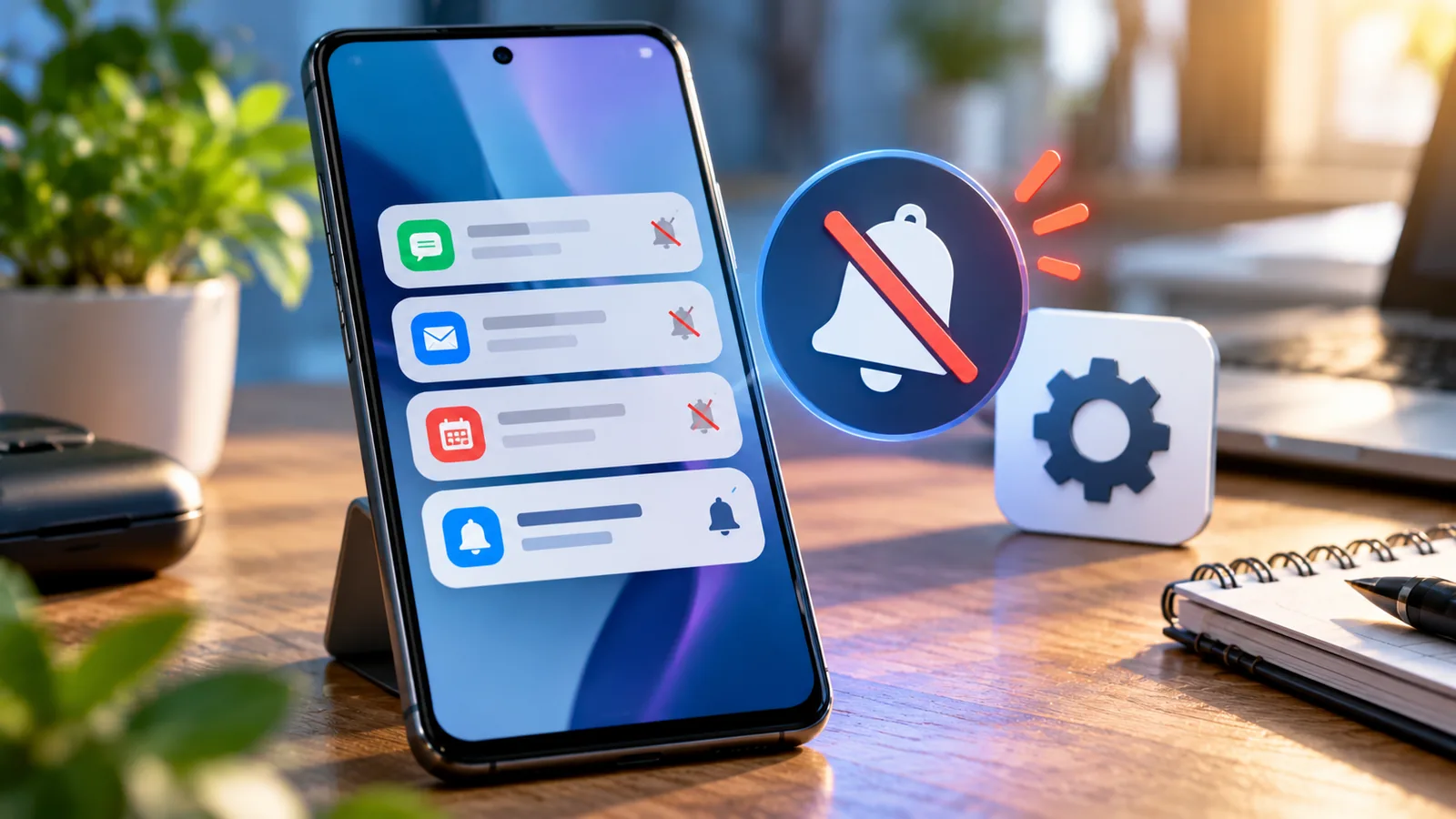
Android notifications can fail in several different ways: nothing appears, alerts arrive only when you open an app, messages arrive silently, or notifications disappear from the lock screen. The correct fix depends on which symptom you have. This guide walks through safe checks first, then device-specific settings and advanced troubleshooting. Menu names vary by Android version and manufacturer.
Start here: identify the notification problem
- No apps send alerts: check Do Not Disturb, Modes, global notification settings, battery saving, network access, and whether a work profile is paused.
- Only one app fails: check that app’s notification permission, individual categories, in-app settings, account sync, and battery restrictions.
- Notifications arrive only after opening the app: prioritize background data, battery restrictions, sleeping apps, and connectivity.
- Notifications appear but make no sound: inspect silent categories, notification volume, vibration, and connected audio devices.
- Alerts appear in the shade but not on the lock screen: inspect lock-screen privacy and display settings.
1. Restart the phone and test with a real message
Restarting can clear a temporary system or app process fault. After rebooting, ask someone to send you a message or email while the phone is locked, and wait a few minutes. Test on Wi-Fi and mobile data separately. A test notification from the app itself may not exercise the same delivery path as a real incoming message.
2. Enable notifications for the affected app
Open Settings → Notifications → App notifications, select the app, and make sure notifications are allowed. On some phones the route is Settings → Apps → [app] → Notifications. Check individual notification categories such as messages, calls, reminders, or account activity; enabling the overall app switch does not always re-enable a disabled category. Google documents both app-wide and category-level controls.
If you recently installed the app or restored a phone, open the app and look for a notification permission prompt. Newer Android versions allow apps to request permission for notifications, and dismissing that prompt may leave them disabled.
3. Turn off Do Not Disturb, Bedtime, and other Modes temporarily
Swipe down twice to open Quick Settings. Disable Do Not Disturb and any active Bedtime, Driving, Focus, or custom mode for a test. Then open Settings → Modes or Notifications → Do Not Disturb and review schedules and exceptions. A mode can silence alerts without stopping them from being delivered. If alerts resume, adjust allowed people/apps rather than leaving every interruption enabled permanently.
4. Check Battery Saver and background restrictions
Turn off Battery Saver temporarily and retest. Google notes that power-saving features can delay or stop certain alerts; Extreme Battery Saver on Pixel pauses most apps, and paused apps do not notify. For a single affected app, open Settings → Apps → [app] → App battery usage (or Battery) and inspect background activity. Choose the manufacturer’s less-restrictive option only when necessary for a trusted app. Unrestricted background use can increase battery consumption.
5. Make sure the app can use background data
Open Settings → Apps → [app] → Mobile data & Wi-Fi or Data usage. Allow background data for apps that need real-time alerts. If Data Saver is enabled, check whether the app is allowed unrestricted data access. Test with Wi-Fi and cellular independently; if notifications fail only on one network, investigate connectivity, VPN, firewall, or DNS settings rather than repeatedly changing app permissions.
6. Fix alerts that arrive without sound or vibration
- Open the affected app’s notification settings and inspect each category. A category marked Silent will not produce an audible alert.
- Check Settings → Sound & vibration → Notification volume and vibration controls.
- Check whether the phone is in silent or vibrate mode and whether a Bluetooth audio device is connected.
- On Samsung, also inspect Accessibility → Hearing enhancements → Mute all sounds if available.
- Send a fresh test alert after each change; an old notification will not necessarily replay its sound.
7. Restore notifications on the lock screen
Open Settings → Notifications → Notifications on lock screen and choose the desired display behavior. Some devices let you hide sensitive message contents while still showing that a notification arrived. Also check app-specific lock-screen settings. A notification hidden for privacy may still exist in the notification shade after unlocking.
8. Samsung Galaxy: check Sleeping and Deep sleeping apps
On Samsung Galaxy, open Settings → Battery → Background usage limits (wording varies by One UI version). Review Sleeping apps and Deep sleeping apps. Move messaging or other time-sensitive apps out of deep sleep if necessary; consider Never auto sleeping apps for essential apps. Then inspect Settings → Notifications → App notifications and the app’s notification categories. Samsung’s support documentation identifies deep sleep, categories, and Do Not Disturb as common causes of missing alerts.
Samsung also has separate options for lock-screen notifications and notification pop-ups. If alerts are present in the shade but not as banners, review the app’s pop-up style and category settings instead of changing background permissions.
9. Google Pixel: check Adaptive Battery and notification history
On Pixel, review Settings → Notifications → App notifications, Settings → Battery → Battery Saver, and relevant Modes. Battery Saver can delay lower-priority notifications. If you think alerts vanish immediately, enable Settings → Notifications → Notification history. Pixel retains recently dismissed notifications for up to 24 hours after history is enabled; it cannot recover older alerts from before activation.
10. WhatsApp, Gmail, and messaging apps: inspect in-app settings
WhatsApp or similar chat apps
Check that the relevant chat or group is not muted and that the app’s message/call categories are allowed in Android settings. Confirm the correct account is signed in and that the phone has reliable internet access. If alerts work only after opening the app, revisit background activity and Samsung deep-sleep settings. Do not clear app storage or reinstall before confirming that your chat backup is usable.
Gmail and other email apps
Open the email app’s settings, select the affected account, and review notification preferences, label settings, and sync. If a mail app is configured to notify only for high-priority messages, ordinary emails may not trigger alerts. Verify that new messages are actually arriving in the account by checking the web inbox.
11. Update the app and Android, then clear cache if needed
Install the affected app’s update from Google Play and check Settings → System → Software update (or the manufacturer’s equivalent). If the issue began after an update, look for a subsequent bug-fix release. You can try Settings → Apps → [app] → Storage & cache → Clear cache if available. Clear cache is different from Clear storage/data: clearing storage can remove local data, settings, and sign-in state. Avoid clearing storage unless you have a verified backup and understand the consequences.
12. Check special cases: work profiles, cloned apps, and wearable devices
A paused work profile will not behave like an active personal profile. If you use two copies of an app, confirm you are adjusting the correct one. Smartwatches can also change where notifications appear, while some notification categories may be muted by a paired device or companion app. Temporarily disconnect the wearable to isolate the cause.
13. Advanced troubleshooting when nothing works
- Test a second trusted app to determine whether the problem is system-wide or app-specific.
- Check whether the affected service is experiencing an outage; a server-side issue cannot be fixed by changing local settings.
- Disable third-party notification blockers, automation apps, or aggressive battery managers temporarily.
- If your manufacturer offers Safe Mode, use it to test whether a third-party app is interfering; the exact steps vary by phone.
- Back up important data before considering network resets, app reinstallations, or factory reset. A factory reset should be the last resort, not the first fix.
Quick diagnosis table
Only one app affected: permission, categories, app settings, sync, background restrictions. All apps silent: Do Not Disturb, notification volume, silent mode, Bluetooth. Alerts delayed until app opens: battery/background data/deep sleep/network. No lock-screen alerts: lock-screen privacy/display settings. Notifications disappear: history, automatic dismissal, third-party tools, wearable behavior.
How to prevent the problem from returning
Keep Android and essential apps updated, avoid placing messaging apps in deep sleep, review notification categories after major OS upgrades, and use targeted Do Not Disturb exceptions rather than disabling alerts globally. If you enable unrestricted battery usage, monitor power consumption and keep it limited to apps where immediate delivery matters.
Official sources and further reading
You may also like
 Technology & How-To
 USB Works on PC but Not on TV? How to Find the Cause
Diagnose a USB drive that works on a computer but not a TV. Separate detection, missing files and…
 Technology & How-To
 WhatsApp “Waiting for This Message”: Fixes for iPhone, Android and Web
Fix WhatsApp’s waiting-message notice by comparing your phone and linked devices, checking updates and protecting existing chat data.
 Technology & How-To
 WhatsApp iOS 15.5 Requirement: What Changes on November 30, 2026?
WhatsApp raises its iPhone minimum to iOS 15.5 on November 30, 2026. Check your version, older iPhone eligibility…