
How to Clear Cache on iPhone: Safari, Apps, and What Gets Deleted
Clear cache on iPhone in Safari, Chrome and supported apps. Learn what gets deleted, how offloading differs, and when clearing cache actually helps.
Contents
- Choose what you want to remove
- Clear Safari cache, with or without history
- Keep your browsing history
- Delete browsing history too
- Clear Chrome cache without selecting unrelated data
- Clear an app’s cache using its own settings
- Offload App is different from Delete App
- Check whether clearing cache actually helped
- Frequently asked questions
- Does clearing cache delete photos?
- Why does cache return after I clear it?
- Do I need a cleaner app?
- Sources and image credit

To clear Safari’s cache, open Settings → Apps → Safari → Advanced → Website Data → Remove All Website Data. This also removes cookies, while keeping your browsing history. For Chrome or another app, use that app’s own controls: clearing Safari does not clear every app on your iPhone.
There is no single iPhone setting that clears all app caches. Choose the method below for the browser or app you actually use. Offloading an app and deleting it have different effects, so neither should be treated as a universal cache-cleaning shortcut.
Choose what you want to remove
| Your goal | Use this option | What to expect |
|---|---|---|
| Clear Safari website data but keep history | Safari → Advanced → Website Data | Removes cookies and cache; websites may require another sign-in. |
| Remove Safari history as well | Safari → Clear History and Website Data | Removes history and website data for the chosen period. |
| Clear Chrome’s cached files | Chrome → Delete Browsing Data | Select cached images and files; review the other selected categories. |
| Reduce an app’s temporary storage | The app’s own cache control, if available | Effects depend on the app and the option selected. |
| Remove an unused app but keep its documents | iPhone Storage → Offload App | Removes the app itself while retaining documents and data. |
Clear Safari cache, with or without history
Apple provides two routes in its Safari data-removal instructions. Menu labels can vary with your iOS version.
Keep your browsing history
- Open Settings → Apps → Safari.
- Select Advanced → Website Data.
- Tap Remove All Website Data, then Remove Now.
Delete browsing history too
- Open Settings → Apps → Safari.
- Tap Clear History and Website Data.
- Choose the time period and confirm with Clear History.
Apple says this does not change AutoFill information. A gray button can mean there is no relevant data to clear, or that Screen Time web-content restrictions need checking.
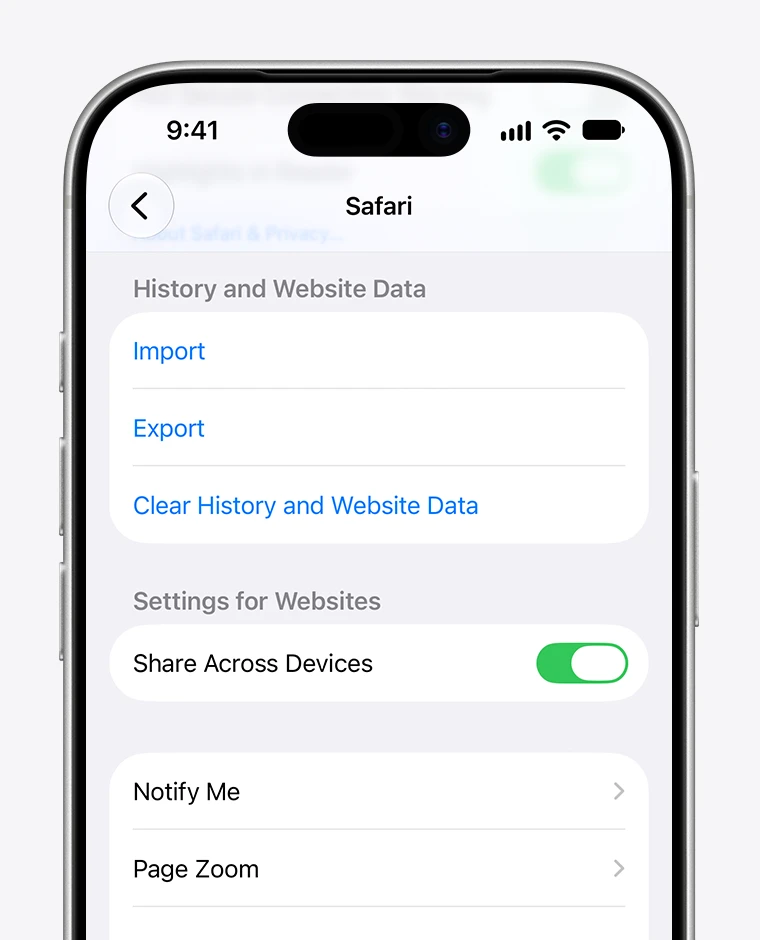
Before clearing website data, finish purchases and save unfinished web forms. Treat the confirmation screen as the final check: do its labels match what you intend to remove? If your only goal is fixing a page, removing unrelated browsing history adds no useful troubleshooting evidence.
Clear Chrome cache without selecting unrelated data
Use Google’s iPhone and iPad instructions, rather than a desktop or Android walkthrough:
- Open Chrome, tap More, then Delete Browsing Data.
- Set the Time Range. A short period will not cover older cached files.
- Tap Browsing Data and select Cached Images and Files.
- Deselect categories you want to retain, such as browsing history and cookies/site data.
- Tap Confirm, then Delete Browsing Data.
Cache, cookies and history are separate categories in Chrome. Google also warns that deleting data saved to your Google Account can affect other signed-in devices. Review the selection instead of accepting a broad deletion automatically.
Clear an app’s cache using its own settings
Look inside the affected app for a Storage, Cache or Downloads section. The wording matters: deleting downloaded media is a different task from clearing temporary files.
For example, Spotify’s current storage guide gives this mobile route:
- Tap your profile picture → Settings and privacy.
- Open Data-saving and offline.
- Under Storage, tap Clear beside Clear cache.
Spotify separates cached playback content from offline downloads and also offers a cache-limit setting. Use the control named for the data you want to remove; do not assume another app has an equivalent menu.
If an app has no cache control, check its official help before reinstalling. For a messaging, recording or editing app, confirm that important content is synced, backed up or exported and that you can sign in again. “Saved on this phone” and “recoverable from my account” are not interchangeable.
Offload App is different from Delete App
Open Settings → General → iPhone Storage, then select an app. Apple explains that Offload App removes the app while keeping its documents and data; Delete App removes the app and its related data. iOS also manages temporary files when storage is low.
This distinction changes which action is useful. If your priority is retaining local documents, offloading may suit that goal. If your priority is removing a problematic data store, keeping documents and data means offloading should not be presented as proof that the store has been cleared.
Do not delete an app simply because its storage figure is large. First determine whether the space holds expendable downloads, important local work or temporary content. Cached and temporary data may not be fully represented in the per-app storage figures.
Check whether clearing cache actually helped
Repeat the specific task that failed: reopen the affected page, sign in, or play the same item. Change one thing at a time so you can identify which action made a difference.
For example, if one page displays incorrectly, clearing that browser’s cached content is a focused test. If every app is slow, repeatedly deleting browser data is a poor way to identify the wider problem. Record whether the issue affects one app, several apps, one network or every connection before escalating.
For a storage warning, compare Settings → General → iPhone Storage before and after cleanup. If large videos or app downloads dominate, address those categories. Our guide to phone storage remaining full after deleting files covers that broader diagnosis; iPhone storage versus available iCloud space explains the separate cloud quota.
Frequently asked questions
Does clearing cache delete photos?
The browser methods above do not delete items from your Photos library. Deleting an app is different: protect anything stored only inside that app before removing it.
Why does cache return after I clear it?
Apps and browsers create cached content as you use them. Its return alone does not show that cleanup failed. Check whether the original problem returns, rather than trying to keep the cache permanently empty.
Do I need a cleaner app?
You can perform the methods in this guide with built-in browser and app controls. Start there. A cleaner download is not a prerequisite, and no fixed storage saving or performance improvement is guaranteed.
Sources and image credit
- Apple: Safari history, cache and cookies.
- Apple: iPhone and iPad storage, offloading and deletion.
- Google: deleting Chrome browsing data on iPhone and iPad.
- Spotify: cache and download storage controls.
Inline reference image: Apple Support, © Apple Inc., reproduced to illustrate the documented Safari setting. Its appearance may differ from your device. The cover is a conceptual illustration, not a screenshot.
You may also like
 Technology & How-To
How to Turn Lecture Recordings Into Study Notes With NotebookLM
Turn lecture audio into study notes with free Gemini Notebook (NotebookLM). Follow the upload steps, check transcript citations,…
 Technology & How-To
How to Use Google Lens to Find Products and Compare Prices
Find an item from a photo with Google Lens, check exact product matches and compare real checkout costs…
 Technology & How-To
Podcast Microphone Guide: USB vs XLR and Setup Tips
Choose a podcast microphone by room noise, connection type and recording style. Compare USB and XLR, see verified…