
Google Play Store Pending Download? How to Fix Apps Stuck on Pending
Google Play Store stuck on Pending? Fix app downloads safely with queue checks, Wi-Fi tests, storage tips, cache repairs and official Google steps.
Contents
- What “Pending” means in Google Play Store
- Before you start: protect your apps and data
- Step 1: Check whether another app is blocking the download queue
- Step 2: Confirm that the phone actually has working internet
- Step 3: Check free storage, not just the size of the app
- Step 4: Restart Google Play Store and your phone
- Step 5: Correct date and time settings
- Step 6: Clear Google Play Store cache safely
- Step 7: Update Google Play Store itself
- Step 8: Install pending Android system updates
- Step 9: If only one app is stuck, check compatibility and availability
- Step 10: If every app is stuck, isolate the common failure
- Step 11: Google Play services — a last-resort repair, not the first fix
- Why clearing Google Play services data is different from clearing Play Store cache
- Special case: downloads are stuck at 0% instead of Pending
- Special case: Google Play says “Waiting for download”
- Special case: download reaches 99% but will not install
- Samsung Galaxy: where the relevant settings are
- Pixel and other stock Android phones
- Xiaomi, Redmi, POCO, OnePlus and Motorola
- What to do if the issue started after switching phones
- When to contact Google, your manufacturer, or the app developer
- A safe five-minute checklist
- Official references and further reading
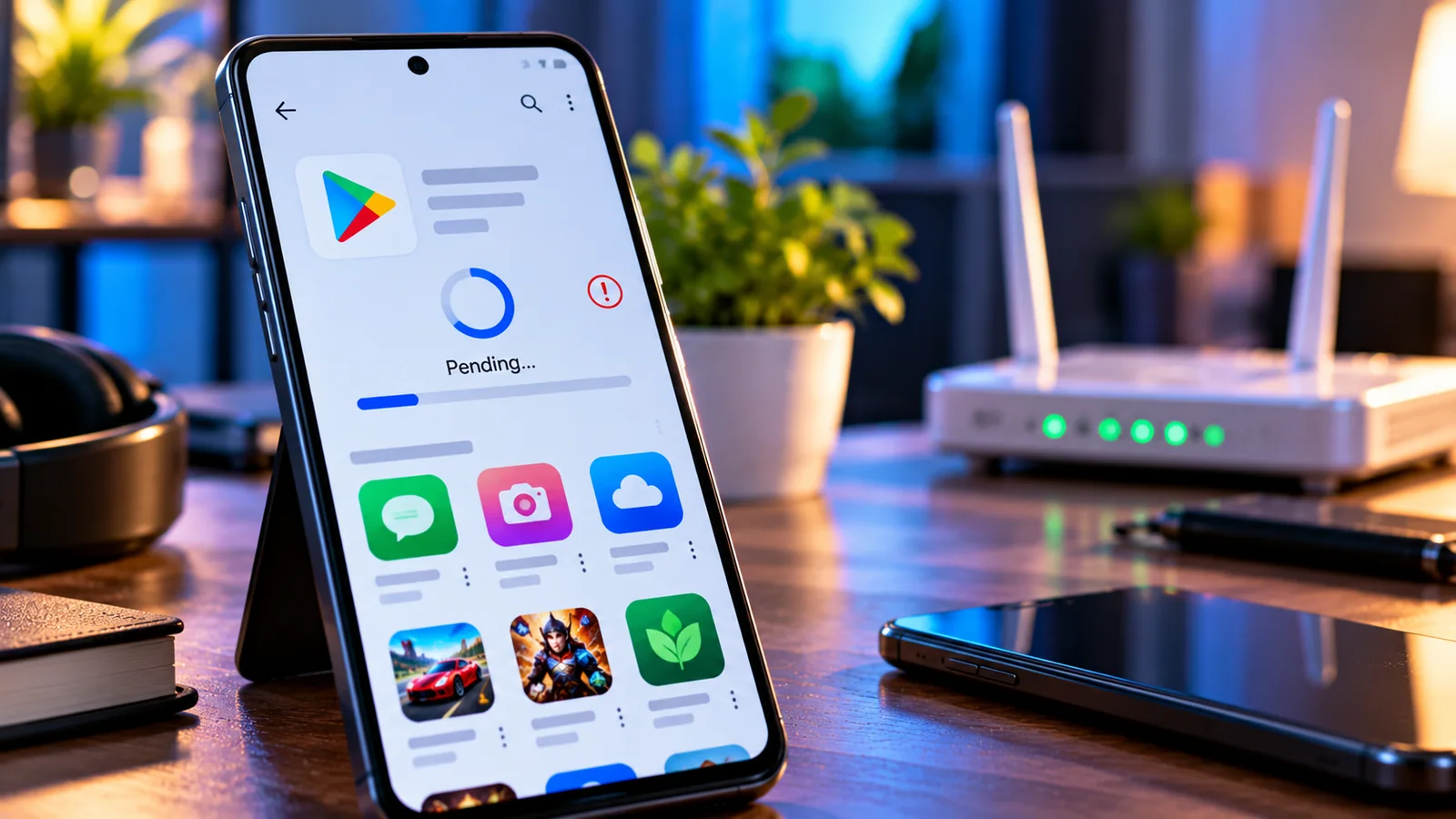
A Google Play Store download stuck on Pending can look like a broken app store, but the cause may be as simple as another update occupying the queue. In other cases, downloads fail because of an unstable connection, insufficient storage, a corrupted Play Store cache, a date-and-time mismatch, or a problem specific to one app. This guide follows a low-risk troubleshooting order so you can get apps installing again without deleting personal files or making unnecessary account changes.
Quick answer: Open Play Store → profile picture → Manage apps & device, review active updates, and pause or cancel an update that is blocking the queue. Then test a reliable connection, check available storage, restart the phone, and clear the Google Play Store cache if necessary. Test a single small app after each change.
What “Pending” means in Google Play Store
Pending means Google Play has accepted the install or update request but has not started transferring the app package yet. It is different from a download that remains at 0%, one that stops at 99%, and an installation that fails after downloading. Distinguishing these stages matters because they point to different causes.
| Pending on several apps | Queue, network or Play Store state | Inspect ongoing updates and connection |
|---|---|---|
| Pending on one app only | Compatibility, availability or app listing | Open that app’s Play Store page |
| Downloading stays at 0% | Network or storage | Switch network and check free space |
| Download finishes but install fails | Storage, package or device issue | Free space and restart |
| Play Store will not open | Store application issue | Restart, then repair Play Store |
Before you start: protect your apps and data
- Do not factory-reset the phone as an early troubleshooting step. It removes local data unless it is backed up.
- Do not delete a working app just to test downloads unless its settings and files are backed up and the app can be reinstalled.
- Avoid random “Play Store repair” APKs, unofficial installers, and cleaner apps; they introduce security risks.
- Menus vary across Samsung Galaxy, Pixel, Xiaomi, OnePlus, Motorola and Android versions. Use Settings search if the exact label differs.
- After each fix, retry one small free app or a pending update to determine whether the step helped.
Step 1: Check whether another app is blocking the download queue
Google Play manages multiple downloads and updates through a queue. When a large app or automatic update is running, later requests can show Pending. This is a plausible cause, not proof that the Play Store is malfunctioning.
- Open Google Play Store.
- Tap your profile picture and choose Manage apps & device.
- Open the updates or downloads area and look for an app already downloading or updating.
- If a large update is progressing normally, let it finish. If it is clearly stalled, pause or cancel that specific update where the interface allows.
- Return to the app you want and tap Install or Update again.
- If dozens of updates are queued, try updating one small app before resuming the rest.
Do not repeatedly cancel an update that is making progress on a slow connection. Pending may be temporary during automatic updates, device setup, or Play Store maintenance.
Step 2: Confirm that the phone actually has working internet
A connected Wi-Fi icon does not guarantee that Google Play can reach its servers. A captive portal, unreliable DNS, mobile-data restrictions or a VPN can affect downloads even when some websites appear to work.
- Open a browser and load two unrelated websites; try playing a short video to verify sustained connectivity.
- Switch from Wi-Fi to mobile data or vice versa, if your data plan permits.
- On public Wi-Fi, open a browser to complete any required sign-in page.
- Temporarily disconnect a VPN or private DNS service for a controlled test, then restore it if it was not the cause.
- Turn Airplane mode on briefly, turn it off, reconnect, and retry.
- Restart your router only if multiple devices on the same network have connectivity problems.
If downloads work on mobile data but not Wi-Fi, focus on the router, captive portal, network filtering or DNS rather than repeatedly clearing Android app data. If both networks fail, continue with the device checks.
Step 3: Check free storage, not just the size of the app
Google states that low device storage can stop downloads or installations, and warns that having less than 1 GB available can indicate insufficient space. The advertised app download size is not necessarily the full temporary space required to unpack and install it. Google’s basic troubleshooting guidance recommends checking Settings → Storage.
- Open Settings → Storage or search Settings for Storage.
- Look at free internal storage, not only cloud storage or the space on an SD card.
- Remove unnecessary offline videos, duplicate downloads or cached media you no longer need.
- Move personal files to a verified backup before deleting anything important.
- Retry the app when you have adequate free space; for large games, leave extra headroom beyond the download size.
If the phone is nearly full, avoid deleting app data from messaging, banking or authenticator apps just to free space: doing so may remove irreplaceable local information.
Step 4: Restart Google Play Store and your phone
A temporary process or queue problem can disappear after a normal restart. First close Google Play Store from the recent-apps view, reopen it and retry. If nothing changes, restart the phone using the power menu. Google lists both actions among its basic troubleshooting steps.
After restarting, allow the device a minute to reconnect and finish background initialization. Then open Play Store and test one app before resuming all updates.
Step 5: Correct date and time settings
Incorrect time or time-zone settings can interfere with secure connections and service authentication. In Settings → System → Date & time (or the manufacturer’s equivalent), enable automatic date/time and automatic time zone when available. Wait briefly, restart if necessary, and test again. If the clock is already correct, move on.
Step 6: Clear Google Play Store cache safely
Google identifies clearing the Play Store cache as a common remedy for app-download failures. The exact path varies, but it usually begins at Settings → Apps → Google Play Store → Storage & cache.
- Open Android Settings and select Apps.
- Find Google Play Store; use See all apps or the search field if necessary.
- Open Storage or Storage & cache.
- Tap Clear cache.
- Reopen Play Store and test a download.
Clearing cache removes temporary app files, not your Google account or installed applications. If the problem persists, consider Clear storage/Clear data for the Google Play Store app, but note that Google warns this can reset some Store settings, including parental controls or password protection, and may require accepting the Terms of Service again. Recheck these protections afterward. Official Google instructions.
Step 7: Update Google Play Store itself
A damaged or outdated Play Store installation can affect the download process. Google documents a method to remove Store updates and then fetch them again. This is different from uninstalling your purchased apps or removing your Google account.
- Long-press the Play Store icon and open App info.
- Open the three-dot menu if available and select Uninstall updates. Confirm the action.
- Open Google Play Store, tap the profile picture, then Settings → About.
- Under Play Store version, choose Update Play Store if shown.
- Allow the update to finish, then retry your app.
Only use this step if simpler checks failed; the menu may be hidden or managed differently on some devices. See Google’s app-download troubleshooting page.
Step 8: Install pending Android system updates
Open Settings → System → Software update or the equivalent manufacturer menu. Check for official Android and device updates, connect to power if needed, and install them according to the device instructions. Restart afterward. Updates may fix compatibility or system-service issues, but they are not a guaranteed solution for a stalled Play Store queue.
Step 9: If only one app is stuck, check compatibility and availability
When every other app installs successfully, repeatedly resetting Play Store is unlikely to address an app-specific restriction. Open the affected app’s Play Store listing and look for device compatibility, Android version, regional availability, age restrictions or a message from the developer. Google advises checking whether the app is available for the device before attempting advanced repairs.
- Try installing a different small app from a reputable publisher.
- Check whether the affected app’s listing says it is compatible with your device.
- Confirm the correct Google account is selected for any previously purchased app.
- If an existing app is being updated, inspect its storage needs and whether its developer reports an outage.
- Contact the app developer when the issue affects only that app and persists across networks.
Step 10: If every app is stuck, isolate the common failure
When all apps remain Pending, investigate shared dependencies: connectivity, free space, Play Store cache, system time, and Android updates. If the Store itself crashes or refuses to open, follow Google’s dedicated Play Store app troubleshooting guide.
| Works on mobile data, not Wi-Fi | Network-specific restriction | Check Wi-Fi sign-in, router and DNS |
|---|---|---|
| Works after clearing Play Store cache | Temporary Store-state problem | Resume updates and monitor |
| Only one app fails | App-specific compatibility or listing | Review app page and developer guidance |
| All apps fail on all networks | System or Store-wide problem | Check time, storage, updates, then advanced steps |
| Play Store closes unexpectedly | Store application issue | Follow Google’s Store app repair steps |
Step 11: Google Play services — a last-resort repair, not the first fix
Google Play services is a system component used by many Android features; it is not the same app as Google Play Store. Google explicitly advises against clearing Play services storage until other troubleshooting options have been tried. Doing so can delete certain locally stored information and may require signing in again or reauthenticating payment methods, including some wallet and transit-card information.
If Google’s guidance points to Play services, first look for an available update and consider clearing cache only. Clear all Play services storage only when necessary, after verifying important credentials and payment methods are recoverable. Follow the current official Google Play services support article rather than copying an outdated menu path.
Why clearing Google Play services data is different from clearing Play Store cache
| Restart phone | Refreshes temporary system state | Low |
|---|---|---|
| Clear Play Store cache | Removes temporary Store files | Low |
| Clear Play Store storage | Resets Store-specific preferences; may reset parental controls | Moderate |
| Uninstall Play Store updates | Rolls Store app back before updating it again | Moderate |
| Clear Google Play services storage | Can affect saved credentials, wallet/payment information and service state | High — last resort |
| Factory reset | Erases local device data and apps | Very high — only with backup |
Special case: downloads are stuck at 0% instead of Pending
If the app leaves Pending but the percentage remains at 0%, check whether the network actually transfers data. Try a second network, disable a VPN for a brief test, and verify internal storage. If the issue occurs only on mobile data, inspect data saver, per-app background restrictions and the Play Store’s network preferences; labels and behavior vary by Android version.
Special case: Google Play says “Waiting for download”
“Waiting for download” often describes the same queue stage as Pending. Check the updates queue and connectivity first. Do not assume the problem is caused by a Google account lockout or that a factory reset is required.
Special case: download reaches 99% but will not install
A download stuck near completion is not identical to Pending. The package may be verifying or installing. Give it a reasonable amount of time, check storage, restart, and test another app. Avoid interrupting a system update or deleting app data during installation. If only one package fails, its compatibility or integrity may be the issue.
Samsung Galaxy: where the relevant settings are
On many Samsung phones, use Settings → Apps → Google Play Store → Storage to find cache controls. Device care or Battery and device care may contain storage information, depending on One UI version. If battery-saving or data restrictions are unusually strict, temporarily test with standard settings, but avoid turning off security features permanently.
Pixel and other stock Android phones
On Pixel-like Android interfaces, go to Settings → Apps → See all apps → Google Play Store → Storage & cache. For system updates, check Settings → System → Software updates. Search Settings if the manufacturer uses a different label.
Xiaomi, Redmi, POCO, OnePlus and Motorola
These phones may label menus differently and include additional background-data, battery-management or app-security controls. Use the built-in Settings search for Google Play Store, Storage, Date & time and Software update. Do not install unofficial “Google services fixes” or disable built-in security components based on an unrelated device guide.
What to do if the issue started after switching phones
During device migration, the new phone may queue many app installations simultaneously. Connect to stable Wi-Fi, keep the device charged, and let initial setup finish. If an individual app is Pending indefinitely, pause unrelated updates and test a single download. Verify that the intended Google account is selected for paid apps. Do not erase the old phone until important app data and authentication methods have been transferred successfully.
When to contact Google, your manufacturer, or the app developer
- Contact the app developer if one app alone is incompatible, unavailable or fails to install while others work.
- Contact Google Play support if multiple apps cannot download despite the documented troubleshooting steps.
- Contact the phone manufacturer if storage, system updates, network access or other Android functions are also failing.
- If the phone is managed by an employer or school, ask the administrator whether app installs are restricted.
- If a device has unusual storage errors, random restarts or overheating, address the broader device problem before attempting repeated installs.
A safe five-minute checklist
- Check Manage apps & device for a stalled update.
- Switch Wi-Fi/mobile data and confirm the internet works.
- Check internal storage; free more room if near full.
- Close Play Store, restart the phone and enable automatic date/time.
- Clear Google Play Store cache and test one app.
- Only then consider Play Store storage reset or reinstalling Store updates.
- Keep Play services storage deletion and factory reset as exceptional last resorts.
Official references and further reading
- Google Play Help — Basic troubleshooting for app downloads
- Google Play Help — Problems downloading multiple apps
- Google Play Help — Problems downloading one app
- Google Play Help — Problems with the Play Store app
- Google Play Help — Keep your device and apps working with Play services
The correct repair depends on whether the problem is a normal queue, a network failure, an app-specific restriction, or a damaged Play Store state. Start with the simplest reversible checks, confirm each result, and reserve destructive steps for cases where they are truly justified.
You may also like
 Technology & How-To
 NHS App Prescription Not Showing? Check GP Approval, Pharmacy Status and Tracking
Find out why a prescription or medicine is missing from the NHS App in England. Separate repeat requests,…
 Technology & How-To
 Google Wallet Not Working After Switching Phones? Fix Card Setup and Tap to Pay
Google Wallet transferred but tap to pay fails? Separate card verification, bank approval, NFC, screen lock and device…
 Technology & How-To
 iCloud Family Sharing Not Working? Why You Still See 5GB and How to Fix It
Still seeing 5GB after joining an iCloud family plan? Check the account, invitation, sharing settings, personal plan and…