
Google Play Services Keeps Stopping? 9 Safe Fixes for Android
Google Play services keeps stopping on Android? Follow nine practical troubleshooting steps, from updates and cache checks to safe recovery options.
Contents
- Quick answer: start with these checks
- What Google Play services actually does
- First diagnose the symptom
- Fix 1: Restart the phone
- Fix 2: Update Google Play services
- Fix 3: Install available Android system updates
- Fix 4: Check available storage
- Fix 5: Verify automatic date and time
- Fix 6: Clear the Google Play services cache, if available
- Fix 7: Troubleshoot the Google Play Store separately
- Fix 8: Isolate a problem with one app
- Fix 9: Use advanced recovery only after safer fixes fail
- What not to do
- When to contact support
- Frequently asked questions
- Is Google Play services the same as Google Play Store?
- Will clearing cache delete my photos?
- Is clearing Google Play services data safe?
- Why does the message return after restarting?
- Can I uninstall Google Play services?
- Does this guide work on every Android phone?
- Final checklist
- Conclusion
- Official sources and references
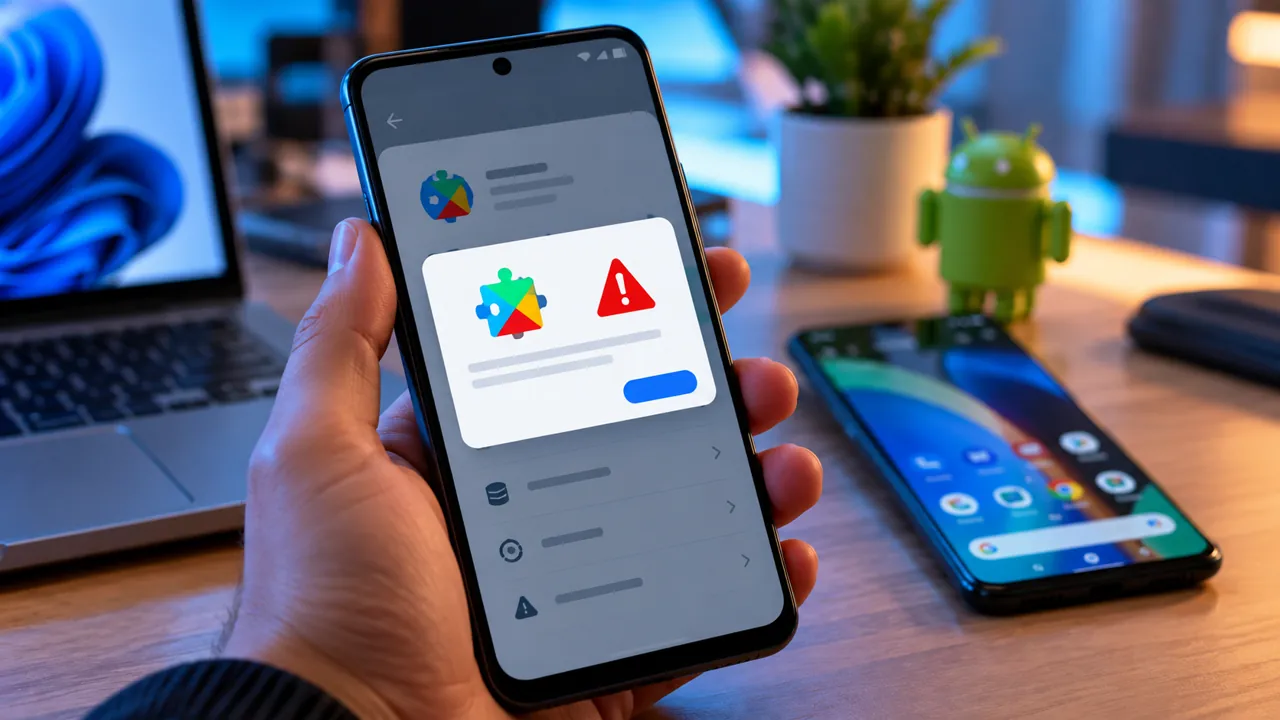
If your Android phone repeatedly shows “Google Play services keeps stopping,” you may also notice problems with Google sign-in, Maps, app notifications, or Play Store downloads. Google Play services is a background component that connects apps to Google features; it is not the same app as the Google Play Store. The safest solution is to identify whether the issue affects the whole device or just one app, then work from low-risk checks toward more disruptive repairs.
Quick answer: start with these checks
- Restart the phone and confirm a reliable internet connection.
- Check Android software updates and update Google Play services through the supported settings path.
- Check storage and date/time settings.
- If one app alone crashes, troubleshoot that app first.
- Clear temporary cache where available; do not clear all Google Play services data as your first fix.
- Back up important data before account removal, system reset, or other disruptive changes.
What Google Play services actually does
Google says Play services helps apps use Google Sign-In, Maps and other Google services. It is built into supported Android devices and is different from the Play Store, which is used to discover and install apps. Google currently states that Play services supports Android 7.0 (API level 24) and later. On devices without supported Google services, these instructions may not apply.
First diagnose the symptom
- Error appears across many apps: focus on Play services, Android updates, storage, and system settings.
- Only one app fails: update that app, check its permissions and storage, and contact its developer if needed.
- Only Play Store downloads fail: follow the Play Store troubleshooting path, which is not identical to repairing Play services.
- The error began immediately after an Android update: check for a follow-up software or Play services update before changing accounts.
Fix 1: Restart the phone
- Save work and close anything important.
- Press the Power button and select Restart; button combinations differ by manufacturer.
- Wait for Android to start completely.
- Open the app that triggered the error and check whether the warning returns.
A restart is low risk and may resolve a temporary background-process problem. If the phone is unresponsive, consult your manufacturer’s forced-restart instructions rather than repeatedly interrupting startup.
Fix 2: Update Google Play services
- Open Settings on your Android phone.
- Look for Google, your Google profile, or All services; menu names differ by device.
- Under Privacy & security, open System services and select Google Play services, if available.
- Tap Update or Install if that option appears.
- Restart and test again.
This is the route currently documented by Google. If the option does not appear, do not install random APK files from third-party websites. Instead, continue with the other supported troubleshooting steps. Official guide: Keep your device and apps working with Google Play services.
Fix 3: Install available Android system updates
- Connect to Wi-Fi and ensure adequate battery charge.
- Open Settings → System → Software updates or Settings → Software update on some brands.
- Check for a system update.
- Install an available update and restart when prompted.
- Test the affected apps again.
Software-update menu names vary between Pixel, Samsung, Xiaomi and other devices. An Android update can include compatibility and stability fixes, but an update is not guaranteed to solve every Play services crash.
Fix 4: Check available storage
- Open Settings → Storage or Device care → Storage.
- Check whether the internal storage is nearly full.
- Remove unused downloads or apps only after reviewing them.
- Keep important photos and documents backed up before deleting anything.
- Restart and test Play services again.
Low storage can interfere with downloads and app operations. Google does not specify a universal free-space amount that guarantees this error will disappear. See Android Help: Clear up space.
Fix 5: Verify automatic date and time
- Open Settings → System → Date & time, or General management → Date and time on some phones.
- Enable automatic date and time and automatic time zone where available.
- Check that the displayed time and time zone are correct.
- Restart the affected app and test again.
Incorrect time settings can interfere with online services and account authentication. Google documents date/time synchronization in its general Android app troubleshooting guidance. Avoid manually setting a false date as a routine fix.
Fix 6: Clear the Google Play services cache, if available
- Open Settings → Apps → See all apps.
- Select Google Play services; you may need to show system apps on some devices.
- Open Storage & cache or Storage.
- Tap Clear cache if the option is present and available.
- Restart the phone and test the issue.
Clearing cache removes temporary files and is different from clearing all app storage. Some Android versions or manufacturers may not expose a separate cache button. Do not confuse “Clear cache” with “Clear storage” or “Clear all data.”
Fix 7: Troubleshoot the Google Play Store separately
If the main symptom is failed Play Store downloads, the Play Store may need attention even when Play services itself is working.
- Open Settings → Apps → Google Play Store.
- Select Storage & cache.
- Try Clear cache first.
- Reopen the Play Store and test a download.
- If the problem persists, review Google’s official instructions before clearing Play Store storage or uninstalling its updates.
Clearing Play Store data can reset settings such as parental controls and purchase authentication preferences. Recheck those settings afterward. Reference: Fix problems with the Google Play Store app.
Fix 8: Isolate a problem with one app
- Update the affected app in Google Play Store if possible.
- Open Settings → Apps and select the app that crashes.
- Check its permissions and whether it has sufficient storage.
- Use Force stop for that affected third-party app if appropriate, then reopen it.
- Try clearing that app’s cache.
- Contact its developer if only that app continues to fail.
Avoid clearing an app’s data without checking what it stores locally; unsynced conversations, settings or downloaded content may be lost. Google advises troubleshooting an individual app when the failure is isolated. Reference: Fix an installed Android app that isn’t working.
Fix 9: Use advanced recovery only after safer fixes fail
Google explicitly advises against clearing Google Play services storage unless other troubleshooting options have failed. Clearing its data can remove information stored on the device, including some passwords, transit cards and virtual payment cards, and may require signing back into Google services or reauthenticating payment methods.
- Make sure your Google account recovery methods work and back up important data.
- Review Google’s official Play services help page and the warning about storage deletion.
- If you decide to proceed, open Settings → Apps → Google Play services → Storage & cache.
- Only then use the available clear-storage/clear-all-data controls, understanding that the consequences vary by device.
- Restart and sign back in or reconfigure affected services as needed.
Removing and re-adding a Google account or factory resetting a phone are more disruptive options, not routine steps. Before either, verify backups, account credentials, and any device-protection requirements. If the phone is managed by an employer or school, contact the administrator first.
What not to do
- Do not download unofficial “Google Play services fix” APKs or modified system packages.
- Do not disable or attempt to uninstall core Google services to silence the error.
- Do not clear all Play services data before trying safer steps.
- Do not factory reset a phone without verifying backups and Google account access.
- Do not assume the Play Store and Play services are the same app.
When to contact support
Contact the device manufacturer or Google Play support if the error prevents access to Settings, the device has no supported Google Play services, the phone is managed, or crashes continue after documented troubleshooting. Include the phone model, Android version, approximate time the problem began, exact error text, and whether it affects one app or many. Never share account passwords or verification codes.
Frequently asked questions
Is Google Play services the same as Google Play Store?
No. Play services is a system component that helps apps use Google features. The Play Store is the app marketplace.
Will clearing cache delete my photos?
Clearing an app’s cache normally removes temporary data, not photos stored elsewhere. Verify that you selected cache, not storage or all data.
Is clearing Google Play services data safe?
It is potentially disruptive. Google warns that stored information and payment credentials may be affected. Use it only after less disruptive fixes.
Why does the message return after restarting?
The underlying issue may involve outdated components, insufficient storage, app incompatibility, or system problems. Follow the steps in order and identify which apps are affected.
Can I uninstall Google Play services?
Google describes it as an included Android component that cannot simply be force-stopped or uninstalled through normal supported troubleshooting.
Does this guide work on every Android phone?
No. Menu labels vary, and some devices lack supported Google services. Google states that Play services supports Android 7.0 and newer.
Final checklist
- Restarted and checked network connectivity
- Updated Google Play services and Android when available
- Checked storage and automatic time
- Separated Play Store issues from system-wide crashes
- Tried cache-only steps first
- Reviewed backup and account risks before clearing all data
Conclusion
A recurring “Google Play services keeps stopping” warning does not automatically mean the phone needs a factory reset. Start with a restart, supported updates, storage and time checks, then investigate the specific affected app. Reserve clearing Play services storage and other account-level recovery actions for persistent cases after reading Google’s warnings.
Official sources and references
- Google Play Help — Keep your device and apps working with Google Play services
- Android Help — Fix an installed Android app that isn’t working
- Google Play Help — Fix problems with the Google Play Store app
- Google Play Help — Fix problems downloading multiple apps
- Android Help — Clear up space
Editorial note: These are documented troubleshooting procedures, not claims of testing on every Android device. Settings labels and availability depend on the manufacturer and Android version.
You may also like
 Technology & How-To
 USB Works on PC but Not on TV? How to Find the Cause
Diagnose a USB drive that works on a computer but not a TV. Separate detection, missing files and…
 Technology & How-To
 WhatsApp “Waiting for This Message”: Fixes for iPhone, Android and Web
Fix WhatsApp’s waiting-message notice by comparing your phone and linked devices, checking updates and protecting existing chat data.
 Technology & How-To
 WhatsApp iOS 15.5 Requirement: What Changes on November 30, 2026?
WhatsApp raises its iPhone minimum to iOS 15.5 on November 30, 2026. Check your version, older iPhone eligibility…