
Google Maps Timeline Missing After Switching Phones? How to Restore Your History
Google Maps Timeline missing after changing phones? Learn how to find old visits, restore encrypted backups, fix missing device backups and avoid data loss.
Contents
- Why Timeline goes missing after changing phones
- Start here: protect your existing history before trying a fix
- Step 1: Check whether Timeline is still on your old phone
- Step 2: Back up Timeline from the old Android phone
- Step 3: Import the old Timeline backup on your new Android phone
- Step 4: Restore Timeline when switching to an iPhone
- What to do when Your backups does not show the old phone
- Verify the account on both devices
- Check the original device backup, not just the new one
- Complete security prompts and give the backup time
- Avoid deleting and recreating backups prematurely
- Timeline import says successful, but old trips are still missing
- How to export your Timeline data for safekeeping
- Export on Android
- Export on iPhone
- Export is not the same as restore
- What if the old phone was lost, broken, or factory-reset?
- Timeline is empty for new trips too: check recording settings
- Privacy and auto-delete: settings to review after recovery
- Troubleshooting by symptom
- A practical migration checklist before you trade in your old phone
- What recovery can and cannot guarantee
- Official sources and further reading
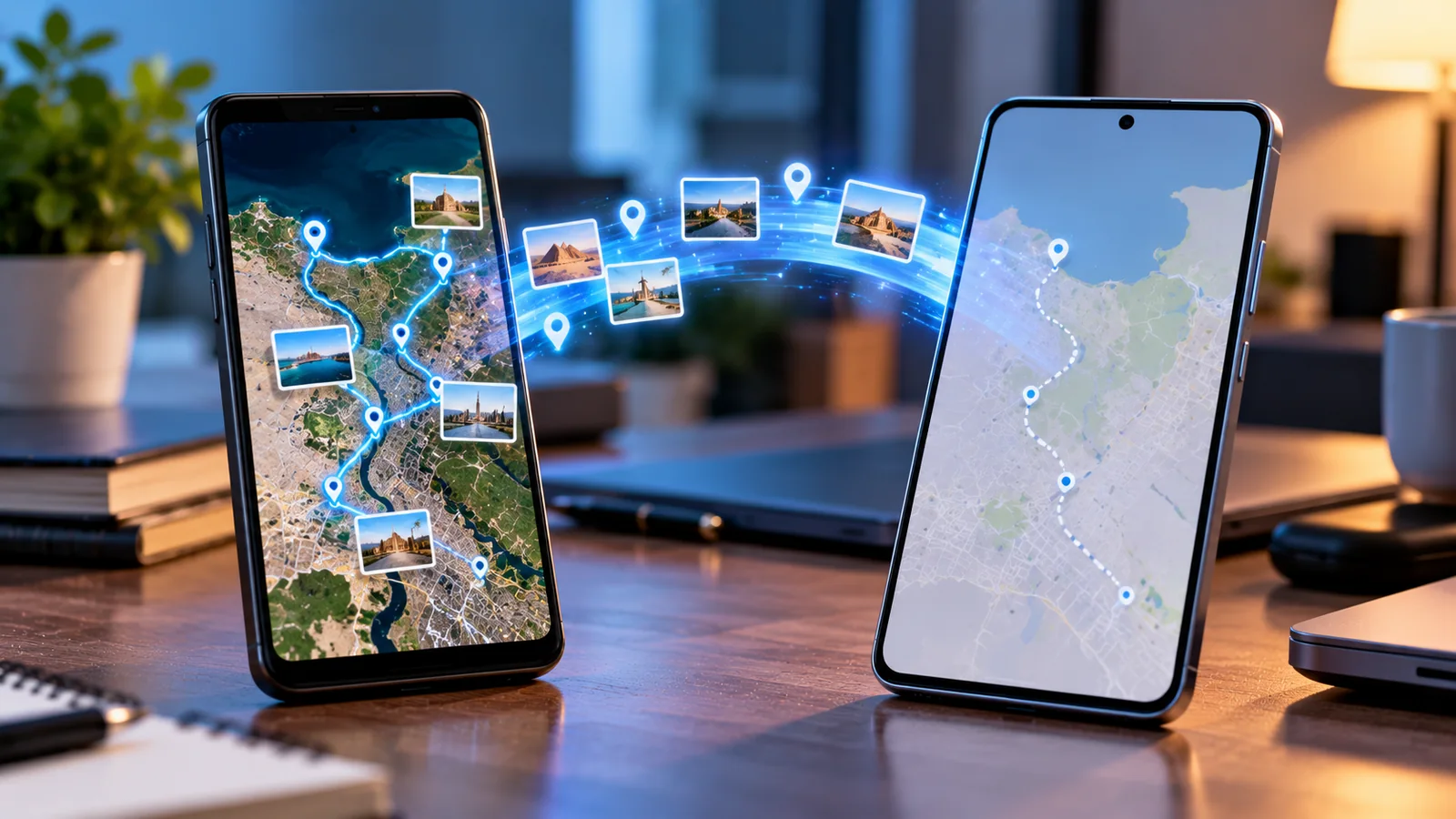
If your Google Maps Timeline disappeared after switching phones, do not erase, reset, trade in, or factory-reset the old device yet. Google Maps now stores Timeline history on individual devices and offers optional encrypted backups. Signing into the same Google Account on a replacement phone does not necessarily transfer years of visited places and routes. Your first task is to identify where the original data still exists and whether a usable Timeline backup was created.
This guide explains how to safely restore Google Maps Timeline on Android or iPhone, what to do when an old phone does not appear under Your backups, why only some dates return, and when recovery may not be possible. Menu labels vary with device, app version, account rollout, and operating system. Do not delete backups or clear app storage as a troubleshooting shortcut.
Why Timeline goes missing after changing phones
Google transitioned Timeline to a more device-centered design. Your Timeline data is shown from the device rather than being continuously presented as one universal cloud history. If you choose Timeline backup, Maps stores an encrypted copy on Google servers that can be imported to another device. Backup is optional and must be enabled separately; the existence of an active Google Account or normal Android phone backup does not establish that Timeline was backed up.
Google also says Timeline is no longer available in Google Maps on a computer. Opening the desktop Maps website is therefore not a reliable way to check whether your device-based history survived. Use the Maps app on a supported mobile device instead. Official explanation: Google Maps Timeline help.
Start here: protect your existing history before trying a fix
- Keep the old phone charged, online, and intact if you still have it. Do not remove its Google Account, uninstall Google Maps, clear Maps storage, or factory-reset it.
- On the old phone, open Google Maps, select your profile picture, and tap Your Timeline. Check several older dates using the calendar—not just yesterday.
- Confirm that both phones use the same Google Account inside Google Maps, especially if you have work, school, and personal accounts.
- If the old phone displays history, create a separate export of its Timeline data before making potentially disruptive changes.
- Record which dates are present on the old and new devices. Importing some history is not the same as recovering all history.
| Old phone has years of history; new phone is empty | Device-local data has not moved | Back up and export old phone; then import on new phone |
|---|---|---|
| Old phone is gone; a Timeline backup exists | Encrypted backup may be recoverable | Import the listed device backup |
| New phone shows only recent trips | New device is recording independently | Check old phone and backup for older dates |
| Backup list shows only the new phone | Old backup is not visible to this device | Verify account, backup status, password prompts, and allow time |
| Neither old device nor backup exists | No verified recovery source | Check remaining devices and exports; recovery may be impossible |
Step 1: Check whether Timeline is still on your old phone
On the original phone, open Google Maps → profile picture → Your Timeline. Use the calendar to visit months or years that were visible before the switch. The Timeline view may include separate tabs for places, cities, and other insights, but the day-by-day history is the key check. If history is visible here, prioritize preserving it rather than experimenting on the new phone.
If the Timeline menu is missing, update Google Maps through the official app store, confirm the correct Google Account, and check whether the device and app support Timeline. Google documents a minimum Maps app version for Android and notes that Android Go devices are not supported. Avoid treating an empty Timeline as proof of permanent deletion until you have checked the original device and account.
Step 2: Back up Timeline from the old Android phone
- Open Google Maps on the old Android phone.
- Tap your profile picture or initial, then Your Timeline.
- Tap the cloud / backup icon near the top right.
- Review the backup status and turn on Backup if available. Google says you must turn off auto-delete before enabling Timeline backup.
- Follow any account verification or password prompts; keep the phone connected while the backup completes.
- Do not assume an immediately completed backup contains the latest visits: Google says changes may take a few days to appear in a backup.
For some accounts Google asks you to re-enter your password to locate or restore existing backups. If a warning appears on another signed-in device, use its official Fix now prompt. Google explains these steps in its Android Timeline documentation.
Step 3: Import the old Timeline backup on your new Android phone
- On the new phone, update Google Maps and open it with the same Google Account used on the old device.
- Tap profile picture → Your Timeline → cloud / backup icon.
- Under Your backups, locate the entry corresponding to the old device.
- Open the three-dot menu beside that device and choose Import.
- Confirm the import on the next screen and allow Maps time to process the data.
- Check several historical dates, including your oldest expected month and dates around the phone change.
The device name and menu arrangement can vary. Importing a backup is an explicit action; simply enabling Timeline on the new phone does not import old visits. Google documents the import flow for Android.
Step 4: Restore Timeline when switching to an iPhone
The same basic principle applies on iPhone: Timeline is device-based, and an existing encrypted backup can be imported from within Google Maps. Open Google Maps → profile picture → Your Timeline → cloud icon, find the previous device under Your backups, select its menu, and tap Import. Confirm and then inspect the calendar for older dates.
Before doing anything destructive, use the iPhone export feature: Google Maps → profile picture → Settings → Location & Privacy → Export Timeline data, then save the resulting file through the iOS share sheet. Google identifies the exported file as location-history.json. Consult Google’s iPhone Timeline instructions.
What to do when Your backups does not show the old phone
A missing old-device entry is one of the most confusing situations. It may mean the old phone never created a Timeline backup, that the backup is linked to a different account, that access to an encrypted backup needs re-verification, or that the backup list has not yet synchronized. These possibilities require different actions; none justifies deleting data first.
Verify the account on both devices
Tap the profile picture in Google Maps on each phone and compare the complete email address. If multiple Google accounts are present, switch to the original account and inspect Timeline and its backup screen again. A Google account signed into Android system settings is not always the account currently selected in Maps.
Check the original device backup, not just the new one
On the old phone, confirm that Timeline history exists and that its backup screen indicates a backup for that device. Google says backup must be separately enabled on each device. A backup entry for your new phone alone does not demonstrate that the old history was ever backed up.
Complete security prompts and give the backup time
If Maps requests account verification, finish it through Google’s official prompt. Keep both devices updated and online and recheck later. A Google Maps community case from April 2026 describes an old backup that became visible on the new phone after a delay, but this is a user report, not a guaranteed repair: community case.
Avoid deleting and recreating backups prematurely
Google’s official recovery instructions describe deleting all existing Timeline backups in a specific situation where the original device is inaccessible, and warn that those backups are permanently deleted. That procedure is not a safe general-purpose fix for missing history. If your goal is to recover older trips, deleting the only available backup may eliminate your last recovery route.
Timeline import says successful, but old trips are still missing
A success notification confirms that an import action ran; it does not prove every visit and route has appeared. Compare known dates in the old phone’s calendar with the new one. Some people report incomplete restores in Google’s community forums, so it is worth checking more than the most recent month before considering the migration complete.
- Check whether you imported the correct old-device entry, particularly if you have used multiple phones over several years.
- Review a few known dates on the old phone and record the exact months missing on the new phone.
- If the old device still has the full history, preserve it and export a separate copy before further troubleshooting.
- Check whether auto-delete settings removed older history before the backup was made. A backup cannot be assumed to include already-deleted data.
- Allow time for backup changes to appear; Google notes that backups may lag behind device changes.
- Do not repeatedly clear app data, delete Timeline, or reset either phone.
How to export your Timeline data for safekeeping
Export on Android
Open Android Settings → Location → Location Services → Timeline → Export Timeline data, then choose a safe storage destination and save. Exact menu labels may differ by Android manufacturer. Google provides these steps in its official Android guide. Consider keeping a copy in encrypted storage under your control because location history is highly sensitive.
Export on iPhone
In Google Maps, open profile picture → Settings → Location & Privacy → Export Timeline data and save it to Files. Verify the export actually exists before you change any Timeline settings. The exported file can be valuable as a personal archive even if it does not restore the in-app Timeline interface.
Export is not the same as restore
Important: Google documents a built-in process for importing an encrypted Timeline backup from the backup list. That is different from exporting Timeline data as a file. Do not assume you can select an exported JSON file and import it directly into the Maps Timeline app: Google’s documented restore workflow uses its encrypted backup system, not a general file-import button.
| Timeline on the old phone | Shows locally available visits and routes | Not by itself; create/import a backup |
|---|---|---|
| Encrypted Timeline backup | Saves a recoverable copy through Maps backup | Yes, when listed and accessible in Maps |
| Export Timeline data | Creates a personal file archive | No general direct JSON import documented |
| Google Maps on desktop | Maps and other browser features | Timeline history is not available there |
| Standard phone transfer | Moves supported apps and settings | Do not assume it migrates Timeline history |
What if the old phone was lost, broken, or factory-reset?
Open Timeline on the replacement phone and check the encrypted backup list. If the original device’s backup is present, try Google’s documented import process. If the old phone is unusable but another signed-in device contains the desired dates, protect that copy and check its backup options too.
If the original device was reset or destroyed, no other device contains the history, and no recoverable Timeline backup was made, there may be no supported way to reconstruct the deleted local Timeline data. Be skeptical of websites or apps promising guaranteed recovery from a Google Account login alone. Avoid granting third-party tools access to your Google credentials or sensitive location data.
Timeline is empty for new trips too: check recording settings
Missing historical data and failure to record new trips are different problems. First confirm Timeline is enabled for the correct Google Account. Then check the phone’s Location settings and the Google Maps app’s location permissions. Depending on your platform and preferences, background location access and battery restrictions can affect the completeness of recorded visits. Google notes that Timeline is off by default and must be opted into.
Open Google Maps → profile picture → Your Timeline and look for a message that Timeline is off. Follow the app’s prompts to enable it if you want new visits recorded. On Android, review Settings → Location and Maps permissions. On iPhone, check Settings → Privacy & Security → Location Services → Google Maps and any relevant permission prompts. Do not change privacy settings unless you want this ongoing location collection.
Privacy and auto-delete: settings to review after recovery
Timeline can contain home and work locations, travel routines, medical visits, and other sensitive information. Google lets you edit or delete Timeline data and configure auto-delete. Before enabling an automatic deletion interval, understand that older visits may be removed. If you want a long-term archive, verify your backup status and save an export before making retention changes.
Google says Timeline is opt-in and device-based, and that encrypted backups are available only when enabled. Its official guides also describe the restrictions around backups and account verification. See Manage your Google Maps Timeline.
Troubleshooting by symptom
| Timeline missing immediately after phone switch | Old phone calendar and encrypted backup list | Factory-reset old phone |
|---|---|---|
| Old backup not listed | Correct account, verification prompts, backup status | Delete the only backup |
| Only a month of history restored | Compare dates and device entries | Assume all years migrated |
| Timeline missing on desktop | Open Maps app on mobile | Treat desktop absence as data loss |
| New trips not recorded | Timeline opt-in and location permissions | Erase older Timeline to restart |
| Exported JSON cannot be imported | Use encrypted backup import in Maps | Trust unsupported recovery software |
A practical migration checklist before you trade in your old phone
- On the old device, verify that the oldest and most recent Timeline dates you care about are present.
- Export Timeline data and confirm the saved file can be found.
- Enable or verify encrypted Timeline backup on the old device.
- On the new device, sign in to the same Google Account and import the correct backup.
- Compare at least five known dates spread across different years.
- Verify that new visits are recording only if you want that feature.
- Keep the old phone unchanged until the checks are complete.
What recovery can and cannot guarantee
Google’s encrypted backup and import process can restore Timeline history when an accessible backup exists. It cannot be assumed to recover data that was never backed up or that was permanently deleted. Likewise, the fact that a file export exists does not prove that Maps offers a way to import that file into its Timeline database. The safest approach is evidence-based: inspect the old device, confirm backup availability, import, and validate actual dates.
Official sources and further reading
You may also like
 Technology & How-To
 NHS App Prescription Not Showing? Check GP Approval, Pharmacy Status and Tracking
Find out why a prescription or medicine is missing from the NHS App in England. Separate repeat requests,…
 Technology & How-To
 Google Wallet Not Working After Switching Phones? Fix Card Setup and Tap to Pay
Google Wallet transferred but tap to pay fails? Separate card verification, bank approval, NFC, screen lock and device…
 Technology & How-To
 iCloud Family Sharing Not Working? Why You Still See 5GB and How to Fix It
Still seeing 5GB after joining an iCloud family plan? Check the account, invitation, sharing settings, personal plan and…