
How to Fix Workday Login Problems and Check for Outages
Fix Workday login problems by checking your company link, outage notices, browser sessions, SSO and MFA, then contact the right HR or IT support team.
Contents
- 1. Confirm that you are using the right Workday login
- 2. Check for a confirmed outage before changing your account
- 3. Match the symptom to the next useful check
- 4. Test the browser session without starting over unnecessarily
- 5. Use the correct password and MFA recovery route
- 6. If only the mobile app fails, check its setup
- 7. Protect a deadline and send a useful support request
- Image credits

Start with your employer’s official Workday link, check for a service notice from your HR or IT team, and then troubleshoot the specific error. A failed login can come from the wrong sign-in page, an account or authentication problem, a browser session, or an outage affecting your organization.
Workday’s public website loading normally does not prove that your employee portal is working. Equally, a maintenance message on Workday Community does not establish that every employer’s Workday environment is unavailable.
1. Confirm that you are using the right Workday login
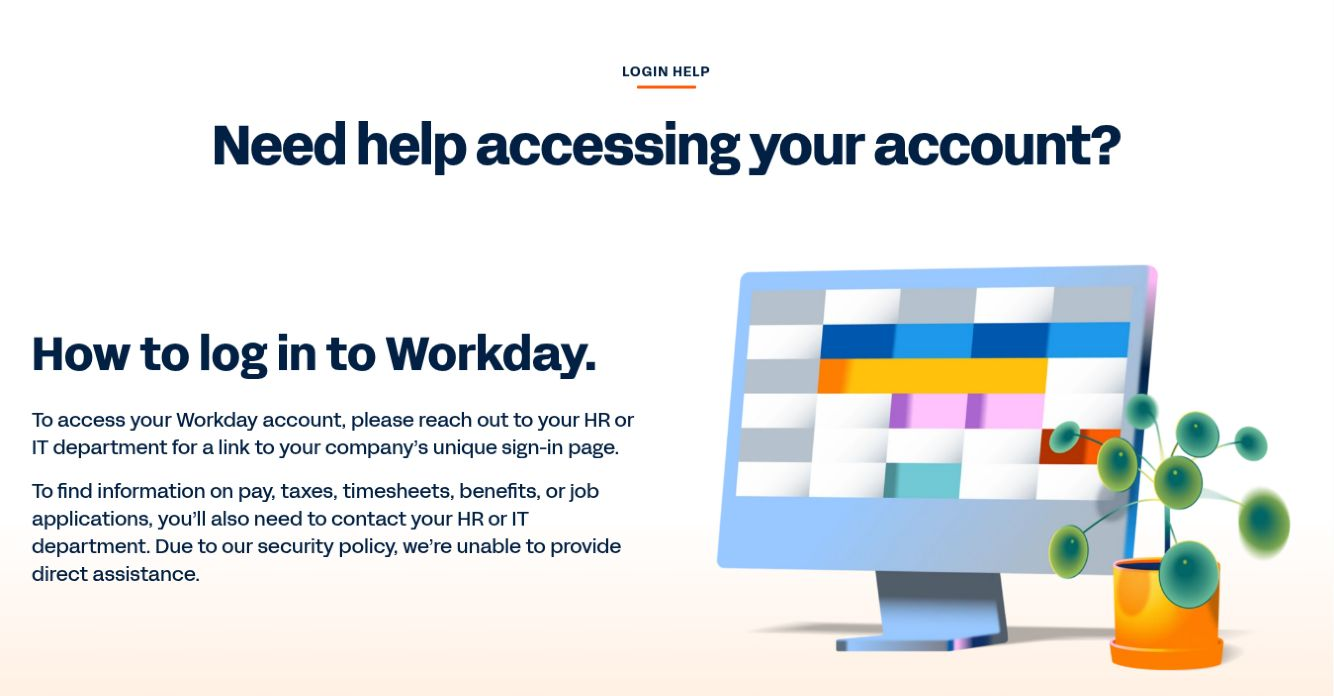
Workday’s official login-help page directs employees to their own HR or IT department for the organization’s sign-in link. There is no single employee login that opens every company’s payroll and HR records.
Return to the link in your company intranet, approved app launcher or onboarding instructions. Avoid guessing the employer’s URL from a search result. If your bookmark opens an old task or an expired session, start from the organization’s main Workday entry point instead.
Workday Community is a separate destination for customer resources. The public login-help page also lists other products, including Adaptive Planning and Peakon. Choosing one of those links will not necessarily take you to your employer’s employee account.
2. Check for a confirmed outage before changing your account
Use your employer’s IT status page, service-desk notices or HR announcements first. Workday’s service-availability guidance also directs customers to Workday Community, where status information requires a login. Employees who cannot access those updates should ask their internal support team to confirm whether their environment is affected.
Read the incident time, affected service and latest update. A customer notice confirms what that organization has reported; it is not automatically a statement about every Workday customer.
For example, Brown University’s status page documented a Workday disruption on November 13, 2026. Its update at 10:17 p.m. Eastern included instructions for staff to retain time records outside Workday until entry became possible again. This is a dated example, not a live declaration that the same outage remains unresolved.
Independent outage-reporting sites can provide supporting clues. Check what they actually monitor: the public website, employee sign-ins, or user reports. A green result for workday.com alone cannot verify your company’s sign-in service.
3. Match the symptom to the next useful check
| What happens | Check first | Appropriate next step |
|---|---|---|
| Maintenance or service-unavailable message | Employer’s latest incident notice | Follow the announced workaround and update schedule. |
| Redirect to the wrong account or a 403 error | Company entry point and selected sign-in identity | Restart from the approved link; test a private window if permitted. |
| Password rejected or account locked | Whether login is handled by Workday or company single sign-on | Use the recovery route for that account, or contact IT. |
| MFA fails after replacing a phone | Registered authentication method | Request help restoring the approved verification method. |
| Mobile app fails but browser works | App version, organization setup and mobile-specific guidance | Use the approved browser route while reporting the app issue. |
| Login succeeds but a task is missing | Access permissions or the business process | Ask the relevant HR or Workday administrator. |
These are troubleshooting branches, not diagnoses from the error message alone. Record which stage fails: opening the page, entering credentials, completing verification, or accessing a task after login.
4. Test the browser session without starting over unnecessarily
Try the organization’s main entry point in a new private/incognito window, where your employer permits it. Select the intended work identity if the sign-in service offers several accounts.
Wake Forest University’s Workday login guide documents a case where a 403 error can result from the wrong Google account, and recommends a private window. Its instructions apply to its own setup; they do not mean every Workday 403 error has that cause.
If the fresh session works, compare the account and saved session used in the original window. Follow your employer’s browser guidance before clearing site data. The University of Arkansas browser checklist covers updates, cache, cookies and JavaScript for applications including Workday.
Also inspect autofill before submitting. If your saved entry is missing from Google Password Manager, our missing-passwords guide addresses that separate problem; it does not establish that your Workday password changed.
5. Use the correct password and MFA recovery route
A company single sign-on page may handle authentication before Workday opens. Resetting a different Workday-related account will not necessarily repair that company login. Use the recovery option on your approved sign-in page, or ask IT which account needs attention.
If you have lost access to a registered phone, use another verification method already approved for your account, if available. Otherwise, ask your organization’s IT team how to restore access. Fort Lewis College’s MFA guidance illustrates why having an alternative sign-in method matters. Recovery instructions vary by organization.
Do not send passwords, recovery codes or one-time verification codes in a help ticket. Describe the error and the point where authentication stops.
6. If only the mobile app fails, check its setup
Update Workday through the official app store and use your employer’s instructions for selecting the organization. Try the approved browser entry point to see whether the problem is limited to the app.
The University of Richmond’s Workday support guide includes app and phone-software updates among its troubleshooting steps. Avoid treating a working mobile browser as proof that every app setting is correct; report which route succeeds and which fails.
Workday’s own availability guidance also recommends checking the network and any VPN or internal connection. Follow your organization’s requirements rather than assuming the same connection setup applies to every employer.
7. Protect a deadline and send a useful support request
If you cannot submit hours, leave, expenses or benefits selections, notify the responsible team before the deadline. Keep a dated record of the attempted task and follow the employer’s temporary process. An outage does not automatically extend a deadline, and another organization’s workaround may not apply to you.
A useful ticket contains the error text, time and time zone, browser or app version, affected task, and whether another approved sign-in route worked. Remove payroll, bank and other personal details from any screenshot.
You can adapt this message: “I cannot access Workday through our approved link. At [time and time zone], I received [error] during [login/verification/task]. I tried [check] with [result]. My [task] deadline is [date]. Please confirm whether this is a known incident and the approved alternative process.”
Workday’s contact guidance sends employee account, document and information requests to the employer’s HR or IT department. That team can distinguish a service incident from an account or permissions issue.
Image credits
Featured photograph: Workday headquarters in Pleasanton, California, August 24, 2019, by Coolcaesar / Wikimedia Commons, CC BY-SA 4.0. Cropped to 16:9 and converted to WebP; the adapted image is available under the same license. This archival photograph does not depict an outage.
Inline screenshot: Workday’s public login-help page, captured November 14, 2026. © Workday, Inc. Reproduced as a limited instructional reference, cropped and converted to WebP. It shows guidance, not a signed-in employee account. No affiliation or endorsement is implied.
You may also like
 Technology & How-To
How to Turn Lecture Recordings Into Study Notes With NotebookLM
Turn lecture audio into study notes with free Gemini Notebook (NotebookLM). Follow the upload steps, check transcript citations,…
 Technology & How-To
How to Use Google Lens to Find Products and Compare Prices
Find an item from a photo with Google Lens, check exact product matches and compare real checkout costs…
 Technology & How-To
Podcast Microphone Guide: USB vs XLR and Setup Tips
Choose a podcast microphone by room noise, connection type and recording style. Compare USB and XLR, see verified…