
Excel Keeps Removing Leading Zeros? Preserve Phone Numbers, IDs and CSV Data
Stop Excel removing leading zeros or changing long IDs. Import CSV columns as text, check Power Query types, and distinguish real data from display formatting.
Contents
- First, decide whether the column contains quantities or identifiers
- If you have already opened the CSV, protect the source first
- Method 1: import the CSV and control the column type
- Check the earlier Changed Type step
- Method 2: turn off the relevant automatic conversions in supported Excel versions
- Method 3: format empty cells as Text before typing or pasting
- Excel for the web: start with Text too
- What a custom number format actually does
- Use TEXT only when the required width is known
- Why long IDs need a separate check
- Try this four-row test before importing your real file
- Exporting to CSV: verify the file, then verify the receiving import
- If it still looks wrong, locate the first step where it changed
- Sources and image notes

To stop Excel removing leading zeros, store identifiers as text before Excel converts them. For a CSV, import the file and explicitly give the phone, postal-code or ID column the Text data type. For manual entry, format the empty destination cells as Text first. A custom format such as 00000 changes how a number looks; it does not turn that number into the original identifier.
If the damage has already happened, keep the current file unchanged and find the original export. Changing a damaged value to Text cannot recover digits that are no longer there. This guide separates prevention, display formatting and reconstruction, with a small reproducible dataset you can use before touching a customer list or product catalogue.
First, decide whether the column contains quantities or identifiers
A quantity is used in arithmetic: twelve items, a price or a measurement. An identifier distinguishes one record from another: 00123, a phone number, a tracking reference or an account code. Two identifiers can contain the same digits and still be different strings. Removing a prefix changes the identifier even when its mathematical value is unchanged.
That is why a phone-number column should normally be treated like names or product codes. You do not need to add telephone numbers together. Keep prices and quantities numeric in their own columns so the workbook can still calculate normally. Microsoft describes the underlying conversion behaviour in its guide to leading zeros and large numbers.
| What you need | Use this approach |
|---|---|
| Keep every character in an identifier | Text cells before entry, or an explicit Text type during import |
| Show a known-width number with padding | A custom number format, with the underlying number understood |
| Rebuild a code whose required width is independently known | A TEXT formula, checked against that rule |
| Recover unknown zeros or damaged final digits | Reimport from the original source or another intact copy |
If you have already opened the CSV, protect the source first
- Avoid saving over the original export while investigating. Make a working copy with a different filename.
- Open the original CSV in a plain-text editor and locate one affected record. Check whether the zeros and final digits are present there.
- Compare the same record in Excel. Use a stable record name or another identifier so you are comparing the same row.
- If the source is intact, restart the import from that file. If it is already damaged, request a fresh export or look for a verified earlier copy.
This comparison distinguishes a file-content problem from an Excel-opening problem. If a text editor shows 00123 but Excel shows 123, there is an intact source to import again. If both show 123, Excel settings cannot tell you whether the intended original was 0123, 00123 or simply 123.
Method 1: import the CSV and control the column type
For a recurring export containing both identifiers and real numeric values, a controlled import is easier to verify than opening the CSV directly. Start a blank workbook and use Data → From Text/CSV. Microsoft documents that import route in its text and CSV import guide. The exact buttons depend on the Excel version and platform.
- Select a copy of the original CSV. In the preview, confirm that the delimiter separates the columns correctly.
- Where Data Type Detection is offered, choose the option that prevents automatic type detection if you want to start with all columns as text.
- Choose Transform Data or the equivalent editor option. Give each identifier column the Text type. Set genuinely numeric columns, such as Quantity, separately.
- Review the applied transformation steps before loading. In particular, look for an earlier step that converted your identifier to a number.
- Load the result, save the working workbook as XLSX and compare a few source records character for character.
Microsoft’s Text/CSV connector documentation explains that type inference can be based on an initial sample or the entire dataset, or disabled so columns default to text. A preview that looks correct in the first few rows is not sufficient if longer references occur later.
Check the earlier Changed Type step
An easy mistake is to add Text as the final step after an earlier numeric conversion has already removed zeros. That gives you text containing the converted number. The type icon can look correct even though the source characters are missing.
Review the query from the source forward. If an automatically created Changed Type step assigns a numeric type to the ID column, replace that conversion for the affected column or remove the inappropriate step and explicitly assign the required types. Then compare against the original file. Microsoft’s Power Query data-type documentation describes the automatically added detection steps and the ways to define a type.
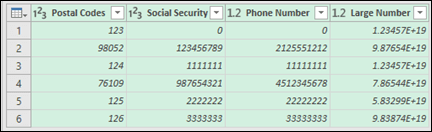
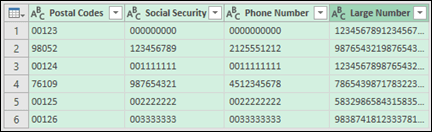
For a quick check, inspect a short code with more than one leading zero, an unusually long reference and a late row near the end of the source file. Checking those different shapes is more informative than checking three ordinary five-digit codes at the top.
Method 2: turn off the relevant automatic conversions in supported Excel versions
Microsoft lists Automatic Data Conversions for Excel for Microsoft 365 and Excel 2024 on Windows and Mac. Its dedicated automatic-conversion instructions give these routes: Windows, File → Options → Data; Mac, Excel → Preferences → Edit. Look for Automatic Data Conversion in the relevant panel. If your version does not offer it, use a controlled import or preformatted Text cells.
Disable the conversion that removes leading zeros. If your identifiers can contain sixteen or more digits, also review the long-number conversion. The same settings group includes other conversions for codes containing E or resembling dates. Change only the options needed for your workflow and try the sample data before opening a production export.
These preferences do not directly control Power Query imports. Power Query has its own type settings, so keep the explicit Text column type in that workflow. The preference also prevents future conversions; it is not a repair tool for a workbook that has already lost characters.
Method 3: format empty cells as Text before typing or pasting
- Select the empty column or destination range.
- Open the Number Format selector on the Home tab and choose Text.
- Enter or paste the identifiers, then check an example with a leading zero.
- For one manual entry, you can use an initial apostrophe, such as
'00123, to tell Excel that the value is text.
Microsoft’s text-format instructions explain why long reference codes need this treatment. For a large import, setting an entire identifier column explicitly is more consistent than adding an apostrophe to each record.
If you are copying cells from another workbook, inspect the result carefully. A normal paste can bring cell formatting along with the values. Preserve a copy of the source, use the appropriate paste option for the intended destination, and confirm the stored text afterward. Do not assume that a column heading called “ID” makes every cell in it a text value.
Excel for the web: start with Text too
The Excel for the web guidance also recommends applying Text before typing or pasting these values. Do not assume that desktop Options panels exist in the web version. If you cannot control a CSV import in the interface available to you, keep the original export and use a supported import workflow rather than repeatedly opening and saving it.
What a custom number format actually does
Suppose a cell stores the numeric value 123. A custom number format of 00000 can display 00123. The underlying value remains the number 123. That is useful when the number intentionally stays numeric and the five-character width is just a presentation rule.
It does not prove that the original identifier was 00123. It also cannot preserve an arbitrary international phone number or reconstruct the ending of a long reference. When a value will be matched, transferred to another system or compared as an exact identifier, store and verify the required string instead of relying on its appearance.
Use TEXT only when the required width is known
If a trusted specification says a code must contain exactly five digits, and the undamaged numeric portion is 123, the following formula produces text with the required width:
=TEXT(A2,"00000")With A2 containing 123, the result is 00123. Microsoft documents padding in the TEXT function guidance. The five zeros express an assumed five-character rule. They do not discover the original width. In some regional Excel installations, the formula argument separator is a semicolon instead of a comma.
Apply a width rule only to the records it actually governs. A mixed list of postal codes, phone numbers and tracking references has no single safe padding width. If the original value was longer than the rule allows, investigate it instead of using a formula to make the column look uniform. Keep the original column alongside any reconstructed result until verification is complete.
Why long IDs need a separate check
Excel numeric cells have a fifteen-digit precision limit for this purpose. A sixteen-digit identifier can lose a final digit when it is treated as a number. Changing the display from scientific notation to Number does not restore that digit. Microsoft’s large-number guidance recommends treating such codes as text.
Separate appearance from content. Scientific notation alone does not prove that data has been lost: a shorter valid number can also be displayed that way. Compare the complete value with the source. If a long reference differs, reimport it as text from an intact copy. Adding a guessed final digit would create a new identifier, not recover the old one.
Try this four-row test before importing your real file
The following values are fictional. Copy the text into a plain-text file named leading-zero-test.csv. Keep that original unchanged. Import it with Identifier as Text and Quantity as a number:
Example,Identifier,Quantity Postal code,00123,2 Phone-style identifier,0123456789,3 Long reference,1234567890123456,4 Product code,00007,5- The postal code must still contain five characters, including its two starting zeros.
- The phone-style value must still start with zero and contain ten characters. It is a format test, not a verified telephone number.
- The long reference must retain all sixteen digits, including the final 6.
- The product code must remain 00007, while Quantity should still work as a number.
In desktop Excel, =ISTEXT(A2) can help identify a text cell, and =LEN(A2) can check its character count. Point the formulas at the imported Identifier cell, not at the Example label. The checks work together: a text result can still contain damaged data, so compare the characters with the source as well.
Exporting to CSV: verify the file, then verify the receiving import
Keep an XLSX working copy when you need workbook formats and formulas. CSV is an interchange format; it does not carry Excel cell-type metadata or the full workbook structure. Microsoft’s import and export guidance distinguishes those file formats.
- Export a copy of the required worksheet under a new filename.
- Open that exported CSV in a plain-text editor. Check whether the actual character strings contain the zeros and every final digit you require.
- Import the exported CSV into a blank workbook with the identifier column explicitly set to Text. Compare the same sample records again.
- If another application will receive the file, verify its documented import schema too. A correct CSV can still be misread by a receiving application.
Avoid the absolute claim that saving a custom-formatted column to CSV always removes its visible zeros. What matters is what your actual export writes. Equally, seeing zeros inside a CSV does not guarantee that double-clicking it in Excel will keep them. Inspect the exported text and control the next import as two separate checks.
Adding quotation marks around a CSV field is not a reliable substitute for setting an Excel column type. A quoted field can still be interpreted by the application opening it. Do not turn identifiers into formulas such as ="00123" just to influence the display: that creates different content and can be unsuitable for the receiving system.
If it still looks wrong, locate the first step where it changed
Work through four checkpoints: the original CSV in a text editor, the query preview before conversions, the loaded worksheet, and the exported CSV. The first mismatch tells you which stage needs correction. Repeatedly formatting the final column cannot fix an earlier wrong conversion.
If values appear correct but a match fails, compare spaces, punctuation, prefixes and data types on both sides. A numeric 123 and text 00123 are not interchangeable identifiers. If your real problem concerns arithmetic rather than record matching, use our guide to percentage-calculation mistakes for the separate calculation checks.
Sources and image notes
Reviewed against the following Microsoft documentation on 29 October 2026. The Power Query images are Microsoft’s published software examples, included to identify the relevant column-type controls. We did not run the import in a signed-in reader account or desktop Excel installation. The dataset and verification sequence are original editorial examples.
You may also like
 Technology & How-To
Is Tesla Discontinuing the Cybertruck? What We Know
Tesla plans a Cybertruck production wind-down in Texas around mid-2027. See what is confirmed, what remains unknown, and…
 Technology & How-To
Are AI Toys Safe for Kids? Privacy Risks and Parent Checks
Are AI toys safe for kids? Explore the evidence, privacy risks, age advice and practical parent checks for…
 Technology & How-To
iPhone Trust This Computer Not Showing? Windows and Mac Fixes
Restore the iPhone computer-trust prompt with checks for unlocking, Apple Devices or Finder, USB data cables and targeted…