
eSIM Won’t Activate on iPhone or Android? Fix QR, Transfer and No Service Errors
Fix eSIM activation problems on iPhone, Pixel and Samsung by diagnosing QR-code failures, carrier provisioning, transfers, SOS and travel eSIM data issues.
Contents
- Quick diagnosis: identify your exact eSIM failure
- Before changing settings: five checks that prevent bigger problems
- Fix eSIM activation on iPhone
- Step 1: check whether the plan is already installed
- Step 2: refresh network registration safely
- Step 3: choose the correct activation route
- Step 4: handle “No Service” or “SOS” after installation
- Fix eSIM activation on Google Pixel and other Android phones
- Google Pixel: use the built-in SIM setup flow
- Samsung Galaxy and other Android devices
- QR code problems: invalid, used, expired or not scanning
- A simple two-device test to locate the fault
- Travel eSIM installed but mobile data does not work
- When to reset network settings—and when not to
- What to ask your carrier when activation still fails
- Three worked troubleshooting scenarios
- Scenario A: new iPhone, QR accepted, but “SOS” remains
- Scenario B: Pixel reports “QR code already used”
- Scenario C: travel eSIM shows signal but no data
- How to verify that activation is actually complete
- Official sources and update notes
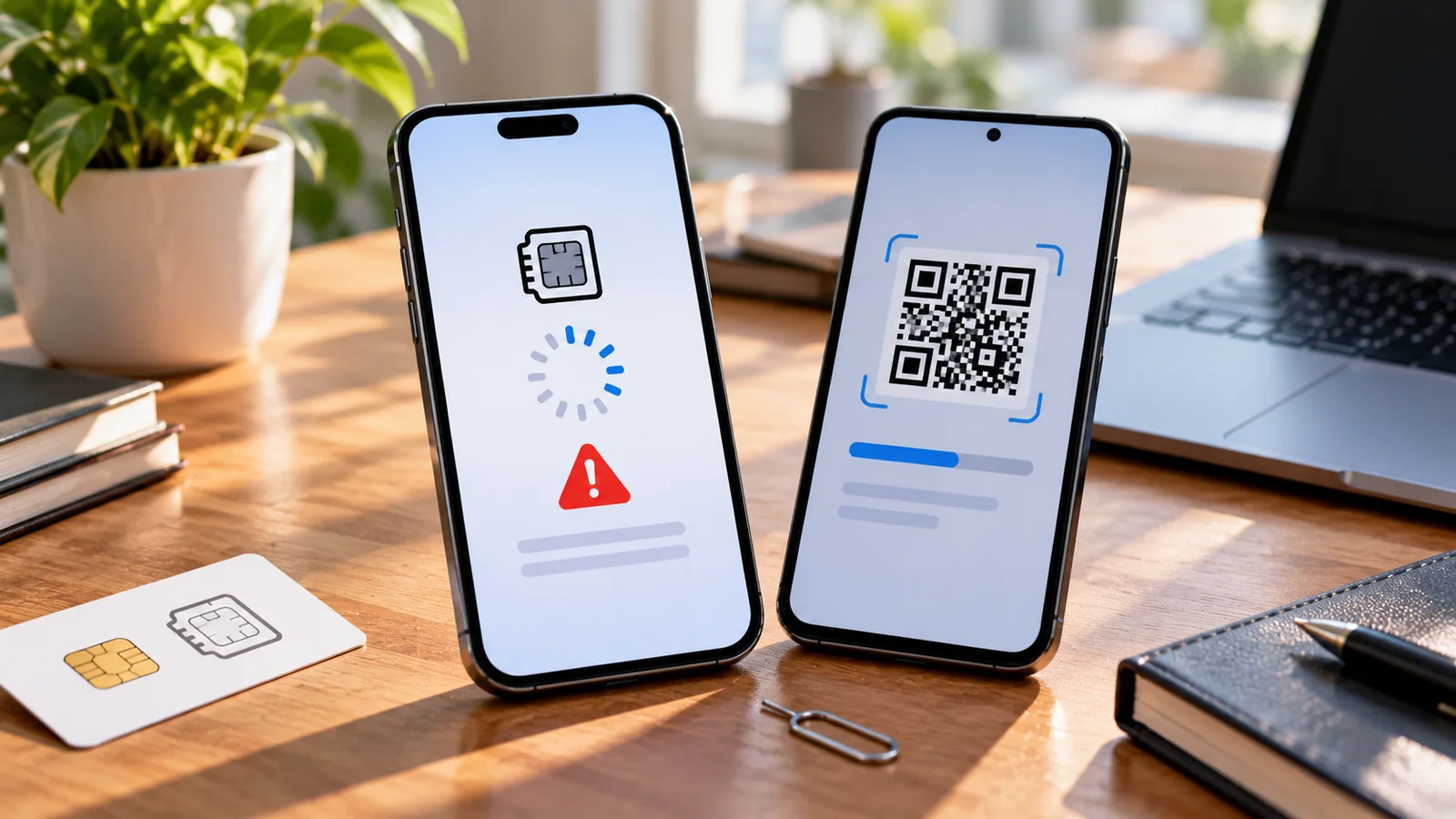
An eSIM activation error can leave a new iPhone or Android phone without calls, texts or mobile data. The safest fix depends on where the setup fails: before the QR code is accepted, while the plan downloads, during a number transfer, or after the eSIM appears in Settings. This guide separates those failures and shows which steps you can safely perform yourself—and when only the carrier can help.
Important: Do not delete a working eSIM, factory-reset your phone or repeatedly scan a one-time activation QR code as your first troubleshooting step. You may lose your only active line, and some carriers require a replacement activation code. Keep your old phone available until calls and texts work on the new one.
Quick diagnosis: identify your exact eSIM failure
| “Unable to activate eSIM” before a profile appears | Carrier provisioning, connectivity or compatibility | Check Wi-Fi, plan eligibility and carrier assignment |
|---|---|---|
| QR code invalid, expired or already used | Activation credential rejected | Ask the issuing carrier whether a new code is needed |
| eSIM installs but shows SOS / No Service | Network registration, coverage, line disabled or account issue | Check line enabled, coverage, account and carrier settings |
| Transfer stalls between two phones | Transfer method or carrier authorization | Keep old phone active; use carrier-supported transfer |
| Travel eSIM installed but no internet | Wrong data line, roaming setting, coverage or APN | Check travel provider instructions and data-line selection |
Before changing settings: five checks that prevent bigger problems
- Connect to stable Wi-Fi; use a trusted hotspot if necessary. Some eSIM-only iPhones can activate without Wi-Fi in supported regions, but Wi-Fi is the reliable default.
- Confirm the plan is active and the provider supports eSIM on your specific model and region. An eSIM-capable phone does not guarantee every carrier supports that device.
- Keep the original phone and any physical SIM functioning until the new line is verified.
- Check the exact error wording and take a screenshot that does not expose the QR code, activation credentials or account PIN.
- Confirm whether the phone is carrier-locked. A locked phone may not accept a plan from another carrier.
Fix eSIM activation on iPhone
Step 1: check whether the plan is already installed
Open Settings → Cellular (called Mobile Data or Mobile Service in some regions). Look for the new line. If it exists, select it and check whether Turn On This Line is enabled. A visible but inactive plan is different from a QR code that cannot be downloaded. Do not install a duplicate profile until you know which one the carrier assigned.
Step 2: refresh network registration safely
- Turn Airplane Mode on, wait briefly, then turn it off.
- Restart the iPhone and check the status bar for the carrier name.
- Open Settings → General → About and wait for any carrier-settings update prompt.
- Install a supported iOS update when practical, ideally while connected to Wi-Fi and power.
Apple recommends checking the plan in Settings, toggling Airplane Mode, restarting and checking carrier settings before escalating. See Apple’s eSIM activation troubleshooting.
Step 3: choose the correct activation route
Depending on your carrier, the plan may arrive through eSIM Carrier Activation, eSIM Quick Transfer, a QR code, the carrier app, a carrier-provided link or manual activation details. Do not assume a QR code is required. Follow Apple’s eSIM setup guide and the method your carrier explicitly issued.
If you are transferring a number from Android to iPhone, availability of direct transfer varies by device, software and carrier. If no supported transfer option appears, contact the carrier rather than deleting the Android line. Carrier verification may be required.
Step 4: handle “No Service” or “SOS” after installation
Check that the correct line is enabled and assigned for voice and mobile data. Verify coverage, any service outage and whether the carrier has completed the number port. SOS does not necessarily mean the eSIM profile failed to install; it means the phone is not connected to its normal cellular network. If the account is not fully provisioned, repeated resets will not fix the carrier’s backend.
Fix eSIM activation on Google Pixel and other Android phones
Google Pixel: use the built-in SIM setup flow
On supported Pixel phones, open Settings → Network & internet → SIMs → Add SIM → Set up an eSIM, then follow the prompts. The wording can vary by Android version and carrier. Google notes that some carriers need to activate the eSIM on their side before the phone can detect it. See Google Pixel eSIM setup.
If transferring a line, use the supported transfer flow rather than scanning an old QR code without approval. Google’s mobile connectivity troubleshooting covers transfer and network problems. When a transfer repeatedly fails, carrier support may be required to reassign the line.
Samsung Galaxy and other Android devices
On many Galaxy devices the path is Settings → Connections → SIM manager → Add eSIM; exact labels and options vary by model, One UI version, country and carrier. Check that your particular model supports eSIM in its market. If a carrier app or QR code was supplied, use that provider’s instructions. A device can have an eSIM menu yet still be ineligible for a specific operator’s plan.
QR code problems: invalid, used, expired or not scanning
A QR code is an activation credential, not simply a picture of a phone number. Some providers issue one-time codes; others allow limited reuse. Never publish or share a real activation QR code, including in screenshots sent to public forums.
- If the camera cannot read the code, improve lighting and display the code on another screen or printed page. Use the phone’s eSIM setup scanner, not an arbitrary QR app.
- If the phone says the code is invalid or already used, stop retrying and ask the provider whether it can reissue or reset the activation credential.
- If the code scans but download hangs, confirm Wi-Fi works, restart once and check for carrier outages.
- If the plan was already downloaded on a different phone, ask whether the carrier must release or transfer the assignment.
- If your provider gave manual activation details, enter them only in the official eSIM setup screen; do not invent an SM-DP+ address or confirmation code.
A simple two-device test to locate the fault
Without changing any account credentials, compare these observations: Does Wi-Fi load normal websites? Does the new phone show an EID? Does the carrier confirm the correct IMEI/EID and plan? Does the eSIM appear in Settings after the download? These four checks separate local connectivity, device capability, carrier provisioning and network registration. They are observations, not proof of a specific hardware defect.
| Wi-Fi fails independently of eSIM | Connectivity may block profile download | Activation fails even on a working Wi-Fi network? State results |
|---|---|---|
| No eSIM option or EID | Model/region support or device issue needs checking | Provide exact model and software version |
| Carrier says plan pending | Backend activation incomplete | Request provisioning status and expected next action |
| Profile present, no network | Registration, coverage, lock or account problem | Give exact status and whether calls/SMS/data fail |
| Old phone works, transfer fails | Port/transfer authorization or compatibility | Ask for the supported transfer method |
Travel eSIM installed but mobile data does not work
A travel data eSIM can be installed correctly yet remain unusable until you reach its supported destination. Some plans activate on installation, others on first connection; read the provider’s terms before activating early. After arrival, enable the travel line, select it as the mobile-data line, and follow the provider’s instructions about data roaming. Roaming settings that are correct for a travel eSIM may be wrong for your primary line, so confirm which line you are editing.
Check whether the provider requires a specific APN, supported network or manual network selection. Do not enter random APNs from forums. If the plan is data-only, it may not support ordinary voice calls or SMS. If your primary line must receive bank verification texts, do not disable it without checking roaming charges and provider support.
When to reset network settings—and when not to
A network-settings reset may help some persistent connectivity problems, but it is not the first step for a rejected QR code or an unprovisioned carrier plan. It may remove saved Wi-Fi networks and other network preferences; exact effects depend on device and OS version. Before proceeding, review the device manufacturer’s current reset description and confirm that your eSIM will be retained. Avoid factory reset or deleting the eSIM unless the carrier explicitly provides a safe reactivation path.
What to ask your carrier when activation still fails
- Is this phone model and regional variant eligible for your eSIM service?
- Is the line active and assigned to this device’s IMEI and EID?
- Is a number port or eSIM transfer still pending?
- Has this QR code already been redeemed, and can you issue a replacement if necessary?
- Is the account or device blocked by a carrier lock, billing restriction or identity-verification hold?
- If the profile installed, why is network registration failing in this location?
Find the IMEI and EID in your device’s official About screen. Provide those identifiers only through the carrier’s trusted support channel. Never send account passwords, one-time codes or full activation QR codes to unsolicited callers or messages.
Three worked troubleshooting scenarios
Scenario A: new iPhone, QR accepted, but “SOS” remains
The user verifies the plan appears in Cellular settings and is switched on. Airplane Mode and restart do not help. The carrier confirms a pending number transfer. The useful next step is to wait for or resolve that carrier transfer—not to erase the iPhone. This is a hypothetical example illustrating the difference between installation and registration.
Scenario B: Pixel reports “QR code already used”
The user confirms the code came from the carrier and the old phone still has service. Instead of repeatedly scanning or deleting the old profile, they request a fresh activation credential or approved transfer process. The provider determines whether a replacement code is necessary. This is an illustrative scenario, not a universal carrier rule.
Scenario C: travel eSIM shows signal but no data
The user checks the plan’s activation region, selects the travel eSIM for mobile data and applies only the provider’s roaming/APN instructions. If it remains offline, they collect the network name and device details for provider support. The example demonstrates why a connected radio signal does not always imply a usable data plan.
How to verify that activation is actually complete
- Turn off Wi-Fi briefly and load a normal webpage using mobile data.
- Place a test call and send/receive a text if the plan includes voice and SMS.
- Check that the intended number is shown for the correct line; number display is not always definitive, so confirm with the carrier if needed.
- If transferring a number, verify inbound calls and texts reach the new device before retiring the old one.
- Confirm the default data line and any travel roaming settings to avoid unintended charges.
Official sources and update notes
Primary references: Apple: If you cannot set up an eSIM; Apple: Set up eSIM; Google: Set up a new eSIM on Pixel; Google: Fix mobile connectivity issues. Menus, supported transfer methods and carrier requirements change by region and software release; check the current provider documentation before making irreversible changes.
Bottom line: Diagnose the stage first. A failed QR scan, a stalled download, a completed installation with no service and a travel plan with no data are different problems. Preserve any working line, collect the exact error and involve the carrier when provisioning or transfer authorization is required.
You may also like
 Technology & How-To
 NHS App Prescription Not Showing? Check GP Approval, Pharmacy Status and Tracking
Find out why a prescription or medicine is missing from the NHS App in England. Separate repeat requests,…
 Technology & How-To
 Google Wallet Not Working After Switching Phones? Fix Card Setup and Tap to Pay
Google Wallet transferred but tap to pay fails? Separate card verification, bank approval, NFC, screen lock and device…
 Technology & How-To
 iCloud Family Sharing Not Working? Why You Still See 5GB and How to Fix It
Still seeing 5GB after joining an iCloud family plan? Check the account, invitation, sharing settings, personal plan and…