
Why Do Photos Look Blurry After Sending Them on WhatsApp?
Photos blurry after sending on WhatsApp? Compare Standard, HD and Document options and learn how to preserve original image quality.
Contents
- Why does WhatsApp compress pictures?
- Three ways to send a photo—and when to use each
- 1. Standard photo: quickest, but not original quality
- 2. HD photo: better quality without leaving the media flow
- 3. Send as a document: best choice for the exact original file
- How to send less blurry photos on Android
- How to send higher-quality photos on iPhone
- Why a picture may still look blurry after selecting HD
- The original photo is already blurred
- You're comparing a thumbnail with the downloaded image
- The image has been forwarded or resaved repeatedly
- Cloud synchronization is providing an optimized local copy
- You're zooming beyond the file's resolution
- How to compare the original and received photo
- Frequently asked questions
- Does WhatsApp HD send the original photo unchanged?
- Why do screenshots sometimes look fuzzy?
- Can I restore quality to a photo that was already compressed?
- Should photographers send pictures as documents?
- Sources and further reading
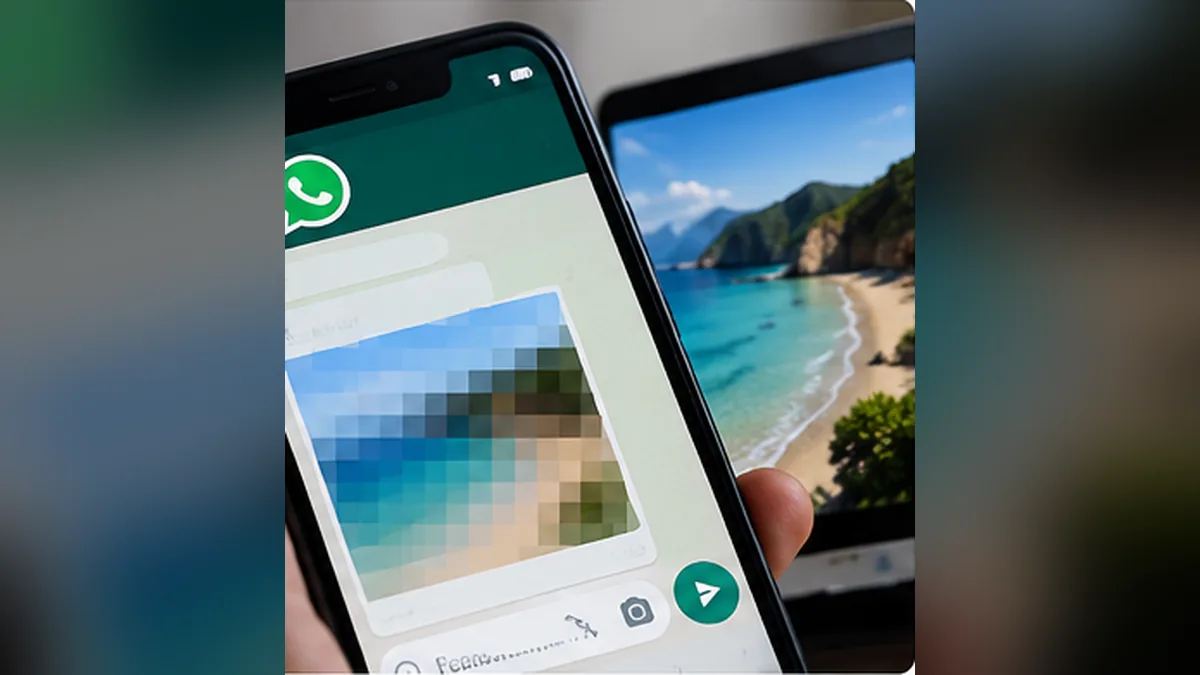
You take a sharp photograph, share it in WhatsApp and suddenly the image looks softer, smaller or more pixelated. The problem is often compression: sending an image as a normal chat photo may reduce its file size, dimensions or detail to make sharing faster and less demanding on mobile data. There are also other reasons, including the original image’s quality, preview behavior and repeated resaving.
The good news is that you have choices. You can send ordinary images quickly, choose WhatsApp’s HD option for better detail or send a picture as a document when preserving the original file is important. These methods are not identical, and understanding the differences saves disappointment.
Why does WhatsApp compress pictures?
High-resolution phone photos can be several megabytes each. Messaging services optimize ordinary photo delivery for speed and convenience. Compression may remove subtle texture or fine detail; resizing can reduce the number of pixels. The result is often fine on a phone screen but noticeable when you zoom, crop, print or share the file again.
Think of three kinds of loss: resolution loss (fewer pixels), compression artifacts (blocky edges, smearing or lost texture) and generation loss (quality declines when a previously compressed file is saved again). A blurry original cannot be made genuinely sharp simply by selecting a higher sharing quality.
Three ways to send a photo—and when to use each
1. Standard photo: quickest, but not original quality
Open a chat, choose Gallery or Photos, select an image and send normally. This is convenient for casual pictures, but WhatsApp may optimize the file for standard delivery. Use it for screenshots, everyday conversations or pictures that do not need to be printed.
2. HD photo: better quality without leaving the media flow
Choose the photo in a chat and look for the HD quality selector in the sharing interface, then select HD if offered. WhatsApp also documents a default option under Settings → Storage and data → Media upload quality → HD quality in supported versions. Interface placement can vary by operating system and app version.
HD usually preserves more useful detail than standard delivery, but it does not promise byte-for-byte identity with the original file. Connection conditions and the app’s current processing rules can affect delivery. If you already sent a low-quality version, resend the original photo in HD; toggling a setting does not upgrade an old message.
3. Send as a document: best choice for the exact original file
If a colleague, designer or print shop needs your image file rather than a chat-friendly preview, use Attach → Document and choose the photo file from your device, where supported. On some phones you first use the file browser or save the original image to Files. Document sending is generally the better method for keeping original image data intact, subject to current WhatsApp file-size and device limits.
The recipient may see a file attachment rather than a large in-chat preview. Ask them to download the document and inspect the full-resolution file rather than a thumbnail.
How to send less blurry photos on Android
- Open WhatsApp and select the destination chat.
- Tap the attachment control and select your photo from Gallery.
- Before sending, use HD if the app presents that option.
- For an exact source file, use the Document attachment flow instead of Gallery.
- Ask the recipient to open the downloaded file, not just the chat preview.
Android menu labels vary by manufacturer. If you do not see HD, update WhatsApp and check media upload settings. An image that was already compressed in another app will not regain missing details.
How to send higher-quality photos on iPhone
- In WhatsApp, open a chat and select a photo from the attachment menu.
- Check whether HD is available and select it before sending, or set HD as the default in media settings when supported.
- For the original, save or locate the file in the Files app and attach it as a document.
- Tell the recipient whether you sent a display-friendly photo or the original file.
Some iPhone images use HEIC/HEIF, and the receiving device or app might not open that format easily. If compatibility matters more than preserving the original codec, convert a copy using the Horus HEIC to JPG tool and keep your original HEIC separately.
Why a picture may still look blurry after selecting HD
The original photo is already blurred
Motion blur, missed focus, a dirty camera lens and low light are captured into the original. HD sharing cannot restore detail that was never recorded.
You’re comparing a thumbnail with the downloaded image
Some apps show lower-resolution previews during loading. Open the received image completely and, if necessary, save it to inspect its full dimensions and file size.
The image has been forwarded or resaved repeatedly
If you send the screenshot of a screenshot or a previously compressed picture, you start with fewer details. Go back to the original Camera or Photos file and resend that source instead of forwarding a degraded copy.
Cloud synchronization is providing an optimized local copy
On devices that keep full originals in cloud storage, make sure the original is available locally before sharing through another app. Different photo pickers may offer different representations.
You’re zooming beyond the file’s resolution
An image that looks good at phone-screen size can look rough on a laptop, monitor or large print. Inspect image dimensions rather than judging quality only from file size.
How to compare the original and received photo
Check both files’ pixel dimensions and size in their file details. For example, if the original measures 4032 × 3024 pixels but the downloaded copy is much smaller, resizing happened. Equal dimensions do not guarantee equal detail, because compression can change image quality without changing width and height.
For a website, you may actually want controlled compression: a carefully chosen smaller WebP or JPEG can load much faster without obvious visible loss. The Horus Image Compressor lets you choose output settings. Keep the original separately, then optimize a publishing copy.
Frequently asked questions
Does WhatsApp HD send the original photo unchanged?
Not necessarily. HD is designed for higher-quality media sharing, not a guarantee of an identical file. Use a document attachment when exact source fidelity matters.
Why do screenshots sometimes look fuzzy?
Small text and thin lines reveal resizing and compression quickly. Document attachment or a PDF may preserve readability better for important text.
Can I restore quality to a photo that was already compressed?
You may improve its appearance with editing or upscaling, but you cannot reliably reconstruct every lost original detail. Finding and resending the source file is preferable.
Should photographers send pictures as documents?
For originals intended for print or editing, yes—when the service’s file and size limitations permit it. For casual viewing, HD is more convenient.
Sources and further reading
If quality is critical, compare the file that arrived with the original. The sending option matters—but the source image and intended use matter just as much.
You may also like
 Technology & How-To
How to Turn Lecture Recordings Into Study Notes With NotebookLM
Turn lecture audio into study notes with free Gemini Notebook (NotebookLM). Follow the upload steps, check transcript citations,…
 Technology & How-To
How to Use Google Lens to Find Products and Compare Prices
Find an item from a photo with Google Lens, check exact product matches and compare real checkout costs…
 Technology & How-To
Podcast Microphone Guide: USB vs XLR and Setup Tips
Choose a podcast microphone by room noise, connection type and recording style. Compare USB and XLR, see verified…