
iPhone Won’t Connect to Wi-Fi? 6 Fixes to Try
Troubleshoot an iPhone that will not join Wi-Fi with safe, step-by-step checks for settings, saved networks, routers, VPNs, and network resets.
Contents
- First, identify where the problem is
- 1. Check the basic Wi-Fi settings
- 2. Forget the network and reconnect
- 3. Restart the iPhone and router
- 4. Check signal, frequency, and router access
- 5. Temporarily check VPN or security apps
- 6. Reset network settings as a last step
- What to do based on the result
- Frequently asked questions
- Why does my iPhone say the Wi-Fi password is incorrect?
- Should I reset all iPhone settings?
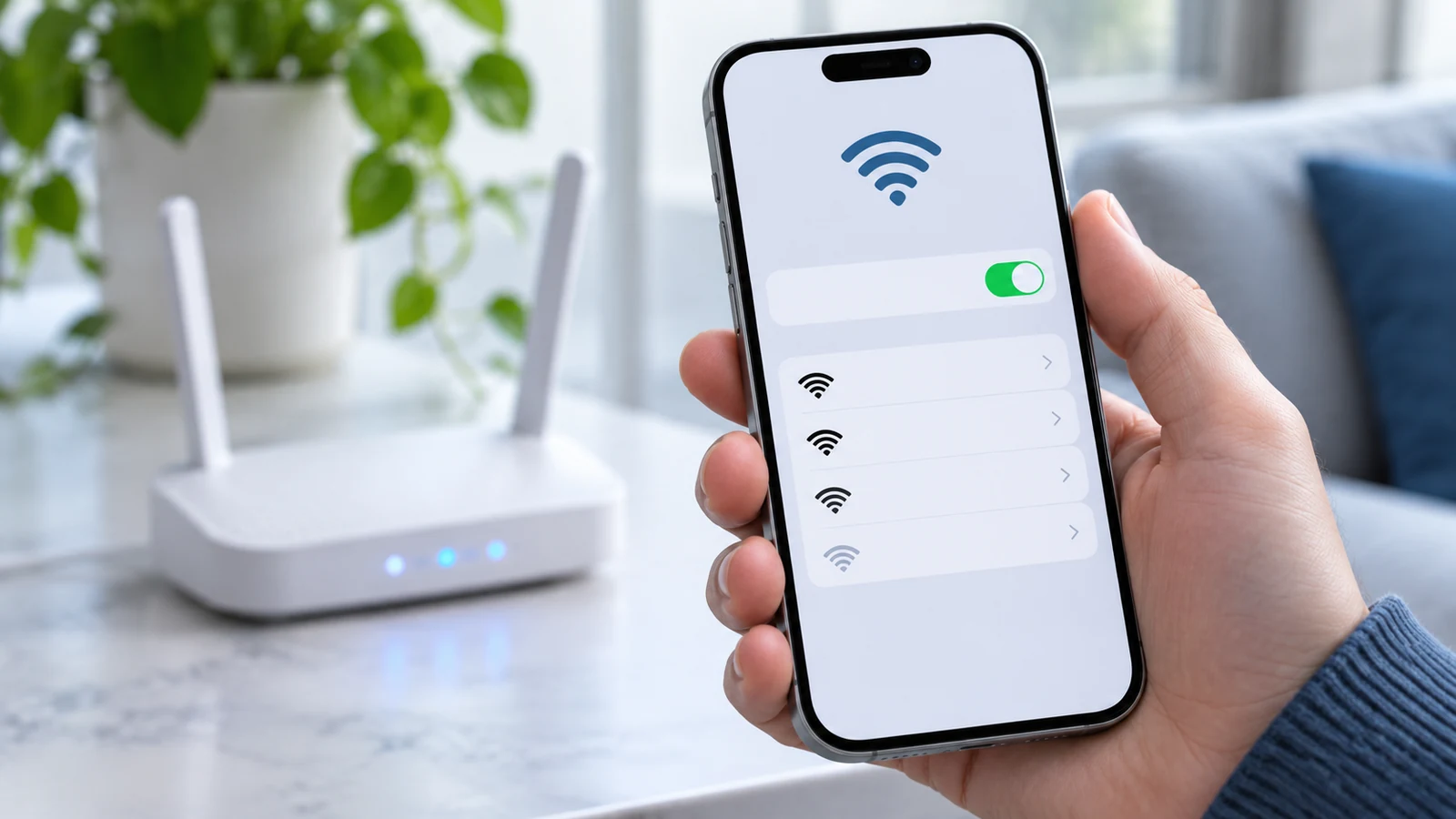
If your iPhone will not connect to Wi-Fi, first check whether the problem affects one network or every network. Then work through the fixes below in order: confirm Wi-Fi and Airplane Mode settings, reconnect to the network, restart the router, and reset network settings only as a last resort.
First, identify where the problem is
Try connecting another phone or computer to the same Wi-Fi, then try your iPhone on a different trusted network. If every device fails on your home network, focus on the router or internet provider. If your iPhone fails on several networks while other devices work, focus on the iPhone.
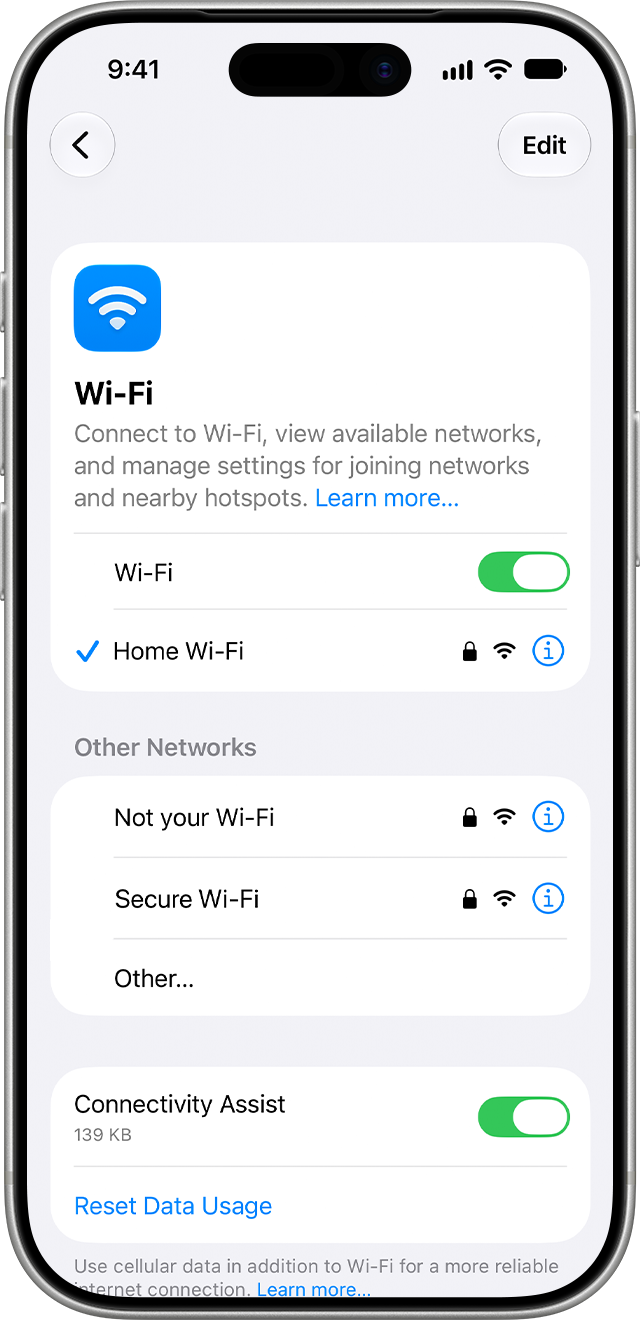
Apple Support screenshot: Wi-Fi settings and the connected-network indicator. Source: Apple Support.
1. Check the basic Wi-Fi settings
- Open Settings → Wi-Fi and make sure Wi-Fi is on.
- Confirm Airplane Mode is off.
- Tap the network name and enter its password again. A blue checkmark beside the network confirms the iPhone joined it.
- If Wi-Fi is greyed out, restart the iPhone and check again.
2. Forget the network and reconnect
If the iPhone keeps rejecting a network or reconnecting unsuccessfully, open Settings → Wi-Fi, tap the information button beside the network, choose Forget This Network, then select it again and enter the password. Do this only if you know the correct password.
3. Restart the iPhone and router
Restart the iPhone. If other devices also have trouble, unplug the router and modem from power, wait about 30 seconds, then reconnect them. Allow the router a few minutes to come back online before testing again. Avoid pressing the router’s factory-reset button, which can erase its settings.
4. Check signal, frequency, and router access
Move closer to the router and try again. If it offers separate 2.4 GHz and 5 GHz network names, test the other band. A hidden network must be added manually, and a workplace, school, hotel, or public hotspot may require an administrator’s approval or a sign-in page.
5. Temporarily check VPN or security apps
A VPN or security filter can interfere with a connection. Temporarily disconnect the VPN and test Wi-Fi. If the issue disappears, update or review that app’s configuration. Apple recommends removing VPN or security software only as part of troubleshooting; do not leave protection disabled if you rely on it.
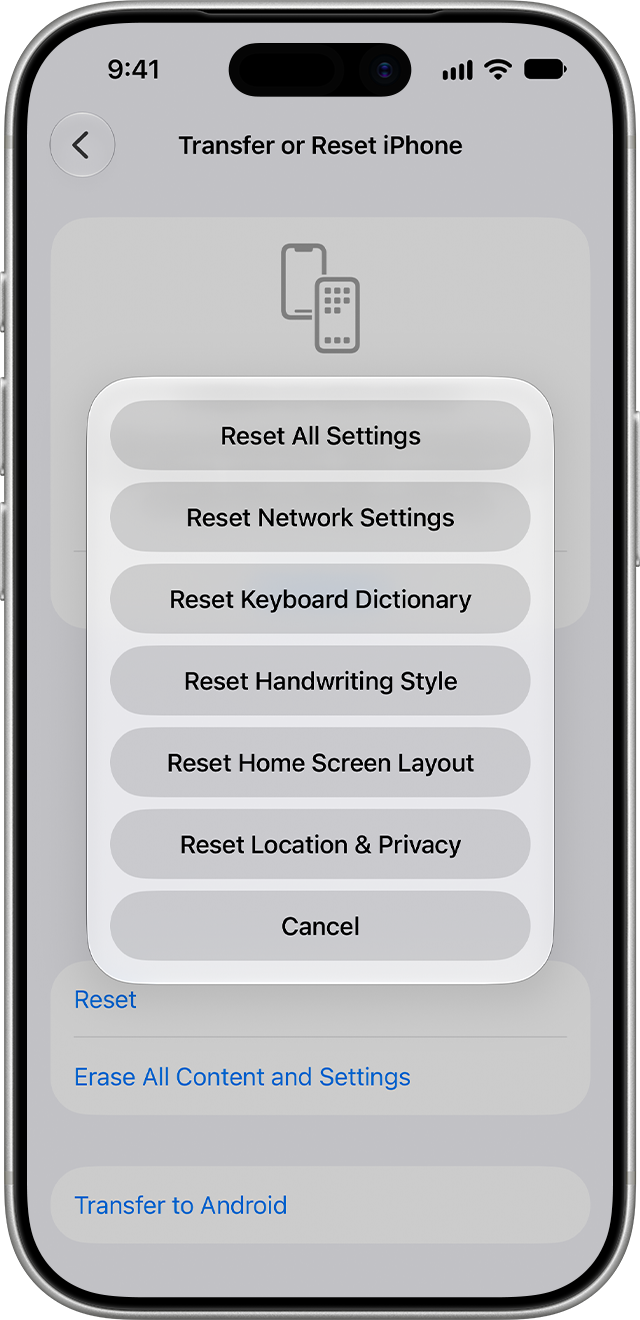
Apple Support screenshot: the path to Reset Network Settings. Source: Apple Support.
6. Reset network settings as a last step
Use this only after the simpler checks fail: go to Settings → General → Transfer or Reset iPhone → Reset → Reset Network Settings. This removes saved Wi-Fi networks and passwords and resets cellular, VPN, and APN settings. It does not erase photos or apps, but you will need to reconnect to Wi-Fi afterward.
What to do based on the result
- Other devices cannot connect either: Restart the router and contact your internet provider if service remains unavailable.
- iPhone connects to another Wi-Fi network: Check the original router, password, access controls, and frequency settings.
- iPhone cannot join any Wi-Fi network: Update iOS when possible and contact Apple Support if the problem continues.
- Wi-Fi connects but says “No Internet Connection”: Test other devices; if they also lack internet, contact the provider.
Follow Apple’s official Wi-Fi troubleshooting steps for the latest device-specific guidance. If the iPhone cannot connect to any network after these checks, contact Apple Support and share which networks you tested and what happened.
Frequently asked questions
Why does my iPhone say the Wi-Fi password is incorrect?
Check the password with the network owner, including capitalization and special characters. Forget the saved network and join it again. If several devices reject the same password, verify or change it in the router settings.
Should I reset all iPhone settings?
No. Start with the network-specific steps above. Reset Network Settings is narrower than Reset All Settings and is the appropriate reset to try for persistent Wi-Fi problems.
You may also like
 Technology & How-To
How to Turn Lecture Recordings Into Study Notes With NotebookLM
Turn lecture audio into study notes with free Gemini Notebook (NotebookLM). Follow the upload steps, check transcript citations,…
 Technology & How-To
How to Use Google Lens to Find Products and Compare Prices
Find an item from a photo with Google Lens, check exact product matches and compare real checkout costs…
 Technology & How-To
Podcast Microphone Guide: USB vs XLR and Setup Tips
Choose a podcast microphone by room noise, connection type and recording style. Compare USB and XLR, see verified…