
iPhone 18 Pro Speaker Crackling or Popping? What We Know and What You Can Try
iPhone 18 Pro or Pro Max speaker crackling? Check iOS 27.2 status, compare calls and local audio, use Apple diagnostics, and know when to seek service.
Contents
- 30-second diagnosis before changing anything
- What are iPhone 18 Pro owners reporting?
- Does iOS 27.2 fix iPhone 18 Pro speaker crackling?
- First: update your iPhone
- Remove the case and screen protector for a quick test
- Inspect the earpiece and speaker openings
- Use the Ringtone and Alerts slider as a speaker test
- Test a normal call and Speaker mode
- Test with local audio, not just streaming
- Try different volume levels
- Optional: document an Airplane Mode trigger
- Restart the iPhone
- Check Bluetooth and external audio devices
- Does changing screen brightness trigger the sound?
- Could it be haptics instead of the speaker?
- Record the problem with another device
- How to document the noise before contacting Apple
- Apple diagnostics: a useful next step, not a verdict from a ringtone
- Find the documented diagnostic screens
- How to interpret a pass when the sound is intermittent
- A short comparison log that makes a service visit more useful
- A message you can adapt for Apple Support
- Should you reset all settings?
- Should you return or replace the iPhone?
- When the problem looks more like hardware
- When the problem looks more like software or system behavior
- What not to do
- A quick troubleshooting order
- What if the problem happens together with no cellular service?
- Choose the next step from the symptom
- Sources and evidence limits
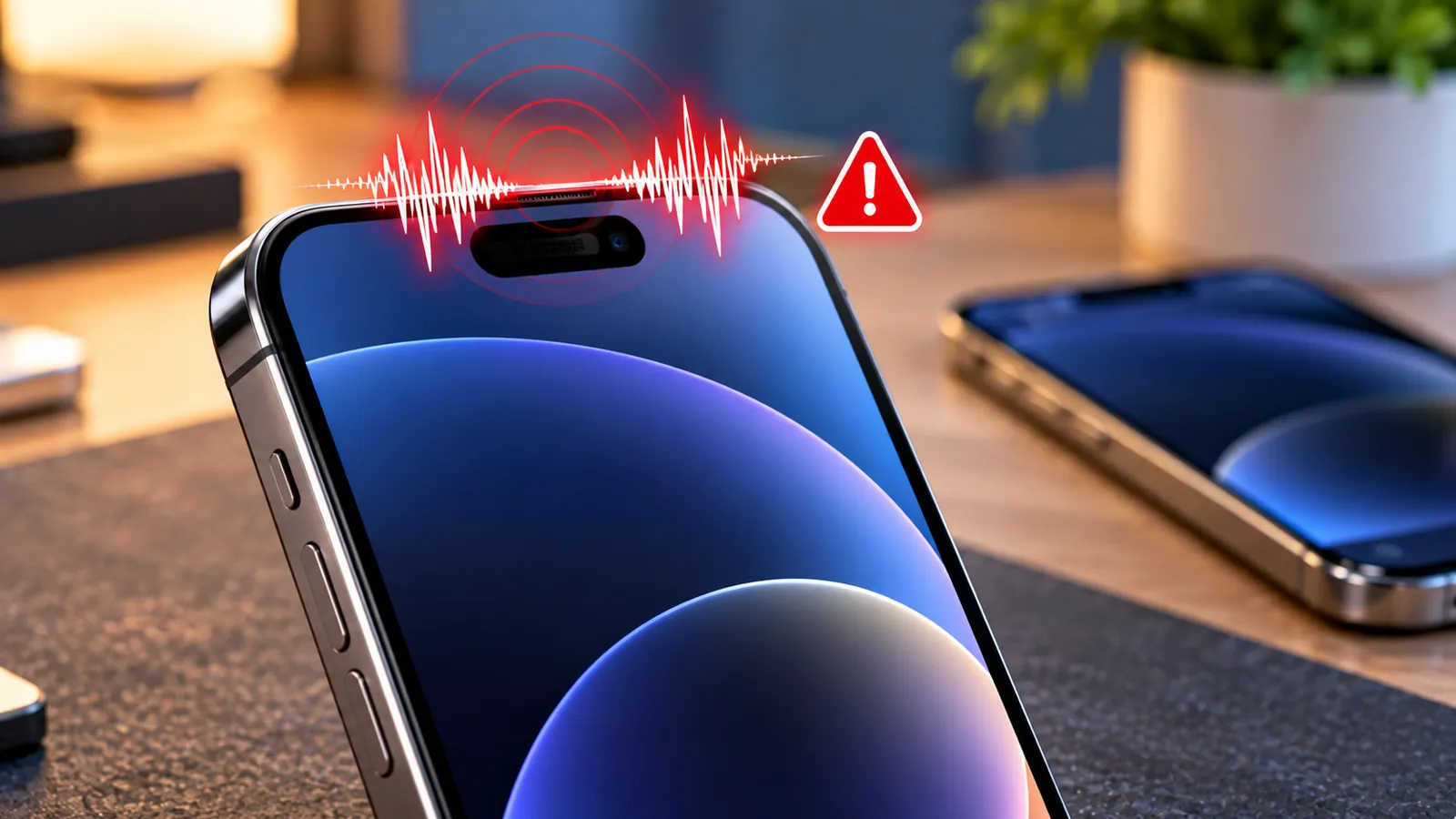
Last reviewed: October 27, 2026. If your iPhone 18 Pro or Pro Max speaker is crackling, popping or clicking, start with a few controlled checks before resetting the phone. Apple lists iOS 27.2 as released on October 26, but its published notes do not specifically name a speaker-crackling fix. Compare a built-in tone, local audio and a test call, then use the pattern to decide whether to contact Apple for assessment. A persistent fault deserves attention even when an update is available.
30-second diagnosis before changing anything
| What you hear | What it suggests | Safe first move |
|---|---|---|
| Crackle in every app and ringtone test | A phone-wide audio or hardware issue is more likely | Update iOS, remove accessories, then contact Apple if it persists |
| Only during cellular calls | Reception, network path or call-audio behavior may be involved | Test from another location and compare speakerphone with local audio |
| Only one app or streamed track | The app, file or network may be the source | Try a downloaded file and another app before resetting settings |
| Short click after Airplane Mode or brightness changes | A reproducible system event reported by some owners | Record the pattern; do not treat it as proof of a specific defect |
| Improves after removing a case or film | Accessory pressure or partial obstruction may be involved | Inspect the accessory before reinstalling it |
Menu note: Apple’s labels can vary by iOS version and region. The steps below use the current documented path, but there is no single screenshot that matches every iPhone. Follow the labels rather than a device-specific image.
The sources reviewed do not establish one cause for all reported noises. Apple’s published iOS 27.2 and 27.0.1 notes do not name a fix for this symptom. That does not rule out undocumented changes or different causes on different devices; it means a claimed universal repair would go beyond the evidence.
That uncertainty matters. A faint one-off click is not the same as constant distortion at every volume level, and the correct response depends on when the noise occurs. The steps below help you narrow the problem down without immediately wiping the phone or assuming the speaker is permanently damaged.
What are iPhone 18 Pro owners reporting?
MacRumors reported complaints from both iPhone 18 Pro and iPhone 18 Pro Max users who described the sound as a crackle, tick, pop or random click.
The reports are not identical. Some owners hear it frequently, while others only notice it during certain actions. Reported triggers have included:
- Making or receiving cellular calls.
- Notifications or keyboard activity.
- Scrolling or using apps.
- Opening media or interface elements.
- Toggling Airplane Mode.
- Rapid changes to screen brightness.
Those reports do not prove that every iPhone 18 Pro has the issue, and they do not establish a single root cause. They do, however, give you useful tests to reproduce the sound consistently.
Does iOS 27.2 fix iPhone 18 Pro speaker crackling?
Apple released iOS 27.2 on October 26, 2026, but its published release notes do not specifically name an iPhone 18 Pro speaker-crackling fix. The release date is listed in Apple’s security releases index; the separate iOS 27 update notes describe the release’s changes.
That distinction prevents two misleading conclusions: the update’s existence does not prove that it fixes this symptom, and the absence of a named fix does not prove that the sound cannot improve. Install the latest compatible public release offered in Software Update, then compare the same short test before and after. There is no reason to install a beta solely to chase an unconfirmed audio fix.
| Release or evidence | What is documented | What it does not establish |
|---|---|---|
| iOS 27.2, October 26 | Apple lists the release and publishes update notes | A confirmed fix for every reported crackle, click or pop |
| iOS 27.0.1, September 28 | The notes name fixes including Face ID-related restarts | A named speaker-crackling repair |
| Owner reports after launch | Some people describe intermittent sound problems | How common the issue is or which component causes it |
The September 29 MacRumors report also described early owners whose sound persisted after 27.0.1. That is historical feedback about that release, not evidence about how a phone behaves after 27.2. Horus Valley has not performed a controlled before-and-after test on an affected handset.
First: update your iPhone
Use the latest compatible public iOS release offered to your phone. At this review, Apple’s release index lists iOS 27.2. Record the version before updating so you can describe any change accurately.
- Open Settings.
- Go to General > Software Update.
- Install any newer iOS update Apple offers.
- Restart the iPhone after the update.
- Try to reproduce the same sound again.
Repeat the original short test after updating. If the sound remains, continue with the checks below rather than assuming the installation failed or repeatedly reinstalling software.
If your iPhone is also draining battery unusually fast or running warm after iOS 27, see our separate guide: iOS 27 Battery Draining Fast or iPhone Overheating?
Remove the case and screen protector for a quick test
Apple’s general speaker troubleshooting recommends removing cases, films and screen protectors when diagnosing distorted sound.
That may sound unrelated to crackling, but accessories can partially cover the receiver or create vibration around the top of the phone.
Take the case off, remove anything that overlaps the speaker or receiver area, then replay the same audio or repeat the action that normally triggers the noise.
If the crackling disappears, inspect the accessory for pressure points, trapped debris or a poor fit before putting it back on.
Inspect the earpiece and speaker openings
Dust, lint and fine debris can affect sound quality, especially around the narrow earpiece opening.
Apple recommends checking the speaker and receiver openings for blockage and, if necessary, cleaning them with a small, clean, dry, soft-bristled brush.
Avoid pushing sharp objects into the speaker grille. Do not use liquid cleaner in the opening or compressed air.
After cleaning, test the same audio again at low, medium and higher volume.
Use the Ringtone and Alerts slider as a speaker test
Apple suggests using the built-in sound controls as part of speaker troubleshooting.
- Open Settings > Sounds & Haptics.
- Move the Ringtone and Alerts slider back and forth several times.
- Listen for crackling, missing sound or distortion.
If the problem appears during this simple built-in test, that is a stronger sign that the issue is not limited to one third-party app.
If the speaker button is dimmed or you hear no sound at all, Apple says the speaker may need service.
Test a normal call and Speaker mode
Apple also recommends testing sound quality during a call.
Make a call in an area with good cellular reception and listen first through the normal earpiece. Then turn on Speaker mode.
Pay attention to whether the crackle occurs:
- Only through the earpiece.
- Only on speakerphone.
- Through both.
- Only during cellular calls but not during local audio playback.
If the noise appears only during calls, Apple notes that network or reception can sometimes contribute to static or crackling. Try again in another location before concluding the speaker hardware is defective.
Test with local audio, not just streaming
Play a locally stored sound, video or ringtone as well as streamed media.
This helps separate a speaker problem from a network or streaming issue. If a downloaded audio file crackles in exactly the same way as calls and online video, the problem is more likely to be on the phone itself.
If only one app produces the sound, update that app and test another app before changing system settings.
Try different volume levels
A damaged or obstructed speaker may distort more at certain frequencies or higher volume levels.
Test the same audio at about 25%, 50% and 75% volume. Avoid repeatedly running the speaker at maximum volume just to force the problem.
If the noise is only present at a very narrow volume range, note that detail. It can be useful if you later contact Apple Support.
Optional: document an Airplane Mode trigger
Some launch-period owners reported a click when toggling Airplane Mode. If you already notice that pattern, one careful comparison may help document it. This is an optional observation, not a fix you need to repeat.
This does not prove the cellular modem is the cause, but it gives you a repeatable test.
- Make sure no important call or data transfer is active.
- Open Control Center.
- Turn Airplane Mode on.
- Wait a few seconds.
- Turn it off again.
- Listen near the earpiece area.
If the same short click occurs every time, record when it happens and whether it also appears during calls or other tasks. A reproducible pattern is far more useful than a vague report of occasional noise.
Restart the iPhone
A normal restart can clear a temporary audio or system process without erasing anything.
Restart the phone, then test before opening many apps. If the sound returns immediately during built-in tones or a simple call, that is useful diagnostic information.
Do not jump straight to a factory reset. There is no evidence that wiping the phone is a proven fix for the reported iPhone 18 Pro issue.
Check Bluetooth and external audio devices
Disconnect Bluetooth headphones, hearing devices, car audio systems and other accessories while testing.
You want to confirm that the noise is actually coming from the iPhone speaker or receiver rather than an external device.
Open Control Center or Bluetooth settings and temporarily disconnect accessories, then repeat the test using only the phone’s built-in speakers.
Does changing screen brightness trigger the sound?
MacRumors noted reports from users who could reproduce a click when changing brightness rapidly.
If you notice the same behavior, try the following test:
- Put the phone in a quiet room.
- Open Control Center.
- Slowly move the brightness slider up and down.
- Repeat the test once with audio playing and once with no audio playing.
If brightness changes consistently trigger the sound, make a note of it. That pattern may help distinguish a software, power-management or interference-related symptom from ordinary speaker distortion.
Do not treat brightness as the cause based on this test alone; it is only a way to reproduce the reported behavior.
Could it be haptics instead of the speaker?
A short click can sometimes be mistaken for speaker noise when it is actually a vibration or haptic response.
If you can comfortably do so, briefly compare the same action with system haptics changed in Settings, then restore your preferred setting. Do not disable an accessibility cue you depend on just to finish this optional comparison.
If the sound remains clearly audible from the earpiece area with haptics disabled, it is less likely to be a simple vibration effect.
Record the problem with another device
Intermittent faults are difficult to demonstrate at a service appointment.
If you can reproduce the click, use another phone or recorder to capture it. Try to include the action that triggers the sound, such as toggling Airplane Mode or playing the same test audio.
A short recording can help support staff understand a problem that might not happen during a quick in-store test.
How to document the noise before contacting Apple
A short, repeatable record can save time when an intermittent audio problem disappears during a service visit. Write down the iPhone model, iOS version, whether the sound comes from the earpiece or bottom speaker, and the exact trigger. Note whether it happens with local audio, a cellular call, a ringtone, Bluetooth disconnected, and the case removed. If another phone can record the noise, capture the trigger as well as the sound rather than recording a private call or notification.
- Record the model, storage variant if relevant, iOS version and purchase date.
- Describe whether the noise is constant, intermittent, or tied to an action such as Airplane Mode or brightness.
- Compare the built-in speaker, earpiece, speakerphone and a local audio file.
- Keep the phone updated and preserve the recording without exposing personal conversations.
- Ask Apple Support or the retailer to log the symptom against the device instead of relying on an unofficial workaround.
Apple diagnostics: a useful next step, not a verdict from a ringtone
The iPhone 18 Pro repair manual links to sound troubleshooting and Apple diagnostics. A consumer ringtone check is not the same as a diagnostic suite. If the noise persists, ask Apple Support whether an audio diagnostic is appropriate for your device.
Apple’s diagnostics instructions describe an on-device method and a method using a second device. They require compatible public software and Wi-Fi; beta software is not supported. If you choose this optional route, follow Apple’s current instructions rather than treating the pictures as the exact layout on every iOS version.
Find the documented diagnostic screens
- Remove accessories and the case. Turn the phone off and wait 30 seconds.
- Hold both volume buttons while connecting a cable directly to a powered computer or a 20W-or-higher power adapter. Apple excludes wireless charging and indirect connections such as hubs for this step. Release the buttons at the Apple logo.
- On iOS 27, startup options may appear first; select Diagnostics Mode.
- Continue through Wi-Fi and the terms. Choose Run Diagnostics when offered, then follow the available suite’s instructions and keep its result.
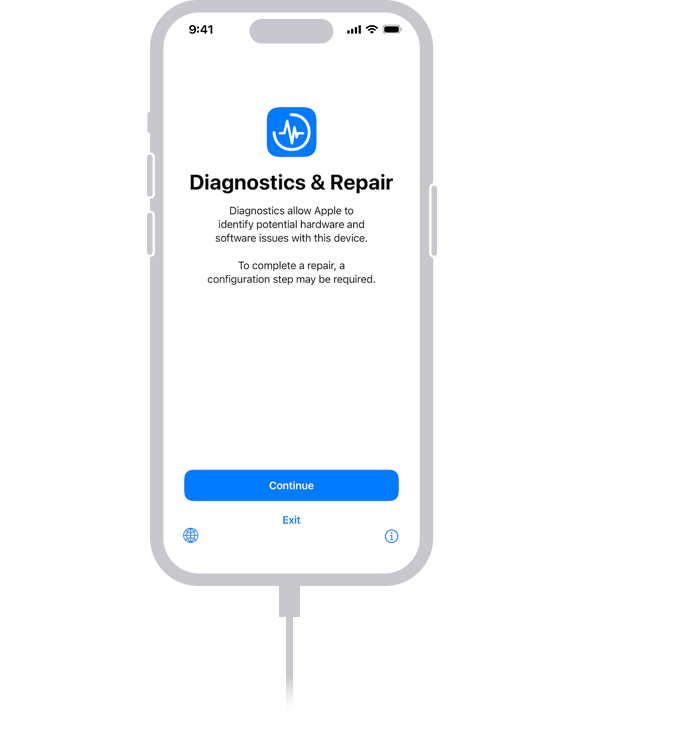
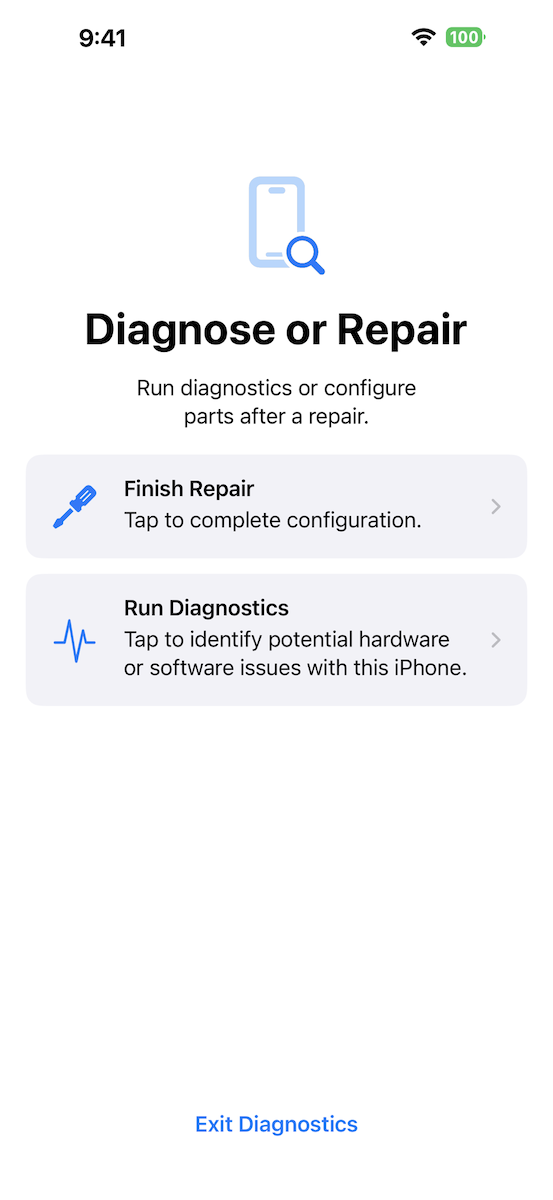
If those options are unavailable, return to Apple Support. Do not select an erase or restore option as a substitute. These are Apple’s published reference screens, not screenshots from a phone tested by Horus Valley. Menu availability can vary.
How to interpret a pass when the sound is intermittent
A test result describes what happened during that test. If the crackle did not occur then, a pass does not reproduce the conditions that concern you. This is a limit of intermittent-fault testing, not a claim that Apple’s diagnostics are unreliable. Keep the result together with a short recording and the trigger you observed; let support assess the two pieces of evidence.
Apple’s sound troubleshooting documentation distinguishes receiver and bottom-speaker faults. You do not need to decide which part to buy. Hearing a sound near one opening is useful information for a technician, but it is not authorization to replace that part, and the existence of a repair manual is not a recall announcement.
A short comparison log that makes a service visit more useful
Use the same quiet room, the same short audio passage and a comfortable volume for each comparison. Change one variable at a time. The aim is to produce a clear description, not to stress the speaker or generate a benchmark score.
| Check | Keep consistent | Record in your own words |
|---|---|---|
| Built-in tone | Case removed, phone output selected | Clear, distorted, no sound, or a brief pop at the start |
| One downloaded passage | Same passage and comfortable volume | Whether the noise repeats at exactly the same timestamp |
| Receiver versus speakerphone | A non-sensitive test call with permission | Which mode has the problem and whether the other person hears it |
| Another app or source | Same phone and output route | Whether the symptom follows one file or one app |
| After a public iOS update | The same earlier test, not a different song | Installed version, date, and whether the original trigger remains |
A crackle at exactly the same moment in one recording, including when it is played on another device, points you toward the source recording. A crackle heard across unrelated local files is a different pattern. These comparisons narrow a support conversation; neither one proves a particular chip, speaker or software process is defective.
If you need to capture the physical sound, use another device while playing a non-private tone or file. A screen recording is not a reliable substitute for demonstrating what the speaker sounds like in the room. Keep conversations, notification previews, serial numbers and account information out of any clip you post publicly.
A message you can adapt for Apple Support
My iPhone model is __ and the installed iOS version is __. I hear a __ sound during __. It occurs through the receiver / speakerphone / both. I compared a built-in tone, a downloaded file and a test call with Bluetooth disconnected and the case removed. The symptom is __. I have a short non-private recording and any diagnostic reference. What assessment do you recommend, and what are my service options?
Describe only checks you actually completed. “Not tested” is more useful than guessing a result. If a test requires an accessory, another phone or a call you cannot arrange, leave that row blank and tell support what is available.
Should you reset all settings?
Resetting all settings is more disruptive than the basic troubleshooting above and is not a confirmed fix for this specific issue.
If Apple Support recommends it after simpler checks, Reset All Settings can restore system preferences without deleting personal photos and apps, but it can reset Wi-Fi networks, privacy preferences and other configuration.
Do not erase the entire iPhone unless you have a clear reason and a current backup.
Should you return or replace the iPhone?
If the phone is new and the noise is frequent, reproducible and clearly coming from the speaker, contact Apple or the retailer while your return or warranty options are still available.
However, MacRumors reported that some users who replaced their phone said the replacement showed the same symptom. That is one reason not to assume immediately that every affected unit has a unique physical speaker defect.
A replacement may still be appropriate when Apple determines that your individual device has a hardware fault, but the current public reports do not establish that replacement solves the issue in every case.
When the problem looks more like hardware
A hardware issue becomes more plausible when:
- Crackling occurs with every type of audio, including built-in tones.
- Distortion is present across several apps and at multiple volume levels.
- The speaker sounds muffled even after the opening is clean and unobstructed.
- The phone has suffered a drop, liquid exposure or physical damage.
- One speaker is consistently quieter than expected.
- The issue is reproducible after updates and restarts.
If those conditions apply, schedule service rather than repeatedly changing software settings.
When the problem looks more like software or system behavior
A software or system-level cause becomes more plausible when:
- The noise started only after an iOS update.
- The click appears during specific interface actions but not normal music playback.
- The problem comes and goes without a clear relation to volume.
- Airplane Mode, brightness changes or particular apps reproduce the sound.
- A replacement device shows a similar symptom.
These clues are not proof of software or hardware failure. Keep software current, but do not let a retailer’s return deadline expire solely because someone predicts a future fix. Ask support to assess a persistent, repeatable symptom.
What not to do
- Do not insert pins, metal tools or sharp objects into the speaker grille.
- Do not pour alcohol or cleaning liquid into the receiver opening.
- Do not use high-pressure compressed air directly on the speaker.
- Do not factory-reset the phone before making a backup.
- Do not assume an online workaround is official unless Apple documents it.
- Do not repeatedly stress the speaker at maximum volume just to reproduce the noise.
A quick troubleshooting order
- Install the latest available iOS update.
- Remove the case and anything covering the receiver.
- Inspect and gently clean the speaker opening with a dry soft brush.
- Test Settings > Sounds & Haptics.
- Test a normal call and speakerphone.
- Play local audio in more than one app.
- Disconnect Bluetooth accessories.
- Restart the iPhone.
- Try to reproduce the issue with Airplane Mode or brightness changes.
- Record the symptom if possible.
- Contact Apple Support or arrange service if the noise remains frequent or severe.
What if the problem happens together with no cellular service?
Speaker crackling and cellular connectivity are separate symptoms, but a newly purchased iPhone can sometimes have more than one issue.
If your iPhone 18 Pro Max is also stuck in SOS or losing AT&T service, see our guide iPhone 18 Pro Max Stuck in SOS on AT&T? for the carrier-specific troubleshooting path.
Choose the next step from the symptom
Reports of crackling, popping and clicking on iPhone 18 Pro and iPhone 18 Pro Max are real enough to investigate, but the public evidence still does not establish one universal cause.
Start with low-risk checks: update iOS, remove accessories, inspect the speaker opening, run Apple’s built-in sound test, try a call in good reception and reproduce the problem with more than one app.
If the sound is frequent across all audio sources or the speaker is clearly distorted, arrange service. If the phone otherwise sounds normal and the click appears only during specific actions, keep the phone updated, document that trigger and ask support how to proceed. A full reset is not the default response to an intermittent click.
Sources and evidence limits
Official instructions and release notes were checked on October 27, 2026. Owner reports describe experiences, not a measured failure rate. This guide provides an observation sequence; it does not claim that Horus Valley tested an affected iPhone or verified a universal fix.
- Apple: distorted sound and speaker checks
- Apple: published iOS 27 update notes
- Apple: release dates and latest software
- Apple: iPhone 18 Pro repair manual
- Apple: sound troubleshooting and service diagnostics
- Apple: diagnostics instructions and reference images
- Apple: what resetting settings changes
- Apple: service and repair options
- MacRumors: September 29 owner-report coverage
You may also like
 Technology & How-To
How to Turn Lecture Recordings Into Study Notes With NotebookLM
Turn lecture audio into study notes with free Gemini Notebook (NotebookLM). Follow the upload steps, check transcript citations,…
 Technology & How-To
How to Use Google Lens to Find Products and Compare Prices
Find an item from a photo with Google Lens, check exact product matches and compare real checkout costs…
 Technology & How-To
Podcast Microphone Guide: USB vs XLR and Setup Tips
Choose a podcast microphone by room noise, connection type and recording style. Compare USB and XLR, see verified…