
How to Check Which App Is Using Your Microphone in Windows 11
Find which app is using your microphone in Windows 11, review recent activity, check browser permissions and stop unwanted access.
Contents
- 1. Check the microphone indicator while it is active
- 2. Open the Microphone privacy page directly
- 3. Interpret the result before blocking anything
- 4. If Chrome appears, check the website permissions
- 5. Stop access without disabling every calling app
- If the indicator keeps returning
- Quick questions
- Does Task Manager show who is recording audio?
- Can I delete the app because it appears in Recent activity?
- Why does the microphone stop working after I block access?
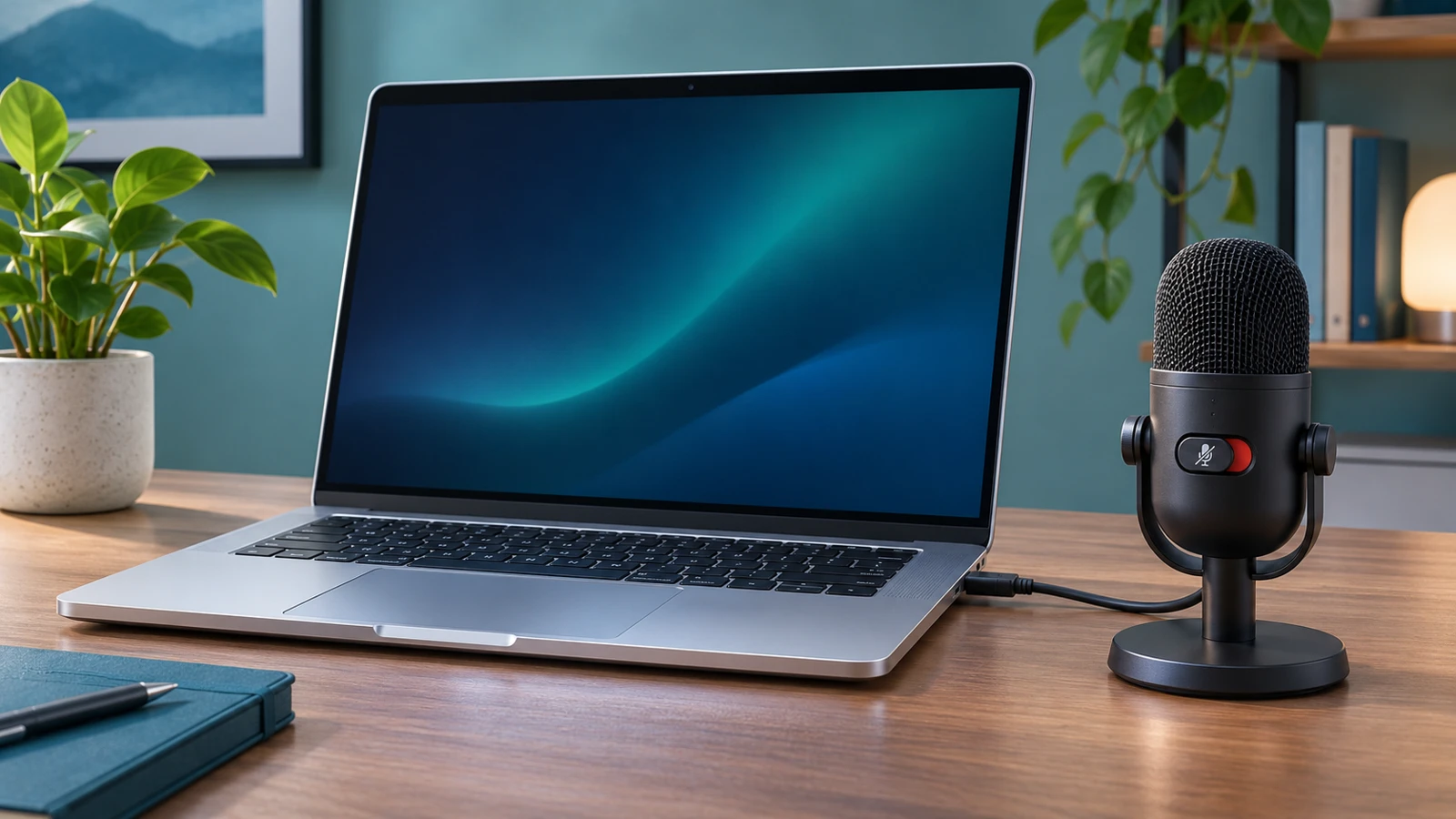
Open Settings > Privacy & security > Microphone to review microphone access in Windows 11. To investigate activity happening now, look for the microphone indicator near the taskbar clock and check the app named in its tooltip. Then compare that with the Microphone page and any available activity timestamps.
An app being allowed to use the microphone is different from an app using it now. Start with the current activity, identify the app or browser involved, and change the narrowest relevant permission.
1. Check the microphone indicator while it is active
Microsoft confirms that Windows displays a microphone icon in the taskbar notification area when an app uses the microphone. Move your pointer over it to inspect the tooltip. If it names a familiar calling or recording app, leave the call or stop that app's recording and check again.
Do this while the indicator is visible. Once the session ends, you may need history rather than a live label. Save any recording you want to keep before closing the application.
Example: if the indicator appears when you join a browser meeting, investigate that meeting tab first. Reinstalling audio drivers would not answer which website requested access.
2. Open the Microphone privacy page directly
- Press Windows + I to open Settings.
- Choose Privacy & security.
- Under App permissions, select Microphone.
- Inspect the app entries for a current-use label or access timestamp where available.
- Expand Recent activity if your Windows build displays that section, and compare its entries with the time the indicator appeared.
For a faster route, press Windows + R, enter ms-settings:privacy-microphone, and press Enter. Microsoft documents this Settings-page address; it opens the page without editing the registry or changing permissions.
Microsoft's Windows 11 security documentation describes a seven-day resource-access history. Treat the history as a recent diagnostic record, not an unlimited audit log. Layout and available details vary with the installed Windows release.
3. Interpret the result before blocking anything
| What you find | What it tells you | Useful next action |
|---|---|---|
| An access switch is on | The app has permission | Look for current-use information or a timestamp |
| A current-use label | Windows reports ongoing access | Stop the relevant call or recording and recheck |
| An earlier timestamp | Windows recorded previous access | Compare it with your meeting or recording time |
| Chrome or Edge is named | The browser is involved | Check its tabs and website permissions |
| A Windows component is named | Access may be mediated by a system feature | Check voice features you recently started |
Microsoft notes that a Windows component can appear instead of the app using it indirectly. It also warns that desktop-app detection and privacy controls have limitations. A blank list is not a complete security clearance, and a recent entry alone does not establish that audio was saved or uploaded.
Write down the app name and time before making changes. That gives you something concrete to compare after testing, rather than relying on whether the icon seems to appear less often.
4. If Chrome appears, check the website permissions
Windows identifies the browser; the next question is which website has microphone permission. In Chrome, follow Google's microphone-permission instructions:
- Open Chrome's three-dot menu and select Settings.
- Choose Privacy and security > Site settings.
- Under Permissions, select Microphone.
- Review the sites allowed to use it.
- Remove an unwanted site's exception. If you need an explicit block, open that site's settings and set its microphone permission to Block.
- Return to the relevant tab and reload if prompted. End the meeting or close the tab, then recheck Windows.
An allowed-site list is not a list of sites recording at this moment. Test one likely tab at a time. If you close ten tabs together and the indicator disappears, you have narrowed the cause to that group but have not identified a specific site.
For Edge, Microsoft's privacy guide gives the route Settings > Privacy, search, and services > Site Permissions > All sites; select the site and block its microphone permission. Menu wording can change, so use Settings search if your layout differs.
5. Stop access without disabling every calling app
Microsoft's microphone-permissions guide distinguishes device access, app access and desktop-app access. Choose the control that matches what you found:
- An individually listed app: turn off its microphone permission if an individual switch is available.
- A website: change the website permission in its browser.
- A desktop app without its own Windows switch: close the app and inspect its own audio or voice-activation settings. Windows' desktop-app switch can affect several programs together.
- All microphone use: the main Microphone access control is broader. Check what you will interrupt before switching it off.
Do not assume every application has the same controls. If you cannot see an individual switch, do not interpret the app's absence as proof that it cannot use the microphone. Microsoft explicitly documents exceptions for desktop applications.
After changing a permission, reopen only the app you intended to test. Confirm both outcomes: the unwanted access stops, and the calling app you still need works when deliberately opened.
If the indicator keeps returning
Close the identified application completely, including its background or tray window where applicable. Restart the PC after saving your work, and note which application you open immediately before the indicator returns. This is a controlled troubleshooting sequence, not proof of malware.
If the software is unfamiliar or activity remains unexplained, use Windows Security: open Virus & threat protection > Quick scan. Microsoft also provides more extensive scan options if concern persists. On a work or school PC, ask IT about managed permissions rather than attempting to bypass policy; Google notes that administrators can control Chrome's microphone settings.
If your original concern is that headphones sound different when the microphone activates, see our separate guide to Bluetooth headphone sound quality during Windows calls. Audio quality and unexplained microphone access require different checks.
Quick questions
Does Task Manager show who is recording audio?
Do not treat Task Manager's process list as a microphone-activity log. Use the privacy page, activity information and browser settings described above to investigate the access you observed.
Can I delete the app because it appears in Recent activity?
An entry can be expected after a meeting, voice message or recording session. Compare its timing with what you did first; remove software because you no longer want or trust it, not simply because it used a feature you permitted.
Why does the microphone stop working after I block access?
Blocking a meeting app or its website prevents the feature it needs. Restore access only for the application and site you intend to use, then test again. Avoid enabling every permission just to fix one call.
Sources and interface guidance checked on 12 November 2026.
You may also like
 Technology & How-To
How to Turn Lecture Recordings Into Study Notes With NotebookLM
Turn lecture audio into study notes with free Gemini Notebook (NotebookLM). Follow the upload steps, check transcript citations,…
 Technology & How-To
How to Use Google Lens to Find Products and Compare Prices
Find an item from a photo with Google Lens, check exact product matches and compare real checkout costs…
 Technology & How-To
Podcast Microphone Guide: USB vs XLR and Setup Tips
Choose a podcast microphone by room noise, connection type and recording style. Compare USB and XLR, see verified…