
AirTag Found Moving With You? What the Alert Means and What to Do
Understand an unknown AirTag alert, find the item safely, preserve useful details, and follow Apple or Android guidance for your situation.
Contents
- Choose your next step before changing settings
- What the alert tells you—and what it cannot prove
- 1. Preserve the alert when it is safe to do so
- 2. Open the iPhone alert and try the finding controls
- If Play Sound or Find Nearby is missing
- 3. If you find the AirTag, record its identity carefully
- 4. Disable the AirTag if that is the safe next step
- On Android: use Unknown tracker alerts and a manual scan
- If the AirTag belongs to someone you know
- Why a warning may arrive later than you expected
- What to keep if you seek help
- Sources and image credits
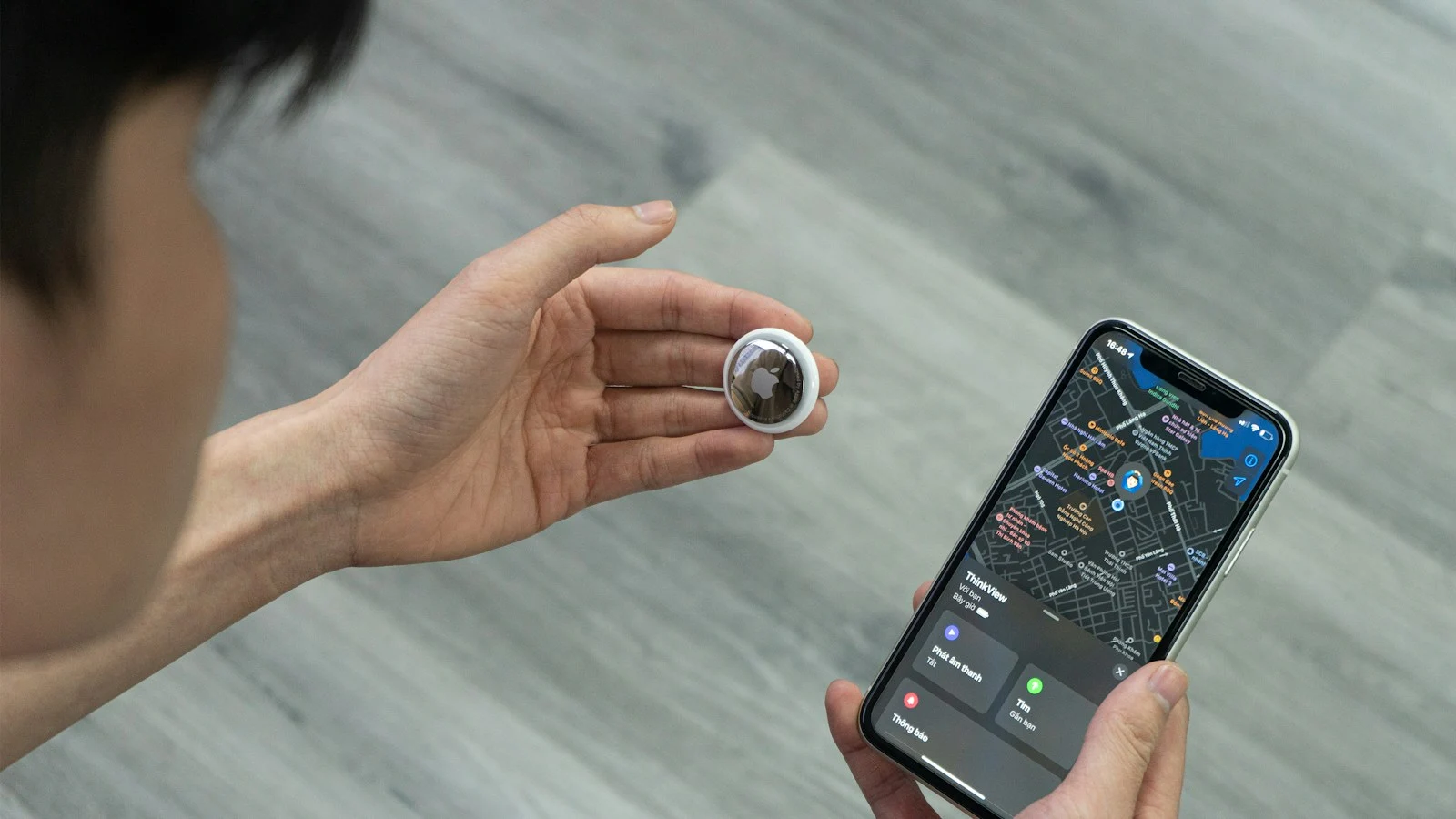
An “AirTag Found Moving With You” alert means your iPhone has detected an AirTag separated from its owner moving with you over time. Open the alert and investigate when it is safe. A borrowed bag or set of keys can explain it, but the notification alone cannot establish why the tag is there. If you feel threatened, get to a safe public place and contact local emergency services or police before troubleshooting.
This guide covers the iPhone warning and Android’s related unknown-tracker alerts, with practical steps for readers in the US, UK and other English-speaking markets. Sources and illustrations checked on 31 October 2026. The support-screen example and Google instructions below are reference material, not evidence of an incident we staged or a tracker detected on a reader’s phone.
Choose your next step before changing settings
| Your situation | A useful next step |
|---|---|
| You feel unsafe, threatened or followed | Prioritize a safe location and help. Do not delay that move to collect screenshots or dismantle anything. |
| You recognize a borrowed item and know its owner | Confirm the physical item and its AirTag; consider proper sharing in Find My. |
| You do not recognize the item | Preserve the alert when safe, then use the available finding controls. |
| The alert is old or Play Sound is unavailable | Save what is displayed. A failed locating attempt does not establish that a tag is still with you or that the situation is resolved. |
| You have found an unexplained AirTag | Consider safety, record identifying details if safe, and follow its disable instructions or seek assistance. |
Apple’s personal safety guidance recommends a safe public location and law-enforcement help if you cannot locate the item and feel at risk. In an existing abuse or stalking situation, changing someone’s access to your location may affect your safety; the Safety Net Project’s technology safety plan explains why planning around changes can matter. Getting help takes priority over completing every step below.
What the alert tells you—and what it cannot prove
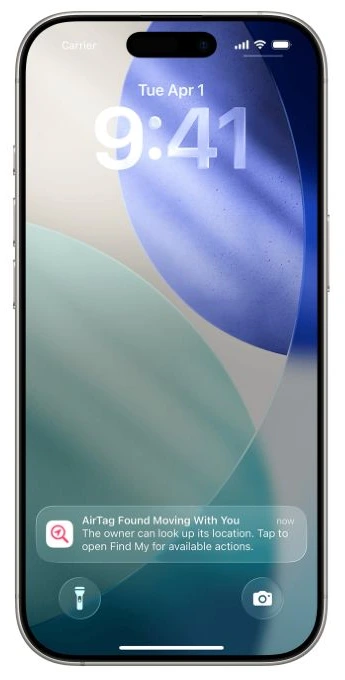
The alert is a reason to examine an unfamiliar item, not an identification of a person. Apple’s unwanted-tracking guide also distinguishes AirTag notifications from AirPods and other accessory alerts. Read the actual device name rather than assuming every warning refers to the same type of tracker.
On the detection map, marked points describe where the accessory was observed near your device. They do not show when its owner checked its location. A line joining detections is not a recording of someone opening a tracking app. This distinction helps you describe what you saw without making an accusation the screen cannot support.
Keep three questions separate: What was detected? Is it still physically with me? What should I do to stay safe? A screen can help answer the first two imperfectly; it cannot decide the third for every situation. Avoid treating either a reassuring guess or an alarming social-media post as a substitute for investigating the actual notification.
1. Preserve the alert when it is safe to do so
Before dismissing the notification, make a private record of what it shows. You do not need to publish the map, your route or a serial number to get useful help. If someone may have access to your phone or cloud account, think about where a saved image will be visible and consider seeking help from a safer device.
- Capture the alert and its visible time or date, together with the detection map if available.
- Write a short factual note: where you were, what you were carrying, and whether you had borrowed anything.
- Record the action you tried and its result, such as “Play Sound unavailable,” rather than “the tracker has gone.”
- If you later find an item, note where it was found and retain relevant identifying information when safe.
For example, “An unknown-item alert appeared after I carried a borrowed suitcase; I have not located the item” separates an observation from a possible explanation. It is more useful to a support adviser than “my phone proved who was following me.” Keep uncertainty in your notes rather than filling gaps with assumptions.
The Safety Net Project recommends documenting patterns and considering a safer device for communication if monitoring is suspected. Do not put yourself at risk to obtain a more complete record.
2. Open the iPhone alert and try the finding controls
- Tap the tracking notification, then Continue if prompted.
- Use Play Sound if it is available, and listen from a safe place.
- If Find or Find Nearby appears, follow the displayed guidance to look for the item.
- Check belongings you can safely examine, especially items you have been carrying or borrowing.
These controls are described in Apple’s guide to detecting unwanted trackers. A sensible search starts with the things you can access safely; it does not require you to dismantle a vehicle or go somewhere isolated. If the circumstances concern you and you cannot find the item, seek help rather than extending the search alone.
To revisit a recent warning, look in Find My under Items for the section showing unknown items detected with you. The label can vary by software version. Preserve any information you need before changing notification settings or dismissing entries.
If Play Sound or Find Nearby is missing
Apple lists several reasons a sound may be unavailable: the accessory may have moved away, returned within range of its owner, or changed its Bluetooth identifier. A missing sound is therefore inconclusive; it does not tell you which explanation applies.
For directional finding, Apple’s Precision Finding instructions require compatible hardware and appropriate location access. Ultra Wideband availability also depends on the device and region. Avoid the blanket claim that any iPhone can point to any AirTag. Check the instructions for your particular phone and tag, and use the controls actually offered in the alert.
If you are checking normal nearby-finding behaviour for your own tag, our AirTag location-not-updating guide covers that separate problem. Resetting an unfamiliar tag is not an appropriate first step for preserving an unexplained incident.
3. If you find the AirTag, record its identity carefully
Apple’s model and serial-number guide describes two relevant methods: hold an NFC-capable phone near the tag’s white side and open the notification, or read the serial number inside the AirTag beneath its battery. An NFC reader’s position varies by phone. The information page may also show limited registration details, such as the last four digits of a phone number.
A matching fragment of a number may help you recognize a familiar item, but it is not a complete owner lookup or proof of who placed the tag. If the item is unexplained, keep that information private and provide it to police or an appropriate adviser rather than posting an accusation online.
If you cannot identify the tag immediately, write down what you can actually see without forcing the case or damaging it. Do not install an unfamiliar “owner finder” app or pay a website claiming to reveal a complete identity from an AirTag serial number. The official identification information has limits; a search result promising more is not evidence that the promise is legitimate.
4. Disable the AirTag if that is the safe next step
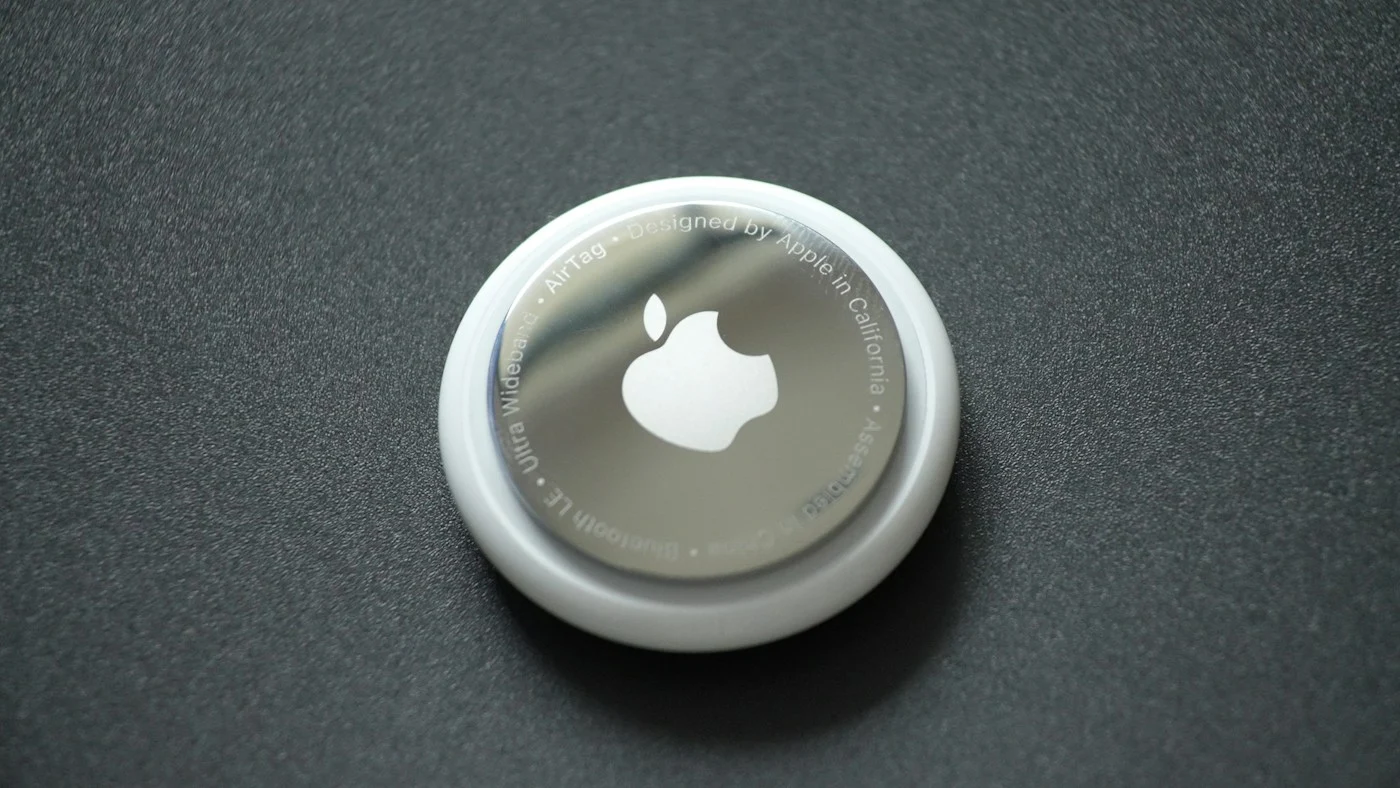
Use the item’s Instructions to Disable and the manufacturer’s directions. For an AirTag with the removable metal cover shown here, Apple’s battery instructions describe pressing the cover down, rotating it counterclockwise until it stops, then lifting off the cover and taking out the coin battery. Leave the battery out if your purpose is to stop that tag operating. Keep the battery and loose parts away from children.
Do not apply that method to AirPods or a different brand of tracker. Identify the product first. Do not smash or discard an unexplained device simply to make the warning disappear; you may need its identifying information later. If handling it could expose you to danger, ask for help instead.
Turning off Bluetooth, Location Services or Find My on your phone does not disable the accessory’s ability to be located through other devices. That is why silencing a notification and stopping the physical tag are different actions. The warning concerns an accessory, so changing your phone’s connectivity is not a reliable way to stop that accessory.
In a suspected abusive relationship, the decision about when to disable or move an item may need a safety plan. Do not assume that a technical fix resolves the wider situation, and do not confront a suspected person to test their reaction.
On Android: use Unknown tracker alerts and a manual scan
Google’s unknown-tracker guidance covers Android 6 and later. An alert can identify a compatible tracker moving with you; a manual scan instead looks for nearby trackers separated from their owners. Those are different results. A tag found in a scan may be nearby without having travelled with you.
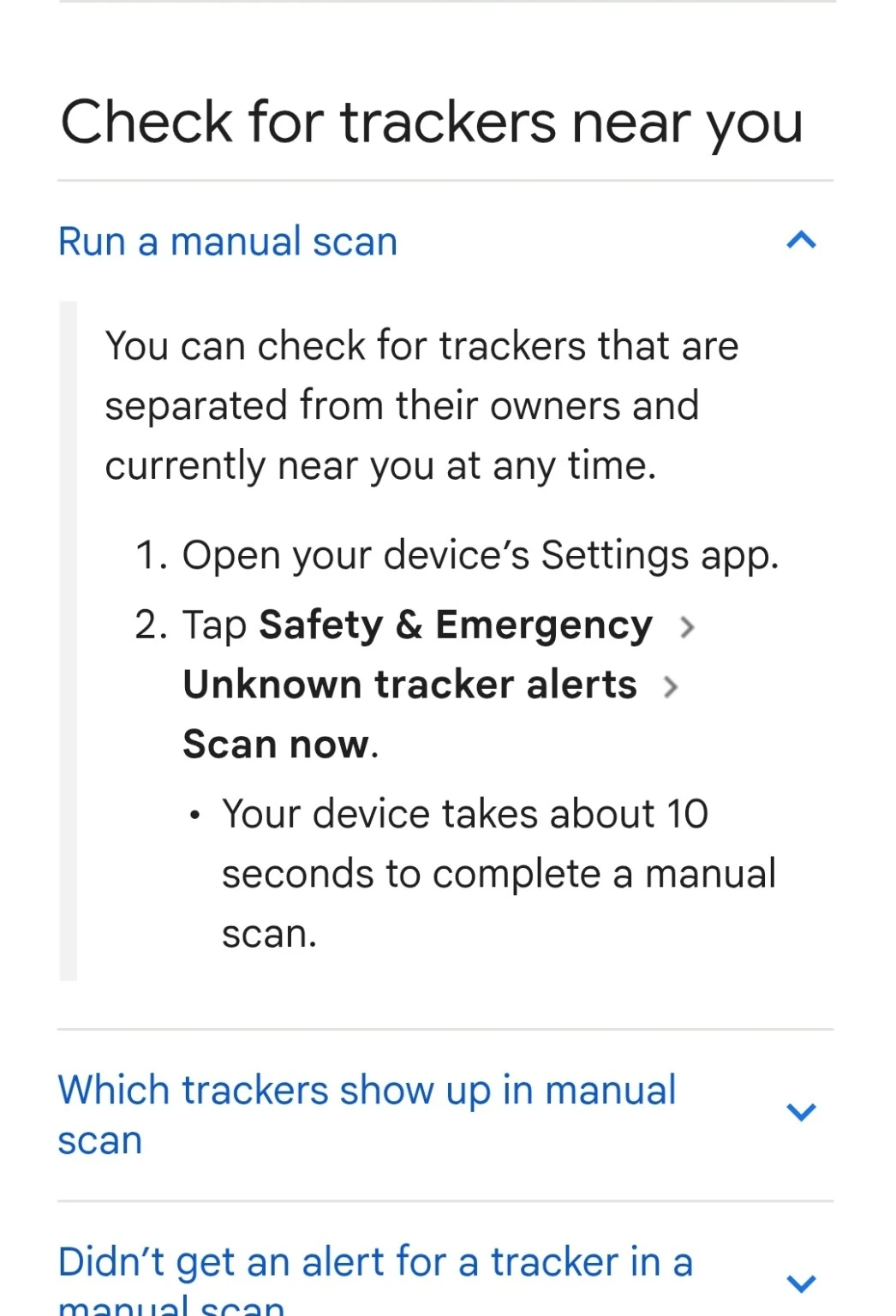
- Open Settings and look for Safety & emergency → Unknown tracker alerts → Scan now.
- If that path is absent, search Settings for “unknown tracker alerts”; older versions may place it under Google → Personal & device safety.
- Open any result or notification and follow the available finding instructions. Google states that using Play sound does not notify the tracker’s owner.
- Retain relevant alert information before turning the alert system off; Google warns that doing so deletes previous alert data.
Google says a manual scan normally takes about ten seconds. Treat a result as a prompt to check the item, not as a verdict about a person. A scan that finds nothing also does not certify that every kind of location-tracking device has been ruled out. This feature has a defined scope; it is not a general inspection of your accounts, car or surroundings.
If the AirTag belongs to someone you know
First confirm which physical item triggered the warning. Borrowed keys, luggage or another tagged possession can create an understandable explanation. Knowing that a friend owns an AirTag, however, does not automatically identify an unexplained tag found elsewhere.
For a legitimate loan, Apple’s AirTag-sharing guide lets the owner share the item in Find My. On the owner’s phone, open Items, select the tag and use Add Person under the sharing section. The borrower needs to accept the invitation. Apple says accepted borrowers do not receive tracking notifications for the item while it is shared with them.
Sharing requires supported software and accounts, and gives the borrower access to finding the shared item. Agree on that arrangement knowingly. It is preferable to disabling all tracking alerts simply to stop warnings about one familiar item. Do not accept an invitation for an unidentified tag as a way of deciding whether it is safe.
Why a warning may arrive later than you expected
Do not use a fixed countdown from an old article to decide whether a tag is harmless. Google says automatic alerts consider multiple factors and require movement with the tracker over time. There is no single timer that you can use as a personal safety guarantee.
Likewise, one successful or failed search is only a result at that time. A useful follow-up note is “No tag found during the scan at 6:15 p.m.” Keep it distinct from “there was never a tag.” This helps you compare future alerts without inventing a continuous tracking history.
What to keep if you seek help
- The original notification and any detection map you could safely preserve.
- The item’s serial number or device ID, if you found it.
- A factual timeline of alerts, finding attempts and where the item was discovered.
- The device itself, if it is safe to retain it and the relevant authorities advise you to do so.
- Any separate threats or incidents that explain why the situation concerns you.
Keep a distinction between observations and conclusions throughout that record. An alert can be a useful lead; it is not a substitute for an investigation. You do not need to establish who owns a device before asking for help, and you should not delay urgent assistance to complete this list.
For ongoing stalking or abuse concerns, the Safety Net Project’s safety-planning resource is a useful starting point for considering safer communication and next steps. If there is immediate danger, contact emergency services where you are.
Sources and image credits
- Apple: unwanted tracking alerts and response options.
- Apple Personal Safety: detect unwanted trackers.
- Google Android Help: find unknown trackers.
- Apple: find an AirTag’s model or serial number.
- Apple: remove or replace the AirTag battery.
- Apple: share an AirTag or other item in Find My.
- Apple: finding an AirTag nearby and Ultra Wideband availability.
- NNEDV Safety Net Project: technology safety planning.
Featured photograph: Đức Trịnh. Metal-cover photograph: Daniel Romero. Both via Unsplash under the Unsplash License. The alert illustration was captured from Apple’s public support page; the Google instruction screenshot was supplied for this article from the public Android Help guide. Interface examples remain the property of their respective owners. Neither photograph represents a verified stalking incident.
You may also like
 Technology
Free Steam Games in November 2026: What You Can Keep and What’s Only a Free Weekend
Verified Steam offers for November 2026: Last Gambit, PAYDAY 3, Age of Wonders 4 and free DLC, with…
 Personal Finance
Why Do Credit Cards Expire? What Happens to Payments and Subscriptions
A practical guide to card expiry dates, replacement cards, recurring payments, balances, automatic account updates and what to…
 Technology
Android Theft Protection: Set Up Remote Lock Before You Need It
Set up Android Remote Lock, understand Identity Check and Find Hub, troubleshoot missing settings, and prepare a practical…