
Why Your AirTag Location Isn’t Updating — What Actually Fixes It
A step-by-step AirTag troubleshooting guide to stale locations, No Location Found, Play Sound, Find Nearby, sharing and lost-item recovery.
Contents
- AirTag is not a live GPS tracker
- A practical decision path before you touch any setting
- Read the symptom before changing settings
- Why does an AirTag update near strangers but not always near my phone?
- Step 1: Check when the location was last updated
- Understand four messages users often confuse
- Step 2: If it is in the room, use Play Sound and Find Nearby
- Separate iPhone settings from AirTag network coverage
- Step 3: If the item is far away, allow for network gaps
- Case study: a suitcase at an airport versus a set of keys at home
- Step 4: If you have truly lost the item, enable its recovery options
- Lost Mode and Share Item Location solve different problems
- Step 5: Check software, setup and ownership
- First-generation AirTag versus second-generation AirTag
- Step 6: A shared AirTag is a different problem
- Sharing is not the same as transferring ownership
- Step 7: Check battery and hardware only when the evidence fits
- Battery replacement: when it makes sense and when it will not
- What not to do
- A three-minute field test: nearby versus network detection
- Special case: the AirTag is not visible in a browser
- Troubleshooting mistakes that waste time
- When to contact Apple Support
- The two-minute checklist before you contact support
- The bottom line
- Official sources
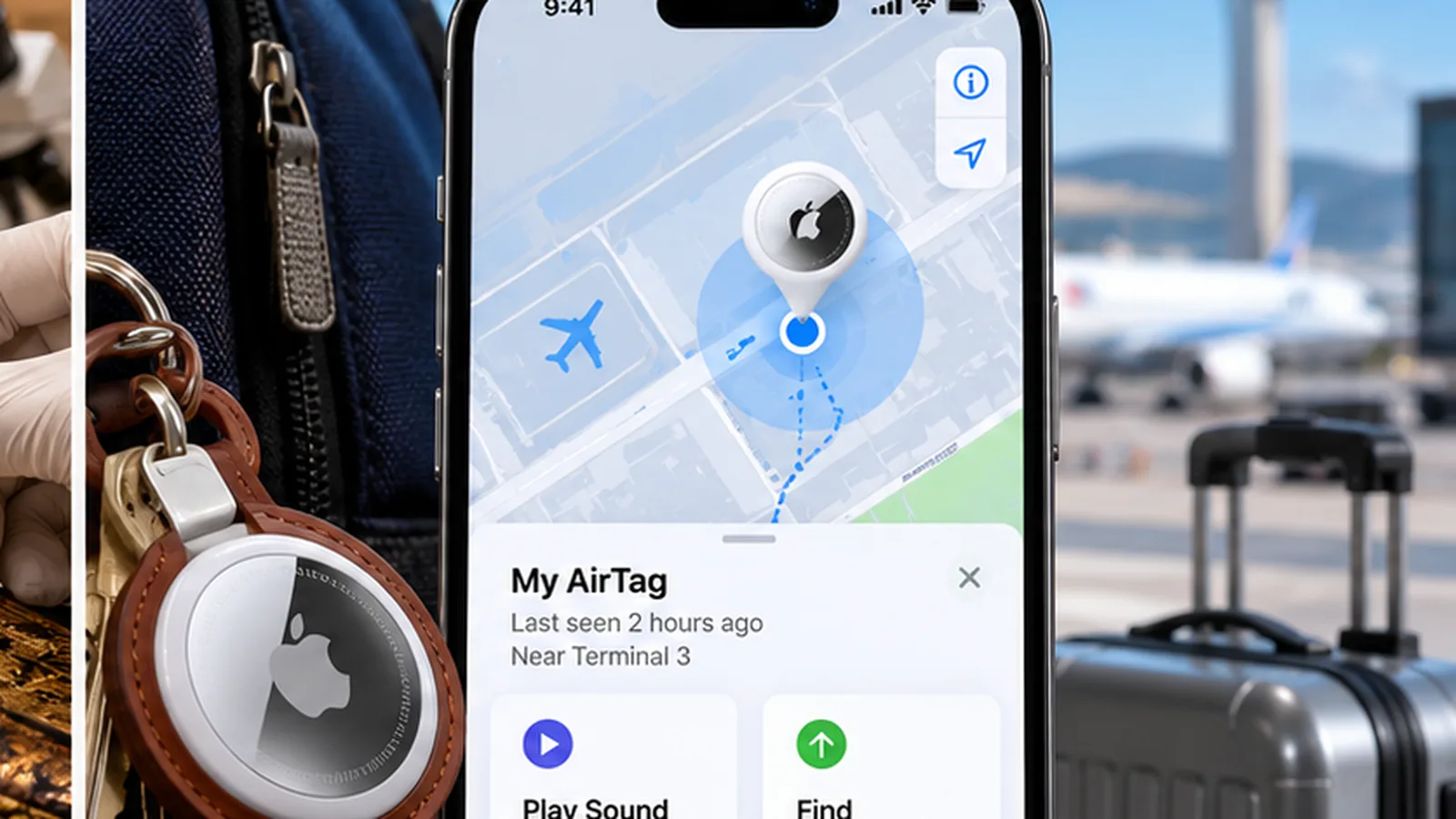
An AirTag that shows an old location is not necessarily faulty. An AirTag does not transmit its own GPS position over cellular data. Instead, Apple devices participating in the encrypted Find My network detect the accessory over Bluetooth and relay an approximate location. If there is no fresh detection, the map may keep displaying the last known location rather than a live position. The right fix depends on whether the tag is close to you, truly missing, or simply not being seen by the network.
Quick diagnosis: First check the timestamp in Find My. If the AirTag is nearby, try Play Sound and Find Nearby. If it is far away, a stale pin usually means no newer network report has arrived. Do not remove or reset a missing AirTag as a first troubleshooting step.
AirTag is not a live GPS tracker
AirTag uses low-energy Bluetooth signals and Apple’s crowd-based Find My system, whose reports are designed to preserve privacy. Ultra Wideband helps compatible nearby devices give precise direction and distance; it does not turn the tag into an independent long-range transmitter. The interval between reports varies with nearby compatible devices, environment, and whether the accessory is detected. There is no guaranteed update every minute.
A practical decision path before you touch any setting
Think in two separate channels. The local channel is your phone connecting to an AirTag within Bluetooth range; that is where Play Sound and compatible precision finding operate. The remote channel is a network report arriving from another Apple device near the tag. An AirTag can pass the local test and still appear stale while far away. Conversely, a map may show a recently relayed position even when your own phone is too far away to play a sound.
| Where is the AirTag? | What you can verify now | Do first | Do not conclude |
|---|---|---|---|
| In your hand or room | Play Sound and compatible Find Nearby | Check local connection and settings | That a stale remote pin means a defective tag |
| In checked luggage or a distant vehicle | Last-seen time and new network reports | Treat pin as approximate and historic | That a recently seen tag is still at that exact location |
| Owned by a relative | Whether it is shared and accepted | Verify sharing invitation | That missing access proves network failure |
| Not listed under Items | Correct Apple Account and app version | Check setup, ownership, software | That Find My on a website should show the item |
This decision path is a troubleshooting framework derived from Apple’s published product behavior. It is not a claim that every network delay has a single known cause or that remote location updates can be forced on demand.
Read the symptom before changing settings
| What you see | Likely explanation | Best next action |
|---|---|---|
| Old map pin with a timestamp | No newer Find My network report | Consider the environment and watch for a new sighting |
| No location found | No usable recent location | Check last-seen status and use lost-item options |
| Find Nearby missing | Compatibility, permission, or range limitation | Check supported device and Find My location access |
| Play Sound unavailable when far away | No local Bluetooth connection | Go closer if safe; use map and lost-item options |
| AirTag missing from Items | Account, pairing, sharing, or software issue | Verify account, sharing, and current software |
Why does an AirTag update near strangers but not always near my phone?
A compatible Apple device participating in Find My can anonymously report that it detected a nearby accessory. The AirTag does not have to be actively connected to its owner’s phone. That is why a suitcase can produce location reports while its owner is far away. But the reverse is also important: your own iPhone showing a full mobile signal does not guarantee a report from a distant AirTag. The phone and the tag are in different places and rely on different links.
Location data is also privacy-preserving and approximate. Do not use the timestamp as proof of an uninterrupted trail, and do not expect second-by-second tracking. Apple’s Find My explanation describes a crowdsourced Bluetooth network rather than a GPS receiver or cellular modem inside the AirTag. See Apple’s Find My overview.
Step 1: Check when the location was last updated
- Open Find My → Items and select the AirTag.
- Note the map location and the last-seen time.
- Ask whether that time matches when the tag was last near an Apple device.
- If you are looking at an old pin, avoid treating it as the item’s confirmed current location.
Apple explains that Find My can show an item’s last known position for up to seven days when there is no current report. After more than seven days without a location report through the network, the app may show No location found. The exact display and features can vary by software and item.
Understand four messages users often confuse
| Display or behavior | Interpretation | Next sensible action |
|---|---|---|
| Last seen 20 minutes ago | The map may reflect an earlier sighting | Compare time with the suspected movement |
| No location found | No location currently available through Find My | Review last known status and recovery features |
| Find Nearby missing | Local capability, permissions or range may be insufficient | Check iPhone support and Location Services |
| Play Sound grayed out from far away | No local connection to make the tag sound | Use remote map information instead of repeatedly tapping sound |
Apple documents that Find My may retain a last known AirTag location for up to seven days if no current report is available. After more than seven days without a location sent through the network, “No location found” may appear. This time window is not a promised minimum update frequency, and it does not tell you why the tag became unavailable.
Step 2: If it is in the room, use Play Sound and Find Nearby
- Bring a compatible iPhone near the AirTag and open Find My → Items.
- Tap Play Sound if available. This depends on a nearby connection.
- Tap Find or Find Nearby where supported.
- Move slowly and reduce obstacles: walls, metal objects, and other barriers can degrade the signal.
- If the button is absent, check your phone’s Ultra Wideband support and location permissions rather than assuming the AirTag is dead.
For the most accurate nearby guidance, Apple says to enable Settings → Privacy & Security → Location Services → Find My → Precise Location. Apple’s current support guidance also emphasizes updating software; requirements differ by AirTag generation. The second-generation AirTag requires iOS/iPadOS 26.2.1 or later for setup and support.
Separate iPhone settings from AirTag network coverage
If the tag is close but Find Nearby is missing, confirm Bluetooth and Location Services on the iPhone, the app’s precise-location permission, and the supported device and software combination. Apple notes that Ultra Wideband is needed for directional Precision Finding. A compatible device can still use other recovery features when precision guidance is unavailable. Move away from thick walls or large metal objects to see whether proximity affects the result.
If the AirTag is far away, toggling Bluetooth on your phone cannot directly command it to transmit a new distant position. Similarly, switching mobile data networks or restarting the Find My app may refresh what you see on screen but does not produce a new location report unless a participating device detects the tag. This is why troubleshooting should start with location context, not a long series of random toggles.
Step 3: If the item is far away, allow for network gaps
A luggage tag in a busy terminal may be reported repeatedly, but a tag inside a storage building or a low-traffic area may appear unchanged. This comparison illustrates the mechanism, not a promise about airport coverage. You cannot force an AirTag to send a remote location when no compatible nearby device detects it.
Case study: a suitcase at an airport versus a set of keys at home
Consider two hypothetical AirTags with healthy batteries. One is attached to checked baggage passing through busy terminals; the other remains in a metal drawer in an isolated storage room. It is plausible that the first tag receives more frequent reports because more participating Apple devices pass nearby, while the second stays on an old map pin. Neither pattern proves that the AirTag itself is defective. These are illustrative scenarios based on network design, not measurements performed for this article.
Now change the experiment: bring the keys and AirTag next to a compatible iPhone. If Play Sound responds, the local Bluetooth path appears functional even if yesterday’s remote location was stale. If the suitcase later changes map position, that update reflects another reported sighting, not continuous GPS tracking between the two timestamps.
Step 4: If you have truly lost the item, enable its recovery options
- Open Find My and select the missing item.
- Use the lost-item or Show Contact Info controls offered for your AirTag.
- Add appropriate contact information so a finder can reach you.
- Where available, use Share Item Location if a partner such as an airline needs temporary location access.
- Monitor new network reports, but remember that Lost Mode and sharing do not create live GPS updates.
Lost Mode and Share Item Location solve different problems
When an item is genuinely lost, the lost-item controls can expose information for a finder to contact the owner. Separately, Share Item Location can provide temporary access to the item’s reported location for an organization such as an airline. Neither action can create a fresh position without a Find My network sighting. Apple also cautions that temporary item-location sharing has limitations when the item is within proximity of the device sharing it.
If you are handling delayed baggage, save the last-seen time, map context, and baggage claim reference. Share a location link only through the airline’s official process, and treat that location as evidence to help recovery rather than guaranteed proof that a suitcase is currently accessible at the exact map pin. Apple’s guide to sharing lost-item locations.
Step 5: Check software, setup and ownership
If the AirTag never appears correctly under Items, confirm you are signed in with the Apple Account that owns it. Apple says one AirTag can be registered to one account at a time, although the owner can share it. Update compatible devices before attempting advanced troubleshooting. Do not remove an item from an account simply to refresh a remote lost tag: removal may complicate recovery when you cannot physically access it.
First-generation AirTag versus second-generation AirTag
Device compatibility matters. Apple’s current setup guidance states that AirTag (2nd generation) requires iOS or iPadOS 26.2.1 or later. Apple’s current precision-finding support pages also identify Ultra Wideband compatibility as a requirement for nearby directional finding; some features and supported devices vary by generation. Rather than following a guide written for an older iPhone, compare your actual phone model, operating system version, and AirTag generation with the current support page.
An older iPhone that can show a tag’s approximate location in Find My may not provide the latest precision-finding interface. Conversely, a newer phone will not receive continuous remote GPS points simply because its chip is newer. This is a distinction between local precision functionality and crowdsourced global visibility.
Step 6: A shared AirTag is a different problem
If the owner can see a tag but another person cannot, check sharing instead of treating it as a reception failure. Apple permits sharing an AirTag with up to five other people, subject to account security, iCloud, supported software, and other eligibility requirements. Confirm that the invitation was accepted and that the AirTag appears under shared items.
Sharing is not the same as transferring ownership
Apple allows an AirTag to be paired to one Apple Account while its owner shares the item with other people. If the owner can track a tag but a family member cannot, inspect the pending invitation, account eligibility, software and iCloud settings. A person being in a Family Sharing group does not automatically mean every owned AirTag appears in that person’s Items list. The owner must complete the supported sharing process.
According to Apple’s current documentation, up to five additional borrowers may be included. Users need supported system versions and account-security features; child accounts are not eligible for this sharing feature. For shared tags, a change in invitation or ownership status can look like a location failure even when the tag is reporting normally. See the Apple sharing requirements.
Step 7: Check battery and hardware only when the evidence fits
If you physically have the AirTag and it consistently fails to connect at close range across normal tests, check for a low-battery warning and follow Apple’s battery replacement instructions where appropriate. After settings and supported-device checks, persistent close-range failures can justify Apple Support. Battery replacement, unlinking, or factory reset should not be treated as universal fixes for a stale long-distance report.
Battery replacement: when it makes sense and when it will not
Battery failure is one possible cause, but it should not be the first guess whenever a remote map is stale. A local test while you physically possess the AirTag gives more useful evidence. If the Find My app reports low battery or the tag repeatedly fails to respond nearby after basic compatibility checks, consult Apple’s replacement instructions. Do not assume a low-battery icon is always visible; battery status is not a continuously precise percentage gauge.
Avoid removing a lost AirTag from your Apple Account to “refresh” its position. Re-pairing requires physical access to the item and may disrupt ownership or recovery workflows. The less destructive approach is to keep the item registered, check the most recent network report, and use lost-item controls until you can retrieve it.
What not to do
- Do not assume a two-hour-old pin proves the item is still there.
- Do not expect the accessory to update continuously like a vehicle GPS tracker.
- Do not remove the AirTag from your Apple Account while it is missing merely to test it.
- Do not rely on iCloud.com/find to locate AirTag: Apple directs users to the Find My app for item accessories.
- Do not use a lack of Precision Finding as proof of a defective accessory before checking device compatibility.
A three-minute field test: nearby versus network detection
This controlled checklist is a reproducible troubleshooting procedure, not a claim that we personally tested a particular AirTag model. With the AirTag in your possession, first open Find My, verify it is listed, and test Play Sound and Find Nearby. Next check the permissions described above. If nearby tests work, a stale long-distance location is more consistent with a Find My network reporting gap than with a total local Bluetooth failure. If nearby tests fail too, inspect pairing, software and battery state.
| Nearby test | Result | What it suggests |
|---|---|---|
| Play Sound works | Local connection can reach the tag | Remote stale pin may be a network visibility issue |
| Find Nearby works | Compatible local precision connection | Map update frequency is a separate question |
| Neither works | Could be range, power, pairing or software | Investigate locally; do not assume one cause |
| Owner sees item, borrower cannot | Possible sharing/account issue | Verify share invitation and requirements |
Special case: the AirTag is not visible in a browser
Apple notes that although iCloud.com/find supports finding some devices, AirTag and Find My network accessories are located through the Find My app on supported Apple devices. A missing AirTag on the website is therefore not evidence that the tag itself is broken.
Troubleshooting mistakes that waste time
| Common suggestion | Why it may mislead | Better approach |
|---|---|---|
| Keep reopening Find My every 10 seconds | The app cannot force a remote Bluetooth sighting | Check last-seen context and try again later |
| Remove and re-pair a missing tag | You may need physical access to pair again | Keep it registered and use lost-item recovery |
| Use iCloud.com/find to locate the AirTag | Apple says AirTag accessories use the Find My app | Use Find My on an Apple device |
| Blame GPS accuracy | AirTag has no onboard GPS receiver | Understand Find My network reporting |
| Replace battery after every stale pin | Stale reporting can have other causes | Test locally first when you possess the tag |
A good diagnostic sequence makes one change at a time. Write down whether the map pin is stale, whether Play Sound works at close range, whether Precision Finding is supported, and whether other shared users can see the same item. This reduces guesswork if Apple Support needs to investigate.
When to contact Apple Support
Contact Apple Support if the AirTag is in your possession, appears incorrectly paired or never responds near a supported and updated device, and the normal location and Bluetooth checks have not resolved it. If an item is missing, prioritize safe recovery, lost-item contact information, and current sightings rather than destructive troubleshooting.
The two-minute checklist before you contact support
- Confirm the item appears under Find My → Items on the correct Apple Account.
- Read the last-seen time and distinguish a recorded sighting from a live location.
- If the tag is physically near you, test Play Sound and Find Nearby where supported.
- Verify Location Services, Precise Location and the operating system version.
- If the item is far away, use Lost Mode or Share Item Location when appropriate, without expecting instant reports.
- For shared items, check that the sharing invitation was accepted and both accounts are eligible.
- Check power or battery only when local behavior suggests a possible issue.
These checks do not guarantee recovery of missing property. Their purpose is to distinguish a normally functioning Bluetooth tracker waiting for a network sighting from an actual local functionality or account-configuration issue.
The bottom line
The most helpful question is not “Why won’t my AirTag refresh?” but “Am I testing local Bluetooth finding, remote crowd-sourced location reporting, or item sharing?” Matching the symptom to the mechanism avoids unnecessary resets and makes the next action clearer.
Official sources
Apple Support: Use Find My to locate your lost Apple device or AirTag.
Apple Support: Use AirTag and Find My to keep track of personal items.
You may also like
 Technology
 Chrome and Android Certificate Security Issue: Are You Protected from the eMudhra Breach?
Google blocked compromised eMudhra certificate keys in Chrome and Android. Find out who is protected, which apps may…
 Technology
 Windows 11 Black Screen After Login: 12 Safe Fixes and the October 2026 Update
A step-by-step diagnostic guide for Windows 11 black screens after sign-in, including the October 2026 AVD/FSLogix fix and…
 Technology
 BeyondTrust Remote Support CVE-2026-102764: Patch Guide and Compromise Checklist
CVE-2026-102764 is an actively exploited critical BeyondTrust Remote Support flaw. Check affected versions, apply BT26-05-RS and assess historical…