
Website Down After a PHP Update? Fix WordPress 500, 502 and 503 Errors Safely
WordPress stopped working after a PHP update? Diagnose 500, 502 and 503 errors, fix plugin or PHP-FPM failures and restore service safely.
Contents
- First, protect the site and capture the evidence
- What the HTTP error actually tells you
- Fix path A: WordPress shows a critical error or HTTP 500
- 1. Try Recovery Mode
- 2. Read the error log before disabling anything
- 3. Use WordPress debugging carefully
- 4. Isolate one plugin or theme at a time
- Fix path B: 502 Bad Gateway after changing PHP
- Fix path C: 503 Service Unavailable
- Check your PHP version and security patch status
- Why downgrading PHP can be the wrong emergency fix
- A safe cPanel troubleshooting sequence
- How to tell whether the problem is fixed
- If you suspect a security incident rather than a compatibility problem
- What other troubleshooting articles often miss
- Final checklist before declaring recovery
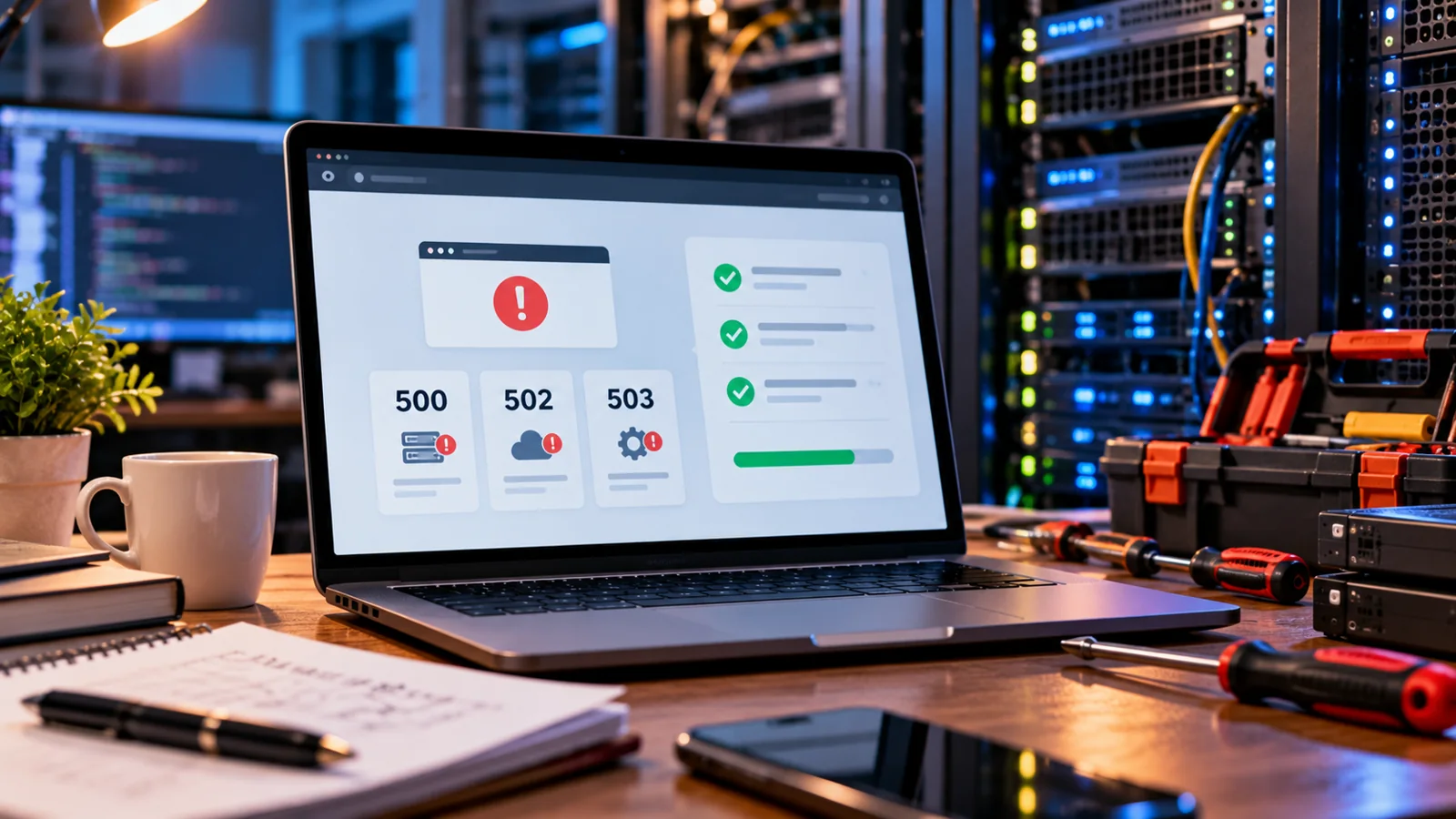
Updated 21 October 2026. If your WordPress site stopped loading immediately after a PHP security update, do not assume the patch itself is defective. A fatal error in an older plugin, a missing PHP extension, a PHP-FPM service problem, an incompatible theme or exhausted hosting resources can all produce a similar-looking outage. The safest response is to preserve evidence, determine which layer failed and restore service without leaving the server on a vulnerable PHP build. This guide provides a decision path for shared hosting, cPanel and managed WordPress sites, plus practical checks you can hand to your host.
Quick route: 500 or “critical error” → inspect PHP/WordPress logs and Recovery Mode; 502 → ask whether the web server can reach PHP-FPM; 503 → inspect maintenance, resource limits and service health. The status code is a clue, not a diagnosis.
First, protect the site and capture the evidence
Record the time the PHP version changed, the old and new runtime branches, the exact URL and error message, and whether the WordPress admin area still works. Take a full files-and-database backup or hosting snapshot before making further changes. If a shop or membership site accepts transactions, preserve orders and recent data; restoring an old database can erase legitimate activity.
- Open the home page and
/wp-admin/in a private browser window, then test another network or device. - Check the host status page and any monitoring alerts. Determine whether only one site, all sites on the account, or the entire server is affected.
- Inspect your host’s PHP error log, web server error log and recent change history. Copy the first meaningful error and its timestamp.
- If your hosting offers staging, reproduce the failure there rather than repeatedly changing production.
- Avoid installing random “emergency fix” plugins while the cause is unknown.
The official WordPress Recovery Mode documentation explains how a fatal error can temporarily pause a problematic plugin or theme for an administrator session. That does not repair an unavailable PHP-FPM service or a web-server configuration fault.
What the HTTP error actually tells you
| Symptom | Common layer to investigate | First useful evidence |
|---|---|---|
| 500 Internal Server Error | PHP fatal error, application or server configuration | PHP error log, WordPress debug log |
| 502 Bad Gateway | Reverse proxy cannot get a valid upstream response | Nginx/Apache proxy and PHP-FPM logs |
| 503 Service Unavailable | Maintenance, service saturation or deliberate temporary unavailability | Resource metrics, maintenance file, service status |
| 504 Gateway Timeout | Upstream took too long to respond | Request timing, slow logs and upstream timeouts |
| WordPress critical error | Fatal PHP error detected by WordPress | Administrator recovery email and stack trace |
A site can return different codes from different edges. A CDN might show 502 while the origin server logs a PHP fatal error; a load balancer might return 503 when its backend is unhealthy. Identify whether the response came from WordPress, the web server, the hosting platform or a CDN before changing configuration.
Fix path A: WordPress shows a critical error or HTTP 500
1. Try Recovery Mode
Check the WordPress administrator email inbox, including spam, for a message about a technical issue. If the email includes a Recovery Mode link, open it directly and sign in. WordPress may temporarily pause the failing plugin or theme in your administrator session. Identify the named component, check its developer’s compatibility notes and update or replace it. Confirm the public site works after leaving Recovery Mode. If no message arrives, use the host logs and the next steps instead.
2. Read the error log before disabling anything
In cPanel, look for Metrics → Errors or the host’s PHP error-log viewer; menu names vary. In managed hosting, request the application’s PHP fatal errors for the affected time window. A message such as “Call to undefined function” may indicate a missing PHP extension or incompatible code; “Allowed memory size exhausted” points toward memory pressure; a parse error may indicate code incompatible with the new PHP branch. These examples are diagnostic categories, not proof of a particular fix.
3. Use WordPress debugging carefully
For an administrator who can safely edit wp-config.php, WordPress documents the use of WP_DEBUG and WP_DEBUG_LOG to capture errors. Keep WP_DEBUG_DISPLAY disabled on a public site so errors are not exposed to visitors. Debug logs can contain sensitive paths and application details: restrict access, collect only what is needed and disable temporary debugging after diagnosis. See WordPress common errors.
4. Isolate one plugin or theme at a time
If a stack trace identifies a plugin, deactivate it through Recovery Mode or the admin dashboard. If the dashboard is inaccessible and you have a verified backup, a knowledgeable administrator can temporarily rename that specific plugin directory via the host file manager or SFTP, as described in the official WordPress recovery guidance. Do not rename every directory indiscriminately on a live store. If the active theme is implicated, test a supported default theme on staging and verify templates, checkout and custom code before switching production.
Fix path B: 502 Bad Gateway after changing PHP
A 502 often means a front-end server or proxy received an invalid response from an upstream process. After a PHP update, possible causes include a PHP-FPM pool that failed to start, a socket or port mismatch, an extension crash, a configuration syntax error or process exhaustion. A plugin conflict can sometimes contribute, but disabling WordPress plugins will not fix a PHP-FPM daemon that is not running.
- Check whether static files load while PHP-powered pages fail. This is a useful clue, not a conclusive test.
- Ask your host to confirm the PHP-FPM service and pool for your domain are healthy and that Nginx/Apache points to the correct socket or upstream.
- Have the host examine service restart logs, worker crashes and resource limits immediately after the upgrade.
- If multiple sites on the same server fail, prioritise platform-level checks rather than changing each WordPress installation.
- After the service is restored, retest logged-in and anonymous requests; cached pages alone can hide a continuing PHP failure.
Fix path C: 503 Service Unavailable
A 503 can be an intentional maintenance response or a capacity problem. If WordPress says “Briefly unavailable for scheduled maintenance,” confirm that an update is not still running. A stale .maintenance file may need removal, but only after verifying no update is active and taking a backup. If the page is generated by a CDN, proxy or host, investigate that layer instead.
Shared hosting can return 503 when process, CPU, memory or entry-process limits are exceeded. Check your account’s resource usage graphs, PHP worker utilisation and recent traffic. A burst of bots, a slow database query or a runaway scheduled task can be the real cause. Raising limits blindly can mask the problem; establish which limit was hit and why.
Check your PHP version and security patch status
In WordPress, open Tools → Site Health → Info → Server to see the PHP version used by the site. In cPanel, a feature such as MultiPHP Manager or Select PHP Version may show the selected runtime, but the exact interface depends on the hosting stack. The command-line PHP version can differ from the version serving web requests, so do not rely solely on php -v.
| PHP branch | Patched upstream release | Action |
|---|---|---|
| 8.5 | 8.5.12 | Use patched 8.5 build |
| 8.4 | 8.4.27 | Use patched 8.4 build |
| 8.3 | 8.3.36 | Use patched 8.3 build |
| 8.2 | 8.2.35 | Patch now; plan migration before end of support |
| 8.1 or older | No supported upstream patch | Migrate or obtain documented vendor-supported remediation |
On 21 October 2026, the PHP project released security updates for critical vulnerabilities. WordPress explicitly urged site owners to update the underlying PHP runtime; no WordPress core update alone fixes those PHP flaws. Linux distributions may backport security patches to packages whose version numbers look older than upstream releases. Ask the host for the exact vendor advisory and patched build rather than judging only by a short version string.
Why downgrading PHP can be the wrong emergency fix
An older PHP branch may make an incompatible plugin run again, but it can also reintroduce a critical security exposure. In the context of the October 2026 PHP security releases, a rollback to an unpatched build should not be treated as a safe steady-state recovery plan. Prefer restoring the patched runtime and fixing the incompatible component, using staging or a host-managed temporary containment plan. If there is no secure runtime available, ask the hosting provider about taking the affected service offline until it can be remediated.
There is an important distinction between rolling back application code and rolling back the server runtime. Reverting a faulty plugin release from a trusted backup while keeping patched PHP may be reasonable after testing. Reverting the PHP interpreter itself to a known vulnerable build is a different risk decision.
A safe cPanel troubleshooting sequence
- Create or verify a recent full backup and note the PHP version that was changed.
- Open Site Health if available and compare the web-facing PHP version with the patched version or your host’s security advisory.
- Check cPanel error logs and Resource Usage around the exact failure time.
- If the log names a plugin or theme, test its update or deactivation on staging; do not change unrelated components.
- If logs show upstream connection failures, ask the host to inspect PHP-FPM and web-server configuration.
- Have the host confirm the patched runtime is active for the domain, not merely installed on the server.
- Clear application and CDN caches after recovery, then retest the public site, dashboard and important forms.
Hosting providers use different control panels and PHP handlers. On some shared accounts the customer cannot restart PHP-FPM or inspect service logs; that is a hosting support task. A useful ticket includes the affected domain, first failure time with timezone, previous and current PHP versions, error code, and one representative log line with secrets removed.
How to tell whether the problem is fixed
| Check | What a passing result looks like | Why it matters |
|---|---|---|
| Homepage and an uncached article | Load normally without 5xx | Rules out cached success |
| WordPress admin and editor | Sign-in and save work normally | Checks backend PHP paths |
| Contact or search form | Submits and responds correctly | Exercises dynamic requests |
| Scheduled tasks and email | Complete as expected | Catches background breakage |
| Store checkout, if relevant | Test transaction in safe test mode | Protects revenue and order integrity |
| PHP error log | No recurring fatal errors | Finds silent faults |
| PHP patch confirmation | Host verifies patched web runtime | Avoids restoring service insecurely |
Check both desktop and mobile, authenticated and anonymous traffic, and any critical bilingual pages. If the website uses an object cache, CDN, reverse proxy or page cache, bypass it for at least some checks. Record the new baseline and monitor for repeated 5xx responses over the next day.
If you suspect a security incident rather than a compatibility problem
An outage after an update does not itself prove an intrusion. However, unexpected administrator accounts, altered core files, unknown scheduled tasks or suspicious server logs warrant a security investigation. Preserve logs and a forensic snapshot before cleanup, notify your host, rotate affected credentials using a clean device and assess whether any data may have been exposed. Avoid running unverified malware-removal scripts that could destroy evidence. The WordPress hacked-site guidance offers additional incident-response steps.
What other troubleshooting articles often miss
Many generic “500 error” guides start by clearing the browser cache or deactivating all plugins. Those steps are sometimes useful but can waste time when the actual failure is a broken PHP-FPM pool or a host-wide configuration change. Conversely, a host-level restart cannot correct an obsolete plugin calling a function removed in a newer PHP branch. The useful distinction is application fatal error versus upstream service failure versus capacity or maintenance, backed by logs and timestamps.
The most practical improvement is to keep a simple change record: PHP version, patch advisory, theme and plugin versions, backup identifier, observed error, root cause and successful recovery test. That record turns a stressful outage into a reproducible maintenance procedure and makes the next PHP upgrade less risky.
Final checklist before declaring recovery
- The production website and dashboard work with a patched, supported PHP runtime.
- The triggering error has been identified or explicitly escalated to the host with evidence.
- Important dynamic features have been tested without relying only on cached pages.
- Temporary debugging is disabled and sensitive logs are protected.
- Backups, monitoring and a staged update process are in place for the next maintenance window.
Bottom line: Fix the layer that failed, not just the symptom on the screen. WordPress Recovery Mode and application logs are the right starting points for fatal PHP errors; proxy and PHP-FPM logs are essential for many 502 cases; maintenance and capacity checks matter for 503. Above all, do not trade a working homepage for an unpatched PHP server. For background on the October 2026 security incident, read our PHP2Shell WordPress security guide.
You may also like
 Technology
 Chrome and Android Certificate Security Issue: Are You Protected from the eMudhra Breach?
Google blocked compromised eMudhra certificate keys in Chrome and Android. Find out who is protected, which apps may…
 Technology
 Windows 11 Black Screen After Login: 12 Safe Fixes and the October 2026 Update
A step-by-step diagnostic guide for Windows 11 black screens after sign-in, including the October 2026 AVD/FSLogix fix and…
 Technology
 BeyondTrust Remote Support CVE-2026-102764: Patch Guide and Compromise Checklist
CVE-2026-102764 is an actively exploited critical BeyondTrust Remote Support flaw. Check affected versions, apply BT26-05-RS and assess historical…