
Microsoft Edge October 2026 Security Update: Check Your Version and Fix Update Problems
Check Microsoft Edge security updates in October 2026, understand the release timeline, verify your version and fix common update errors safely.
Contents
- What Microsoft confirmed in October 2026
- How to check your Edge version and apply an update
- Three different update states—and why they matter
- How to fix Microsoft Edge updates that fail
- If Edge says the update is blocked by your organization
- If the update downloads but never finishes
- Windows, macOS, Android and enterprise channels are not identical
- Does Edge require a restart for security updates?
- How to decide what to do today
- How to tell a browser bug from a security incident
- What the October security notes do not establish
- A reproducible verification checklist
- Official sources and editorial scope
- Bottom line
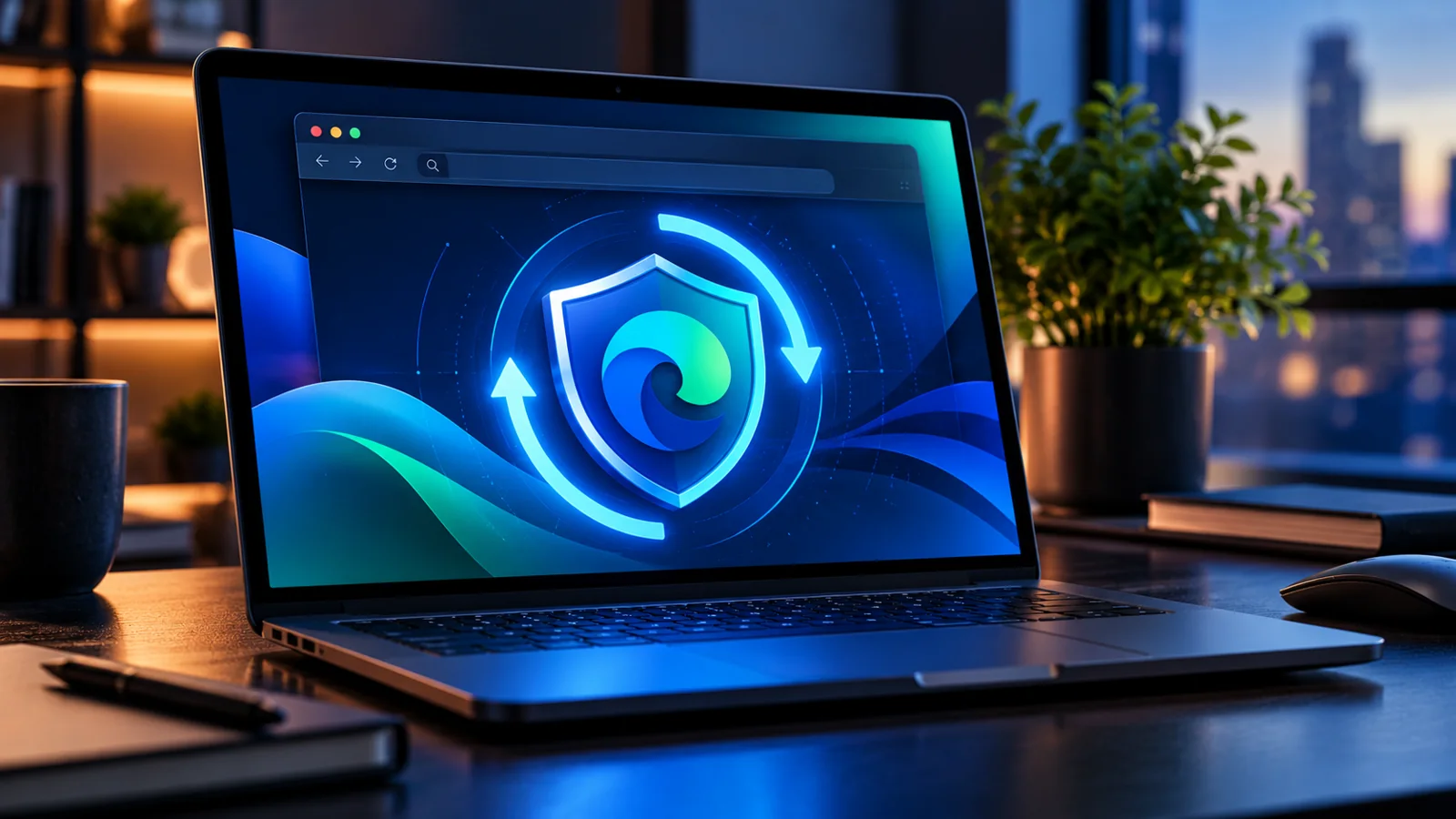
To check whether Microsoft Edge has installed the latest available security update, open edge://settings/help, let the browser check for updates, restart if requested, and reopen the page to verify the installed version. As of October 22, 2026, Microsoft’s official Stable release notes list version 155.0.4283.62 from October 16. Crucially, on October 20 Microsoft said it was still working on fixes for more recent Chromium security issues. Therefore, version 155.0.4283.62 is a documented October release, not a guarantee that every subsequently disclosed Chromium issue is already fixed.
This practical guide is for US and UK Windows users, Mac users, and administrators managing Edge on work devices. It separates released fixes from pending work, explains why a downloaded update may not yet be active, and offers a structured way to diagnose update failures without resorting to risky downloads or deleting browser profiles. It is not based on hands-on testing of a specific computer.
What Microsoft confirmed in October 2026
The official Microsoft Edge security release notes report that Edge Stable version 155.0.4283.62 was released October 16 and incorporates then-current Chromium security updates. The Stable-channel release history also records version 155.0.4283.45 on October 8 and version 155.0.4283.60 on October 15. A separate October 20 entry says Microsoft is aware of recent Chromium security fixes and is actively working on a release.
That timeline matters: a news article about a Chromium vulnerability does not establish that an earlier Edge build has fixed it. Nor does every Chrome CVE automatically affect Edge in the same way; Chromium code sharing is relevant, but exposure and patch status require Microsoft’s own advisory. For individual CVEs, consult Microsoft’s linked Security Update Guide rather than inferring them from version numbers alone.
| Date | Officially documented event | Interpretation |
|---|---|---|
| October 8, 2026 | Stable 155.0.4283.45 | Main release; not the latest listed October build |
| October 15, 2026 | Stable 155.0.4283.60 | Intermediate update |
| October 16, 2026 | Stable 155.0.4283.62 | Documented security update for the Stable channel |
| October 20, 2026 | Microsoft working on further Chromium security fixes | Do not assume the October 16 build contains those later fixes |
How to check your Edge version and apply an update
- Save work in open web apps and note any unsent forms before restarting the browser.
- In Microsoft Edge, type
edge://settings/helpin the address bar. Alternatively choose Settings and more → Help and feedback → About Microsoft Edge. - Wait for the automatic update check. If an update is offered, allow it to download and install.
- If the page says Restart, use that action when ready; merely downloading the update does not establish that the running browser has switched to the new build.
- Open
edge://settings/helpagain and record the complete version string, including all four number groups. - Compare it with the current security release notes for your channel and platform, not a version quoted in an old article.
These steps follow Microsoft’s update instructions. Update availability can differ by release channel, operating system, rollout and enterprise policy. Avoid assuming that a Windows Stable version is necessarily the correct comparison for Edge Beta, Dev, Extended Stable or Android.
Three different update states—and why they matter
| Screen or situation | What it means | Next action |
|---|---|---|
| Microsoft Edge is up to date | No newer update is being offered through that channel at the moment | Check release notes and try later if a newer fix is pending |
| Update available / Download and install | A package is available but may not be installed | Download and install through Edge |
| To finish updating, restart Microsoft Edge | Update is staged, but a restart is required to apply it | Save work, restart, then verify |
| Managed by your organization | IT policy may control update behavior | Contact the administrator rather than bypassing policy |
| An update error code appears | The update mechanism has failed or been blocked | Use the code-specific troubleshooting table below |
The first three states are based on Microsoft’s update-settings guidance. An “up to date” message does not mean there will never be another security update, and a browser can be up to date for its configured channel while a future fix remains under development.
How to fix Microsoft Edge updates that fail
Start with low-risk checks: confirm the internet connection, restart Edge and Windows if needed, check free disk space, and retry from edge://settings/help. If a specific error code appears, diagnose that code rather than changing unrelated settings. Microsoft maintains a dedicated update troubleshooting reference.
| Error | Microsoft-listed likely cause | Safer first response |
|---|---|---|
| 0x80070005 | Access denied / permissions | Check account rights and whether corporate policy controls updates |
| 0x80070057 | Invalid installation or update parameters | Retry the official installer; inspect available disk space |
| 0x8024001E | Cannot reach update servers | Check connectivity, VPN/proxy and Windows Update |
| 0x80240016 | Another update in progress | Allow the other update to finish, then restart |
| 0x80072EE7 | DNS resolution issue | Check DNS/connectivity and retry on a trusted network |
| 0x80072F8F | Incorrect system date or time | Enable automatic date/time and synchronize clock |
| 0x80040154 | Edge update service missing or disabled | Have an administrator inspect the update service |
These error descriptions come from Microsoft Support. They are diagnostic clues, not proof of a single root cause. For instance, DNS resolution failure can involve local DNS, VPN configuration, security software or the network itself. Avoid copying a random registry edit or switching to an untrusted DNS provider as a universal cure.
If Edge says the update is blocked by your organization
On a work or school computer, administrators may configure browser update policies. The absence of a manual update toggle or a managed-browser notice can be expected behavior, not malware. Record the installed version and error text, then ask IT whether the channel is Stable or Extended Stable, which security baseline applies, and when the pending patch is scheduled. Do not remove management profiles, disable security agents, or run unsigned installers to force an update.
If the update downloads but never finishes
- Close or save sensitive work in browser tabs, including webmail drafts and payment pages.
- Restart Edge using its own update prompt, then reopen the About page.
- If the version has not changed, restart the operating system and check again.
- If Windows Update is pending, install official Windows updates and reboot when convenient.
- If the same failure persists, download the current installer directly from Microsoft’s Edge website and follow the supported reinstall process.
- If the machine is managed, escalate to IT before changing system services or installing software.
Microsoft says reinstalling from its official site is an option when the normal update process fails. Do not delete the user profile, stored passwords or browser folders as a routine first step. Back up important work before any invasive repair, and use official recovery instructions.
Windows, macOS, Android and enterprise channels are not identical
The October 19 security notes separately mention Edge for Android version 155.0.4283.61, while October 16 lists Stable desktop 155.0.4283.62. This is a useful reminder that version numbers across platforms are not interchangeable. On mobile, update through the official app store and consult mobile-specific release information; on macOS, use the Edge About page and the official installer if necessary. On managed Windows PCs, follow organization policy.
Microsoft also maintains an Extended Stable channel, with a different release cadence from regular Stable. A lower major version in Extended Stable does not, by itself, establish that the organization ignored every security fix; evaluate the channel’s own release notes and update policy.
Does Edge require a restart for security updates?
Under Microsoft’s currently documented update process, Edge may download an update and prompt for a restart to finish applying it. The restart can usually be scheduled around your work, but postponing it means the active browser session may still be using older components. The safe check is to restart when prompted and verify the installed version afterward.
Reports about experimental restart-free security updating should be treated separately from the shipping update behavior. A prototype, test or roadmap does not prove that every Edge user already receives fully applied browser security fixes without restarting. Until Microsoft documents general availability and scope, follow the current official restart guidance.
How to decide what to do today
| Situation | Risk-aware decision |
|---|---|
| Personal PC, update available | Install, restart and verify the version |
| Personal PC, says up to date | Check current Microsoft security notes; revisit when pending fixes ship |
| Work laptop managed by IT | Report version and request patch schedule; do not bypass management |
| Edge update repeatedly fails | Capture exact error code and use Microsoft troubleshooting |
| Using Chrome and Edge together | Update each browser independently; one does not patch the other |
| Browser has suspicious behavior | Update, review extensions and security alerts; seek incident-response help if compromise is suspected |
How to tell a browser bug from a security incident
A frozen tab, slow browser or update error is not proof of compromise. Likewise, a security update does not automatically remove malware that may already be present. If you see unauthorized account activity, unknown extensions, security-product alerts or unexplained changes to browser policies, preserve relevant evidence and follow your organization’s incident-response process. For personal devices, review extensions, run a reputable security scan, secure important accounts from a trusted device if necessary, and seek professional assistance for credible signs of compromise.
What the October security notes do not establish
- They do not prove every Edge installation was vulnerable to every newly reported Chromium CVE.
- They do not prove the October 16 build includes fixes Microsoft said were still being prepared on October 20.
- They do not establish that a restart-free update feature is generally available.
- They do not imply that an update error or older browser version means a particular device was exploited.
- They do not provide a reliable Google Trends search volume; no demand figure is claimed in this guide.
A reproducible verification checklist
For an auditable, repeatable check, record the date, operating system, Edge channel, complete four-part version, status displayed by edge://settings/help, and whether a restart was completed. Then compare those observations against Microsoft’s dated release notes. This is a procedure readers can carry out themselves, not a claim that Horus Valley tested a particular machine.
- Record installed version and channel before updating.
- Run the official update check and note any error code.
- Apply the update and restart if requested.
- Record the version after restart.
- Compare with the dated release notes for that platform and channel.
- If a fix is still listed as pending, recheck after Microsoft announces its release.
Official sources and editorial scope
This guide uses Microsoft Edge security release notes, Stable channel release notes, Microsoft’s update walkthrough, update settings documentation, and Microsoft’s error-code troubleshooting page. It was prepared on October 22, 2026. The status of future security fixes can change quickly, so readers should consult the live official notes. No laboratory browser update tests or Google Trends volume measurements are claimed.
Bottom line
Use edge://settings/help to check for updates, restart when prompted, and confirm the complete installed version. Microsoft’s October 16 Edge Stable update is real, but its October 20 statement about additional Chromium fixes means the release timeline must be read carefully. If an update fails, diagnose the actual error code and use Microsoft’s official repair steps rather than unsafe third-party tools.
You may also like
 Technology
 Chrome and Android Certificate Security Issue: Are You Protected from the eMudhra Breach?
Google blocked compromised eMudhra certificate keys in Chrome and Android. Find out who is protected, which apps may…
 Technology
 Windows 11 Black Screen After Login: 12 Safe Fixes and the October 2026 Update
A step-by-step diagnostic guide for Windows 11 black screens after sign-in, including the October 2026 AVD/FSLogix fix and…
 Technology
 BeyondTrust Remote Support CVE-2026-102764: Patch Guide and Compromise Checklist
CVE-2026-102764 is an actively exploited critical BeyondTrust Remote Support flaw. Check affected versions, apply BT26-05-RS and assess historical…