
GOV.UK One Login Security Code Not Working? Fix SMS, Email and Authenticator Problems
GOV.UK One Login security code not working? Fix missing SMS or email codes, expired codes, non-UK numbers, authenticator apps, lost phones, identity-check errors, and suspicious messages.
Contents
- Quick diagnosis: which GOV.UK One Login problem do you have?
- First, understand the difference between a security code and an identity check
- If the GOV.UK One Login text code does not arrive
- Why a non-UK phone number fails
- If the email security code does not arrive
- If the security code is rejected
- Using an authenticator app instead of text messages
- If you lost your phone or changed your number
- If the One Login app or identity check fails after sign-in
- Check your phone and operating system
- Check the document rules
- Fix common scan failures
- Check whether GOV.UK One Login is having an outage
- If you received a code you did not request
- When to contact GOV.UK One Login support
- A safer recovery checklist
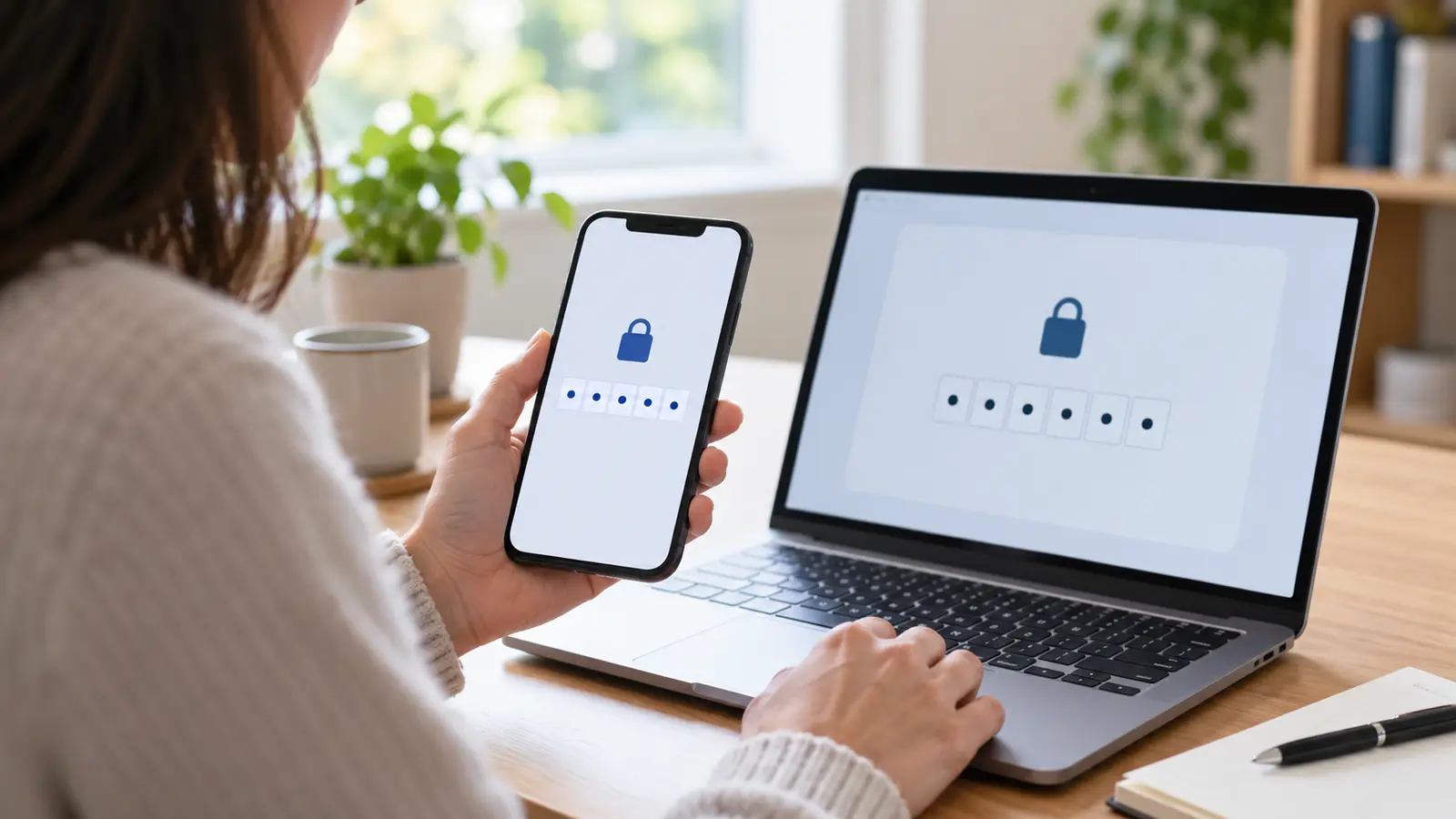
Updated October 24, 2026. If your GOV.UK One Login security code is not arriving, is rejected, or has expired, the fix depends on how you receive the code. GOV.UK One Login can send a code by email during account setup, by text message to a UK mobile number, or through an authenticator app. A non-UK number cannot receive the One Login sign-in code by text message.
The fastest way to solve the problem is to identify the exact stage that failed. A missing SMS is different from an expired code, a lost phone, an authenticator-app problem, and a failed identity check. This guide separates those situations and gives the official recovery route for each one.
Quick diagnosis: which GOV.UK One Login problem do you have?
| What you see | Most likely next step |
|---|---|
| No text message arrives | Check the number, UK-number requirement, phone reception and blocked senders, then select Send the code again |
| No email arrives | Check the address, spam/junk folder and work-email filtering, then resend |
| The code is rejected | Enter the newest code and check that it is less than 15 minutes old |
| You use a non-UK phone number | Use an authenticator app or a UK mobile number instead |
| You lost your phone or changed number | Use a backup method; if none exists, follow the official identity-proving route to change how you receive codes |
| The code works but identity verification fails | Troubleshoot the One Login app, photo ID, face scan, or choose another identity-proving method |
| You received a code you did not request | Do not share it; change your password and set up a passkey if you have a One Login |
First, understand the difference between a security code and an identity check
A security code confirms that you can access the email address, UK phone number, or authenticator method connected to your GOV.UK One Login. It is part of signing in or changing account details.
An identity check is a separate step used by a government service when it needs stronger proof of who you are. Depending on the route offered, GOV.UK One Login may ask you to use the app to scan a passport, driving licence, residence document, or your face, or to prove your identity another way.
This distinction matters because repeating an identity scan will not fix a code that never arrived. Conversely, changing your phone number will not fix glare on a driving licence or a failed face scan. Diagnose the first screen that failed and follow that branch.
If the problem is an HMRC app sign-in or HMRC identity-verification issue rather than One Login itself, use Horus Valley’s separate HMRC app login and identity-verification guide. Do not create another account just because a government service presents a different sign-in page; Government Gateway and GOV.UK One Login are separate sign-in systems.
If the GOV.UK One Login text code does not arrive
GOV.UK says you can request the code again using the Send the code again link. Before requesting several codes, work through this order:
- Check that the phone number is correct. During account creation, use Use a different phone number if the number was entered incorrectly.
- Confirm that it is a UK mobile number. A phone number registered outside the UK cannot receive the One Login sign-in code by text message.
- Check that the phone has reception and can receive other text messages.
- Check the phone’s blocked senders or spam-message settings. The sender may have been blocked by the device or a messaging filter.
- Select Send the code again once, then wait for the new message. If you requested several codes, use the newest code rather than an older message.
Do not keep entering old codes while requesting new ones. Each new request can make the earlier message the wrong one to use. If text delivery remains unreliable, an authenticator app or another UK mobile number may be more dependable, depending on the recovery options shown on your account.
Why a non-UK phone number fails
This is an account rule, not necessarily a network fault. The current GOV.UK guidance says text-message security codes are available to a UK mobile number. If you previously registered a non-UK number, you need to switch to an authenticator app or a UK mobile number the next time you sign in.
If you are outside the UK but still have access to your GOV.UK One Login, an authenticator app can be the practical alternative. If you cannot sign in or cannot change the method, use the official GOV.UK One Login contact route rather than trying random numbers or third-party “verification” services.
If the email security code does not arrive
Email codes are used when creating a GOV.UK One Login and can also be part of password or email-address recovery. Check the following:
- Confirm that the email address on the screen is spelled correctly.
- Check Spam, Junk, Promotions, Quarantine, and any focused-inbox filter.
- Search the mailbox for GOV.UK One Login instead of relying only on the newest-message view.
- Select Send the code again and use the newest message if more than one arrives.
- If it is a work or business mailbox, ask the IT team to check whether messages from GOV.UK One Login are being blocked or restricted.
- If you are still creating the account, try another email address that you control and can access immediately.
Do not forward the message to someone who offers to “activate” the account. A security code is an authentication secret. GOV.UK’s scam guidance says not to tell anyone your code, including someone who asks by phone.
If the security code is rejected
The official GOV.UK checklist is short, but each point catches a common mistake:
- Enter the code accurately. Read the digits from the newest message or authenticator screen rather than an earlier notification preview.
- Use the most recent code. If you selected resend more than once, older codes may no longer be accepted.
- Check the 15-minute limit. GOV.UK says a security code expires after 15 minutes. Request a new one if the message is older.
- Check the delivery method. If the code is being sent by text, confirm that the account uses a UK phone number.
If the code is in an email, open the latest message directly. Some email apps display an old notification at the top while a newer message is still synchronising. If the code is generated by an authenticator app, enter the current code shown by the app and do not rely on a screenshot or copied old value.
If a fresh code fails immediately, stop trying random values. Record the exact step, the time, the delivery method, and any error message; that information will help GOV.UK One Login support identify whether the problem is account-specific or technical.
Using an authenticator app instead of text messages
An authenticator app generates a security code that you enter in the same way as an email or text code. GOV.UK says an authenticator app can run on a smartphone, tablet, or desktop computer. You choose the app separately, then follow the One Login setup screen to link it.
An authenticator app can be useful when:
- you are using a non-UK phone number;
- SMS delivery is unreliable where you live or work;
- you want a backup method that does not depend on the mobile network; or
- you have changed phone numbers and still need access to the account.
When setting it up, keep the device with the authenticator app available while you complete the One Login instructions. Do not delete the app, reset the phone, or move the account to another device until you have confirmed that the new method produces a working code.
If you already have access to your account, GOV.UK’s sign-in-details instructions use this route:
- Sign in to GOV.UK One Login.
- Go to Security.
- Under Sign in details, select Manage your sign in details.
- Find How you get security codes to sign in.
- Under Your default method, select Use a different default method.
- Follow the instructions to connect the authenticator app.
You can also add an authenticator app as a backup method if you do not already use one. Keep the backup method available before removing the old method.
If you lost your phone or changed your number
If you have lost access to the phone number used for One Login codes, try the backup method first. GOV.UK says this can be another UK phone number or an authenticator app if you added one.
If you have no backup method, the official recovery screen may offer Problems with the code and then Check if you can change how you get security codes. This option is not available to everyone. GOV.UK says you can change the method only if you have already proved your identity with GOV.UK One Login.
If the option is offered, you may be asked to prove your identity with the GOV.UK ID Check app before choosing a new UK mobile number or authenticator app. If the service says you cannot change the method, contact GOV.UK One Login. Do not open a second account as a workaround; it may leave you unable to reach the government service linked to the original account.
Changing how you receive codes can remove the previous default and backup method. Make sure the new method is working before you finish the change.
If the One Login app or identity check fails after sign-in
If the security code works but the next identity step fails, switch to the identity-check troubleshooting path. GOV.UK’s current app guidance says the app checks that the photo ID is genuine, that you are a real person, and that you are the same person shown on the document.
Check your phone and operating system
The current GOV.UK guidance says:
- an iPhone must be an iPhone 8 or newer running iOS 16.7 or higher;
- an Android phone must run Android 10 or higher; and
- the phone needs a working camera and a reliable internet connection.
If the app cannot link back to the browser, return to the government service you started from and begin the identity step again. Keep the original browser page open until the app says the information has been submitted, then return to that page to finish.
Check the document rules
The app can use a UK photocard driving licence, UK passport, non-UK passport with a biometric chip, UK biometric residence permit, UK biometric residence card, or UK Frontier Worker permit, subject to the current rules.
An expired passport cannot be used in the app. A DVLA-issued UK driving licence may be accepted if it expired within the last 90 days. A BRP, BRC, or Frontier Worker permit may be accepted if it expired within the last 24 months. These time windows are easy to miss, so check the date rather than assuming every expired document is rejected or accepted.
Use the original document, not a photocopy or digital copy. Once you confirm the document type in the app, you may need to return to the government service and start again if you want to choose a different document.
Fix common scan failures
For a passport or biometric residence document, remove a phone case or accessory that interferes with the NFC scan, keep the phone against the document, and hold it still. A brief loss of internet connection or moving the phone during the scan can also interrupt the process.
For a driving licence, keep the whole licence inside the on-screen frame, reduce glare, and move it away from a bright light. The app may capture the image automatically, so avoid touching the screen while it is taking the photo.
For the face scan, align your face with the oval, look straight ahead, and remain as still as possible. If the first document does not work, GOV.UK says you can go back to the service and try another eligible photo ID or another identity-proving method.
This is a different problem from a rejected sign-in code. If the app fails before the code screen, use the app and identity guidance; if the code itself fails, return to the security-code section above.
Check whether GOV.UK One Login is having an outage
Before changing your phone number, password, or identity method, check the live GOV.UK One Login status page. It separates sign-in, account creation, account management, identity proving, web identity checks, and mobile-app checks.
If the status page shows an incident affecting your step, wait for the service to recover and keep the reference details. Repeatedly requesting codes during an outage can create several messages and make it harder to tell which code is current. If the status page shows normal operation but your account still fails, continue with the account-specific recovery route or contact support.
The status page is a live diagnostic, not proof that your device or account is healthy. A normal status does not rule out a blocked SMS sender, a work-email filter, a non-UK number, an expired code, or an identity-document mismatch.
If you received a code you did not request
Treat an unexpected code as a security warning, not as a code to test. If you have a GOV.UK One Login, GOV.UK recommends changing your password and setting up a passkey. A passkey lets you sign in with the same method used to unlock a device, such as a fingerprint, face scan, PIN, or passcode.
Do not:
- tell the code to anyone who calls, texts, or emails you;
- click a sign-in link in an unexpected message when you can open GOV.UK directly;
- give an agent remote access to your phone or computer to “complete” the check; or
- create a new One Login because a message looked suspicious.
If you do not have a GOV.UK One Login and received an unexpected code, the official guidance says you can ignore it. If the message also asks for payment, a password, bank details, or a document upload, treat it as a possible phishing attempt and report it through the appropriate official channel.
When to contact GOV.UK One Login support
Use the official GOV.UK One Login contact page when:
- a fresh code fails even though it is the newest code and less than 15 minutes old;
- you cannot access the old phone, authenticator app, or backup method;
- the recovery screen says you cannot change how you receive security codes;
- the app cannot link to the browser after you have tried the documented steps; or
- you suspect someone is using your account.
The contact flow may give you a reference code. Keep it with the exact error message, the service you were trying to access, the device and browser used, and whether the failure happened with email, SMS, an authenticator app, or identity verification. Never include your password or security code in a support request.
Use the support form’s current options rather than copying an old telephone number from a forum post. GOV.UK’s contact page provides the current webchat, phone, and email routes and explains the available office hours.
A safer recovery checklist
Before trying again, save this sequence:
- Identify whether the failure is the sign-in code or the identity check.
- Check the GOV.UK One Login status page.
- Confirm the email address or UK phone number shown on the screen.
- Check spam, blocked senders, reception, and the non-UK-number rule.
- Request one new code and use the most recent message.
- Check the 15-minute expiry window.
- If possible, use an authenticator app or an existing backup method.
- If the phone was lost, use the official Problems with the code recovery path rather than creating another account.
- If identity verification fails, check the phone, document, browser-link, and face-scan requirements separately.
- Contact GOV.UK One Login through the official page and keep the reference code.
The official guidance can change as GOV.UK One Login expands to more services. Check the live security-code guidance, sign-in-details guidance, and identity-app guidance when a security or identity decision matters.
This guide is general troubleshooting information. The government service you are trying to access can apply its own eligibility or identity requirements, so a successful One Login sign-in does not guarantee that every service will accept the same identity route.
You may also like
 Technology
 How to Use Google AI Mode for Flights, Miles, and Hotel Booking
Learn how to use Google AI Mode for flights, price alerts, points and miles, and hotel booking—plus prompts,…
 Technology
 Chrome and Android Certificate Security Issue: Are You Protected from the eMudhra Breach?
Google blocked compromised eMudhra certificate keys in Chrome and Android. Find out who is protected, which apps may…
 Technology
 Windows 11 Black Screen After Login: 12 Safe Fixes and the October 2026 Update
A step-by-step diagnostic guide for Windows 11 black screens after sign-in, including the October 2026 AVD/FSLogix fix and…